
1. Introduction
This user manual provides comprehensive instructions for the LAMTTO RC07B 9-inch Touchscreen Wireless CarPlay Android Auto Car Audio System. Please read this manual thoroughly before installation and operation to ensure proper use and to maximize the device's functionality. Keep this manual for future reference.
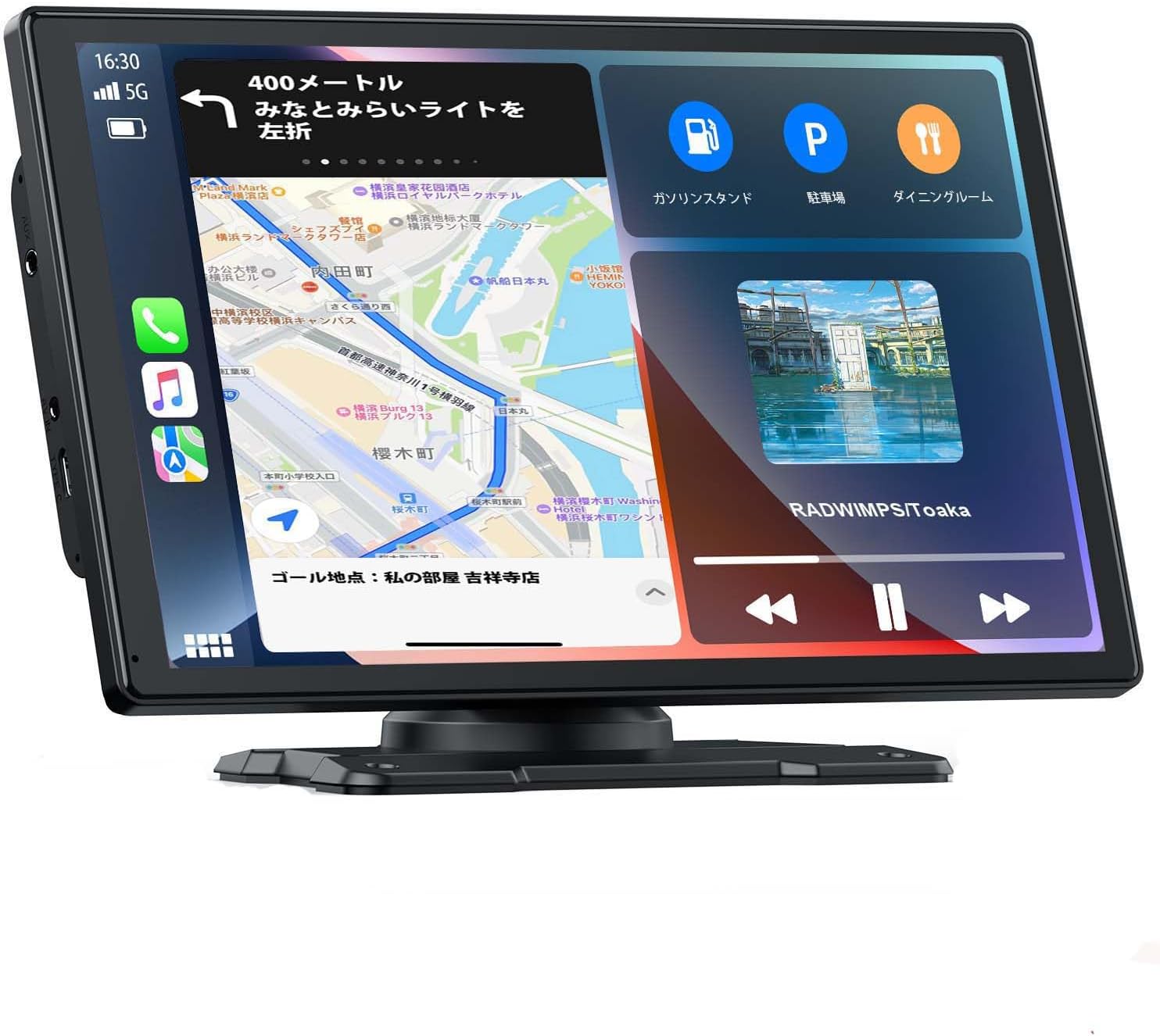
Image: The LAMTTO RC07B unit showcasing its 9-inch display with navigation and media playback.
2. Safety Information
- Do not operate the device in a manner that distracts you from driving. Always prioritize road safety.
- Ensure the device is securely mounted and does not obstruct your view or interfere with vehicle controls.
- Avoid exposing the device to extreme temperatures, direct sunlight for prolonged periods, or excessive moisture.
- Do not attempt to disassemble or modify the device. Refer all servicing to qualified personnel.
- Use only the provided accessories and power cables to prevent damage or malfunction.
3. Package Contents
Verify that all items are present in the package:
- LAMTTO RC07B 9-inch Display Unit
- Power Cable (Cigarette Lighter Adapter)
- Mounting Bracket (Suction Cup Type)
- Mounting Bracket (Dashboard Adhesive Type)
- Rear Camera (with cable)
- AUX Cable
- User Manual
4. Product Features
The LAMTTO RC07B offers a range of features designed to enhance your driving experience:
- 9-inch Touchscreen Display: Large, clear display for easy interaction.
- Wireless Apple CarPlay & Android Auto: Seamless smartphone integration for navigation, music, and calls.
- Multiple Audio Output Options: Built-in speaker, AUX, FM Transmitter, and Bluetooth for flexible audio routing.
- Voice Control: Supports Siri and Google Assistant for hands-free operation.
- Parking Assistance: Includes a rear camera with adjustable guidelines for safer parking.
- Mirrorlink Function: Display your iPhone screen directly on the unit (iOS only).
- Wide Vehicle Compatibility: Operates on 12-24V, suitable for various vehicles including cars, trucks, and buses.

Image: Visual representation of the system's core features.
5. Installation
5.1 Mounting the Display
The unit comes with two types of mounting brackets: a suction cup mount and a dashboard adhesive mount. Choose the most suitable option for your vehicle, ensuring the display does not obstruct your view or interfere with driving controls.
- Suction Cup Mount: Attach the suction cup to a clean, smooth surface on your windshield or dashboard. Secure it by pressing down and locking the lever.
- Dashboard Adhesive Mount: Clean the desired dashboard area thoroughly. Peel off the protective film from the adhesive base and firmly press it onto the dashboard. Allow sufficient time for the adhesive to set before attaching the display unit.

Image: Mounting options for the display unit.
5.2 Connecting Power
Connect the provided cigarette lighter adapter to your vehicle's 12V/24V power outlet. The unit will power on automatically. Route the cable neatly to avoid interference with driving.

Image: Recommended power cable routing for a tidy installation.
5.3 Connecting the Rear Camera
The included rear camera provides parking assistance. Follow these steps for installation:
- Mount the rear camera at the back of your vehicle, ensuring a clear view.
- Connect the camera's video cable to the AV IN port on the main unit.
- Connect the camera's power cable to your vehicle's reverse light power supply. This enables automatic display of the rear view when shifting into reverse gear.

Image: Rear camera wiring diagram.
6. Operating Instructions
6.1 Powering On/Off
The unit powers on automatically when connected to the vehicle's power supply. To power off, disconnect the power cable from the cigarette lighter adapter.
6.2 Wireless Apple CarPlay Connection
To connect your iPhone to Apple CarPlay wirelessly:
- Ensure Wi-Fi and Bluetooth are enabled on your iPhone.
- On the RC07B unit, select 'Apple CarPlay'.
- On your iPhone, go to Bluetooth settings and pair with the device named 'T86-XXXXX'.
- Confirm the pairing request on both devices.
- CarPlay will launch automatically within 10-20 seconds.

Image: Wireless Apple CarPlay connection steps.
6.3 Wireless Android Auto Connection
To connect your Android smartphone to Android Auto wirelessly:
- Ensure Wi-Fi and Bluetooth are enabled on your Android phone.
- On the RC07B unit, select 'Android Auto'.
- On your Android phone, go to Bluetooth settings and pair with the device named 'T86-XXXXX'.
- Confirm the pairing request on both devices.
- Android Auto will launch automatically within 10-20 seconds.
Note: Android Auto requires Android 8.0 or higher. For some Android phone brands, Android 11 or higher may be required.

Image: Wireless Android Auto connection steps.
6.4 Audio Output Methods
The RC07B offers several ways to output audio:
- Built-in Speaker: The unit has an integrated speaker for direct audio output.
- AUX Cable: Connect the provided AUX cable from the unit to your vehicle's AUX input for higher quality audio through your car's speakers.
- FM Transmitter: Select an unused FM frequency on the RC07B and tune your car's radio to the same frequency to transmit audio wirelessly.
- Bluetooth: Once your smartphone is connected via Bluetooth, audio can be routed through your car's Bluetooth audio system for optimal sound quality.

Image: Various audio output options available.
6.5 Voice Control (Siri/Google Assistant)
Utilize voice commands for hands-free control:
- Once connected to CarPlay or Android Auto, activate Siri or Google Assistant through the unit's interface or by using the voice command trigger (e.g., "Hey Siri" or "Hey Google").
- You can use voice commands for navigation, making calls, sending messages, and playing music.

Image: Voice control functionality with Siri and Google Assistant.
6.6 Mirrorlink Function (iOS Only)
The Mirrorlink function allows you to mirror your iPhone's screen onto the RC07B display. This feature is compatible with iOS devices only.
- Ensure your iPhone is connected to the unit's Wi-Fi.
- On your iPhone, open the Control Center and tap 'Screen Mirroring'.
- Select 'SmartScreen' from the list of available devices.
- Your iPhone screen will now be mirrored on the RC07B display.
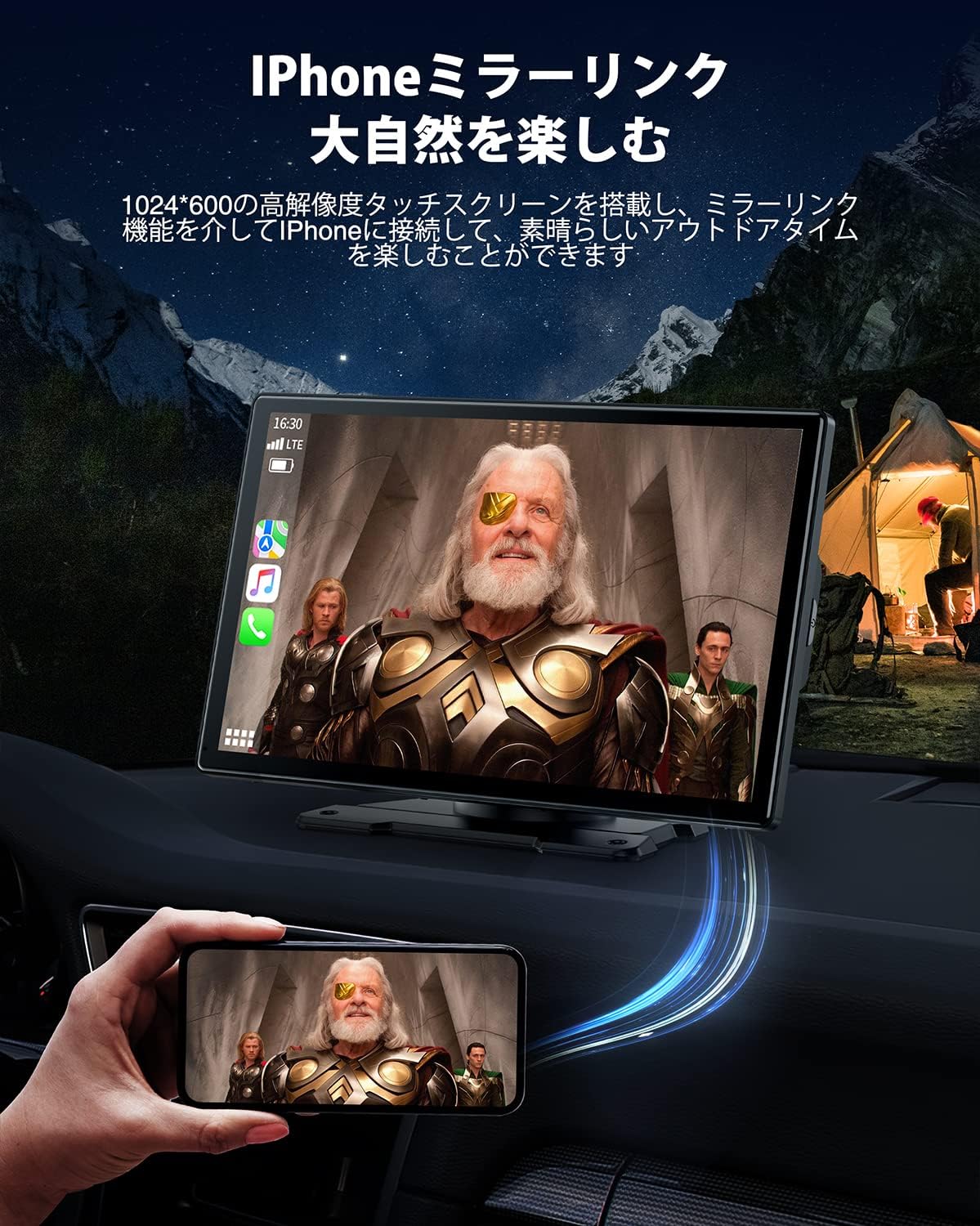
Image: iPhone Mirrorlink displaying video content.
6.7 Parking Assistance System
When the rear camera is properly installed and connected to the reverse light, the display will automatically switch to the rear view when you engage reverse gear. Adjustable parking guidelines assist in safe maneuvering.

Image: Parking assistance view with adjustable guidelines.
7. Maintenance
- Cleaning the Screen: Use a soft, lint-free cloth to gently wipe the touchscreen. For stubborn smudges, slightly dampen the cloth with water or a screen-safe cleaner. Avoid harsh chemicals.
- General Cleaning: Keep the unit free from dust and debris. Use a soft brush or compressed air to clean crevices.
- Cable Management: Periodically check all cables for wear or damage. Ensure they are securely connected and not pinched.
- Software Updates: The unit does not require manual software updates for CarPlay/Android Auto data, as it utilizes your smartphone's applications. Ensure your smartphone apps are up-to-date for the latest navigation and features.
8. Troubleshooting
| Problem | Possible Cause | Solution |
|---|---|---|
| Unit does not power on. | No power from cigarette lighter; faulty cable. | Check cigarette lighter connection. Test with another 12V/24V outlet. Ensure cable is not damaged. |
| CarPlay/Android Auto not connecting. | Bluetooth/Wi-Fi off; incorrect pairing; phone OS version. | Ensure phone's Bluetooth/Wi-Fi is on. Re-pair the device. Check phone's OS version compatibility (Android 8.0+, iOS 13+). Reset unit and phone's network settings if persistent. |
| No audio or poor audio quality. | Incorrect audio output selected; low volume; FM interference. | Verify audio output setting (AUX, FM, Bluetooth). Adjust volume on both unit and car stereo. Change FM frequency if experiencing static. |
| Rear camera not displaying. | Camera not connected; faulty wiring; reverse light issue. | Check camera cable connection to AV IN. Ensure camera power is correctly wired to reverse light. Test reverse light functionality. |
| Touchscreen unresponsive. | Temporary software glitch; physical damage. | Restart the unit by disconnecting and reconnecting power. If issue persists, contact customer support. |
9. Specifications
- Model: RC07B
- Brand: LAMTTO
- Screen Size: 9 inches
- Control Method: Touchscreen
- Connectivity: Bluetooth, Wi-Fi (for Wireless CarPlay/Android Auto)
- Compatible Devices: Android smartphones (Android 8.0+), iPhones (iOS 13+, iPhone 5 and later)
- Mirrorlink: iPhone only
- Operating Voltage: 12-24 V
- Product Weight: 1.31 Kilograms
- Special Features: Touchscreen, Parking Assistance, Voice Control
- UPC: 793032832526

Image: The LAMTTO RC07B is compatible with a wide range of 12-36V vehicles.
10. Warranty and Support
For warranty information and technical support, please refer to the documentation included with your purchase or contact LAMTTO customer service through their official channels. Keep your proof of purchase for warranty claims.


