1. Introduction
This manual provides detailed instructions for the installation, operation, and maintenance of your Blaupunkt Newport Beach 7-inch Car Stereo. Please read this manual thoroughly before using the product to ensure proper function and to prevent damage.
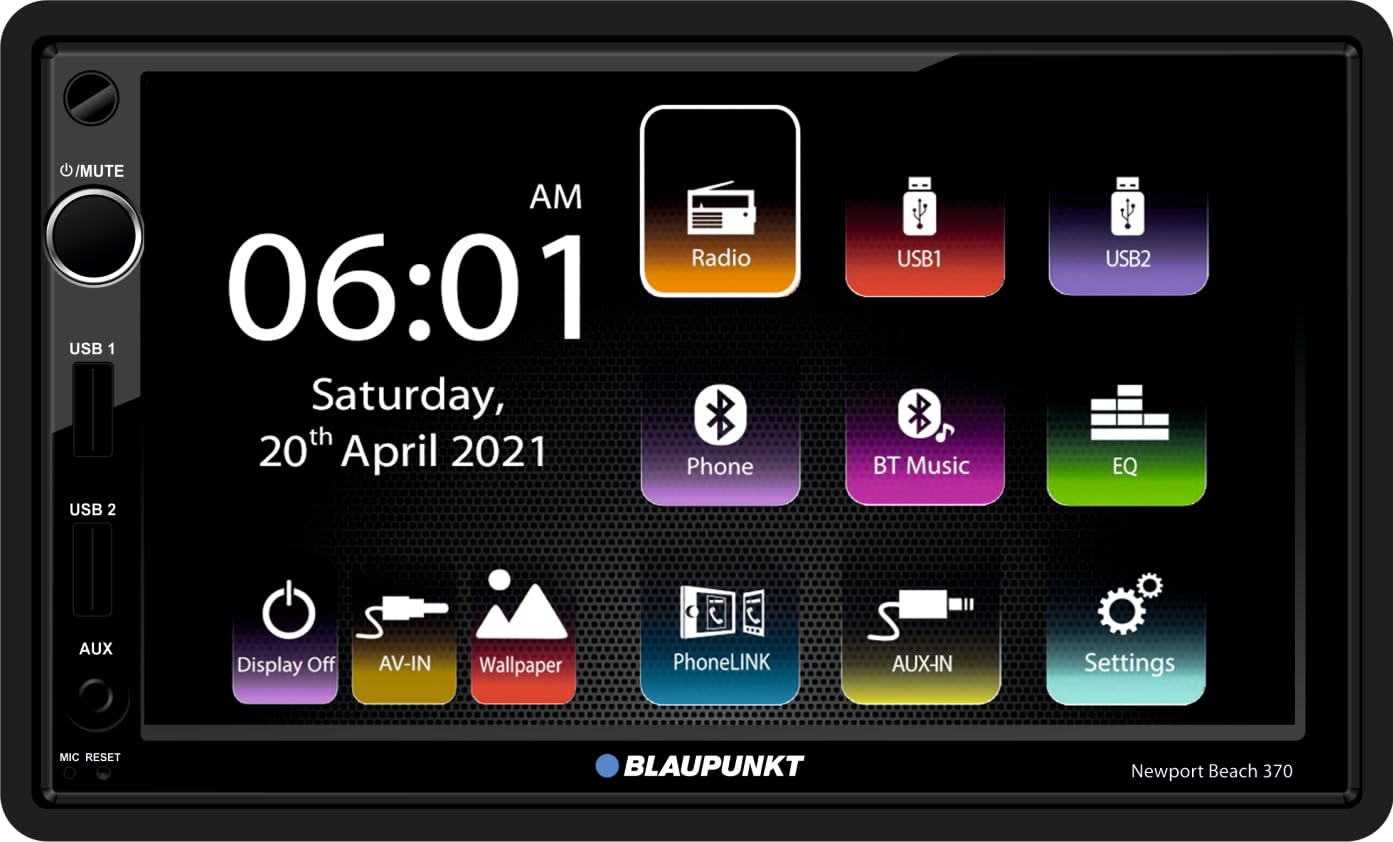
Figure 1.1: Front view of the Blaupunkt Newport Beach 7-inch Car Stereo with its main user interface.
2. Safety Information
Observe the following safety guidelines to ensure safe operation and prevent damage to the unit or vehicle:
- Always consult a professional for installation to avoid electrical damage or improper wiring.
- Do not operate the unit in a manner that distracts you from driving.
- Ensure all wiring is correctly connected before powering on the unit.
- Avoid exposing the unit to extreme temperatures, direct sunlight for prolonged periods, or excessive moisture.
- Do not attempt to disassemble or modify the unit. This may void the warranty and cause damage.
3. Package Contents
Verify that all items are present in the package:
- 1x Blaupunkt Newport Beach 7-inch Car Stereo Unit
- 3x Connector Cables
- 1x Hand Remote Control
- 1x User Manual (this document)
- 1x Warranty Card
4. Product Features
The Blaupunkt Newport Beach 7-inch Car Stereo offers a range of advanced features:
- Large 17.78 cm (7 inches) Capacitive High Brightness Touch panel (1240x600 pixels)
- 2 pairs pre-outs (2V)
- 7-band Equalizer (EQ)
- High-end Tuner for FM radio
- PhoneLINK equipped for smartphone mirroring
- Dual front USB (Type A) ports
- AV-IN input
- Rear video out
- Steering Wheel Control compatible
- Bluetooth v5.0 for hands-free calling and audio streaming
5. Setup
5.1 Installation
Due to the complexity of car audio systems and vehicle electrical wiring, professional installation is highly recommended. Incorrect installation can lead to damage to the unit, vehicle, or personal injury. Ensure the unit is securely mounted in the dashboard opening.
5.2 Wiring Diagram
Refer to the included wiring diagram for detailed connection instructions. Ensure all power, ground, speaker, and auxiliary connections are made correctly. The unit features dedicated ports for USB, AV-IN, and rear view camera input.

Figure 5.1: Rear panel with connection ports.

Figure 5.2: Side view illustrating mounting points.
6. Operating Instructions
6.1 Basic Controls
The unit features a volume knob on the front panel. Pressing the knob typically mutes the audio. A small reset button is also available, usually requiring a pointed object to press.
6.2 Touchscreen Interface
The 7-inch capacitive touchscreen allows intuitive control of all functions. Tap icons to select applications or settings. Swipe gestures may be used for navigation in certain menus.
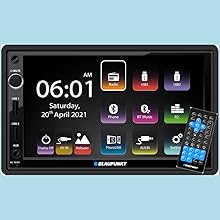
Figure 6.1: Main User Interface.
6.3 Radio Operation
Select the 'Radio' icon from the main menu. Use the touchscreen to tune to desired frequencies, scan for stations, and save presets.

Figure 6.2: Radio Interface.
6.4 Bluetooth Connectivity
To pair your smartphone, navigate to the 'Bluetooth' settings. Enable Bluetooth on your phone and search for available devices. Select 'Blaupunkt Newport Beach' (or similar name) from the list and confirm pairing. Once connected, you can make hands-free calls and stream audio.
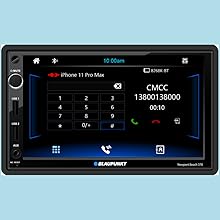
Figure 6.3: Bluetooth Call Interface.
6.5 PhoneLINK/Mirror-Link
The PhoneLINK feature allows you to mirror your smartphone's screen onto the car stereo display. Connect your smartphone via USB and follow the on-screen prompts or refer to your phone's mirroring instructions. This enables access to compatible apps directly from the stereo.
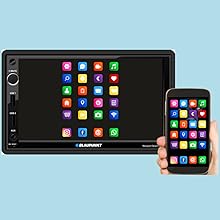
Figure 6.4: PhoneLINK/Mirror-Link Functionality.
6.6 USB Playback
Insert a USB drive into one of the dual front USB ports. The unit will automatically detect the drive and display playable media files. Use the touchscreen to navigate folders and select audio or video files for playback.
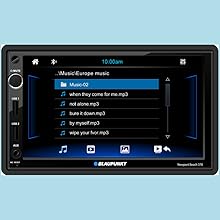
Figure 6.5: USB Music Playback Interface.
6.7 AV-IN Function
Connect external audio/video sources to the AV-IN port using appropriate cables. Select the 'AV-IN' option from the main menu to display content from the connected device.
6.8 Equalizer (EQ) Settings
Access the 'EQ' settings from the main menu to customize audio output. Adjust frequency bands to suit your listening preferences or select from various preset equalizer modes (e.g., Pop, Rock, Jazz).
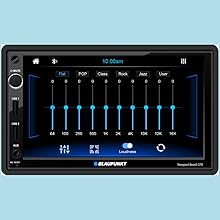
Figure 6.6: Equalizer Settings.
6.9 Steering Wheel Control
If your vehicle supports steering wheel controls, the unit is compatible. Professional installation may be required to connect and configure these controls. Access the settings menu to map functions to your steering wheel buttons.
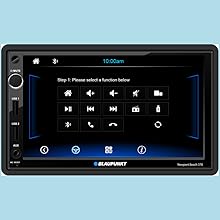
Figure 6.7: Steering Wheel Control Settings.
6.10 Rear View Camera
The unit supports a rear view camera input. When a compatible camera is connected and the vehicle is in reverse gear, the display will automatically switch to the camera feed, assisting with parking and maneuvering.
7. Maintenance
To maintain the performance and appearance of your car stereo:
- Cleaning the Screen: Use a soft, lint-free cloth to gently wipe the touchscreen. For stubborn smudges, slightly dampen the cloth with water or a screen-safe cleaner. Avoid harsh chemicals or abrasive materials.
- General Cleaning: Wipe the unit's exterior with a dry, soft cloth.
- Avoid Liquids: Do not spray liquids directly onto the unit.
8. Troubleshooting
If you encounter issues with your car stereo, refer to the table below for common problems and solutions:
| Problem | Possible Cause | Solution |
|---|---|---|
| No power | Incorrect wiring; Blown fuse; Vehicle battery issue | Check power and ground connections; Inspect vehicle fuses; Consult a professional. |
| No sound | Speaker wires disconnected; Volume too low; Mute function active; Incorrect audio source selected. | Verify speaker connections; Increase volume; Deactivate mute; Select correct audio source. |
| Bluetooth disconnects frequently | Interference; Device too far; Outdated phone software. | Ensure phone is close to the unit; Avoid other Bluetooth devices nearby; Update phone OS. |
| Touchscreen unresponsive | System freeze; Software glitch. | Perform a soft reset using the reset button; Power cycle the vehicle. |
| PhoneLINK not working | Incorrect USB cable; Phone settings; App compatibility. | Use a high-quality USB data cable; Check phone's USB debugging/mirroring settings; Ensure app compatibility. |
9. Specifications
| Feature | Specification |
|---|---|
| Brand | Blaupunkt |
| Model Name | Newport Beach 7 inches (Internal Model: BlaupunktCar) |
| Product Dimensions | 17.5 x 9.5 x 10 cm |
| Item Weight | 690 g |
| Display | 7-inch Capacitive Touch Panel (1240x600 Pixels) |
| Audio Output Mode | Stereo |
| Audio Wattage | 200 Watts |
| Speaker Surround Sound Channel Configuration | 4.0 |
| Pre-outs | 2 pairs (2V) |
| Equalizer | 7 Band EQ |
| Connectivity Technology | USB, Bluetooth 5.0 |
| Connector Type | Dual Front USB (Type A), AV-IN, 3.5mm Jack |
| Compatible Devices | Smartphone |
| Special Features | Built-In Bluetooth, FM Tuner, PhoneLINK/Mirror-Link, Rear Video Out, Steering Wheel Control Compatible |
| Mounting Type | Panel Mount |
| Power Source | Vehicle Electrical System (No Batteries Required) |
10. Warranty and Support
10.1 Warranty Information
Your Blaupunkt Newport Beach 7-inch Car Stereo comes with a warranty. Please refer to the included Warranty Card for specific terms, conditions, and duration of the warranty. Keep your purchase receipt as proof of purchase.
10.2 Customer Support
For technical assistance, troubleshooting not covered in this manual, or warranty claims, please contact Blaupunkt customer support:
- Customer Care No.: 18002096820
- Email: info@blaupunktcar.in
- Importer Address: BPIN Pvt. Ltd. - 47, Atlanta Society, Jamnalal Bajaj Marg, Nariman Point, Mumbai - 400021, Maharashtra, India


