
1. Introduction
The Netac ZX10 Portable Solid State Drive (SSD) is a high-performance external storage solution designed for fast data transfer and reliable storage. Featuring a USB 3.2 Gen 2 Type-C interface, it offers read speeds up to 1050MB/s and write speeds up to 1000MB/s. Its compact and durable design makes it ideal for professionals, students, and gamers who require portable and robust storage.
2. What's in the Box
Please check the package contents to ensure all items are present:
- Netac ZX10 Portable SSD
- USB Type-C to Type-C Cable
- USB Type-C to Type-A Cable
- User Manual (this document)
- Leather Protective Case

Image: The Netac ZX10 Portable SSD, a USB-C to USB-A cable, a USB-C to USB-C cable, a user manual, and a leather protective case are displayed on a white surface.
3. Setup
Connecting your Netac ZX10 Portable SSD is straightforward:
- Select the appropriate cable (USB Type-C to Type-C or USB Type-C to Type-A) based on your device's available ports.
- Connect one end of the cable to the USB-C port on the Netac ZX10 SSD.
- Connect the other end of the cable to an available USB port on your computer, smartphone, tablet, or other compatible device.
- The device should automatically detect the SSD. If prompted, follow the on-screen instructions to access or format the drive.

Image: The Netac ZX10 Portable SSD is connected to a laptop, demonstrating a typical setup.
4. Operating Instructions
4.1 Data Transfer
Once connected, the Netac ZX10 SSD will appear as an external drive on your operating system. You can drag and drop files, copy and paste, or use your system's file management tools to transfer data to and from the SSD. For optimal performance, ensure your device supports USB 3.2 Gen 2.
4.2 Compatibility
The Netac ZX10 is compatible with a wide range of operating systems and devices:
- Windows
- Mac OS
- Linux
- Android devices (with USB-C support)
- Game Consoles
- Smart TVs

Image: The Netac ZX10 Portable SSD is shown alongside icons representing Mac OS, Windows, and Linux, illustrating its broad compatibility.
4.3 Using with Smartphones/Tablets
Connect the SSD to your compatible Android smartphone or tablet using the USB-C to USB-C cable. You can then access files directly from the SSD using your device's file manager. This allows for easy backup of photos, videos, and documents.

Image: The Netac ZX10 Portable SSD is connected to a smartphone, displaying file management options on the phone's screen.
4.4 Using with Smart TVs
Connect the Netac ZX10 SSD to your Smart TV's USB port. Most Smart TVs will recognize the drive as external storage, allowing you to play media files (movies, music, photos) directly from the SSD.
4.5 Windows To Go Support
The Netac ZX10 supports the Windows To Go feature, allowing you to install a fully functional Windows operating system on the portable SSD. This enables you to boot and run Windows from the drive on any compatible computer, providing a consistent work environment on the go.

Image: The Netac ZX10 Portable SSD is connected to a laptop, with the screen showing a Windows desktop environment, indicating support for Windows To Go.
4.6 Product Overview Video
Watch this video for a visual overview of the Netac ZX10 Portable SSD, including unboxing, size comparison, speed test, and usage examples with various devices.
Video: An unboxing and feature overview of the Netac ZX10 Portable SSD, demonstrating its compact size, speed, and compatibility with laptops, TVs, and smartphones.
5. Features
- High-Speed Performance: Experience rapid data transfers with read speeds up to 1050MB/s and write speeds up to 1000MB/s, powered by PCIe Gen3x4 NVMe 1.3 technology.
- Robust and Durable Design: The stylish aluminum housing provides shock resistance and enhanced durability, protecting your data on the go. It is also dust-resistant.
- Compact and Portable: Designed for travel, its small form factor (102mm x 30mm x 9.2mm) and light weight (36 grams) make it easy to carry.
- Wide Device Compatibility: Connects seamlessly with Windows, Mac OS, Linux, and Android devices, as well as game consoles and Smart TVs.

Image: A visual representation of the Netac ZX10 Portable SSD's high-speed capabilities, highlighting 1050MB/s read and 1000MB/s write speeds.
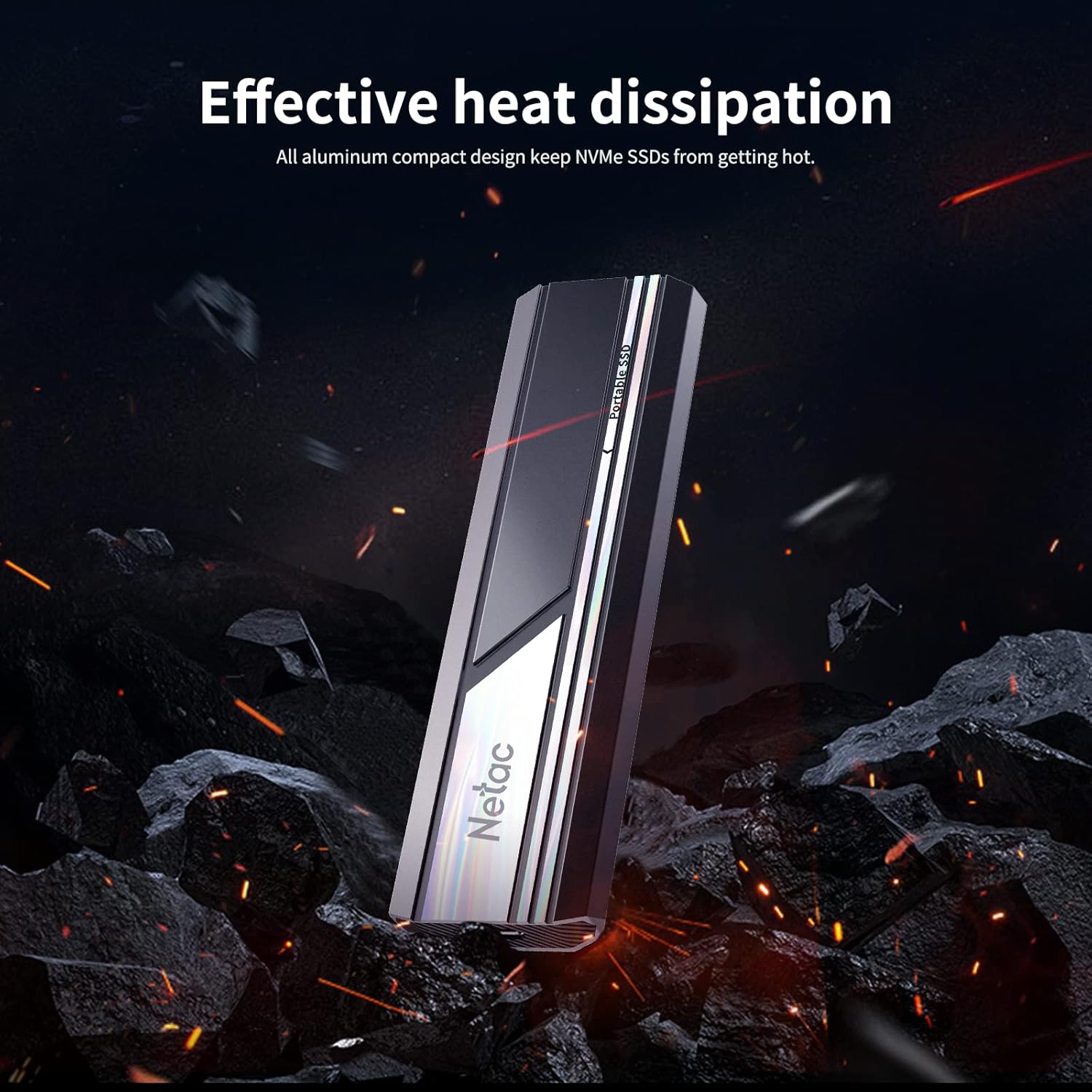
Image: The Netac ZX10 Portable SSD is shown in a dynamic setting, emphasizing its robust aluminum design and effective heat dissipation.
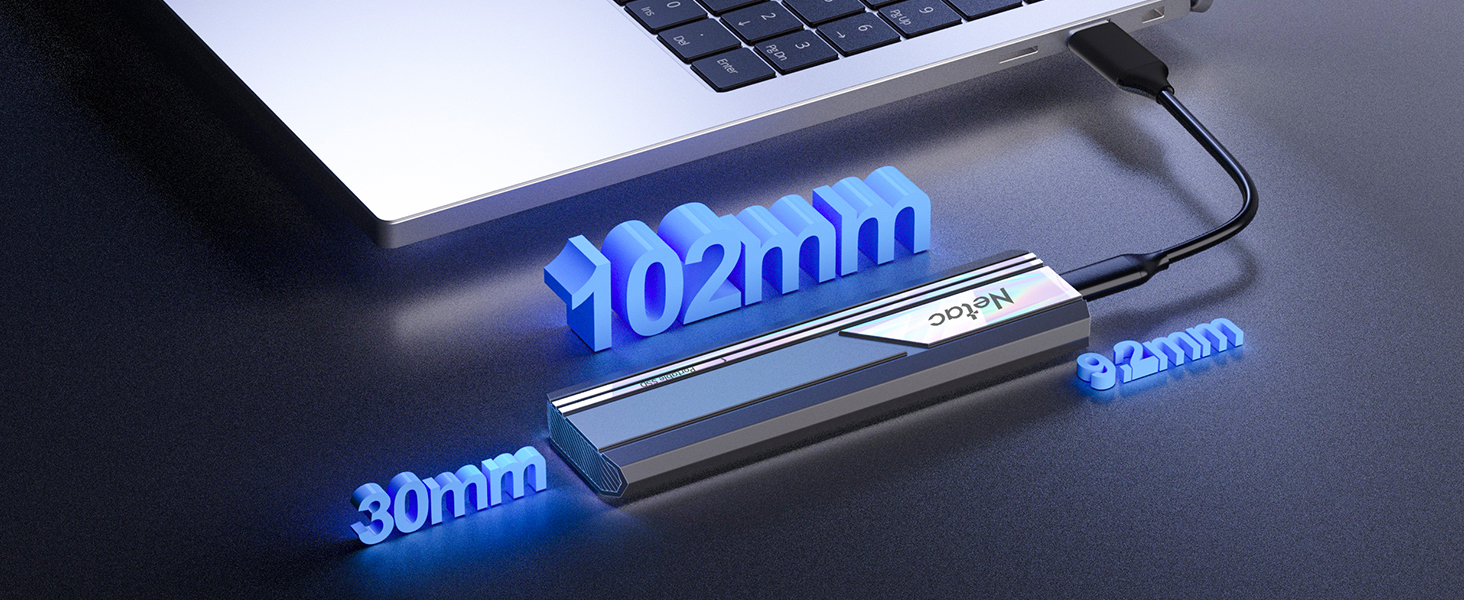
Image: A diagram showing the precise dimensions of the Netac ZX10 Portable SSD, highlighting its compact size.
6. Specifications
| Feature | Specification |
|---|---|
| Model | ZX10 |
| Digital Storage Capacity | 1TB (1024 GB) |
| Interface | USB 3.2 Gen 2 Type-C (PCIe Gen3x4 NVMe 1.3) |
| Read Speed | Up to 1050 MB/s |
| Write Speed | Up to 1000 MB/s |
| Dimensions (L x W x H) | 102mm x 30mm x 9.2mm |
| Item Weight | 36 grams |
| Housing Material | Aluminum |
| Special Features | Durable, Portable, Shock Resistant, Dust-Resistant |
| Compatible Devices | Laptop, Desktop, Smartphone, Tablet, Game Console, Smart TV |
7. Troubleshooting
If you encounter issues with your Netac ZX10 Portable SSD, try the following steps:
- Drive Not Detected:
- Ensure the cable is securely connected to both the SSD and your device.
- Try a different USB port on your device.
- Test with a different USB cable.
- Restart your computer or device.
- Check your device's Disk Management (Windows) or Disk Utility (Mac) to see if the drive is visible but unformatted.
- Slow Transfer Speeds:
- Ensure you are using a USB 3.2 Gen 2 compatible port and cable. Older USB ports (e.g., USB 2.0) will result in significantly slower speeds.
- Close other applications that might be using system resources or performing background transfers.
- The performance can vary depending on the host device, operating system, and file types being transferred.
- Formatting the Drive:
- If the drive is new or not recognized, it may need to be formatted for your operating system. Be aware that formatting will erase all data on the drive.
- On Windows: Go to Disk Management, find the drive, right-click, and select 'Format'.
- On Mac: Go to Disk Utility, select the drive, and click 'Erase'.
8. Warranty and Support
The Netac ZX10 Portable SSD comes with a 3-year worry-free warranty. If you experience any issues that cannot be resolved using the troubleshooting steps, please contact Netac customer service for assistance.
For further support and product information, you can visit the official Netac store on Amazon: Netac Amazon Store.