
VILTROX DC-550
VILTROX DC-550 Camera Field Monitor User Manual
Model: DC-550
Brand: VILTROX
1. Introduction
The VILTROX DC-550 is a high-performance 5.5-inch camera field monitor designed to enhance your filmmaking and photography experience. It features a 1920x1080 Full HD IPS display with 1200 Nits of brightness, ensuring clear visibility even in bright outdoor conditions. With 4K HDMI input/loop output, 3D LUT support, and a range of professional monitoring functions, the DC-550 provides precise control and accurate color representation for various camera setups.
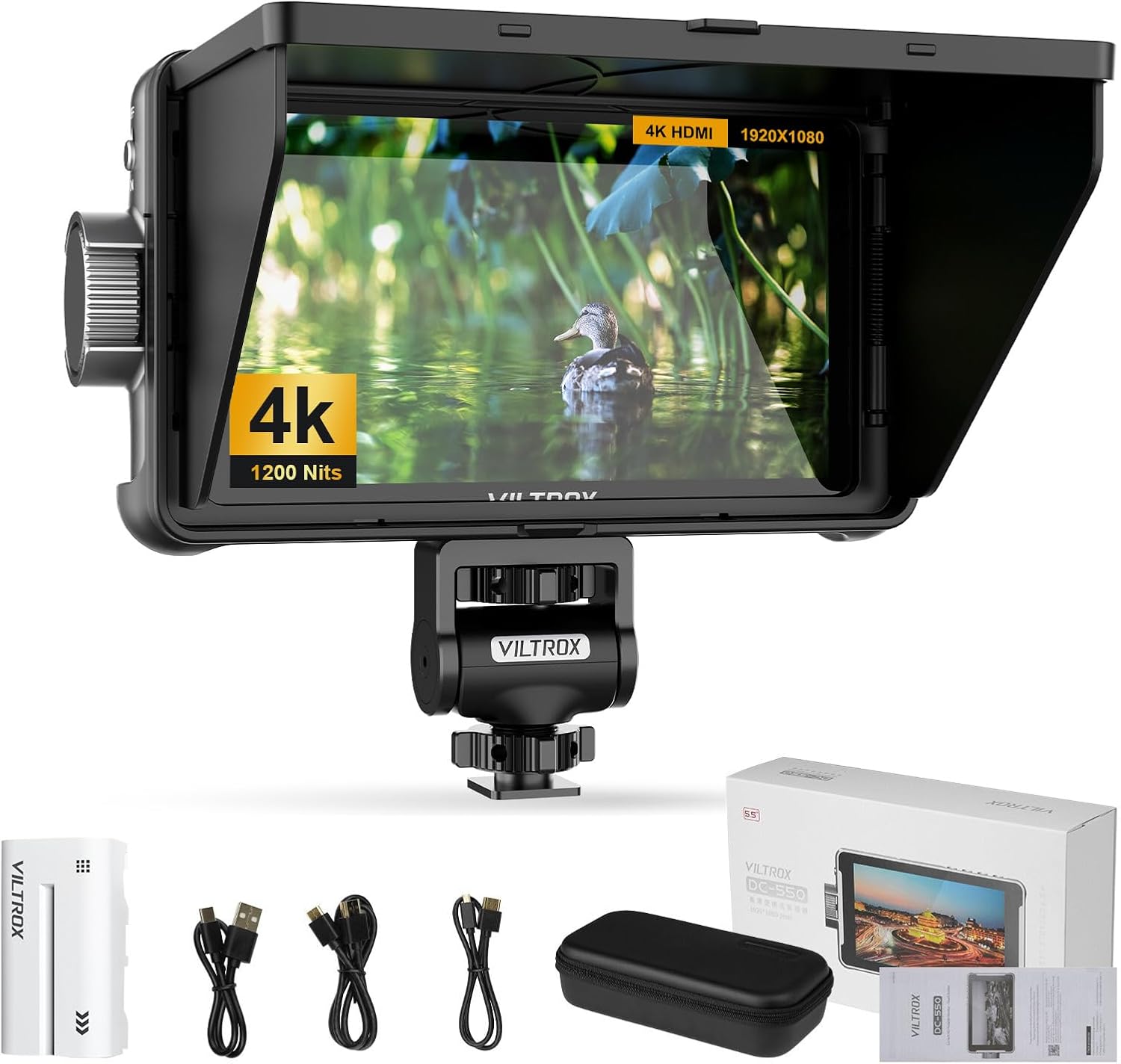
Figure 1.1: VILTROX DC-550 Camera Field Monitor and its accessories.
2. Setup
2.1 Package Contents
Before you begin, please verify that all items are present in your package:

Figure 2.1: Package Contents of the VILTROX DC-550.
- DC-550 Monitor (x1)
- Light Shields (Sun Hood) (x1)
- NP-F550 Lithium Battery (x1)
- Cloud Terrace (Mounting Bracket) (x1)
- Carrying Case (x1)
- Type-C Cable (x1)
- Mini HDMI Cable (x1)
- Standard HDMI Cable (x1)
- Instruction Manual (x1)
- Packaging Box (x1)
2.2 Physical Components and Dimensions
Familiarize yourself with the monitor's physical layout and dimensions:

Figure 2.2: VILTROX DC-550 Physical Components and Dimensions.
- Dimensions: 165mm (W) x 91mm (H) x 28.5mm (D)
- Weight: 280g
- Key Components:
- Fan air intake
- Battery release button
- Function button (F1/F2)
- Function button (F3/F4) - shortcut back
- SD card slot
- Type-C port
- Fan air intake
- Battery release button
- Mounting interface
- Power On/Off switch
- Control knob
2.3 Powering On
The DC-550 offers multiple power options for versatile use:

Figure 2.3: Multi-Power Options for the DC-550.
- NP-F Series Lithium Battery: Insert a compatible NP-F series battery into the battery slot.
- DC IN (12-18V): Connect an external DC power adapter to the DC IN port.
- Type-C (5V 3A): Use a Type-C cable to connect to a compatible power source for rechargeable power.
2.4 Connecting to a Camera (HDMI)
The monitor supports 4K 30Hz HDMI signal input and loop output for seamless integration with your camera setup.

Figure 2.4: HDMI Input/Loop Output Connection.
- Connect one end of the HDMI cable (Mini HDMI or Standard HDMI, depending on your camera) to your camera's HDMI output port.
- Connect the other end of the HDMI cable to the HDMI IN port on the DC-550 monitor.
- If you need to loop out the signal to another device, connect an HDMI cable from the HDMI OUT port on the DC-550 to your desired device.
2.5 Mounting the Monitor
The included mounting bracket allows for flexible positioning of the monitor.

Figure 2.5: Custom Swivel Head with 170° Pan and Tilt Monitoring.
- Attach the Cloud Terrace (mounting bracket) to the monitor's mounting interface.
- Secure the bracket to your camera rig or tripod using the appropriate screw mount.
- Adjust the monitor's angle using the swivel head, which offers a 170° tilt angle and 360° horizontal rotation.
3. Operation
3.1 Display Quality and Viewing Angle
The DC-550 features a Full HD 1920x1080 IPS display, providing a wide 178-degree viewing angle.

Figure 3.1: Full HD Resolution and Wide Viewing Angle.
3.2 Professional Monitoring Software
The DC-550 series is equipped with extensive monitoring functions to assist in precise image capture and analysis.
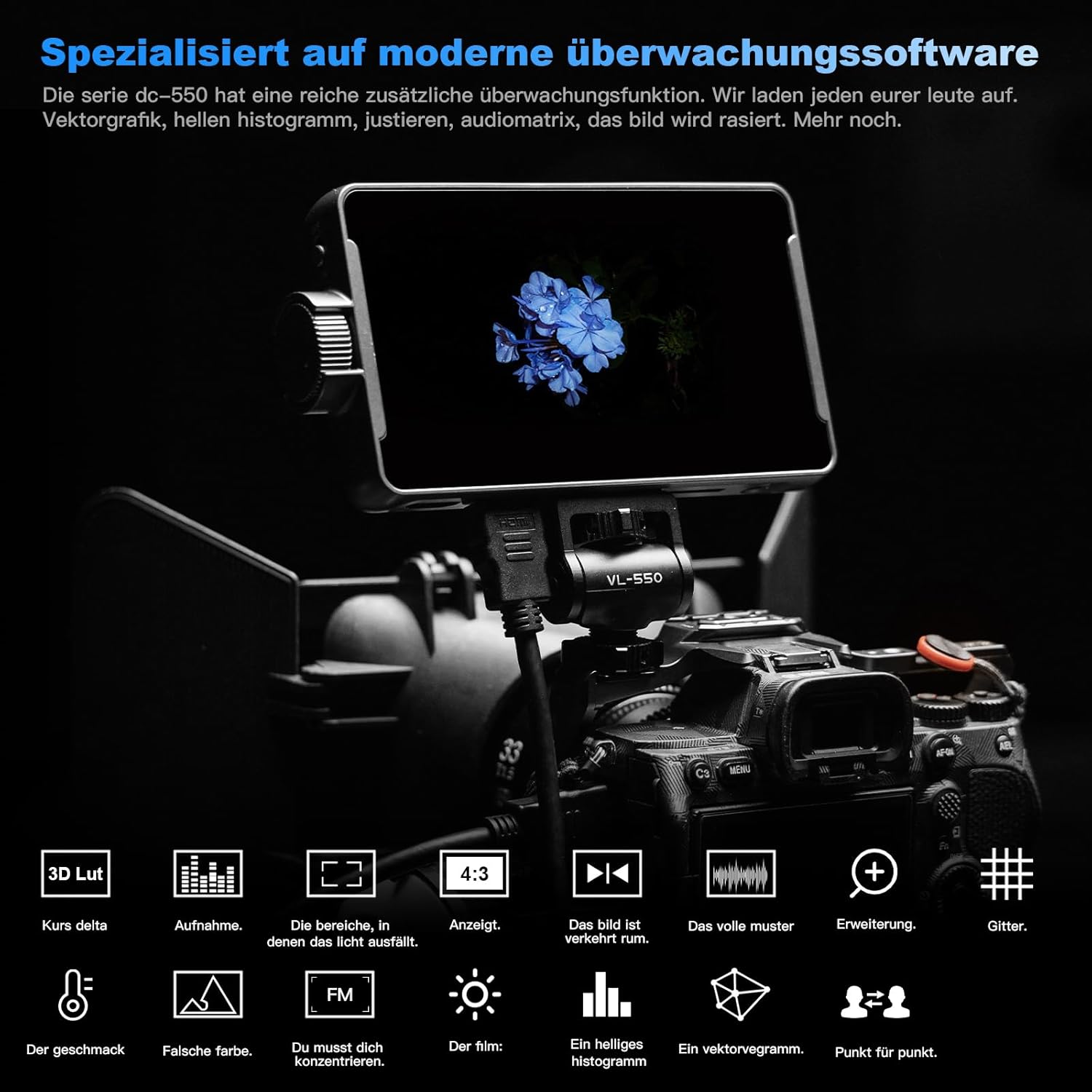
Figure 3.2: Specialized Monitoring Software Features.
- Parade Waveform: Visualizes the luminance and chrominance levels of your image.
- Vector Diagram: Displays the color saturation and hue.
- Brightness Histogram: Shows the distribution of brightness levels.
- Focus Assist: Highlights in-focus areas for precise focusing.
- Audio Column: Monitors audio levels.
- Image Flip: Flips the image horizontally or vertically.
- False Color: Aids in exposure adjustment by displaying different exposure levels as distinct colors.
3.3 3D LUT Import and True Color Rendering
The monitor supports importing 3D LUTs via SD card, allowing for precise color grading and monitoring of log footage.
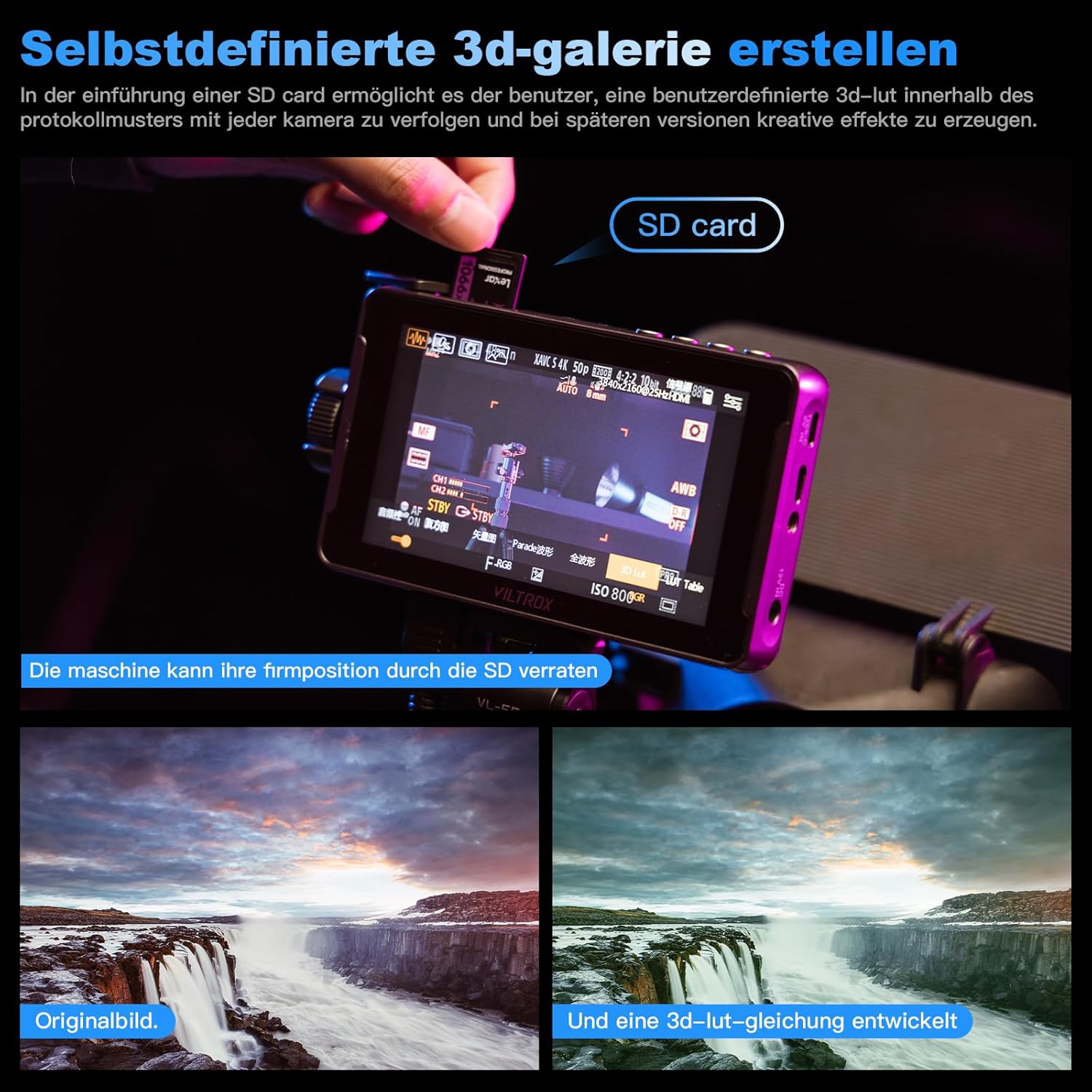
Figure 3.3: Creating Custom 3D LUTs.
The DC-550 adheres to the REC.709 international color standard, ensuring accurate and natural color reproduction without distortion.

Figure 3.4: REC.709 International Color Standard.

Figure 3.5: True Color Reproduction and False Color Function.
3.4 Touchscreen Operation
The DC-550 features a responsive touchscreen for intuitive control and navigation of its functions.

Figure 3.6: Smart Touchscreen Interface.
3.5 Quick-Release Sun Hood
The detachable sun hood effectively blocks light interference during outdoor shooting, improving monitoring visibility.

Figure 3.7: Foldable Hood with Quick Release.
4. Maintenance
4.1 Cleaning
- Use a soft, lint-free cloth to clean the monitor screen. For stubborn smudges, a screen-cleaning solution designed for electronics can be used sparingly.
- Wipe the body of the monitor with a dry or slightly damp cloth. Avoid using harsh chemicals or abrasive materials.
4.2 Cooling System
The DC-550 features a built-in fan to ensure stable operation during extended use at high brightness, contributing to product longevity.

Figure 4.1: Built-in Fan and Cooling System.
- Ensure the fan vents are clear of obstructions to allow for proper airflow.
- When the fan is off, the heatsink holes in the metal dust filter act as a passive cooling system. When the fan is on, air is drawn in through the holes on both sides and exits below the board.
4.3 Storage
- Store the monitor in its provided carrying case when not in use to protect it from dust and physical damage.
- Keep the monitor in a cool, dry place away from direct sunlight and extreme temperatures.
5. Troubleshooting
This section addresses common issues you might encounter with your VILTROX DC-550 monitor.
- No Signal/Signal Loss:
- Ensure all HDMI cables are securely connected to both the camera and the monitor.
- Verify that the camera's HDMI output settings are compatible with the monitor's input (e.g., 4K 30Hz).
- Try disconnecting and reconnecting all cables.
- Check if the monitor's input source is correctly selected.
- Battery Life Shorter Than Expected:
- High brightness settings consume more power. Reduce brightness if extended battery life is needed.
- Ensure the battery is fully charged before use.
- Consider using an external power bank via Type-C or a DC power adapter for longer shoots.
- Mounting Issues (e.g., loose thread):
- Ensure the mounting screw is properly aligned and tightened. Do not overtighten.
- If the thread appears damaged, contact customer support for assistance.
- Firmware Update Issues:
- IMPORTANT: Do not download firmware updates from unofficial sources. Always contact the official distributor for the latest and correct firmware version. Incorrect firmware can render the device unusable.
6. Specifications
Detailed technical specifications for the VILTROX DC-550 Camera Field Monitor:
| Feature | Specification |
|---|---|
| Model Number | CXASD101 |
| Display Size | 5.5 inches |
| Resolution | 1920x1080 Full HD IPS |
| Brightness | 1200 Nits |
| HDMI Input/Output | HDMI 1.4 (Supports 4K 30Hz) |
| Power Options | NP-F Series Battery, DC IN (12-18V), Type-C (5V 3A) |
| Dimensions (Package) | 27.7 x 15.6 x 7.2 cm |
| Dimensions (Item) | 10 x 10 x 10 cm (Note: This seems to be a generic placeholder, refer to Figure 2.2 for detailed dimensions) |
| Weight | 280g |
| Batteries Required | 1 Lithium-Ion Battery |
| Built-in Components | DC-550ASZ |
For a comparison of VILTROX monitor models, refer to the following table:

Figure 6.1: VILTROX Monitor Model Comparison.
7. Warranty and Support
7.1 Product Warranty
The VILTROX DC-550 Camera Field Monitor comes with a 1-year product warranty.
7.2 Customer Support
For any questions, issues, or technical assistance regarding your VILTROX product, please contact the official authorized distributor, PhoZoom E. They provide comprehensive services, including:
- Answering questions about operating instructions.
- Consulting on adaptable models and operating techniques.
- Providing the latest software versions for firmware updates.
PhoZoom E aims to respond to inquiries within 10 minutes during work hours.

Figure 7.1: Support and Firmware Update Guidelines.
Contact Information: Please refer to your purchase documentation or the official VILTROX website for the most current contact details for PhoZoom E.
Related documentsDC-550


Ask a question about this manual
Ask about setup, troubleshooting, compatibility, parts, safety, or missing instructions. Manuals+ will review the question and use this page’s manual context to help answer it.