
1. Introduction
Thank you for choosing the UPERFECT 16-inch 2K 144Hz Portable Monitor. This high-performance display is designed to enhance your productivity and entertainment experience, offering a stunning 2K QHD resolution, a rapid 144Hz refresh rate, and versatile connectivity options. This manual provides essential information for setting up, operating, and maintaining your new monitor.

Image: The UPERFECT 16-inch 2K 144Hz Portable Monitor, showcasing its sleek design and vibrant display.
2. Safety Information
Please read all safety instructions carefully before using this product. Failure to follow these instructions may result in electric shock, fire, or damage to the device.
- Do not expose the monitor to rain, moisture, or extreme temperatures.
- Avoid placing the monitor near heat sources such as radiators, heat registers, stoves, or other apparatus (including amplifiers) that produce heat.
- Use only attachments/accessories specified by the manufacturer.
- Unplug this apparatus during lightning storms or when unused for long periods of time.
- Refer all servicing to qualified service personnel. Servicing is required when the apparatus has been damaged in any way.
- Ensure proper ventilation around the monitor. Do not block any ventilation openings.
- Use only the power adapter provided with the monitor.
3. Package Contents
Please check the package contents upon opening. If any items are missing or damaged, contact UPERFECT customer support immediately.
- 1 x UPERFECT 16-inch 2K 144Hz Portable Monitor
- 1 x Mini HDMI to HDMI Cable
- 2 x USB Type-C to Type-C Cables (for power and display)
- 1 x Power Adapter
- 1 x Protective Cover (doubles as a stand)
- 1 x User Manual
4. Product Overview
Familiarize yourself with the various components and ports of your UPERFECT portable monitor.

Image: Diagram illustrating the various ports and buttons on the UPERFECT portable monitor, including Speaker, Power/Back button, Pulley Button (OSD control), Audio jack, Type-C ports, and Mini HDMI port.
4.1 Ports and Buttons
- Speaker: Built-in stereo speakers for audio output.
- Power/Back Button: Press and hold to power on/off. Press briefly to go back in OSD menu.
- Pulley Button (OSD Control): Roll up/down to move between menu options. Press to select.
- Audio Jack (3.5mm): Connect headphones or external speakers.
- Type-C Ports (Full Function): Two USB-C ports supporting both power delivery and video signal transmission.
- Mini HDMI Port: Connect to devices via HDMI for video and audio input.
4.2 Key Features
- 2K QHD Resolution (2560x1600): Offers a sharper and more detailed image than 1080P.
- 144Hz Refresh Rate: Provides smoother visuals, especially beneficial for gaming and fast-paced content.
- IPS Matte Screen: Ensures wide viewing angles (178°) and reduces glare.
- High Brightness (400 nits) & Contrast (1200:1): Delivers vibrant colors and deep blacks.
- 10-bit Color (8-bit + FRC): Supports 1.07 billion colors for professional-grade color accuracy.
- AMD FreeSync Premium & HDR: Enhances gaming experience by eliminating screen tearing and improving dynamic range.
- VESA Compatible (75x75mm): Allows for mounting on monitor arms or wall mounts.
- Smart Cover: Protects the screen and functions as an adjustable stand.
- Blue Light Filter & Flicker-Free: Designed to reduce eye strain during prolonged use.
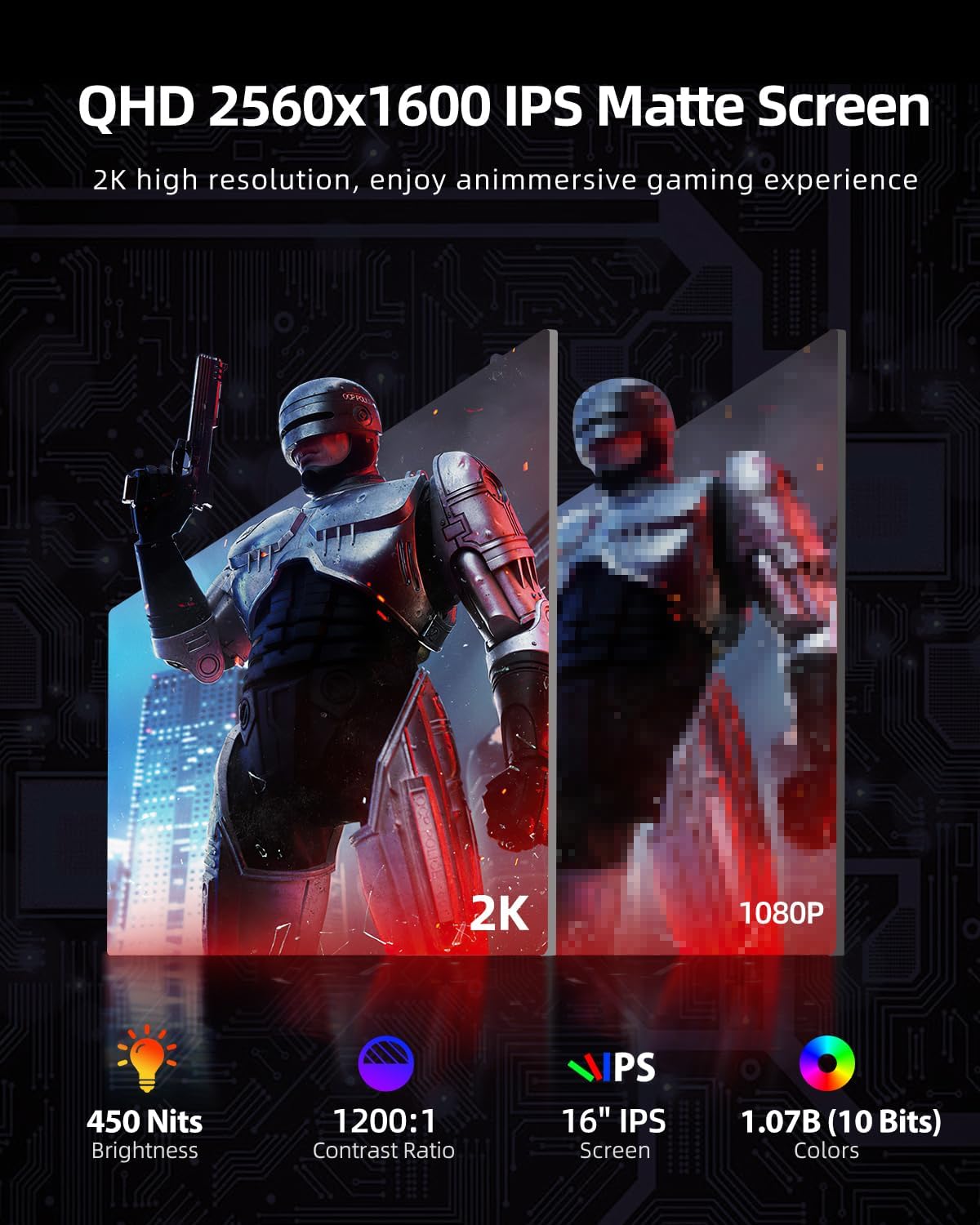
Image: Comparison of 2K QHD resolution versus 1080P, highlighting the superior detail and clarity of the 2K display.
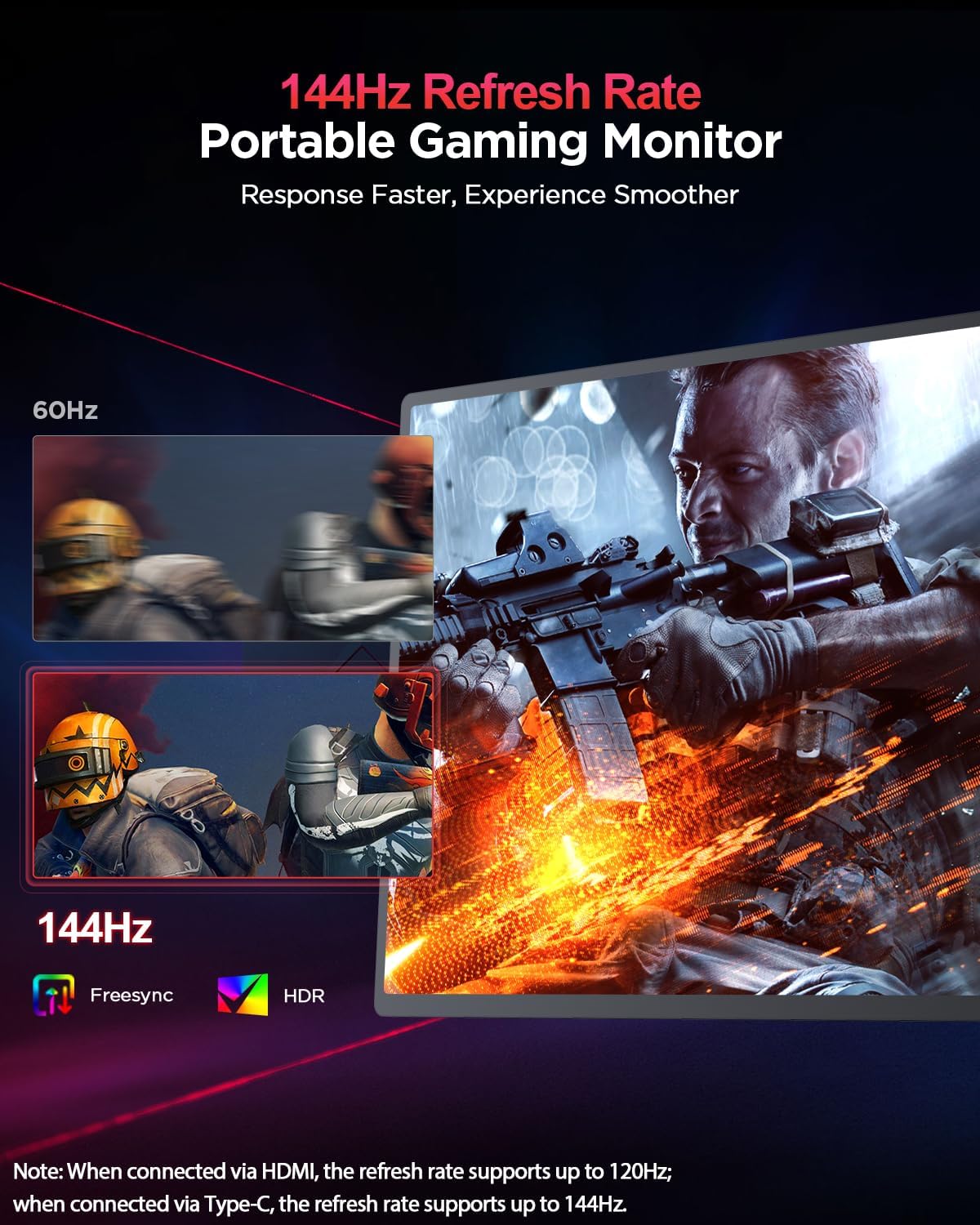
Image: Visual representation of the 144Hz refresh rate providing a smoother experience compared to 60Hz, with FreeSync and HDR icons.
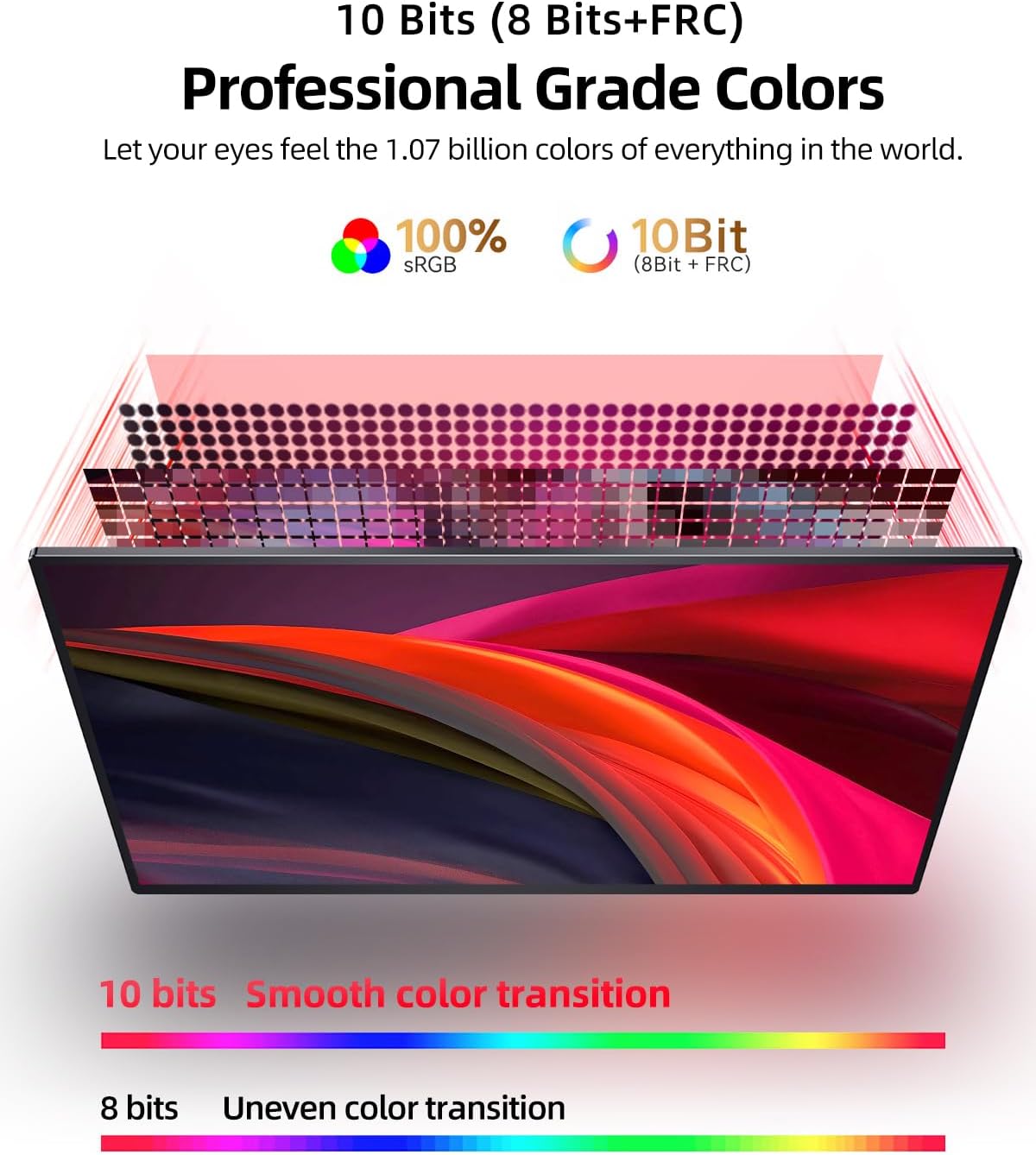
Image: Diagram explaining 10-bit color depth (8-bit + FRC) and its superiority over 8-bit color for smoother color transitions.
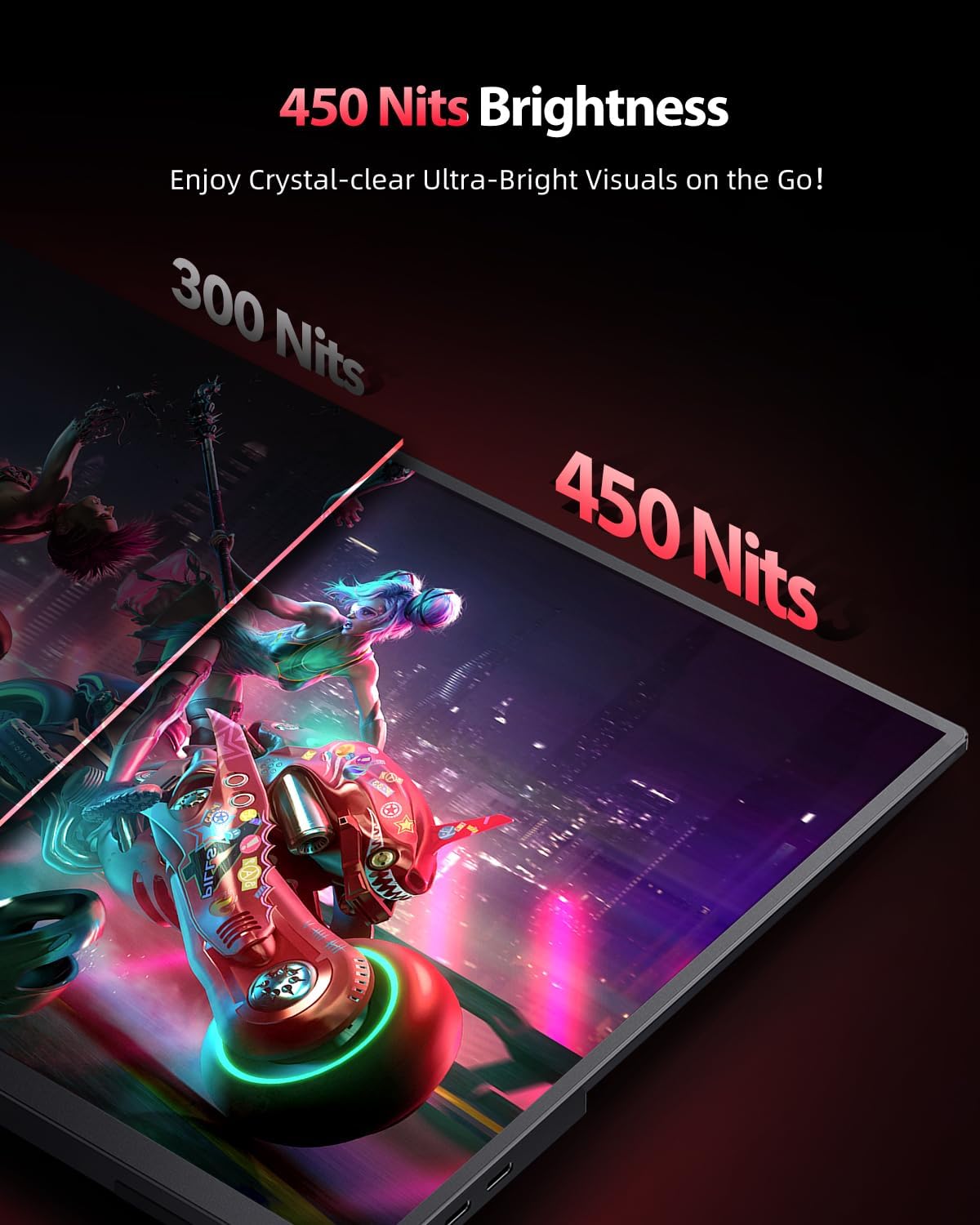
Image: Visual comparison of 300 Nits vs. 450 Nits brightness, illustrating the enhanced clarity and vibrancy of higher brightness.

Image: The monitor shown with its smart cover acting as a stand and also mounted on a VESA arm, demonstrating its versatility.
5. Setup
Follow these steps for initial setup of your UPERFECT portable monitor.
5.1 Powering the Monitor
- Connect the provided power adapter to one of the monitor's USB Type-C ports (full function).
- Plug the power adapter into a wall outlet.
- Press and hold the Power/Back button on the monitor to turn it on.
Note: The 2K display requires higher power. It is recommended to use the included power adapter for stable operation, especially when connecting to devices that may not provide sufficient power (e.g., some smartphones or older laptops).
5.2 Connecting to Devices
The monitor supports various devices via its Mini HDMI and full-function USB Type-C ports.
5.2.1 USB Type-C Connection (Full Function)
This method allows for both video signal and power delivery through a single cable, provided your device's USB-C port supports DisplayPort Alternate Mode (Alt Mode) and Power Delivery.
- Connect one end of the provided USB Type-C to Type-C cable to a full-function USB-C port on your device (e.g., laptop, smartphone, MacBook).
- Connect the other end of the cable to one of the USB Type-C ports on the monitor.
- If your device cannot provide enough power, connect the monitor to the power adapter as described in Section 5.1.
5.2.2 Mini HDMI Connection
Use this method for devices with an HDMI output (e.g., PC, laptop, game console like PS4/PS5, Xbox, Nintendo Switch).
- Connect one end of the provided Mini HDMI to HDMI cable to the Mini HDMI port on the monitor.
- Connect the other end of the cable to the HDMI output port on your device.
- Connect the monitor to the power adapter using a USB Type-C cable and the provided power adapter (as described in Section 5.1) as HDMI does not provide power.

Image: Illustrations of various display modes: Extend Mode (dual monitor setup), Duplicate Mode (mirroring display), and Vertical Mode (portrait orientation for coding or document viewing).
6. Operating Instructions
6.1 On-Screen Display (OSD) Menu
The OSD menu allows you to adjust various display settings. Use the Pulley Button to navigate and select options.
- Accessing OSD: When the monitor is on, press the Pulley Button to bring up the OSD menu.
- Navigation: Roll the Pulley Button up or down to move between menu options.
- Selection: Press the Pulley Button to select a highlighted option or confirm a setting.
- Exit/Back: Press the Power/Back button to go back to the previous menu or exit the OSD.
6.2 Common OSD Settings
- Brightness/Contrast: Adjust the display's luminance and contrast levels.
- Color Settings: Modify color temperature, hue, saturation, and gamma.
- Picture Mode: Select from preset modes (e.g., Standard, Game, Movie, Text) for optimized viewing.
- Aspect Ratio: Adjust the display aspect ratio (e.g., 16:10, 16:9, 4:3). The monitor supports automatic image ratio adaptation.
- Input Source: Manually select the input source (Type-C 1, Type-C 2, Mini HDMI).
- FreeSync/HDR: Enable or disable AMD FreeSync Premium and HDR features for compatible devices.
- Volume: Adjust the volume of the built-in speakers or connected headphones.
- Language: Change the OSD menu language.

Image: Icon representing the blue light filter feature, designed to protect eyes from harmful blue light emissions.

Image: Icon representing the built-in speakers, indicating audio output capability.
7. Maintenance
Proper care and maintenance will ensure the longevity of your UPERFECT portable monitor.
7.1 Cleaning the Screen
- Turn off the monitor and unplug it from the power source.
- Gently wipe the screen with a soft, lint-free cloth.
- For stubborn marks, dampen the cloth lightly with water or a non-abrasive screen cleaner. Do not spray liquid directly onto the screen.
- Avoid using alcohol, ammonia, or abrasive cleaners, as they can damage the screen surface.
7.2 General Care
- Keep the monitor away from direct sunlight and extreme temperatures.
- Do not place heavy objects on the monitor.
- Use the provided protective cover when transporting the monitor to prevent scratches and damage.
- Avoid dropping or subjecting the monitor to strong impacts.

Image: The smart cover being used to protect the monitor, emphasizing its dual function as a protective case and a stand.
8. Troubleshooting
If you encounter issues with your monitor, refer to the following common problems and solutions.
| Problem | Possible Cause | Solution |
|---|---|---|
| No display/Power LED off | No power; Power cable loose; Monitor off. | Ensure power adapter is connected and plugged in. Check Type-C cable connection. Press Power button to turn on. |
| No signal | Incorrect input source; Cable not connected properly; Device not outputting signal. | Select correct input source in OSD. Reconnect video cable. Ensure source device is on and configured to output to external display. |
| Flickering screen | Insufficient power; Cable issue; Refresh rate mismatch. | Ensure monitor is powered by the adapter. Try a different cable. Adjust refresh rate on source device. |
| No audio | Volume too low; Muted; Incorrect audio output selected on device. | Increase monitor volume via OSD. Check device's audio settings. |
| Image distorted/incorrect aspect ratio | Aspect ratio setting incorrect; Resolution mismatch. | Adjust aspect ratio in OSD. Set source device resolution to 2560x1600. |
| Monitor gets warm | Normal operation; High power consumption. | It is normal for the monitor to get warm during extended use, especially when drawing high power. Ensure adequate ventilation. |
9. Specifications
Detailed technical specifications for the UPERFECT 16-inch 2K 144Hz Portable Monitor.
| Feature | Specification |
|---|---|
| Brand | UPERFECT |
| Model Number | db2da209-82be-465c-b6ba-e6934eb310e7 |
| Screen Size | 16 Inches |
| Panel Type | IPS Matte Screen |
| Resolution | 2K (2560 x 1600 pixels) |
| Refresh Rate | 144 Hz (up to 120Hz via HDMI) |
| Aspect Ratio | 16:10 |
| Brightness | 400 cd/m² (nits) |
| Contrast Ratio | 1200:1 |
| Color Depth | 1.06 Billion (8-bit + FRC) |
| Color Gamut | 100% sRGB |
| Response Time | 1 millisecond |
| Viewing Angle | 178 degrees |
| Connectivity | 2 x USB Type-C (Full Function), 1 x Mini HDMI, 1 x 3.5mm Audio Jack |
| Speakers | Built-in (2W) |
| VESA Mount | 75 x 75 mm (M4 x 4mm screws) |
| Weight | 2.08 Kilograms |
| Power Input | 240V (Adapter), 12V (Monitor) |
| Energy Efficiency Class (SDR) | A (6.0 kWh/1000h) |
| EPREL Link | https://eprel.ec.europa.eu/qr/1525619 |
10. Warranty and Support
UPERFECT products are designed for reliability and performance. For warranty information and customer support, please refer to the details below.
10.1 Warranty Information
The product comes with a standard manufacturer's warranty. Please refer to the warranty card included in your package or visit the official UPERFECT website for detailed terms and conditions. Keep your proof of purchase for warranty claims.
Note: The provided data indicates "Information unavailable on spare parts" and "Software updates guaranteed until: Information not available".
10.2 Customer Support
If you have any questions, require technical assistance, or need to report an issue, please contact UPERFECT customer support through their official channels. You can typically find contact information on their website or in the product packaging.
For the latest information and support resources, please visit the official UPERFECT website.


