
1. Introduction
The FOXWELL NT624 Elite is a professional diagnostic scan tool designed for comprehensive vehicle system analysis and maintenance services. This device provides full OBD2 functions, all-system diagnostics, and various special reset functions for a wide range of vehicle makes.
2. Key Features
- All System Diagnostics: Reads and clears fault codes, views live data, and retrieves ECU information for all available vehicle systems (Engine, ABS, SRS, Transmission, etc.).
- Full OBD2 Functions: Supports all 10 OBD2 test modes, including reading/clearing codes, live data, freeze frame, I/M readiness, O2 monitor test, on-board monitor test, component test, vehicle information, and module present.
- 8 Hot Maintenance Services: Includes Oil Light Reset, SAS (Steering Angle Sensor) Calibration, EPB (Electronic Parking Brake) Service, Throttle Body Relearn, ABS Bleeding, Injector Coding, BRT (Battery Replacement) Service, and DPF (Diesel Particulate Filter) Regeneration.
- Wide Vehicle Coverage: Compatible with over 90 vehicle makes.
- Auto VIN Scan: Automatically identifies vehicle information for quick diagnostics.
- Live Data Display: Shows live sensor data in text and graph formats for easy analysis.
- Lifetime Free Updates: Ensures the tool stays current with the latest vehicle models and diagnostic functions.
3. Package Contents
The FOXWELL NT624 Elite package typically includes the following items:
- FOXWELL NT624 Elite Main Unit
- Diagnostic Cable (OBDII connector)
- USB Cable for updates
- User Manual
- Protective Carrying Case
- SD Card (pre-installed in the device)
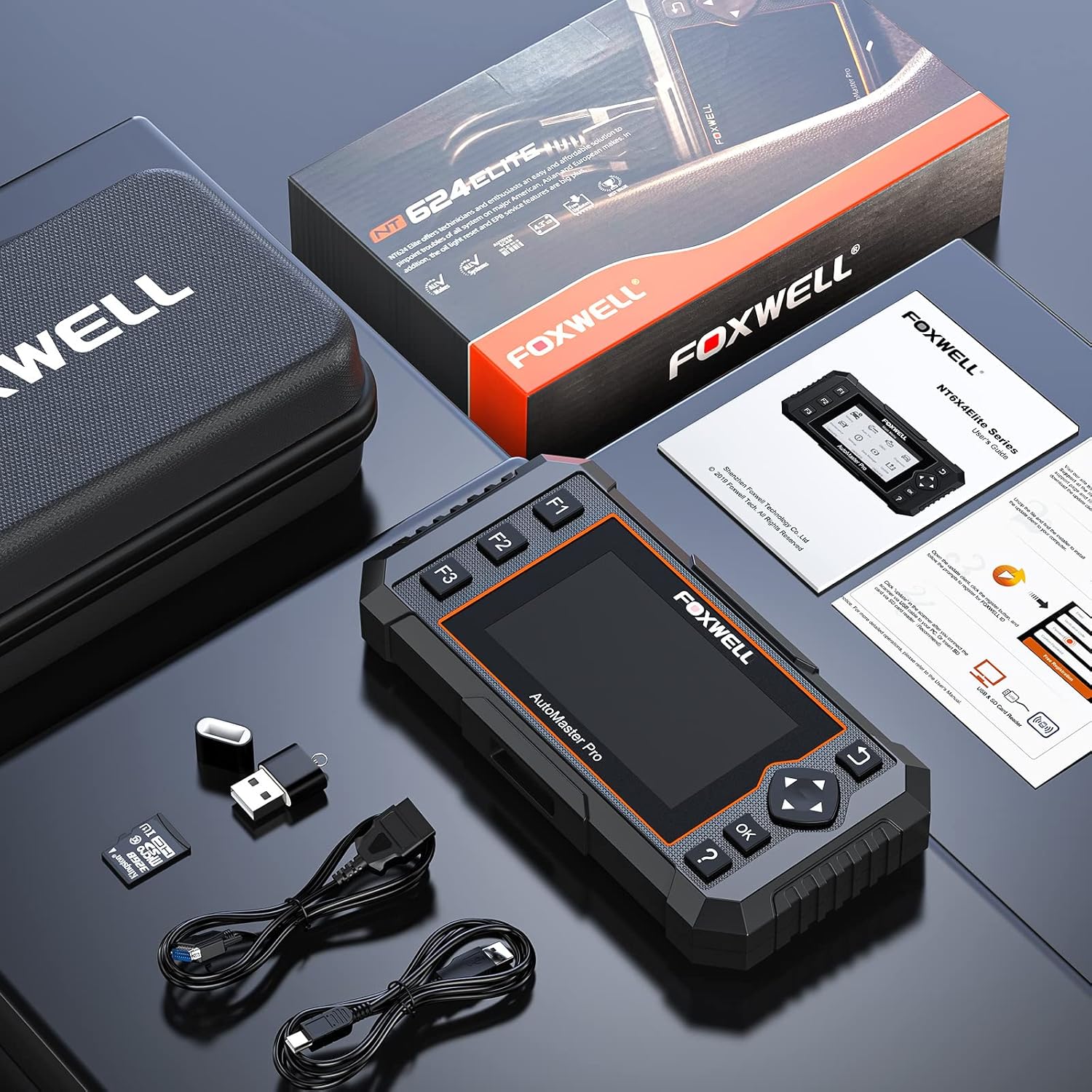
Image: Contents of the FOXWELL NT624 Elite package, showing the diagnostic tool, OBDII cable, USB cable, SD card, and carrying case.
4. Setup and First Use
- Power On: Connect the diagnostic cable to the vehicle's OBDII port, usually located under the dashboard on the driver's side. The device will power on automatically.
- Language and Unit Settings: Upon first use, navigate to "Settings" from the main menu to select your preferred language and measurement units (e.g., Metric or Imperial).
- Software Update: It is recommended to update the software to the latest version before first use. Connect the device to a computer via the USB cable and visit the official FOXWELL website for update instructions and software.

Image: The FOXWELL NT624 Elite diagnostic tool connected to a vehicle's OBDII port, ready for operation.
5. Operating Instructions
5.1. Main Menu Navigation
Use the directional buttons (up, down, left, right) to navigate through the menu options on the 4.3-inch screen. Press the "OK" button to confirm a selection and "Back" to return to the previous screen.

Image: The main menu of the FOXWELL NT624 Elite, showing options like History, Auto VIN, OBDII, Diagnostic, Maintenance, Settings, Data Manager, and Update.
5.2. All System Diagnostics
- From the Main Menu, select "Diagnostic".
- Choose the vehicle make, model, and year. The Auto VIN function can often detect this automatically.
- Select "Auto Scan" to scan all available systems or choose a specific system (e.g., Engine, ABS, SRS).
- The tool will display fault codes (DTCs), live data streams, and other system information.
- To clear codes, select the "Clear Codes" option after addressing the underlying issue.

Image: The FOXWELL NT624 Elite displaying diagnostic results for various automotive systems, including ABS, SRS, Engine, and ESP.
5.3. OBD2 Functions
- From the Main Menu, select "OBDII".
- Choose the desired OBD2 function:
- Read Codes: Displays current, pending, and permanent diagnostic trouble codes.
- Erase Codes: Clears diagnostic trouble codes from the vehicle's computer.
- Live Data: Shows real-time data from vehicle sensors.
- Freeze Frame: Displays a snapshot of operating conditions when an emission-related fault occurred.
- I/M Readiness: Checks if the various emission-related systems are operating correctly and are ready for inspection and maintenance testing.
- O2 Monitor Test: Retrieves O2 sensor monitor test results.
- On-Board Monitor Test: Retrieves results for emission-related powertrain components and systems that are continuously monitored.
- Component Test: Allows initiation of a leak test for the vehicle's EVAP system.
- Vehicle Information: Retrieves VIN, Cal ID, CVN, etc.
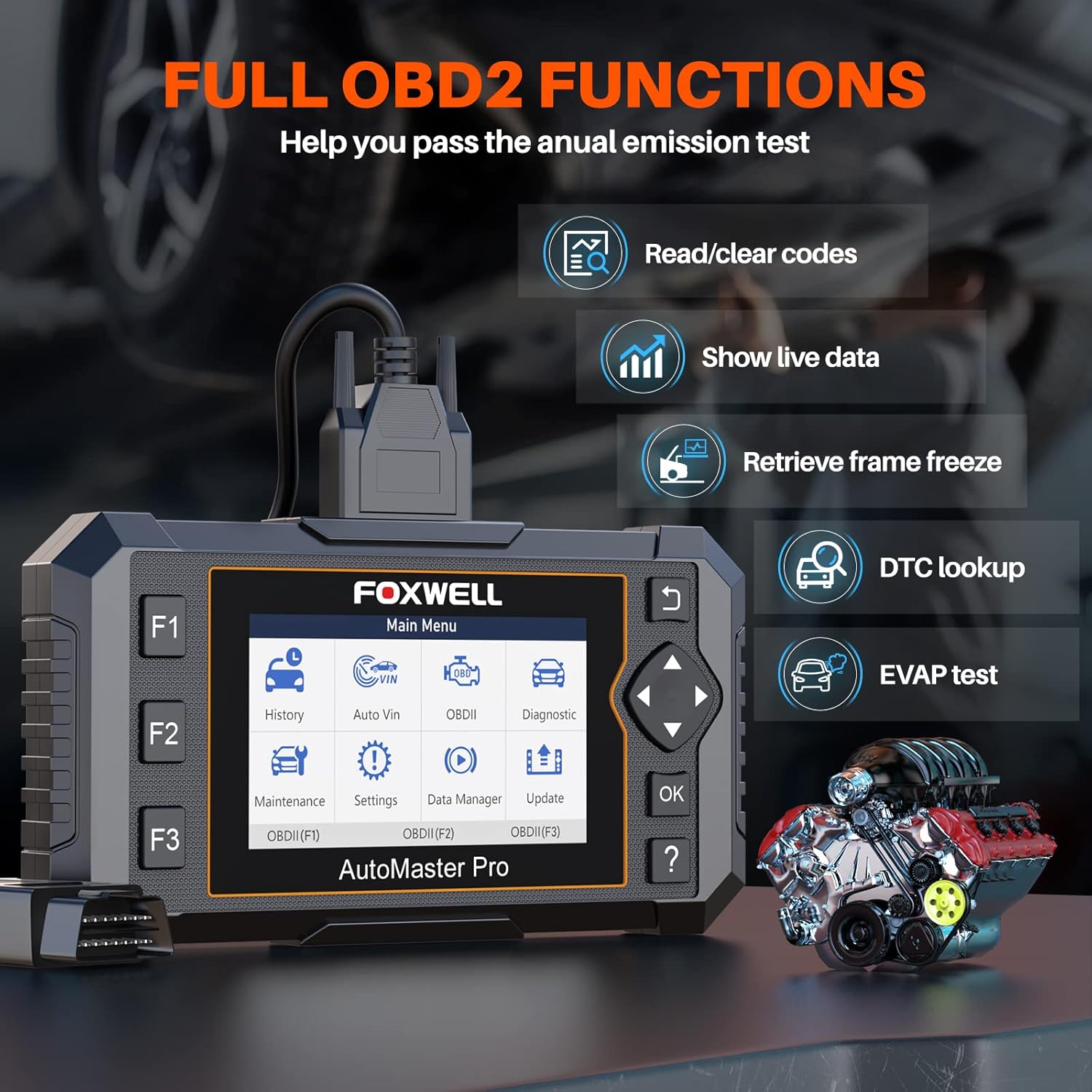
Image: The FOXWELL NT624 Elite screen showing various full OBD2 functions, including Read/Clear codes, Show live data, Retrieve frame freeze, DTC lookup, and EVAP test.
5.4. Maintenance Services
From the Main Menu, select "Maintenance" to access special reset functions. Follow the on-screen prompts for each service.
- Oil Light Reset: Resets the oil service light after an oil change.
- SAS Calibration: Calibrates the Steering Angle Sensor.
- EPB Service: Deactivates and reactivates the Electronic Parking Brake system for brake pad replacement.
- Throttle Body Relearn: Relearns the throttle body position after cleaning or replacement.
- ABS Bleeding: Performs ABS brake bleeding procedures.
- Injector Coding: Codes new injector numbers to the ECU.
- BRT Service: Performs battery replacement registration.
- DPF Regeneration: Initiates Diesel Particulate Filter regeneration.

Image: The FOXWELL NT624 Elite screen highlighting the 8 hot maintenance services available, including Oil Light Reset, ABS Bleeding, Throttle, Injector, SAS, BRT, EPB, and DPF.
6. Data Management and Analysis
The NT624 Elite allows you to view and analyze live data streams, which can be displayed in both text and graphical formats. This helps in understanding vehicle performance and diagnosing intermittent issues.

Image: The FOXWELL NT624 Elite displaying live data in a graphical format on its screen, illustrating sensor readings over time for detailed analysis.
The device also stores diagnostic history, which can be reviewed later. Connect the tool to a computer to print diagnostic reports or manage saved data.
7. Maintenance and Updates
7.1. Software Updates
The FOXWELL NT624 Elite offers lifetime free software updates. To update the device:
- Visit the official FOXWELL website (www.foxwelltech.com).
- Download and install the update client software on your computer.
- Register your device and create an account.
- Connect the NT624 Elite to your computer using the provided USB cable.
- Follow the on-screen instructions in the update client to download and install the latest software versions.
7.2. Device Care
- Keep the device clean and free from dust and moisture.
- Store the device in its protective carrying case when not in use.
- Avoid dropping the device or exposing it to extreme temperatures.
8. Troubleshooting
| Problem | Possible Cause | Solution |
|---|---|---|
| Device does not power on. | Loose OBDII connection; vehicle's ignition is off; vehicle battery low. | Ensure the OBDII cable is securely connected. Turn the vehicle's ignition to the ON position. Check vehicle battery voltage. |
| Communication error with vehicle. | Incorrect vehicle protocol selected; faulty OBDII port; software issue. | Verify vehicle compatibility. Check the OBDII port for damage. Update the device software. Try on another compatible vehicle. |
| Screen freezes or device is unresponsive. | Software glitch; low power. | Restart the device by disconnecting and reconnecting. Ensure stable power supply from the vehicle. Perform a software update. |
| Update fails. | Unstable internet connection; incorrect update client usage; firewall issues. | Ensure a stable internet connection. Follow the update instructions carefully. Temporarily disable firewall/antivirus if necessary. |
9. Specifications
- Model: NT624 Elite
- Display: 4.3-inch Color Screen
- Operating System: Windows XP (for update client compatibility, device runs proprietary OS)
- Connectivity: OBDII, USB
- Dimensions: 8.8 x 3 x 13.1 inches (approximate)
- Weight: 2.07 pounds (approximate)
- Power: 8-18V vehicle power via OBDII
- Operating Temperature: 0 to 60°C (32 to 140°F)
- Storage Temperature: -20 to 70°C (-4 to 158°F)
10. Support and Warranty
For technical support, product inquiries, or warranty information, please contact FOXWELL customer service through their official website or the contact details provided in your product packaging.
The FOXWELL NT624 Elite comes with a standard manufacturer's warranty. Please refer to the warranty card included in your package for specific terms and conditions.
Video: An overview of the FOXWELL NT624 Elite diagnostic tool's features and functions. This video demonstrates the user interface and capabilities of the device.


