1. Introduction
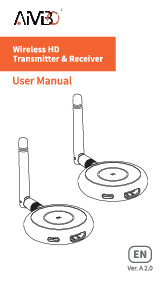
This manual provides detailed instructions for the setup, operation, and maintenance of your AIMIBO Wireless HDMI Extender System (Model RX10). This system is designed to transmit HDMI signals wirelessly over long distances, supporting multiple receivers, KVM functionality, IR remote control, and HDMI loop-out.
2. Safety Information
- Ensure all connections are secure before powering on the device.
- Use only the provided power adapters.
- Do not expose the device to water, moisture, or extreme temperatures.
- Avoid disassembling the unit; refer servicing to qualified personnel.
- Keep the device away from strong electromagnetic fields.
3. Package Contents
Please verify that all items are present in your package:
- AIMIBO Wireless HDMI Transmitter (TX)
- AIMIBO Wireless HDMI Receiver (RX) - (Quantity may vary based on purchase)
- Power Adapters (DC 12V)
- HDMI Cables
- IR Blaster Cable
- IR Receiver Cable
- USB-A to USB-B Cable (for KVM)
- User Manual
4. Product Overview
The AIMIBO Wireless HDMI Extender System consists of a Transmitter (TX) and one or more Receivers (RX). Below is an overview of the Receiver unit's components:

Figure 4.1: Front and Rear Panels of the AIMIBO Wireless HDMI Receiver (RX). The front panel includes USB ports for Keyboard & Mouse, Mode button, Power, Link, STA, Mode 1, Mode 2, ID, SW, and SP indicator lights. The rear panel features a Power Port, Reset button, HDMI OUT port, Audio jack, and IR Remote port.
The Transmitter (TX) unit has similar indicators and ports, including an HDMI IN port and an HDMI Loop-Out port.
5. Setup Instructions
5.1 Initial Setup (1 TX to 1 RX)
- Connect the HDMI source (e.g., laptop, PC, game console) to the HDMI IN port of the Transmitter (TX) using an HDMI cable.
- Connect a display (e.g., TV, monitor) to the HDMI OUT port of the Receiver (RX) using an HDMI cable.
- Connect the provided power adapters to both the TX and RX units and plug them into a power outlet.
- Ensure both TX and RX units are set to SP (Splitter) mode using the switch on the front panel.
- The units should automatically pair. The 'Link' indicator light will turn solid green when a stable connection is established.

Figure 5.1: The AIMIBO Wireless HDMI Receiver unit, showcasing its compact design and dual antennas for stable signal reception.
5.2 Pairing Extra Receivers
If you have purchased additional receivers, they need to be paired with the transmitter for first use. Follow these steps:
- Connect the DV 12V power cable to supply power for both the TX and RX units. Set both to SP mode.
- Connect an HDMI cable from the TX's HDMI IN to the RX's HDMI OUT. This direct connection is for pairing only.
- When pairing, the 'STA' light will flash. Once pairing is complete, the 'STA' light will become solid.
- After successful pairing, remove the HDMI cable and connect the RX to your desired HDMI display.

Figure 5.2: Visual guide for pairing an extra receiver. Steps include connecting power, connecting HDMI directly between TX and RX, switching to SP mode, observing the STA light flashing during pairing, and the STA light becoming solid upon successful pairing.
For a visual demonstration of connecting multiple receivers, please refer to the video below:
Video 5.1: This video demonstrates the process of connecting multiple receivers to a single transmitter, showing how to pair and set up the system for multi-screen output.
6. Operating Instructions
6.1 Connection Modes
The AIMIBO Wireless HDMI Extender supports two primary connection modes: SP (Splitter) Mode and SW (Switch) Mode.
- SP Mode (Splitter Mode): In this mode, one Transmitter (TX) can send signals to up to eight Receivers (RXs) simultaneously, displaying the same content on all connected screens. This is ideal for broadcasting content to multiple displays.
- SW Mode (Switch Mode): This mode allows a single Receiver (RX) to switch between multiple Transmitters (TXs). Each TX can be assigned a unique channel ID, and the RX can select which TX's signal to display.

Figure 6.1: Illustration of SP Mode, where one TX unit transmits to up to eight RX units, enabling simultaneous display on multiple screens.

Figure 6.2: Example of a multi-receiver setup in a home environment, demonstrating how one TX can broadcast to RX units on different floors.
For a detailed explanation of the two connection modes, please watch the following video:
Video 6.1: This video illustrates the two connection modes (SP and SW) of the AIMIBO Wireless HDMI Extender, explaining their functionalities and setup.
6.2 KVM Functionality
The KVM (Keyboard, Video, Mouse) feature allows you to control a computer connected to the Transmitter (TX) from a remote location where the Receiver (RX) is located. Connect your keyboard and mouse to the USB ports on the RX unit. This enables remote control of your source device.
6.3 IR Remote Control
The system supports IR pass-through, allowing you to control your source device (e.g., DVD player, set-top box) from the remote display location. Connect the IR Blaster cable to the TX unit and position its emitter near the source device's IR receiver. Connect the IR Receiver cable to the RX unit and position its receiver to face your remote control.
6.4 HDMI Loop-Out
The Transmitter (TX) unit includes an HDMI Loop-Out port. This allows you to connect a local display directly to the TX unit, mirroring the content being sent wirelessly to the RX units. This is useful for monitoring the transmitted content locally.
6.5 Extend Mode
The system supports extending your desktop across multiple monitors. This allows for an expanded workspace, where different content can be displayed on each screen. For a demonstration of this feature, refer to the video below:
Video 6.2: This video demonstrates how the AIMIBO HDMI Extender can be used to extend a single display across multiple screens, creating an expanded desktop environment.
7. Troubleshooting
- No Signal:
- Ensure both TX and RX units are powered on and the power indicator lights are solid.
- Check all HDMI cable connections between source, TX, RX, and display.
- Verify that the TX and RX units are within the effective transmission range and have a clear line of sight.
- Confirm that the TX and RX units are set to the correct mode (SP or SW) and channel ID if applicable.
- Intermittent Signal/Poor Quality:
- Reduce the distance between TX and RX units.
- Minimize obstructions (walls, furniture) between the units.
- Avoid interference from other 5.8Ghz wireless devices.
- Ensure antennas are securely attached and oriented correctly.
- KVM Not Responding:
- Ensure the USB-A to USB-B cable is correctly connected between the TX unit and the source computer.
- Verify that the keyboard and mouse are properly connected to the RX unit's USB ports.
- Test the keyboard and mouse directly with the source computer to rule out device issues.
8. Specifications
| Feature | Detail |
|---|---|
| Brand | AIMIBO |
| Model Number | RX10 |
| Connectivity Technology | HDMI, Wireless (5.8G) |
| Max Receivers | Up to 8 RXs (in SP Mode) |
| Control Type | Remote Control (IR Pass-through) |
| Special Features | Wireless, KVM, IR Remote, HDMI Loop-Out |
| Compatible Devices | Television, Smartphone, Tablet, Personal Computer, Game Console |
| Total HDMI Ports | Varies by unit (TX has HDMI In/Loop-Out, RX has HDMI Out) |
| Audio Output Mode | Stereo, Surround |
| Surround Sound Config | 7.1 |
| Video Encoding | RM |
| Item Weight | 1.01 pounds |
| Product Dimensions | 10 x 5 x 4 inches |
| Output Wattage | 5 Watts |
9. Maintenance
- Keep the devices clean and free from dust. Use a soft, dry cloth for cleaning.
- Ensure proper ventilation around the units to prevent overheating.
- Periodically check cable connections for looseness or damage.
- Store the device in a cool, dry place when not in use for extended periods.
10. Warranty and Support
AIMIBO products are designed for reliability and performance. For warranty information, technical support, or service inquiries, please refer to the contact information provided with your product packaging or visit the official AIMIBO website. Please retain your proof of purchase for warranty claims.