
SinoTrack ST-903
SinoTrack ST-903 GPS Tracker User Manual
Model: ST-903
1. Introduction
The SinoTrack ST-903 is a compact and versatile GPS tracking device designed for real-time location monitoring of vehicles, motorcycles, trucks, taxis, and even persons or kids. It utilizes GSM and GPRS networks along with GPS satellites to provide accurate positioning and tracking capabilities. This manual provides comprehensive instructions for setting up, operating, maintaining, and troubleshooting your ST-903 GPS Tracker.

Figure 1: SinoTrack ST-903 GPS Tracker and Mobile Application Interface.
2. Package Contents
Upon opening the package, please verify that all the following items are included:
- SinoTrack ST-903 GPS Tracker Unit
- USB Charging Cable
- User Manual (this document)
- Lanyard (for personal carrying)
- Velcro Pad (for attachment)

Figure 2: SinoTrack ST-903 Package Contents.
3. Setup Guide
Follow these steps carefully to set up your SinoTrack ST-903 GPS Tracker for the first time.
3.1. SIM Card Activation and Installation
- Acquire a SIM Card: Purchase a local SIM card that supports 2G (GSM) network functionality. Ensure it has data, call, and SMS capabilities.
- Activate SIM Card: Insert the new SIM card into a mobile phone. Activate the SIM card and disable any PIN code protection. Confirm that it can make calls, send texts, and access the internet.
- Install SIM Card into Tracker: Once activated and PIN-free, remove the SIM card from the mobile phone and insert it into the designated SIM card slot on the ST-903 tracker.
3.2. Initial Power On and Signal Acquisition
- Charge the Device: Connect the tracker to a power source using the provided USB cable and charge it for approximately 1 hour before first use.
- Observe Indicator Lights: After charging, the yellow and blue indicator lights will begin flashing as the device searches for network and GPS signals.
- Acquire Signal: Place the tracker in an area with good reception (e.g., near a window or outdoors). Wait approximately 5 minutes for both lights to become solid, indicating a stable network and GPS connection. If the yellow light continues to flash, move the device to a different location.
- Note on Location: When a GPS signal is acquired, the device will provide GPS-based location. If no GPS signal is available, it will use LBS (Location Based Service) for approximate positioning.
3.3. Setting APN (Access Point Name)
The APN settings are crucial for the tracker to connect to the internet and send data. You will need to obtain the correct APN details from your SIM card provider.
Send an SMS command from another phone to the tracker's SIM card number:
- If your SIM card's APN has no username or password:
Send SMS: 8030000 [space] APN
Example: 8030000 everywhere (if APN is "everywhere")
The tracker should reply with "SET OK". - If your SIM card's APN has a username and password:
Send SMS: 8030000 [space] APN [space] APN_username [space] APN_password
Example: 8030000 everywhere eesecure secure (if APN is "everywhere", username "eesecure", password "secure")
The tracker should reply with "SET OK".
Note: APN settings vary by SIM card provider. Always use the exact APN details provided by your carrier.
3.4. Setting GPRS Mode
After setting the APN, enable GPRS mode for online tracking.
- Send SMS: 7100000 to the tracker's SIM card number.
- Wait for Connection: After about 30 seconds, both the blue and orange indicator lights should remain ON constantly. This indicates that the device is successfully connected to the GPRS network and ready for online tracking.
- Login to Platform: You can now log in to the SinoTrackPro web platform or mobile application. Your username is the tracker's ID number (found on the device), and the default password is 123456.
4. Operating the Device
The SinoTrack ST-903 offers various functions for effective tracking and monitoring.
4.1. Real-Time Tracking
Access the SinoTrackPro web platform or mobile application to view the real-time location of your device. The platform displays the current position on a map with high accuracy (up to 10 meters).

Figure 3: Real-Time Tracking and Geofence Functionality.
4.2. History Route Playback
The device stores up to 2 years of tracking history. You can view and play back the daily tracking routes on the web platform or mobile application. This feature allows you to review past movements and analyze travel patterns.

Figure 4: History Route Playback on Web Platform.

Figure 5: History Route Playback on Mobile Application.
4.3. Geofence
Set up virtual boundaries (geofences) on the map. You will receive alerts when the tracker enters or exits these predefined areas. This is useful for monitoring specific zones, such as home, work, or school.
4.4. Overspeed Alarm
Configure a maximum speed limit. If the tracker exceeds this speed, you will receive an alert notification.
4.5. Shocking Alarm
The device can detect vibrations or shocks. If a significant shock is detected, an alert will be sent, which can be useful for detecting tampering or unauthorized movement of a parked vehicle.
4.6. Voice Monitoring
The ST-903 features a voice monitor function. This allows you to remotely listen to the surroundings of the device. Refer to the specific SMS commands for activating and deactivating this feature in the full product documentation or by contacting customer support.
4.7. Sleep Mode
The device supports a sleep mode to conserve battery life. In this mode, the tracker will reduce its power consumption when stationary, waking up when movement is detected or at set intervals.
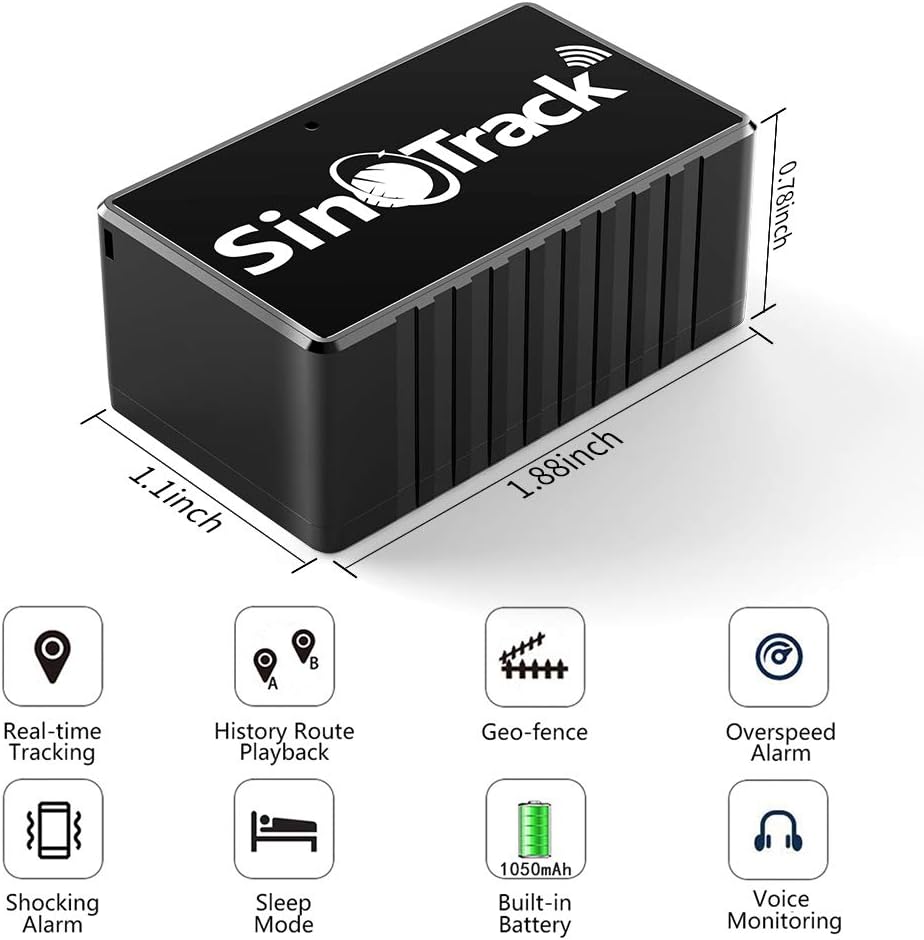
Figure 6: Key Features of the SinoTrack ST-903.
5. Maintenance
Proper maintenance ensures the longevity and optimal performance of your ST-903 GPS Tracker.
5.1. Charging the Battery
The ST-903 has a built-in 1050 mAh Li-ion battery. Battery life depends on usage frequency; higher frequency tracking leads to shorter battery life. Charge the device using the provided USB cable when the battery is low. A full charge can provide standby time of up to 10 days, depending on tracking mode and signal strength.

Figure 7: Charging the ST-903 GPS Tracker.
5.2. General Care
- Keep the device clean and free from dust. Wipe with a soft, dry cloth.
- While the device is waterproof, avoid prolonged submersion or exposure to extreme water pressure. Ensure the rubber cover over the SIM and USB sockets is securely closed to maintain water resistance.
- Avoid exposing the device to extreme temperatures, direct sunlight for extended periods, or corrosive materials.
6. Troubleshooting
If you encounter issues with your SinoTrack ST-903, refer to the following common problems and solutions.
| Problem | Possible Cause | Solution |
|---|---|---|
| Device not online / Not showing location |
|
|
| Location shows China / Incorrect location |
|
|
| Battery drains quickly |
|
|
7. Specifications
| Feature | Detail |
|---|---|
| Model Number | ST-903 |
| Brand | SinoTrack |
| Dimensions | 2.8 x 2 x 4.8 cm |
| Weight | 56 g |
| Battery | 1 Lithium Ion (1050 mAh, included) |
| Connectivity Technology | Cellular (2G GSM) |
| Special Feature | Waterproof |
| Supported Application | GPS (SinoTrackPro App/Web) |
| Specific Uses | Vehicle tracking, personal tracking |
8. Warranty and Support
SinoTrack offers a 30-day no-questions-asked return policy for the ST-903 GPS Tracker. For any problems, questions, or technical assistance, please do not hesitate to contact SinoTrack customer service. You can typically find contact information on the product packaging, the official SinoTrack website, or through your purchase platform.
Related documentsST-903


Ask a question about this manual
Ask about setup, troubleshooting, compatibility, parts, safety, or missing instructions. Manuals+ will review the question and use this page’s manual context to help answer it.