
THINKWARE U3000
THINKWARE U3000 Dash Cam User Manual
Model: U3000 (TW-U3000D64CO)
Introduction
This manual provides comprehensive instructions for the installation, operation, and maintenance of your THINKWARE U3000 Dash Cam. The U3000 is a high-performance 2-channel dash camera system featuring 4K front and 2K rear recording capabilities, enhanced night vision with STARVIS 2 Sensor, built-in GPS and Wi-Fi, and advanced parking surveillance modes including Radar Parking Mode.
Package Contents
Verify that all components are present in your package:
- THINKWARE U3000 Dash Cam (Front Unit)
- Rear View Camera
- Adhesive Windshield Mount
- 64GB MicroSD Card
- Adhesive Wire Clips
- Trim Tool
- OBD II Power Cable
- Rear Cam Cable
- Spare Mounting Tape
- Warranty & QR Code (CS Info)
- Heat Blocking Film
- 12V Power Cable
- Quick Guide

Key Features
- 4K Front + 2K Rear Recording: The U3000 offers improved 4K front and 2K rear recording, utilizing the STARVIS 2 sensor and a powerful Ambarella CPU for sharper footage. An adjustable bitrate provides flexibility for recording details.

Figure 2: Visual representation of 4K UHD Front Resolution capabilities. - Super Night Vision 4.0: Leveraging STARVIS 2's high sensitivity and low noise technology, this feature captures clearer footage in low-light conditions.

Figure 3: Super Night Vision 4.0 in action, demonstrating enhanced low-light recording. - New Radar Parking Mode: A low-powered recording mode that uses the built-in radar to monitor motion with minimal power consumption, allowing for extended parking surveillance with buffering. Requires hardwiring or OBD-II cable.
Video 1: Official product video demonstrating the features of the Thinkware U3000 Dash Cam, including its advanced parking surveillance modes. - Easy Wi-Fi Device Pairing with Thinkware Link App & Bluetooth: Built-in Bluetooth enables seamless pairing with compatible Android or iOS devices via the Thinkware Link App for reviewing videos and managing settings.

Figure 4: The Thinkware Link App interface for easy device pairing and management. - Dual-band Wi-Fi: Supports both 2.4 GHz and 5 GHz bandwidths for faster file transfers and optimal connectivity.
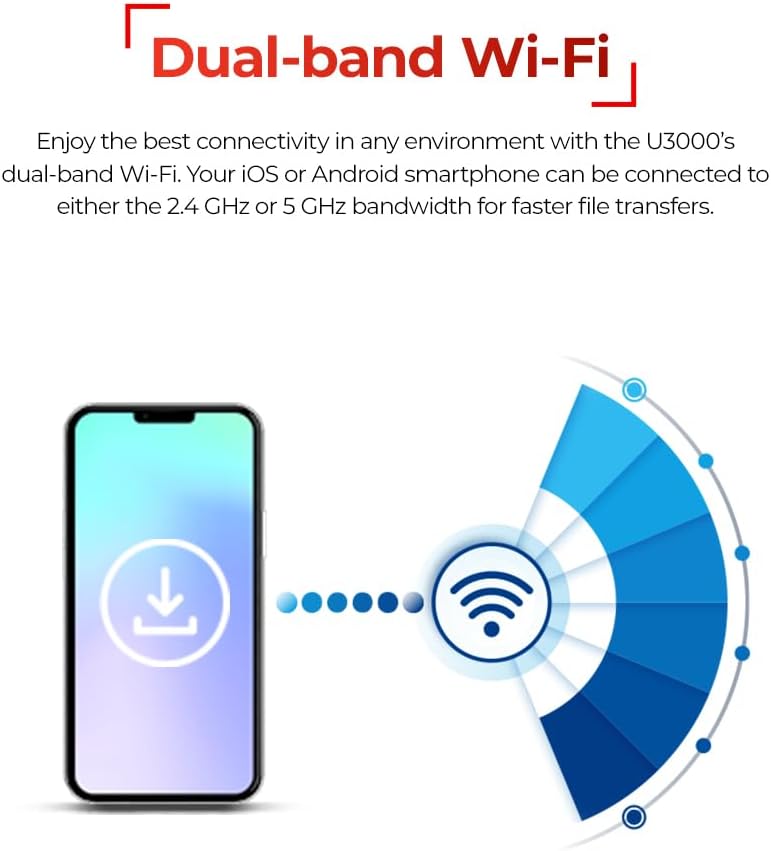
Figure 5: Dual-band Wi-Fi connectivity for efficient data transfer. - Easy Access with Thinkware CONNECTED App: Monitor your vehicle remotely, receive instant impact notifications, and access live view through the CONNECTED App (internet connection required).
- Speed and Red Light Camera Alerts: Built-in GPS provides audible alerts for upcoming speed cameras and red light cameras, enhancing driving awareness.
Setup Guide
1. Initial Preparation
- Ensure the vehicle's engine is off.
- Insert the provided 64GB MicroSD card into the dash cam's memory card slot.
- Clean the windshield area where the dash cam will be mounted to ensure proper adhesion.
2. Mounting the Front Dash Cam
- Attach the adhesive windshield mount to the front dash cam.
- Peel off the protective film from the adhesive.
- Mount the dash cam on the windshield, ideally behind the rearview mirror, ensuring it does not obstruct your view. Press firmly for at least 30 seconds.
3. Installing the Rear Camera (Optional)
- Mount the rear camera on the rear windshield using its adhesive.
- Connect the rear camera to the front dash cam using the provided rear cam cable. Route the cable neatly along the vehicle's interior trim using the trim tool and adhesive wire clips.
4. Power Connection
Choose one of the following power options:
- 12V Power Cable: Connect the 12V power cable to your vehicle's cigarette lighter socket. This provides power during driving.
- OBD II Power Cable: For continuous power and parking surveillance features, connect the OBD II power cable to your vehicle's OBD-II port.
- Hardwiring Cable (Professional Installation Recommended): For advanced parking modes and direct power from the vehicle's fuse box, use the hardwiring cable. Professional installation is highly recommended for this method.
5. Initial Setup and App Pairing
- Turn on your vehicle's ignition. The dash cam will power on and begin recording.
- Download the "Thinkware Link" app from your smartphone's app store (iOS or Android).
- Enable Bluetooth on your smartphone and open the Thinkware Link app. Follow the in-app instructions to pair with your U3000 dash cam.
- Once paired, you can adjust settings, view live footage, and download recorded videos.
Operating Instructions
Driving Mode Recording
The U3000 automatically begins continuous recording when the vehicle's ignition is turned on. Event recording (impacts, sudden braking) is triggered automatically by the G-sensor.
Parking Surveillance Modes
When the vehicle is parked and the dash cam is connected via OBD-II or hardwiring, the U3000 transitions into parking surveillance mode. Available modes include:
- Radar Parking Mode: Utilizes built-in radar to detect motion and impacts, recording buffered video clips.
- Energy Saving Mode: Records only when impacts are detected, minimizing power consumption.
- Time Lapse: Records continuously at a low frame rate (2fps) to cover extended periods.
- Motion & Impact Detection: Records when motion is detected in front of the camera or an impact occurs.
Using the Thinkware Apps
- Thinkware Link App: Connect via Bluetooth/Wi-Fi to view live footage, adjust dash cam settings, and download recorded videos directly to your smartphone.
- Thinkware CONNECTED App: For remote monitoring features (requires internet connection for the dash cam, e.g., via a mobile hotspot). Receive impact notifications, check live view, and access driving history from anywhere.
Speed and Red Light Camera Alerts
The integrated GPS module provides audible alerts for upcoming speed cameras and red light cameras, enhancing driving awareness.
Maintenance
Memory Card Management
- Formatting: Regularly format the microSD card (at least once a month) using the Thinkware Link app or the dash cam's settings to ensure optimal performance and prevent recording errors.
- Replacement: Memory cards have a limited lifespan. Replace the microSD card periodically (e.g., every 6-12 months, depending on usage) with a high-endurance card recommended by THINKWARE.
- Genuine Memory Cards: Using genuine THINKWARE memory cards or other high-quality, high-endurance cards is crucial for reliable operation and to prevent recording failures.
Cleaning
- Gently wipe the camera lens with a soft, lint-free cloth to ensure clear video quality.
- Clean the exterior of the dash cam with a dry or slightly damp cloth. Avoid using harsh chemicals or abrasive materials.
Troubleshooting
If you encounter issues with your U3000 Dash Cam, consider the following common solutions:
- Dash Cam Not Powering On:
- Check power cable connection to the dash cam and vehicle's power source (12V socket, OBD-II, or hardwire).
- Ensure the vehicle's ignition is on (if not using continuous power).
- Verify the fuse for the power source is not blown (for hardwired installations).
- Recording Issues (No Recording/Corrupted Files):
- Format the microSD card.
- Ensure the microSD card is properly inserted.
- Try a different, high-endurance microSD card to rule out card failure.
- Check if the dash cam's firmware is up to date.
- Wi-Fi/Bluetooth Connection Problems:
- Ensure Bluetooth and Wi-Fi are enabled on your smartphone.
- Restart both the dash cam and your smartphone.
- Ensure no other Wi-Fi networks (like car CarPlay/Android Auto) are interfering.
- Reset the dash cam's Wi-Fi settings via the app or device buttons.
- Parking Mode Not Activating:
- Confirm the dash cam is connected via OBD-II cable or hardwired installation.
- Check parking mode settings in the Thinkware Link app.
- Ensure the vehicle's battery voltage is sufficient for parking mode operation.
For more detailed troubleshooting steps, please refer to the full User Manual available online (see Support section).
Specifications
| Feature | Detail |
|---|---|
| Model Name | U3000 |
| Item Model Number | TW-U3000D64CO |
| Product Dimensions | 5.5 x 3.86 x 7.48 inches |
| Item Weight | 4.6 ounces |
| Video Capture Resolution | 2160p (Front), 1440p (Rear) |
| Connectivity Technology | Bluetooth, Wi-Fi (Dual-band) |
| Special Features | Loop Recording, G-Sensor, App Control, Automatic Incident Detection, Built-In Supercapacitor, Radar Parking Mode, Super Night Vision 4.0 |
| Included Components | Quick Guide, Warranty Card, Charging Cable, Installation Tool |
| Mounting Type | Windshield Mount |
| Manufacturer | THINKWARE |
| Country of Origin | Korea, Republic of |
| Date First Available | February 4, 2023 |
Warranty and Support
Warranty Information
Your THINKWARE U3000 Dash Cam comes with a manufacturer's warranty. Please refer to the included Warranty Card or the official THINKWARE website for detailed terms and conditions regarding warranty coverage and duration.
Additional Resources & Support
- Full User Manual (PDF): For a complete and detailed guide, download the official PDF user manual: Download User Manual
- Online Support: Visit the official THINKWARE website for FAQs, firmware updates, and additional support resources.
- Customer Service: For technical assistance or warranty claims, contact THINKWARE customer support through their official channels.
Related documentsU3000


Ask a question about this manual
Ask about setup, troubleshooting, compatibility, parts, safety, or missing instructions. Manuals+ will review the question and use this page’s manual context to help answer it.