
ieGeek ZS-GX5S
ieGeek Solar Camera Security Outdoor User Manual
Model: ZS-GX5S
1. Introduction
The ieGeek Solar Camera Security Outdoor is a wireless 2K floodlight camera designed for outdoor home security. It features a built-in solar panel for continuous power, 1200 lumens floodlight, AI human detection, color night vision, and two-way audio communication. This manual provides detailed instructions for setup, operation, and maintenance of your security camera system.

Figure 1.1: ieGeek Solar Camera Security Outdoor with its accompanying solar panel.
2. What's in the Box
Verify that all components are present before proceeding with installation.
- Floodlight Camera
- Solar Panel
- Mounts
- Screws
- Plugs
- Micro USB Cable
- Instruction Manual
- Sticker (Security Warning)
3. Product Features
- Smart Bright Floodlight: Integrated 1200 Lumens floodlight with adjustable intensity and duration via the ieGeek Cam app. Operates at 6W, providing 6000K bright soft light.
- Solar Panel Supply & High-capacity Battery: Equipped with a 13500mAh rechargeable battery and a solar panel for continuous, wire-free operation. One day of full sun charging provides approximately three days of camera energy.
- 100% Wire-Free & 2-Way Audio: No wiring required for installation. Features built-in microphones and speakers for real-time two-way communication. Dual Wi-Fi antennas ensure stable reception.
- 2K QHD Surveillance & Flexible Storage: Records and streams video in 2K QHD (2304x1296V, 25fps) for clear visuals. Color night vision up to 15m/50ft using 4 infrared LEDs and the floodlight. Supports local storage via SD card (up to 128GB, not included) and free cloud storage.
- Accurate Motion Detection & Deterrence: AI smart algorithms enhance human recognition, reducing false alerts from pets or vehicles. Instant app notifications upon motion detection. Users can activate a siren and the super-bright floodlight to deter intruders.
- Alexa Integration: Compatible with Amazon Alexa for voice control and viewing live feeds on compatible devices.

Figure 3.1: Demonstrates the 2K QHD resolution and enhanced details in full-color, including night vision capabilities.

Figure 3.2: Illustrates the smart outdoor lighting feature, highlighting 1200 Lumens, 6W power-saving, and 6000 Kelvin light temperature.

Figure 3.3: The camera is designed to withstand various weather conditions, including rain, with an IP66 waterproof rating and operation in temperatures from -4°F to 122°F.
4. Setup Guide
4.1 Physical Installation
The ieGeek camera is designed for easy, wire-free installation. Choose a location that provides optimal viewing angles and receives sufficient sunlight for the solar panel.
- Mounting Location: Select a sturdy surface for mounting the camera and solar panel. Ensure the solar panel is positioned to receive direct sunlight for most of the day.
- Drill Holes: Use the provided mounting template or the camera/solar panel base to mark and drill holes. Insert the wall plugs if mounting on masonry.
- Secure Mounts: Attach the camera and solar panel mounts using the provided screws.
- Attach Camera and Solar Panel: Securely attach the camera to its mount and the solar panel to its mount. Connect the solar panel cable to the camera.

Figure 4.1: The camera and solar panel installed, demonstrating the 100% wire-free setup with nonstop power, 13500mAh battery, 3M solar cord, and 130° wide-angle view.

Figure 4.2: Illustrates the simplicity of wire-free installation compared to traditional wired setups.
4.2 App Download and Account Creation
Download the "ieGeek Cam" app from your mobile device's app store.
- Search for "ieGeek Cam" on the Apple App Store (for iOS) or Google Play Store (for Android).
- Install the app and follow the on-screen instructions to create an account.
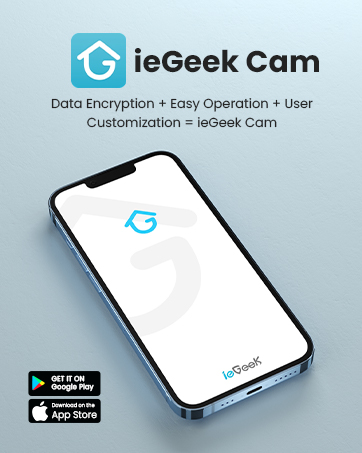
Figure 4.3: The ieGeek Cam app interface on a smartphone, emphasizing data encryption, easy operation, and user customization.
4.3 Connecting to Wi-Fi
Ensure your Wi-Fi network is 2.4GHz. The camera does not support 5GHz networks.
- Power On: Ensure the camera is powered on.
- Add Device: Open the ieGeek Cam app, tap the "+" icon to add a new device.
- Follow Prompts: Select your camera model and follow the in-app instructions to connect to your 2.4GHz Wi-Fi network. This typically involves scanning a QR code displayed on your phone with the camera.
- Confirmation: The camera will indicate successful connection, and you will see the live feed in the app.

Figure 4.4: The camera features dual Wi-Fi antennas for enhanced signal stability and range.
5. Operating Instructions
5.1 Live View and Playback
Once connected, you can access the live video feed from your camera through the ieGeek Cam app. Recorded events can be reviewed from the history section.

Figure 5.1: The ieGeek Cam app provides full customization and control over your security system from your fingertips.

Figure 5.2: Remote viewing of your property is possible from anywhere using the ieGeek Cam app.

Figure 5.3: The app supports viewing multiple cameras simultaneously for comprehensive surveillance.
5.2 Motion Detection and Alerts
The camera uses AI algorithms to detect human motion and send instant notifications to your phone. You can customize detection zones and sensitivity within the app.
- AI Human Detection: Reduces false alarms by distinguishing humans from other moving objects.
- Instant Notifications: Receive alerts on your smartphone when motion is detected.
- Deterrence: Activate the 100dB siren and 1200LM floodlight directly from the app to deter unwanted visitors.

Figure 5.4: AI human detection provides accurate alerts within 2 seconds, activating the 1200 Lumen floodlight and 100 dB siren.

Figure 5.5: The AI algorithm can differentiate between people, pets, and other moving objects, reducing irrelevant alerts.

Figure 5.6: The camera's 1200LM floodlight, 100db siren, and 2-way talk feature act as effective deterrents.

Figure 5.7: Users can define specific detection zones to focus on critical areas and minimize unwanted alerts.
5.3 Two-Way Audio
Use the two-way audio feature to communicate with visitors or deter intruders directly through the camera's built-in speaker and microphone.

Figure 5.8: Engage in real-time conversations with visitors or delivery personnel using the two-way audio feature.
5.4 Floodlight Control
Adjust the floodlight's brightness and duration settings via the ieGeek Cam app.
- Brightness Levels: Choose from 7 Lux levels to control the floodlight intensity.
- Duration: Set the floodlight to stay on for 10 seconds to 10 minutes after activation.

Figure 5.9: The camera offers sophisticated light controls with 7 adjustable Lux levels for the floodlight.

Figure 5.10: Adjust the floodlight's brightness (1-7 levels) and lighting time (10s-10min) via the app.
5.5 Storage Options
The camera supports both local SD card storage and cloud storage for recorded footage.
- SD Card: Insert a microSD card (up to 128GB, not included) into the designated slot on the camera for local recording.
- Cloud Storage: Utilize the free cloud storage option provided by ieGeek for secure off-site backup of your recordings.

Figure 5.11: The camera supports local storage via an SD card (not included).

Figure 5.12: Cloud storage provides a secure backup for your video recordings.
5.6 Alexa Integration
The ieGeek camera can be integrated with Amazon Alexa for convenient voice control and live viewing on compatible smart displays.
- Connect to Alexa: Follow the instructions in the Alexa app to enable the ieGeek skill and link your account.
- Voice Commands: Use commands like "Alexa, show me the [camera name]" to view the live feed.

Figure 5.13: The camera works with Alexa, allowing voice commands like "Alexa, turn on the floodlight."

Figure 5.14: Integrate with Alexa to view your camera feed on compatible devices by saying "Alexa, show me the yard."
6. Maintenance
6.1 Battery and Solar Charging
The camera's 13500mAh battery is designed for long-lasting performance, supplemented by the solar panel.
- Optimal Solar Exposure: Ensure the solar panel is positioned to receive maximum direct sunlight throughout the day to maintain battery charge.
- Battery Life: Battery life varies based on usage (e.g., frequent motion detection, floodlight activation). A full day of sun can provide energy for multiple days of camera operation.

Figure 6.1: The 13500mAh rechargeable battery provides extended operation, with estimates of 3-4 months for garage use, 2-3 months for home use, and 1-2 months for store use.

Figure 6.2: The solar panel provides continuous power, with one sunny day equating to three days of energy for the camera.
6.2 Cleaning
Periodically clean the camera lens and solar panel to ensure optimal performance.
- Use a soft, damp cloth to wipe the lens and solar panel.
- Avoid abrasive cleaners or materials that could scratch the surfaces.
7. Troubleshooting
| Problem | Possible Cause | Solution |
|---|---|---|
| Camera won't connect to Wi-Fi. | Incorrect Wi-Fi band (5GHz), weak signal, incorrect password. | Ensure your Wi-Fi is 2.4GHz. Move camera closer to router. Double-check Wi-Fi password. Restart router and camera. |
| Frequent false motion alerts. | High sensitivity, objects like trees or pets triggering detection. | Adjust motion detection sensitivity in the app. Define specific detection zones to exclude irrelevant areas. Ensure AI human detection is enabled. |
| Battery not charging via solar panel. | Insufficient sunlight, dirty solar panel, faulty connection. | Ensure solar panel receives direct sunlight for several hours daily. Clean the solar panel surface. Check the connection cable between the solar panel and camera. |
| Night vision is unclear or black and white. | Infrared LEDs obstructed, insufficient ambient light for color night vision. | Clear any obstructions from the camera lens and IR LEDs. Ensure the floodlight is enabled for color night vision in low light conditions. |
8. Specifications
| Feature | Detail |
|---|---|
| Model Number | ZS-GX5S |
| Video Capture Resolution | 2K QHD (2304x1296V) |
| Frame Rate | 25 fps |
| Viewing Angle | 130 Degrees |
| Power Source | Solar Powered |
| Battery Capacity | 13500 mAh Lithium Ion |
| Connectivity Protocol | Wi-Fi (2.4GHz only) |
| Floodlight Brightness | 1200 Lumens |
| Floodlight Wattage | 6 watts |
| Night Vision Range | 50 Feet (15m) |
| International Protection Rating | IP65 |
| Operating Temperature | -4°F to 122°F |
| Storage Options | SD Card (up to 128GB), Cloud Storage |
| Compatible Devices | Smartphone (Android, iOS) |
| Dimensions (L x W x H) | 6.85 x 4.8 x 2.83 inches |
| Item Weight | 2.16 pounds |
9. Warranty and Support
ieGeek is committed to providing high-quality products and customer satisfaction. For warranty information, technical support, or any inquiries regarding your ieGeek Solar Camera, please refer to the official ieGeek website or contact their customer service directly.
You can also visit the official ieGeek store on Amazon for more information and product updates: ieGeek Amazon Store.

Figure 9.1: ieGeek brand logo, "make your life better".

Figure 9.2: ieGeek emphasizes user privacy, utilizing AES128 encryption for data security.
Related documentsZS-GX5S


Ask a question about this manual
Ask about setup, troubleshooting, compatibility, parts, safety, or missing instructions. Manuals+ will review the question and use this page’s manual context to help answer it.