
Introduction
This user manual provides essential information for setting up, operating, maintaining, and troubleshooting your MI Xiaomi Notebook Ultra. Please read this manual thoroughly before using your device to ensure proper function and longevity. Keep this manual for future reference.
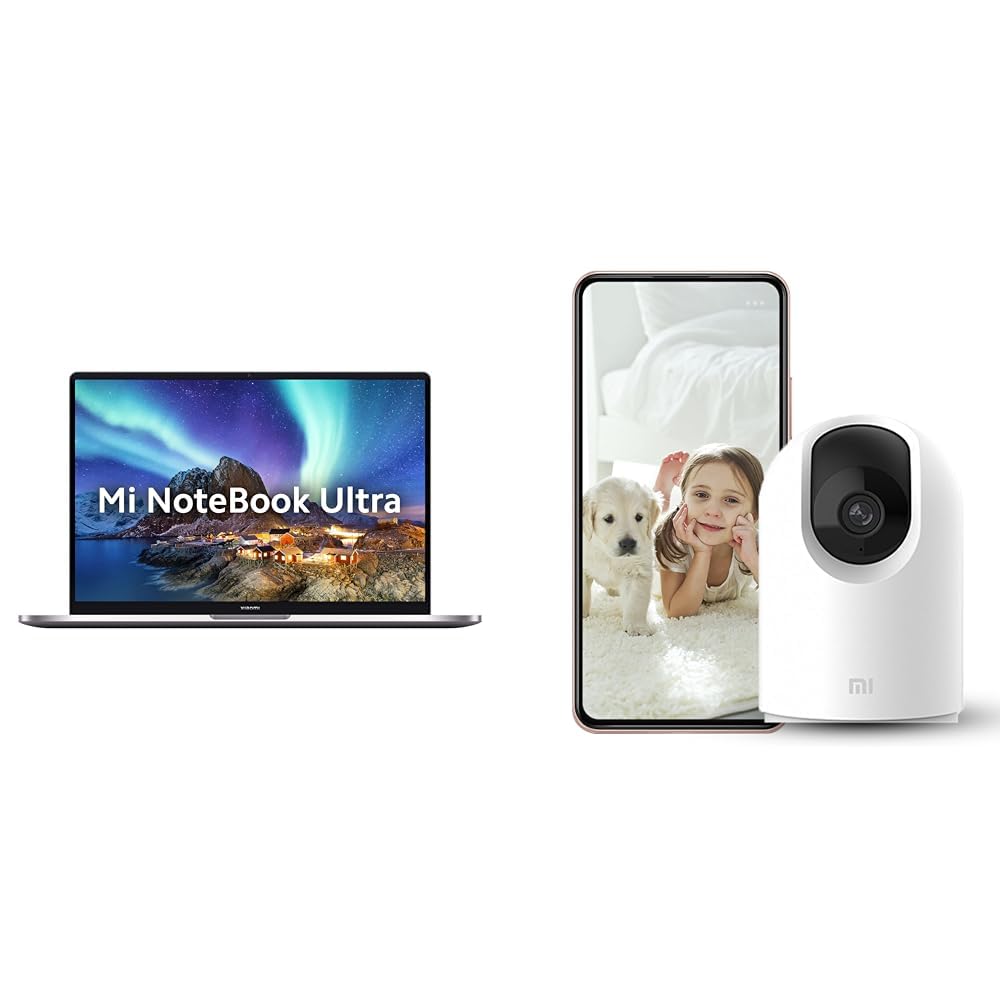
Image: The MI Xiaomi Notebook Ultra laptop, showcasing its display with a scenic wallpaper.
Product Overview
The MI Xiaomi Notebook Ultra is a thin and light laptop designed for performance and portability. It features an 11th Gen Intel Core i5-11320H processor, a high-resolution 3.2K IPS display, and integrated Intel Iris Xe Graphics. This section details the main components and features of your new laptop.
Key Features:
- Processor: 11th Gen Intel Tiger Lake Core i5-11300H processor with speeds up to 4.4 GHz, 4 cores, 8 threads, and 8 MB Cache.
- Display: 39.62 cm (15.6-inch) IPS 3.2K resolution (3200x2000) with 16:10 aspect ratio, 100% sRGB, 90Hz refresh rate, 241 PPI, 1500:1 contrast ratio, anti-glare, and TUV Low blue light certification.
- Memory & Storage: 8GB DDR4 3200 MHz RAM and 512GB PCIe NVMe M.2 SSD.
- Operating System & Software: Pre-installed Windows 11 Home and Microsoft Office Home and Student 2021.
- Graphics: Integrated Intel Iris Xe graphics.
- Connectivity: Dual Band Wi-Fi and Bluetooth.
- Security: Fingerprint Recognition.
- Ports: Includes Thunderbolt 4 and USB Type-C ports.

Image: An overview of the MI Xiaomi Notebook Ultra's key features, including its 3.2K display, all-metal design, 90Hz refresh rate, 12-hour battery, thin and light profile, Thunderbolt 4, USB Type-C, Intel Core i5/i7 H35 processor, 8/16GB RAM, 512GB SSD, Wi-Fi 6, and fingerprint reader.

Image: Side profile of the MI Xiaomi Notebook Ultra, highlighting the various ports including Thunderbolt 4 and USB Type-C.
Setup Guide
1. Unboxing and Initial Inspection:
Carefully remove the laptop and all accessories from the packaging. Check for any visible damage. Ensure all components listed in the packaging are present.
2. Connecting Power:
- Connect the power adapter to the laptop's USB Type-C charging port.
- Plug the power cable into a wall outlet.
- Allow the laptop to charge for at least 30 minutes before initial use, or until the battery indicator shows sufficient charge.
3. Initial Boot and Windows Setup:
- Open the laptop lid and press the power button.
- Follow the on-screen instructions to complete the Windows 11 Home setup process. This includes selecting your region, language, connecting to a Wi-Fi network, and creating a user account.
- Register your Microsoft account if prompted to activate Windows and Microsoft Office Home and Student 2021.
4. Connecting Peripherals:
You can connect external displays, wireless keyboards, mice, webcams, and other Bluetooth/Wi-Fi enabled devices. Refer to the device's specific instructions for pairing or connecting.
- USB Devices: Use the available USB Type-C or Thunderbolt 4 ports.
- Bluetooth Devices: Enable Bluetooth on your laptop via Windows settings and pair with your device.
- External Display: Connect an external monitor using a compatible cable to the Thunderbolt 4 port (which supports display output).
Operating Instructions
Power Management:
- Power On: Press the power button located on the keyboard deck.
- Sleep Mode: Close the lid or select "Sleep" from the Windows Start menu.
- Shut Down: Select "Shut down" from the Windows Start menu.
- Restart: Select "Restart" from the Windows Start menu.
Using the Display:
Your laptop features a 3.2K IPS display with a 90Hz refresh rate. You can adjust display settings (resolution, refresh rate, brightness) through Windows Display Settings. The anti-glare coating helps reduce reflections, and TUV Low blue light certification aims to reduce eye strain.
Fingerprint Recognition:
The integrated fingerprint sensor allows for secure and quick login. To set up, navigate to Windows Settings > Accounts > Sign-in options and follow the instructions to register your fingerprint.
Keyboard and Touchpad:
The laptop includes a full-sized keyboard and a precision touchpad. Customize touchpad gestures and keyboard backlight settings (if available) through Windows Settings.
Audio:
The laptop is equipped with integrated speakers. Adjust volume using the function keys or Windows sound settings.
Webcam:
The integrated webcam can be used for video calls and conferences. Ensure the physical lens shield is open when using the webcam. Manage webcam privacy settings in Windows.
Maintenance
Cleaning:
- Screen: Use a soft, lint-free cloth lightly dampened with water or a screen cleaner. Do not spray liquid directly onto the screen.
- Keyboard and Chassis: Use a soft, dry cloth. For stubborn dirt, a slightly damp cloth can be used. Avoid harsh chemicals.
- Ports: Keep ports free of dust and debris. Use compressed air if necessary, but do so gently.
Battery Care:
- Avoid fully discharging the battery frequently.
- Store the laptop in a cool, dry place if not used for extended periods, with the battery charged to around 50%.
- Use only the original power adapter provided with the laptop.
Software Updates:
Regularly update Windows, drivers, and other software to ensure optimal performance and security. You can check for updates via Windows Settings.
Troubleshooting
This section provides solutions to common issues you might encounter. If the problem persists, contact customer support.
No Power / Laptop Not Turning On:
- Ensure the power adapter is securely connected to both the laptop and a working power outlet.
- Check if the power outlet is functional by plugging in another device.
- If the battery is completely drained, allow it to charge for at least 30 minutes before attempting to power on.
Display Issues:
- Blank Screen: Try connecting an external monitor to check if the laptop is outputting video. If the external monitor works, there might be an issue with the laptop's internal display.
- Dim Screen: Adjust brightness using the function keys or Windows Display Settings.
- Incorrect Resolution: Adjust the display resolution in Windows Display Settings.
Wi-Fi / Bluetooth Connectivity Problems:
- Ensure Wi-Fi and Bluetooth are enabled in Windows Settings.
- Restart your router/modem for Wi-Fi issues.
- For Bluetooth, try unpairing and re-pairing the device.
- Update network adapter drivers through Device Manager.
Slow Performance:
- Close unnecessary applications running in the background.
- Check for and install any pending Windows updates.
- Run a disk cleanup and defragmentation (for HDDs, though this laptop has SSD).
- Scan for malware or viruses.
Included Accessory: Mi 360° Home Security Camera 2K Pro
Your MI Xiaomi Notebook Ultra package includes a Mi 360° Home Security Camera 2K Pro. This camera offers enhanced home surveillance with 2K resolution and smart features. Please refer to the separate user manual provided with the camera for detailed setup and operation instructions.
Key Features of the Camera:
- Resolution: 2K Video Resolution Quality.
- Connectivity: Dual-band Wi-Fi.
- Security: Physical lens shield.
- Audio: Dual-microphone noise reduction.
- Smart Features: AI Human Detection, Bluetooth gateway.
- Storage: Cloud Storage In India.

Image: The Mi 360° Home Security Camera 2K Pro, a white spherical camera with a black lens module.

Image: An illustration of the Mi 360° Home Security Camera 2K Pro's features, including physical shield, dual-microphone noise reduction, dual-band Wi-Fi, Bluetooth gateway, AI Human Detection, and Cloud Storage.

Image: A comparison demonstrating the 2K video resolution quality of the Mi 360° Home Security Camera 2K Pro, showing a clearer image at 1296p compared to 1080p.
Specifications
| Feature | Detail |
|---|---|
| Brand | MI |
| Model Name | Xiaomi Notebook Ultra |
| CPU Model Number | 11th Gen Intel Core i5-11320H |
| Processor Speed | 3.1 GHz (Base) - 4.4 GHz (Max) |
| Processor Cores | 4 |
| Screen Size | 39.62 Centimetres (15.6-inch) |
| Display Resolution | 3200 x 2000 (3.2K) |
| Display Type | IPS LED, Anti Glare Coating |
| Refresh Rate | 90Hz |
| RAM Memory Installed Size | 8 GB DDR4 3200 MHz |
| Hard Disk Size | 512 GB PCIe NVMe M.2 SSD |
| Operating System | Windows 11 Home |
| Graphics Coprocessor | Intel Iris Xe Graphics (Integrated) |
| Wireless Technology | Bluetooth, Wi-Fi (Dual Band) |
| Biometric Security | Fingerprint Recognition |
| Item Weight | 1.7 Kilograms |
| Colour | Metallic |
| Included Software | Microsoft Office Home and Student 2021 |
| Battery Cell Type | Lithium Polymer |
Warranty and Support
For warranty information and customer support, please refer to the warranty card included in your product packaging or visit the official MI support website. Keep your purchase receipt and product serial number handy when contacting support.
Online Support: MI India Support


