
1. Introduction
Thank you for choosing the ieGeek 5MP Outdoor Security Camera ZS-GQ4. This manual provides detailed instructions for setting up, operating, and maintaining your camera to ensure optimal performance and security. Please read this manual thoroughly before use and retain it for future reference.
Safety Precautions
- Ensure the camera is installed in a stable location to prevent falling.
- Use only the provided power adapter to avoid damage.
- Do not expose the camera to extreme temperatures or corrosive environments.
- Keep the camera lens clean for clear image quality.
- Avoid direct exposure to sunlight for prolonged periods.
2. Product Overview
Package Contents
- ieGeek 5MP Outdoor Security Camera (ZS-GQ4) x1
- Power Adapter x1
- Screws and Anchors x3
- Positioning Sheet x1
- User Manual x1
Key Features
- 5MP Ultra HD Resolution: Captures clear and detailed images.
- Dual-Band WiFi Support: Compatible with both 2.4GHz and 5GHz WiFi networks for stable connectivity.
- 360° Pan/Tilt/Zoom (PTZ): Offers horizontal 355° and vertical 90° rotation for comprehensive coverage.
- Automatic Tracking: Detects and tracks human movement, returning to its original position after tracking.
- Advanced Night Vision: Provides up to 25 meters of clear night vision, with options for black & white or full-color night vision using built-in IR and LED lights.
- Human Motion Detection: Reduces false alarms by focusing on human shapes.
- Automatic Deterrence: Features audible alarms, flashing lights, and sound/light alarms to deter intruders.
- Flexible Storage Options: Supports up to 128GB MicroSD card (sold separately) and cloud storage (free 6-second clips for 1 week with auto-overwrite).
- Two-Way Audio: Built-in microphone and speaker for real-time communication.
- Alexa Compatibility: Control surveillance areas using voice commands.
- IP66 Weatherproof: Designed for outdoor use in various weather conditions.

Figure 1: ieGeek 5MP Outdoor Security Camera ZS-GQ4 and power adapter.
Video 1: Overview of ieGeek 5MP Outdoor Security Camera features, including 5MP resolution, dual-band WiFi, and smart functions.
3. Setup
3.1 MicroSD Card Installation
To store recordings locally, install a MicroSD card (up to 128GB, sold separately) into the camera. Ensure the camera is powered off before inserting or removing the card.
Video 2: Demonstration of how to correctly insert a MicroSD card into the camera.
3.2 Mounting the Camera
The camera can be wall-mounted. Use the included positioning sheet to mark drill holes, then secure the camera with the provided screws and anchors. Ensure the camera is positioned to cover your desired surveillance area.

Figure 2: The camera mounted on a wall, illustrating its 360-degree pan and tilt capabilities.
3.3 Power Connection
Connect the camera to a power outlet using the supplied power adapter. The camera will power on automatically.
3.4 App Installation and Initial Setup
- Download the ieGeek Cam app from your smartphone's app store (iOS/Android).
- Register an account and log in.
- Tap '+' to add a new device.
- Follow the on-screen instructions to connect the camera to your 2.4GHz or 5GHz WiFi network. This typically involves scanning a QR code displayed on your phone with the camera.
- Once connected, you can name your camera and begin live viewing.
Video 3: A quick guide demonstrating the initial setup process, including app connection and QR code scanning.
4. Operating Instructions
4.1 Live View and PTZ Control
Open the ieGeek Cam app and select your camera to access the live view. You can use the on-screen controls to pan (horizontal 355°) and tilt (vertical 90°) the camera lens to adjust the viewing angle.
4.2 Recording Modes
The camera supports three recording modes:
- 24/7 Continuous Recording: Records continuously, overwriting the oldest footage when storage is full.
- Event Recording: Records only when motion is detected.
- Scheduled Recording: Records during specific times set by the user.
Recordings can be saved to a MicroSD card or to the cloud. Free cloud storage provides 6-second event clips for one week, with automatic overwriting.
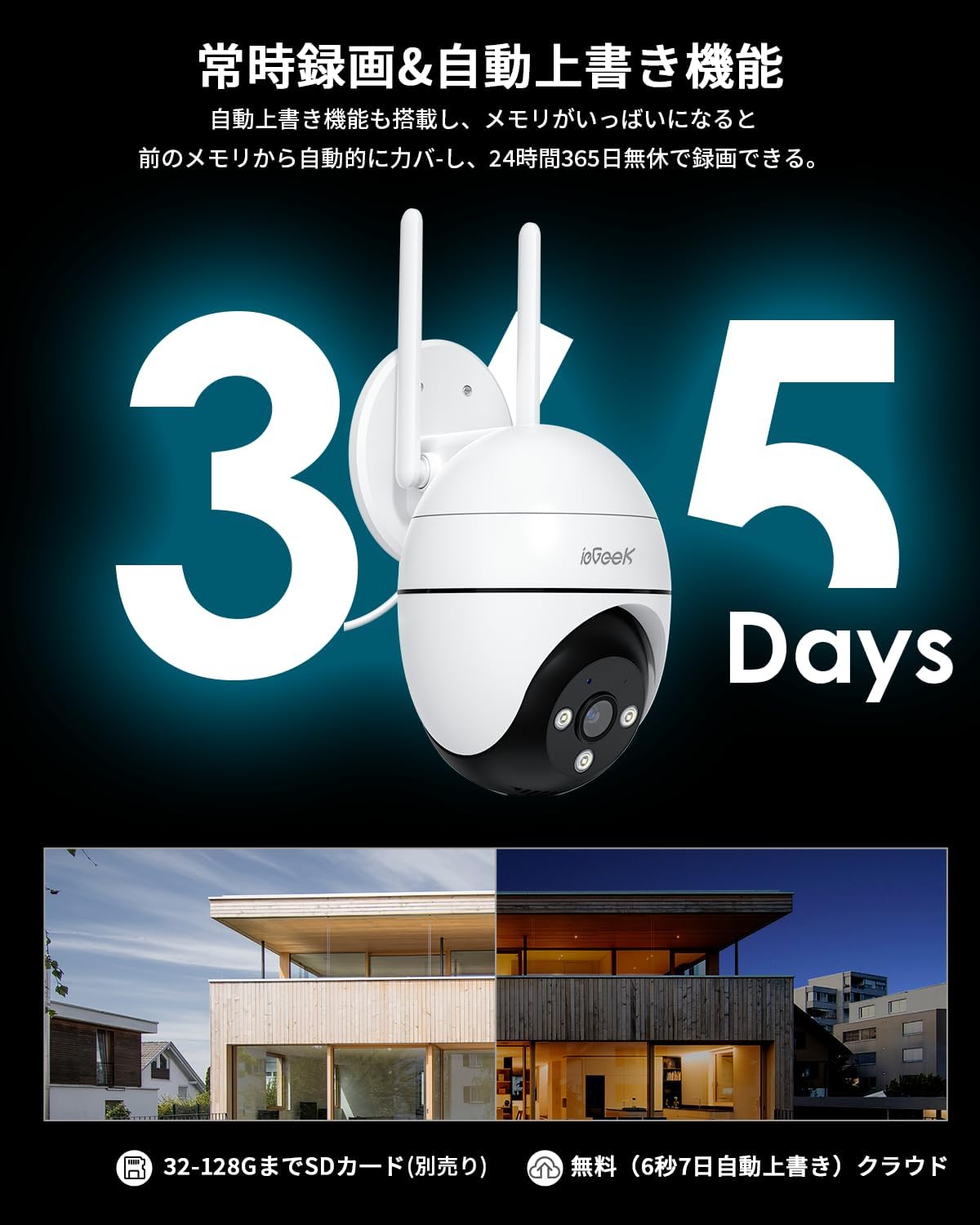
Figure 3: Illustration of 24/7 recording and automatic overwrite functionality.

Figure 4: Customizable recording modes, including motion-activated and continuous recording.
4.3 Motion Detection and Alerts
The camera features high-precision human detection, reducing false alarms by 90%. When motion is detected, you will receive push notifications on your smartphone. The camera can also activate audible alarms, flashing lights, or a combination of both to deter potential intruders.
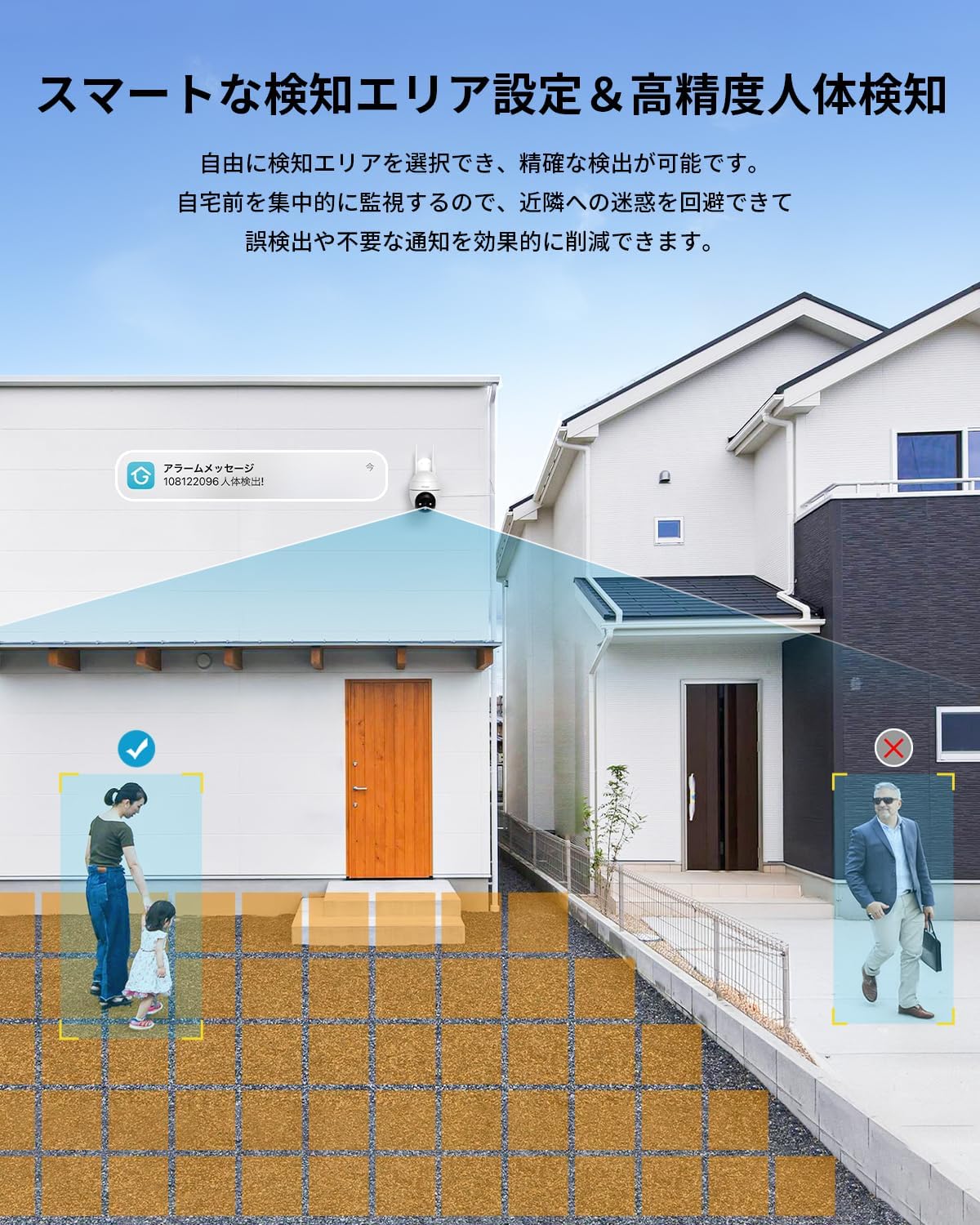
Figure 5: Setting up smart detection areas and the effectiveness of human detection.

Figure 6: The camera's automatic tracking feature following a detected person.

Figure 7: Example of a push notification from the ieGeek Cam app.
4.4 Night Vision
The camera automatically switches to night vision in low-light conditions. It features both infrared (black & white) and full-color night vision, utilizing 3 IR lights and 3 LED lights to illuminate up to 25 meters.
Video 4: A time-lapse video demonstrating the camera's night vision capabilities, transitioning from day to night.

Figure 8: Comparison of night vision range, highlighting the camera's 20m effective range.
4.5 Two-Way Audio
The built-in microphone and speaker allow for two-way communication. You can speak through the app to anyone near the camera and hear their responses.

Figure 9: A user interacting with the two-way audio feature via the smartphone app.

Figure 10: Multiple family members can view the camera feed simultaneously.
4.6 Alexa Integration
The camera is compatible with Alexa. You can use voice commands to view the camera feed on compatible Alexa-enabled devices, such as


