
Introduction
This manual provides comprehensive instructions for the installation, operation, and maintenance of your Yale Security Assure Lock 2 Deadbolt. This smart keyless entry door lock offers enhanced security and convenience through its Z-Wave connectivity and keypad entry system.
Important Safety Information
- Read all instructions carefully before installation and use.
- Do not use harsh chemicals or abrasive cleaners on the lock.
- Ensure proper battery installation to prevent damage.
- Keep keys and access codes secure.
- This product is designed for use within the U.S. and Canada.
Package Contents
- Yale Assure Lock 2
- Yale Z-Wave Smart Module
- Yale DoorSense
- Deadbolt
- Strike Plate
- Mounting Hardware
- Installation Manual (this document)
- 4 AA batteries
Setup and Installation
The Yale Assure Lock 2 is designed for straightforward installation. Refer to the included physical installation manual for detailed, step-by-step instructions specific to your door type.
General Steps:
- Prepare Door: Ensure your door is properly prepped for a deadbolt installation.
- Install Deadbolt: Mount the deadbolt into the door edge.
- Install Exterior Keypad: Attach the exterior keypad assembly.
- Install Interior Assembly: Secure the interior lock assembly, connecting the cable from the exterior.
- Install Batteries: Insert the 4 AA batteries (included).
- Install Smart Module: Insert the Yale Z-Wave Smart Module into the designated slot.
- Calibrate Lock: Follow the on-screen prompts or app instructions to calibrate the lock.


Operating Your Yale Assure Lock 2
Keypad Entry
To unlock the door using the keypad:
- Touch the Yale logo or any key to activate the keypad.
- Enter your 4-8 digit master or user code.
- Press the checkmark (✓) button.
To lock the door using the keypad:
- Press the Yale logo button.
Z-Wave Smart Home Integration
This lock includes a Z-Wave Smart Module for integration with compatible smart home systems (e.g., Samsung SmartThings, Ring Alarm, Wink, ADT, Alarm.com, Qolsys, Honeywell).
- Pairing: Follow your smart home hub's instructions to add a new Z-Wave device.
- Remote Control: Lock and unlock your door remotely via your smart home app.
- Custom Codes: Manage user codes through your smart home app.
Auto-Lock and DoorSense™
The lock can be configured to automatically lock after a set period once the door is closed. DoorSense™ technology detects if the door is open or closed, preventing the deadbolt from extending while the door is ajar.
- Enable Auto-Lock: Configure this feature through the Yale Access App or your integrated smart home system.
- Adjust Timer: Set the desired auto-lock delay (e.g., 30 seconds, 1 minute).
Maintenance
Battery Replacement
The Yale Assure Lock 2 requires 4 AA batteries. Battery life can vary based on usage and environmental factors, typically lasting about one year.
- Low Battery Warning: The lock will provide visual and audible alerts when batteries are low.
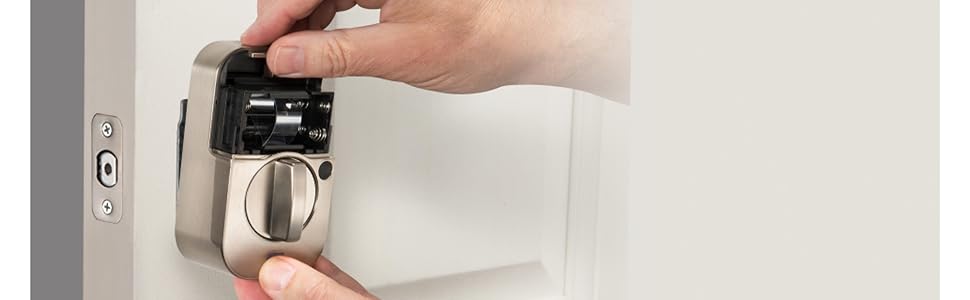
- Access Battery Compartment: Remove the interior cover to access the battery compartment.
- Replace Batteries: Replace all four AA batteries with new, high-quality alkaline batteries.
Cleaning
Clean the keypad and lock body with a soft, damp cloth. Avoid abrasive cleaners or solvents that could damage the finish or electronic components.
Troubleshooting
Keypad Not Responding
- Ensure batteries are not depleted. Replace if necessary.
- Check for any physical obstructions on the keypad surface.
- If the keypad is unresponsive, try pressing the Yale logo button firmly.
Lock Not Engaging/Disengaging
- Verify the door is fully closed and aligned with the strike plate. DoorSense™ prevents locking if the door is ajar.
- Check for any obstructions in the door frame or deadbolt path.
- Recalibrate the lock if issues persist.
Connectivity Issues (Z-Wave)
- Ensure your Z-Wave smart home hub is powered on and within range.
- Try re-pairing the lock with your Z-Wave hub.
- Consult your smart home hub's manual for specific Z-Wave troubleshooting steps.
Specifications
| Feature | Detail |
|---|---|
| Brand | Yale Security |
| Model Name | Assure Lock 2 with Z-Wave |
| Item Model Number | YRD450-ZW2-619 |
| Lock Type | Keypad Deadbolt |
| Special Features | Adjustable Deadbolt, Auto Unlock, Auto-Lock, Keypad Entry, Z-Wave |
| Connectivity | Bluetooth, Z-Wave |
| Control Method | App, Touch |
| Compatible Controllers | Android, Ring, SmartThings, Vera, iOS |
| Material | Nickel |
| Finish Type | Brushed |
| Color | Satin Nickel |
| Power Source | 4 AA batteries (included) |
| Item Dimensions (L x W x H) | 2.5 x 3.7 x 2.3 inches |
| Item Weight | 3.58 pounds |
| UPC | 081023112253 |
Warranty and Support
The Yale Assure Lock 2 comes with a Limited Lifetime Warranty on finishes and mechanical components, and a One-Year Warranty on electronics.
For technical support, troubleshooting assistance, or warranty claims, please visit the official Yale Security website or contact their customer service.


