
Introduction
This user manual provides detailed instructions for the setup, operation, maintenance, and troubleshooting of your MUNBYN ITPP130B Bluetooth & USB Thermal Label Printer. Please read this manual thoroughly before using the printer to ensure optimal performance and longevity.
The MUNBYN ITPP130B is a high-speed thermal label printer designed for efficiency, featuring 203 DPI resolution and a printing speed of 180mm/s. It supports 4x6 inch thermal labels and offers versatile connectivity options including Bluetooth for iOS/Android devices and USB for Windows, macOS, and Chrome OS.

Image: The MUNBYN ITPP130B printer highlighted for its compact size and clear printing capabilities compared to other models.
What's in the Box
Upon unboxing your MUNBYN ITPP130B printer, verify that all the following components are included:
- MUNBYN ITPP130B Thermal Label Printer
- Power Adapter
- Power Cable
- USB Cable
- User Manual (this document)
- Test Labels

Image: The MUNBYN ITPP130B printer in operation, demonstrating its compact design and ease of use with a smartphone application.
Setup Guide
1. Power Connection
- Connect the power adapter to the printer's power port.
- Plug the power cable into a suitable electrical outlet.
- Turn on the printer using the power switch, usually located at the rear or side.
2. Loading Labels
The printer supports both fanfold and roll labels with widths ranging from 1.57" to 4.1".
- Open the top cover of the printer.
- Adjust the label guides to match the width of your labels.
- Insert the labels, ensuring the print side is facing up and the first label is aligned with the print head.
- Close the top cover. The printer will automatically calibrate and feed a few labels to detect the label size.
3. Connectivity Options

Image: Visual representation of the printer's dual connectivity options: Bluetooth for mobile devices and USB for desktop operating systems.
USB Connection (Windows, macOS, Chrome OS)
- Connect the printer to your computer using the provided USB cable.
- Install the printer driver. Drivers are typically provided on a USB stick included with the printer or can be downloaded from the official MUNBYN website.
- Follow the on-screen instructions to complete the driver installation.
Bluetooth Connection (iOS, Android)
- Download the 'MUNBYN Printer' app from the Google Play Store or Apple App Store.
- Ensure Bluetooth is enabled on your mobile device.
- Open the 'MUNBYN Printer' app and follow the in-app instructions to pair with your printer.
Operating the Printer
The MUNBYN ITPP130B is designed for straightforward label printing. Here are general steps for operation:
Printing from a Computer (USB)
- Ensure the printer is connected via USB and powered on.
- Open the document or application from which you wish to print (e.g., shipping platform, word processor).
- Select "Print" from the file menu.
- Choose the MUNBYN ITPP130B as your printer.
- Adjust print settings such as label size (e.g., 4x6 inches), orientation, and print density as needed. Refer to your application's print dialogue for specific options.
- Initiate the print job.
Printing from a Mobile Device (Bluetooth)
- Ensure the printer is powered on and paired with your mobile device via the 'MUNBYN Printer' app.
- Within the app, select the label you wish to print or import a label design.
- Review the preview and adjust print settings like print density or number of copies.
- Tap the "Print" button to send the job to the printer.
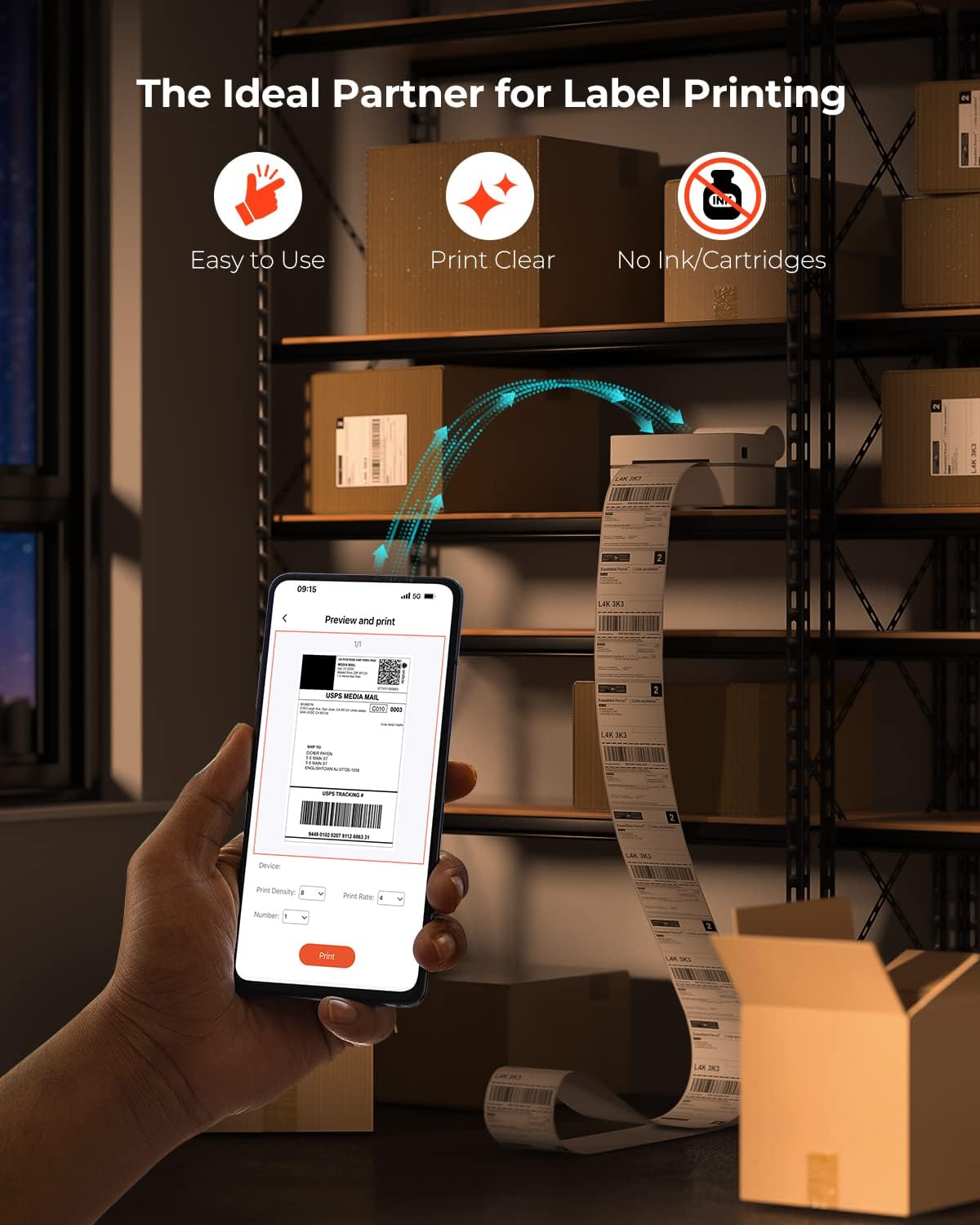
Image: The printer's key advantages highlighted: user-friendliness, clear print quality, and the absence of ink or toner requirements.

Image: The MUNBYN ITPP130B printer seamlessly integrated into a workspace, demonstrating its compact size and efficient label printing.
Wide Compatibility
The MUNBYN ITPP130B is compatible with various marketplaces and shipping platforms, enhancing productivity for online businesses. This includes, but is not limited to, Endicia, Dazzle, ShipStation, Shipping Easy, Shippo, ShipWorks, Ordoro, eBay, Amazon, Etsy, and Shopify.

Image: The printer's broad compatibility with e-commerce platforms and its ability to print various label formats and sizes.
For more information on compatible labels, visit this product page (referencing product ID 2000003874).
Official Product Video
Video: An official demonstration of the MUNBYN 130B Bluetooth Thermal Label Printer, showcasing its features and operation. Duration: 0:25.
Maintenance
Regular maintenance ensures the longevity and optimal performance of your thermal label printer.
Cleaning the Print Head
- Turn off the printer and unplug the power cable.
- Open the top cover.
- Gently wipe the print head with an alcohol swab or a lint-free cloth lightly dampened with isopropyl alcohol.
- Allow the print head to dry completely before closing the cover and powering on the printer.
Cleaning the Platen Roller
- With the printer off and unplugged, locate the platen roller (the rubber roller that feeds the labels).
- Use an alcohol swab or a lint-free cloth dampened with isopropyl alcohol to clean the roller, rotating it manually to clean the entire surface.
- Ensure the roller is dry before resuming operation.
General Cleaning
- Wipe the exterior of the printer with a soft, dry cloth.
- Avoid using abrasive cleaners or solvents that could damage the printer's surface.
Troubleshooting
This section addresses common issues you might encounter with your MUNBYN ITPP130B printer.
| Problem | Possible Cause | Solution |
|---|---|---|
| Printer not responding / Not printing |
|
|
| Poor print quality (faint, blurry) |
|
|
| Labels not feeding correctly / Paper jam |
|
|
| Bluetooth connection issues |
|
|
Specifications
| Feature | Detail |
|---|---|
| Model Name | ITPP130B |
| Printing Technology | Thermal |
| Print Resolution | 203 DPI (203 x 203 DPI) |
| Max Print Speed (Monochrome) | 180 mm/s |
| Connectivity Technology | Bluetooth, USB |
| Compatible Devices | Laptops, PC, Smartphones, Tablets |
| Operating Systems Supported | Windows, macOS, Chrome OS (USB); iOS, Android (Bluetooth) |
| Maximum Media Size | 4 x 6 inch |
| Label Width Range | 1.57" to 4.1" |
| Power Consumption (On-mode) | 12.5 Watts |
| Product Dimensions | 7 x 3.8 x 3.4 inches (approx. 3.89"D x 7.16"W x 3.42"H) |
| Item Weight | 3.34 pounds |
Warranty and Support
The MUNBYN ITPP130B Thermal Label Printer comes with a limited warranty. For specific details regarding warranty coverage, duration, and terms, please refer to the warranty card included with your product or visit the official MUNBYN website.
For technical support, troubleshooting assistance beyond this manual, or to inquire about replacement parts, please contact MUNBYN customer service through their official support channels. Contact information can typically be found on the manufacturer's website or on the product packaging.
You can also visit the MUNBYN Store on Amazon for additional resources and product information.


