
zidoo V12
Zidoo V12 Bluetooth and Infrared Remote Control
User Manual
Introduction
The Zidoo V12 is an advanced Bluetooth and Infrared (IR) remote control designed to provide seamless control over your Zidoo media players. It features a comfortable, skin-friendly design, motion-sensing backlight, and dual-module connectivity for extended range and multi-angle control. The V12 remote is compatible with a wide range of Zidoo models, including Z9S, Z9X, Z10, Z10pro, X20, X20pro, Z1000, Z1000pro, UHD2000, UHD3000, Neo S, and Neo Alpha.
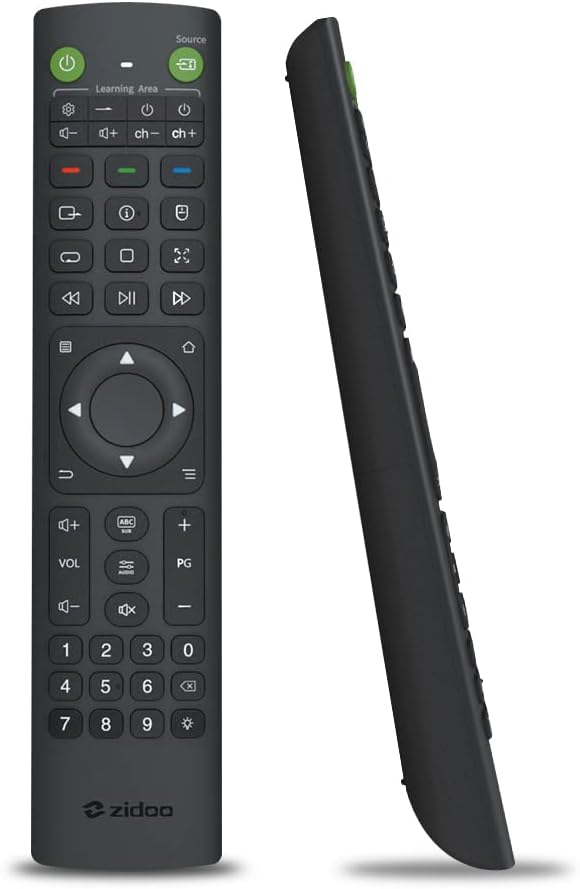
Front and side view of the Zidoo V12 remote control, showcasing its full button layout and ergonomic profile.

The Zidoo V12 remote control resting on a wooden table, highlighting its sleek design and integration into a home environment.
Setup
1. Battery Installation
The Zidoo V12 remote control requires three (3) AAA batteries for operation. Batteries are not included with the product.
- Locate the battery compartment cover on the back of the remote control.
- Slide the cover downwards or in the direction indicated by an arrow to open it.
- Insert three AAA batteries, ensuring the positive (+) and negative (-) terminals align correctly with the markings inside the compartment.
- Replace the battery compartment cover by sliding it back into place until it clicks securely.
2. Initial Power On
Once batteries are installed, the remote is ready for use. Some functions, like Bluetooth pairing, may require specific steps as detailed in the Operating section.
Operating Instructions
Bluetooth Pairing
To pair the Zidoo V12 remote control with your Zidoo media player via Bluetooth:
- Ensure the remote control is within 30 cm (approximately 12 inches) of your Zidoo media player.
- Simultaneously press and hold the OK key and the PG key on the remote control.
- Continue holding until the indicator light on the remote control begins blinking. This indicates that the remote is in pairing mode.
- The device should now be paired.
IR Learning Function
The Zidoo V12 remote can learn infrared (IR) commands from other remote controls, allowing you to consolidate control of multiple devices.
- Press and hold the Power key (usually the green power button) for 3 seconds until the indicator light remains constantly on. This signifies the remote is in learning mode.
- Press the specific key on the V12 remote that you wish to program. The indicator light will begin to blink.
- Point the infrared emission window of the V12 remote and the original remote control at each other, ensuring they are closely aligned.
- Press the corresponding key on the original remote control that you want the V12 to learn.
- The indicator light on the V12 remote will stop blinking once the learning process for that key is complete.
- Repeat steps 2-5 for any other keys you wish to program.
- To exit the learning mode, press the Power key again.
Backlight Control
The Zidoo V12 features a motion-sensing backlight for improved visibility in dark environments.
- To manually turn the backlight on or off, press and hold the Backlight key (often represented by a light bulb or star icon) for 3 seconds.
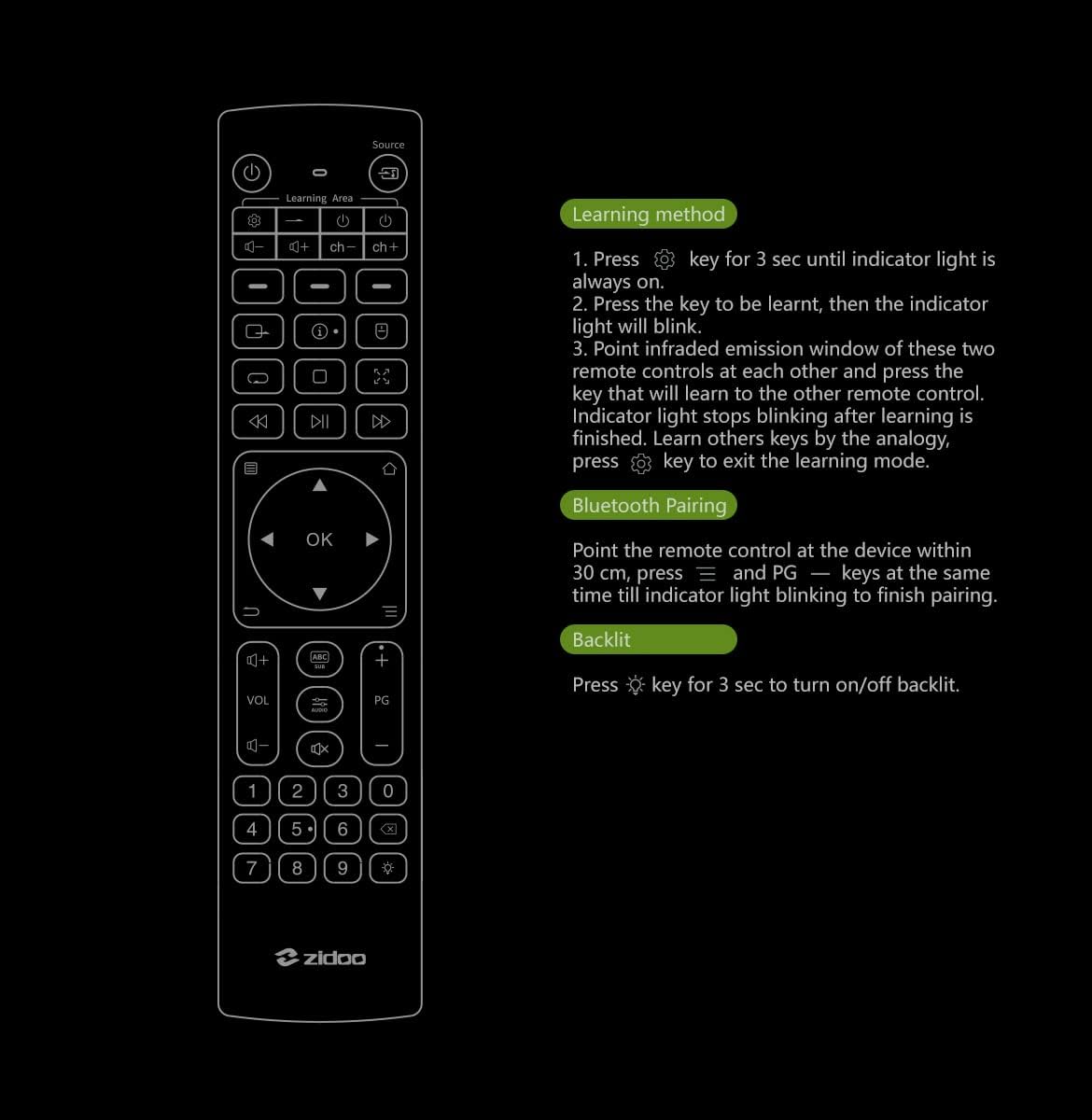
Detailed instructions for IR learning, Bluetooth pairing, and backlight control as depicted on the product's instructional diagram.

A user holding the Zidoo V12 remote control, demonstrating its ease of use with a Zidoo media player interface on a television screen.

The Zidoo V12 remote control showcasing its illuminated backlit buttons, designed for convenient use in low-light conditions.

A user operating the Zidoo V12 remote control in a living room, illustrating its high sensitivity and effective control from various angles.

A visual representation of the Zidoo V12 remote control's simple learning capability, allowing it to acquire commands from other IR remotes.
Maintenance
Cleaning
To maintain the remote control's appearance and functionality:
- Wipe the surface with a soft, dry cloth.
- For stubborn dirt, slightly dampen the cloth with water or a mild, non-abrasive cleaner. Do not use harsh chemicals or abrasive materials.
- Avoid getting liquid into the remote's internal components.
Battery Replacement
Replace batteries when the remote's response becomes sluggish or it stops functioning. Always replace all three AAA batteries at the same time with new ones. Do not mix old and new batteries, or different types of batteries.
Storage
If the remote control will not be used for an extended period, remove the batteries to prevent leakage and potential damage to the remote.
Troubleshooting
| Problem | Possible Cause | Solution |
|---|---|---|
| Remote not responding | Dead or low batteries; Incorrect battery installation; Remote out of range; Obstruction between remote and device; Bluetooth not paired (for Bluetooth functions). | Replace batteries; Check battery polarity; Move closer to the device; Remove obstructions; Re-pair Bluetooth (see Operating section). |
| Bluetooth pairing fails | Remote too far from device; Interference; Incorrect pairing procedure. | Ensure remote is within 30 cm of the device; Minimize interference from other wireless devices; Follow Bluetooth pairing steps precisely (see Operating section). |
| IR learning not working | Incorrect learning procedure; Remotes not aligned; Weak signal from original remote. | Ensure correct IR learning steps are followed; Align IR windows closely; Ensure original remote has fresh batteries. |
| Backlight not illuminating | Backlight feature is off; Low batteries. | Press and hold the Backlight key for 3 seconds to activate; Replace batteries. |
Specifications
| Feature | Detail |
|---|---|
| Model Name | V12 |
| Manufacturer | zidoo |
| Product Dimensions (L x W x H) | 7.95 x 1.77 x 0.79 inches (20.19 x 4.50 x 2.01 cm) |
| Item Weight | 3.84 ounces (108.87 grams) |
| Connectivity | Bluetooth, Infrared (IR) |
| Power Source | 3 x AAA Batteries (not included) |
| Special Features | Backlit buttons, Motion-sensing, IR learning function |
| Compatible Zidoo Models | Z9S, Z9X, Z10, Z10pro, X20, X20pro, Z1000, Z1000pro, UHD2000, UHD3000, Neo S, Neo Alpha |
Warranty and Support
For information regarding product warranty, please refer to the documentation provided at the time of purchase or contact the seller directly. Zidoo products typically come with a manufacturer's warranty, details of which can be found on the official Zidoo website or by contacting their customer support.
For technical support or further assistance, please contact the seller from whom you purchased the Zidoo V12 remote control or visit the official Zidoo support channels.
Related documentsV12


Ask a question about this manual
Ask about setup, troubleshooting, compatibility, parts, safety, or missing instructions. Manuals+ will review the question and use this page’s manual context to help answer it.