
1. Introduction
This manual provides detailed instructions for the installation, operation, and maintenance of your ieGeek ZS-GX4S 5MP Solar Wireless Outdoor Security Camera. Please read this manual thoroughly before using the product to ensure proper function and safety. Keep this manual for future reference.
2. Package Contents
Please check the package contents upon receipt. If any items are missing or damaged, contact customer support.
- Camera Body (1)
- Solar Panel (1)
- Screws and Anchors (7 sets)
- Body Fixing Screws (4)
- User Manual (1)
- Type-C Cable (1)
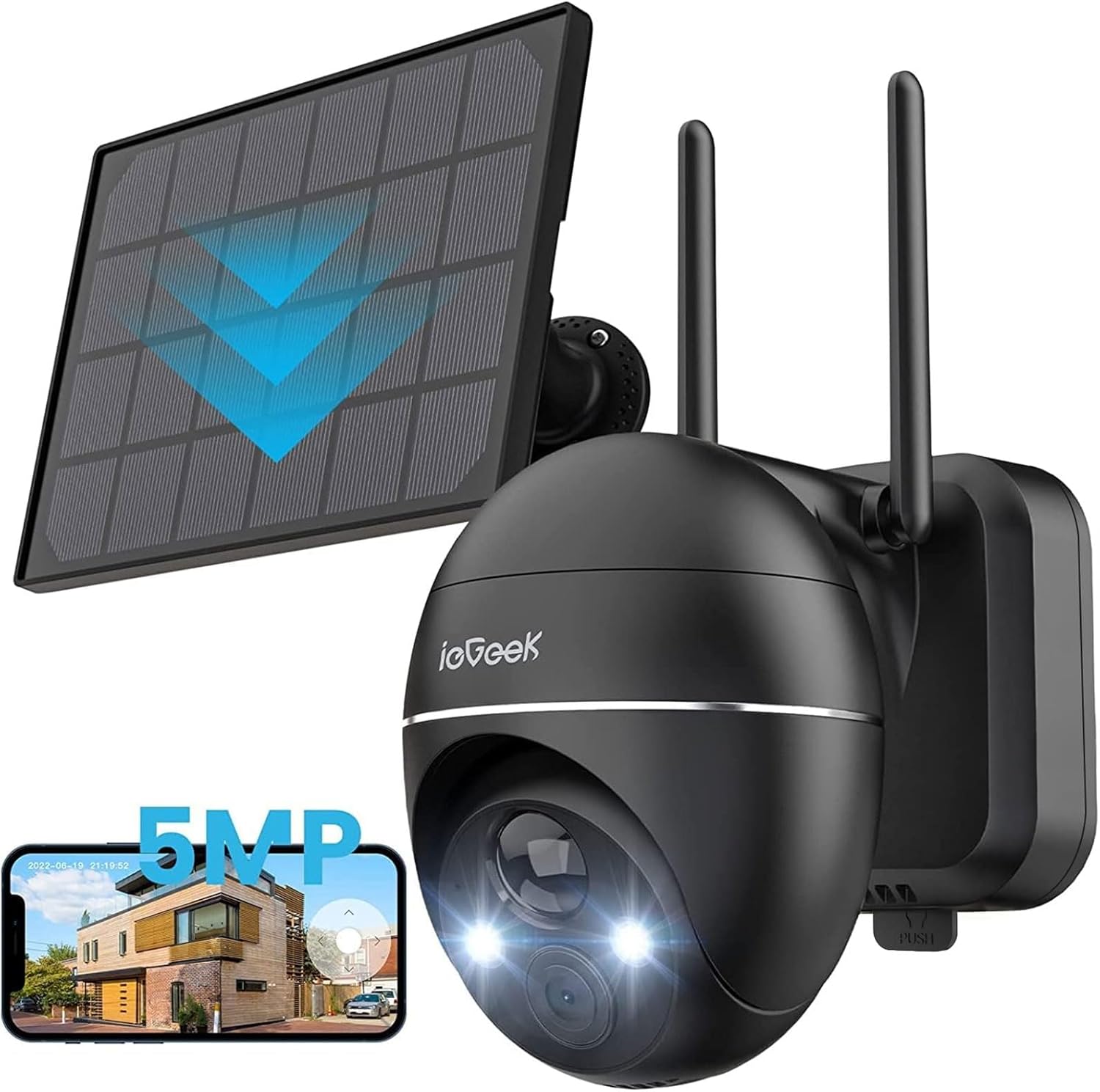
Image: ieGeek ZS-GX4S camera, solar panel, and a smartphone displaying the live feed.
3. Product Overview
The ieGeek ZS-GX4S is a 5-megapixel (2592x1944P) wireless outdoor security camera designed for comprehensive surveillance. It features a high-efficiency solar panel for continuous power, eliminating the need for frequent battery charging. The camera offers 360° pan and 120° tilt functionality, advanced PIR human detection, color night vision, two-way audio, and IP66 weather resistance.
Key Features:
- 5MP Super HD Resolution: Captures clear and detailed images and videos.
- Solar Powered & Wireless: Equipped with a high-efficiency solar panel and a 15000mAh battery for wire-free operation.
- 360° Pan & 120° Tilt: Remotely control the camera's viewing angle via the mobile app.
- PIR Human Detection & AI Recognition: Reduces false alarms by accurately detecting human movement.
- Color Night Vision: Provides clear, full-color video even in low-light conditions.
- Two-Way Audio: Communicate with visitors or deter intruders using the built-in microphone and speaker.
- IP66 Weatherproof: Designed to withstand various outdoor weather conditions.
- Cloud & Local Storage: Offers free 6-second cloud recording (7 days) and supports up to 128GB MicroSD card storage.
- Alexa Compatibility: View live feeds on compatible Alexa devices.

Image: Visual comparison demonstrating the enhanced clarity of 5MP resolution over 2K resolution.
4. Setup
4.1 Initial Charging
Before first use, it is recommended to fully charge the camera's internal battery using the provided Type-C cable. Connect the cable to the camera and a 5V/2A power adapter (not included). The charging indicator will show the charging status.
4.2 App Installation
Download the dedicated ieGeek app from the App Store (iOS) or Google Play Store (Android). Search for "ieGeek" and install the application.
4.3 Mounting the Camera and Solar Panel
Choose a suitable location for installation. Ensure the solar panel receives adequate direct sunlight throughout the day for optimal charging. The camera is wall-mountable.
- Mark the drilling spots on the wall using the mounting bracket as a template.
- Drill holes and insert the provided anchors.
- Secure the mounting bracket to the wall using the screws.
- Attach the camera to the mounting bracket.
- Mount the solar panel in a location with maximum sun exposure and connect its cable to the camera's charging port.

Image: Step-by-step visual guide for wall-mounting the camera.

Image: The ieGeek ZS-GX4S camera installed outdoors, powered by its connected solar panel.
4.4 Wi-Fi Connection
The camera supports 2.4GHz Wi-Fi networks. Ensure your router is within range and broadcasting a 2.4GHz signal.
- Open the ieGeek app and create an account or log in.
- Follow the in-app instructions to add a new device.
- Power on the camera. The camera will enter pairing mode (indicated by a specific LED light pattern or voice prompt).
- Select your 2.4GHz Wi-Fi network and enter the password in the app.
- The app will generate a QR code. Point the camera lens at the QR code on your phone screen from a distance of 15-20 cm until you hear a confirmation sound.
- Once connected, the camera will appear in your app's device list.

Image: The ieGeek app displaying Wi-Fi signal strength for the connected camera.
5. Operating Instructions
5.1 Live View and Playback
From the app's main screen, tap on your camera to access the live view. You can pan and tilt the camera, take screenshots, record manually, and access recorded footage.
5.2 Pan and Tilt Control
In live view, swipe your finger across the screen to remotely adjust the camera's horizontal (pan) and vertical (tilt) angles. The camera supports 360° horizontal rotation and 120° vertical movement.

Image: A smartphone screen demonstrating remote control of the camera's 360° pan and 120° tilt functions.
5.3 Motion Detection and Alerts
The camera uses PIR (Passive Infrared) and AI human detection to accurately identify human movement and minimize false alarms from pets, insects, or swaying branches. When motion is detected, the camera will start recording and send a push notification to your smartphone.
- Customizable Detection Zones: Set specific areas within the camera's view where you want motion to be detected.
- Adjustable Sensitivity: The app allows you to set the motion detection sensitivity across 10 levels to suit your environment.
- Scheduled Detection: Configure specific time periods for motion detection to be active.
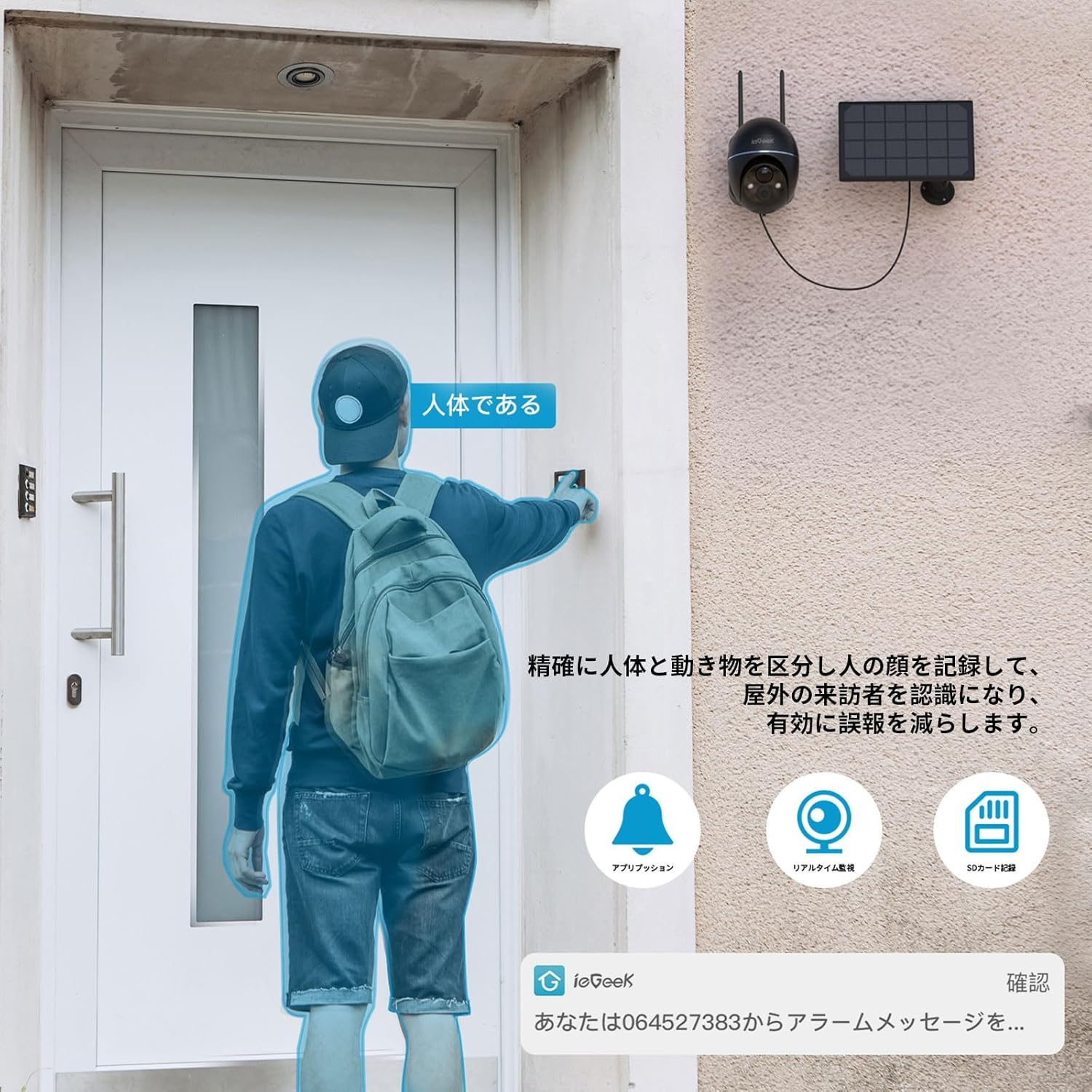
Image: The camera's human detection feature identifying a person and sending an alert to a smartphone.

Image: Adjustable motion detection sensitivity settings in the app, shown with a camera monitoring a driveway.
5.4 Night Vision
The camera supports both infrared (black and white) and full-color night vision. In intelligent mode, the camera can automatically switch to color night vision when human motion is detected in the dark, providing clearer identification of individuals.

Image: Demonstrating the camera's night vision capabilities, including color night vision.
5.5 Two-Way Audio
The built-in microphone and speaker allow for real-time two-way communication. You can speak through the camera via the app and hear responses from the camera's location.

Image: Illustrating the two-way audio feature, allowing communication with a delivery person at the door.
5.6 Recording and Storage
The camera offers flexible recording and storage options:
- Free Cloud Storage: Provides 6 seconds of cloud recording for 7 days upon motion detection.
- MicroSD Card Storage: Supports local storage with a MicroSD card up to 128GB (sold separately). The camera features loop recording, automatically overwriting the oldest footage when the card is full.

Image: The camera's cloud storage feature, showing data being uploaded to the cloud via the app.

Image: The app interface demonstrating recorded video playback and the loop recording function.
5.7 Alexa Integration
The ieGeek ZS-GX4S is compatible with Alexa. You can use voice commands to view the camera's live feed on compatible Alexa-enabled smart displays.

Image: An Alexa-enabled smart display showing the live feed from the ieGeek camera, demonstrating voice control compatibility.
5.8 Family Sharing
You can share access to your camera's live feed and recordings with up to 20 other devices. This allows family members or trusted individuals to monitor the property simultaneously.

Image: Illustration of the family sharing feature, allowing multiple users to view the camera feed remotely.
6. Maintenance
6.1 Solar Panel Efficiency
To ensure optimal charging, regularly clean the surface of the solar panel to remove dust, dirt, or debris that may obstruct sunlight. A dirty panel can significantly reduce charging efficiency.

Image: Diagram illustrating the solar panel's structure and the importance of cleaning for high conversion efficiency.
6.2 Battery Monitoring
The ieGeek app provides real-time battery status monitoring. You will receive a push notification when the battery level drops to 18%, reminding you to check the solar panel's exposure or manually charge the camera if necessary.

Image: The ieGeek app displaying a graph of real-time battery usage and charging status.
6.3 Weather Resistance
The camera has an IP66 dustproof and waterproof rating, ensuring reliable operation in various weather conditions such as wind, rain, and snow. No specific maintenance is required for weather protection beyond ensuring proper installation.

Image: The ieGeek camera operating outdoors in the rain, highlighting its IP66 waterproof feature.
7. Troubleshooting
- Camera not connecting to Wi-Fi:
Ensure your Wi-Fi network is 2.4GHz. Check the Wi-Fi signal strength at the camera's installation location using the app. If the signal is weak, consider moving the camera closer to the router or using a Wi-Fi extender. - Frequent false alarms:
Adjust the motion detection sensitivity in the app. Lowering the sensitivity can help reduce triggers from minor movements like swaying branches or small animals. Configure specific detection zones to exclude areas prone to false alarms. - Battery not charging or draining quickly:
Verify that the solar panel is positioned to receive maximum direct sunlight throughout the day. Clean the solar panel surface regularly. If the weather is consistently cloudy or rainy, manual charging via the Type-C cable may be necessary. Monitor battery status in the app. - No recordings or missing footage:
Check if a MicroSD card is properly inserted and formatted. Ensure the card is not full (loop recording should prevent this, but check for errors). Verify your cloud storage subscription status if relying on cloud recordings. Check motion detection settings to ensure it's enabled and configured correctly. - Poor image quality:
Ensure the camera lens is clean and free from obstructions. Check your Wi-Fi connection stability, as poor connectivity can affect streaming quality.
8. Specifications
| Feature | Specification |
|---|---|
| Model Name | ZS-GX4S |
| Video Capture Resolution | 5MP (2592x1944P) |
| Color | Black |
| Mounting Type | Wall Mount |
| Wireless Communication Technology | Wi-Fi (2.4GHz) |
| Field of View | 360° (Pan), 120° (Tilt) |
| Night Vision Range | Up to 15 meters |
| Material | Plastic |
| Voltage | 3.7 Volts |
| Wattage | 55.5 Watt-hours |
| Product Dimensions | 18 x 17 x 12.6 cm; 1 kg |
| Optical Zoom | 4X |
| Waterproof Rating | IP66 |
| Power Source | Battery Powered (Solar Rechargeable) |
| Compatible Devices | Smartphones (iOS/Android), Alexa devices |
9. Warranty and Support
Your ieGeek ZS-GX4S camera comes with a 2-year long-term warranty, which includes a 1-year free compensation right and an additional 12-month extended warranty plan. ieGeek products are certified under the Electrical Appliance and Material Safety Act (PSE) and Radio Law (TELEC), ensuring safety and reliability.
Contact Support:
If you encounter any issues or have questions, please contact our support team:
- Email: Refer to the official ieGeek email address provided in the printed manual.
- Amazon Support: Go to your Amazon "Order History," select your purchase, and click "Ask a question." We aim to respond within one business day.
We are committed to protecting your rights and ensuring your satisfaction.


