
Introduction
The Apple TV 4K (3rd Generation) is a powerful streaming device designed to deliver an exceptional entertainment experience. It supports 4K Dolby Vision and HDR10+ for stunning picture quality, and Dolby Atmos for immersive, theater-like sound. With the A15 Bionic chip, it offers fast performance for apps, games, and streaming. This model includes 128GB of storage and supports both Wi-Fi and Ethernet connectivity.
This manual provides essential information for setting up, operating, and maintaining your Apple TV 4K. Please read it thoroughly to ensure proper use and to maximize your enjoyment of the device.
Front view of the Apple TV 4K device, a compact black square box featuring the iconic Apple logo on its top surface.
What's in the Box
Verify that your package contains the following items:
- Apple TV 4K (3rd Generation)
- Siri Remote (3rd Generation)
- Power cord

The image displays the contents typically found in the Apple TV 4K packaging: the main Apple TV 4K unit, the Siri Remote, and a power cord.
Setup
Follow these steps to set up your Apple TV 4K:
- Connect to your TV: Use an HDMI cable (sold separately) to connect the Apple TV 4K to an HDMI input on your television. For 4K HDR content, ensure you use a high-speed HDMI cable and connect to an HDMI port that supports 4K HDR on your TV.
- Connect to Power: Plug one end of the included power cord into the power port on the back of the Apple TV 4K and the other end into a wall outlet.
- Connect to Network (Optional Ethernet): For the most stable connection, plug an Ethernet cable (sold separately) from your router into the Ethernet port on the back of the Apple TV 4K. If using Wi-Fi, you will configure it during the on-screen setup.
- Turn on your TV: Select the correct HDMI input for your Apple TV 4K.
- Initial Setup: Follow the on-screen instructions to complete the setup process. This includes pairing the Siri Remote, connecting to Wi-Fi (if not using Ethernet), signing in with your Apple ID, and configuring other settings.

A close-up view of the rear panel of the Apple TV 4K, highlighting the power input, Ethernet port for wired network connection, and the HDMI output port for connecting to a television.
Operating Instructions
The Apple TV 4K offers a rich set of features for entertainment and smart home integration.
Siri Remote
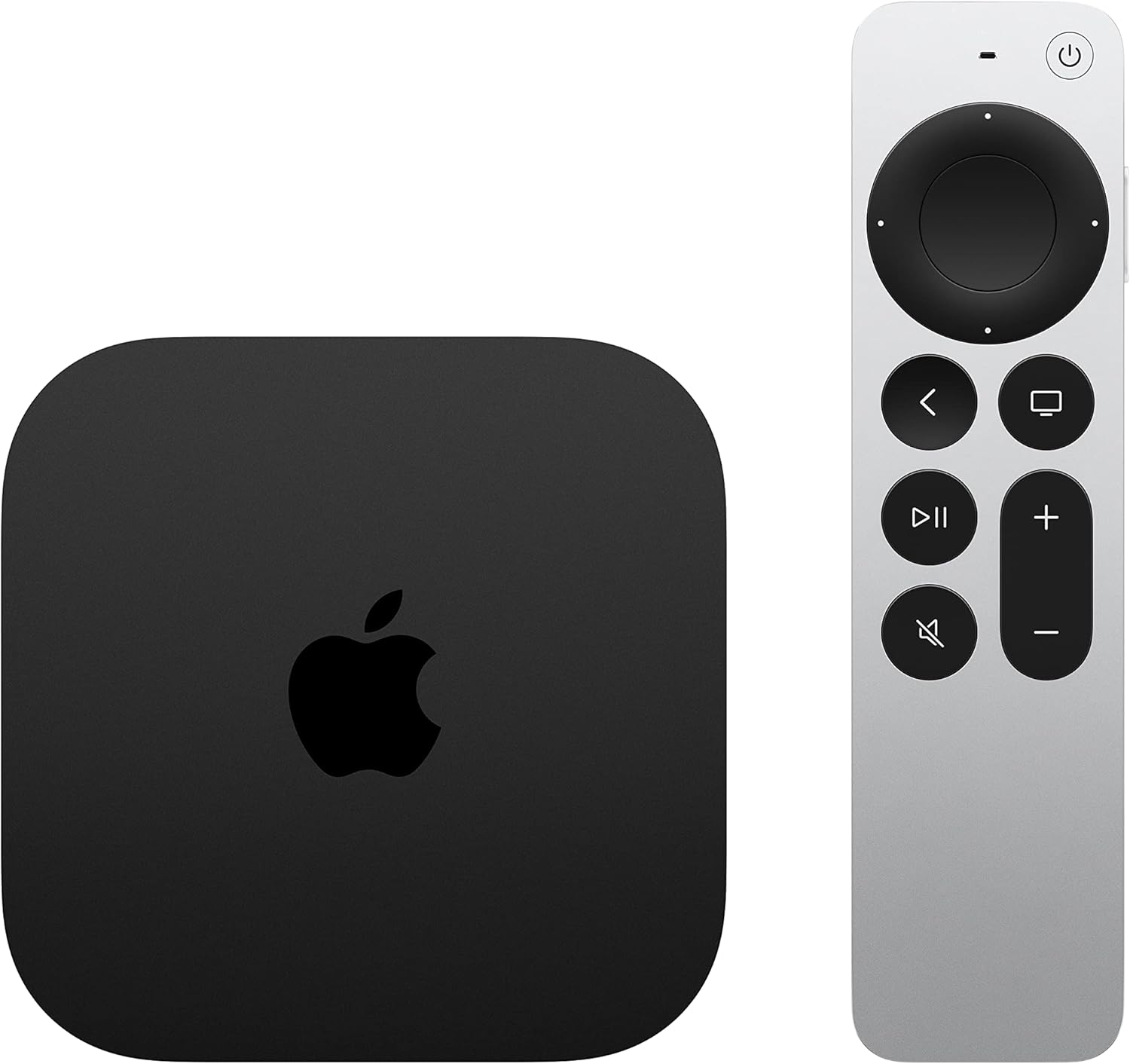
The Siri Remote provides precise control over your Apple TV 4K. It features a touch-enabled clickpad for intuitive navigation, dedicated buttons for power, volume, Siri voice commands, TV/Control Center, Back, Play/Pause, and Mute. Use the clickpad to swipe through menus and click to select items. Press and hold the Siri button to activate voice commands for searching content, controlling playback, or asking questions.

The Apple TV 4K unit is shown alongside its Siri Remote, illustrating the compact design of both components.
Picture and Sound Quality
- 4K Dolby Vision and HDR10+: Experience vivid picture quality with enhanced brightness, contrast, and color accuracy. Ensure your TV supports these formats for optimal viewing.
- Dolby Atmos: Enjoy three-dimensional, theater-like sound that flows around you. Compatible with Dolby Atmos-enabled sound systems.
Content and Apps
Access a wide range of entertainment through the Apple TV app and other streaming services. The device supports popular platforms like Apple TV+, Amazon Prime Video, Disney+, Netflix, YouTube, and the iTunes Store. Explore the App Store for additional apps and games.
Apple Ecosystem Features
- FaceTime: Use your iPhone or iPad to initiate a FaceTime call and seamlessly hand it off to your Apple TV 4K, utilizing your TV screen for a larger view.
- Photos: View your iCloud Photo Library on your TV, including shared albums and memories.
- Apple Fitness+: Access a library of workout and meditation videos, with your metrics from Apple Watch displayed on screen.
- Apple Arcade: Enjoy a curated collection of games with no ads or in-app purchases.
- Apple Music: Stream millions of songs and music videos.
- AirPlay: Share photos, videos, and more from your iPhone, iPad, or Mac directly to your TV.
Audio Connectivity
- HomePod Pairing: Pair with HomePod or HomePod mini speakers for enhanced, immersive audio.
- AirPods Connection: Connect up to two sets of AirPods for private listening without disturbing others.
Smart Home Integration
The Apple TV 4K can act as a HomeKit hub, allowing you to control your compatible smart home accessories from your TV or remotely. Receive notifications from smart doorbells and view live camera feeds directly on your screen.
Ambient Screen Savers
Enjoy beautiful aerial video screen savers that transform your TV into a dynamic display when not actively in use.
Product Overview Video
This video provides a comprehensive overview of the Apple TV 4K (3rd Generation), showcasing its key features such as 4K Dolby Vision, HDR10+, Dolby Atmos, integration with various streaming services, Apple Fitness+, Apple Arcade, Apple Music, FaceTime, Photos, HomePod pairing, AirPods connectivity, and smart home control capabilities.
Specifications
| Feature | Detail |
|---|---|
| Brand | Apple |
| Model Name | Apple TV |
| Connectivity Technology | Bluetooth, Ethernet, Wireless (Wi-Fi) |
| Connector Type | HDMI |
| Resolution | 4K |
| Supported Internet Services | Amazon Prime, Apple TV+, Disney+, Netflix, YouTube, iTunes Store |
| Controller Type | Button Control, Voice Control (Siri Remote) |
| Form Factor | TV Box |
| Colour | Black |
| Product Dimensions | 9L x 9W x 3H millimeters |
Troubleshooting
If you encounter issues with your Apple TV 4K, try the following common solutions:
- No Picture or Sound: Ensure all cables (HDMI, power) are securely connected. Verify your TV is set to the correct HDMI input. Try restarting both your Apple TV and your television.
- Siri Remote Not Responding: Ensure the remote is charged. Try restarting the Apple TV by unplugging it from power for 6 seconds and plugging it back in. Re-pair the remote if necessary by holding the TV button and Volume Down button for 5 seconds.
- Network Connection Issues: Check your Wi-Fi router or Ethernet cable connection. Restart your router. If using Wi-Fi, ensure you have the correct password.
- App Not Working: Force quit the app by double-pressing the TV button on the remote, swiping up on the app, and then reopening it. If the issue persists, try deleting and reinstalling the app.
- Software Updates: Ensure your Apple TV 4K is running the latest version of tvOS. Go to Settings > System > Software Updates to check for and install updates.
For more detailed troubleshooting, visit the official Apple Support website.
Warranty and Support
Your Apple TV 4K is covered by Apple's standard limited warranty. This warranty covers manufacturing defects and issues that arise under normal use. For specific warranty terms and conditions, please refer to the documentation included with your product or visit the official Apple website.
For technical support, service, and additional resources, please visit support.apple.com. You can also contact Apple Support directly for assistance with product issues or questions.


