Introduction
The ASUS ROG Strix B650E-F Gaming WiFi motherboard is engineered for high-performance computing, supporting the latest AMD Ryzen 9000, 8000, and 7000 series desktop processors. It features advanced connectivity, robust power delivery, and comprehensive cooling solutions to ensure optimal stability and speed for gaming and demanding applications. This manual provides essential information for setting up, operating, maintaining, and troubleshooting your motherboard.
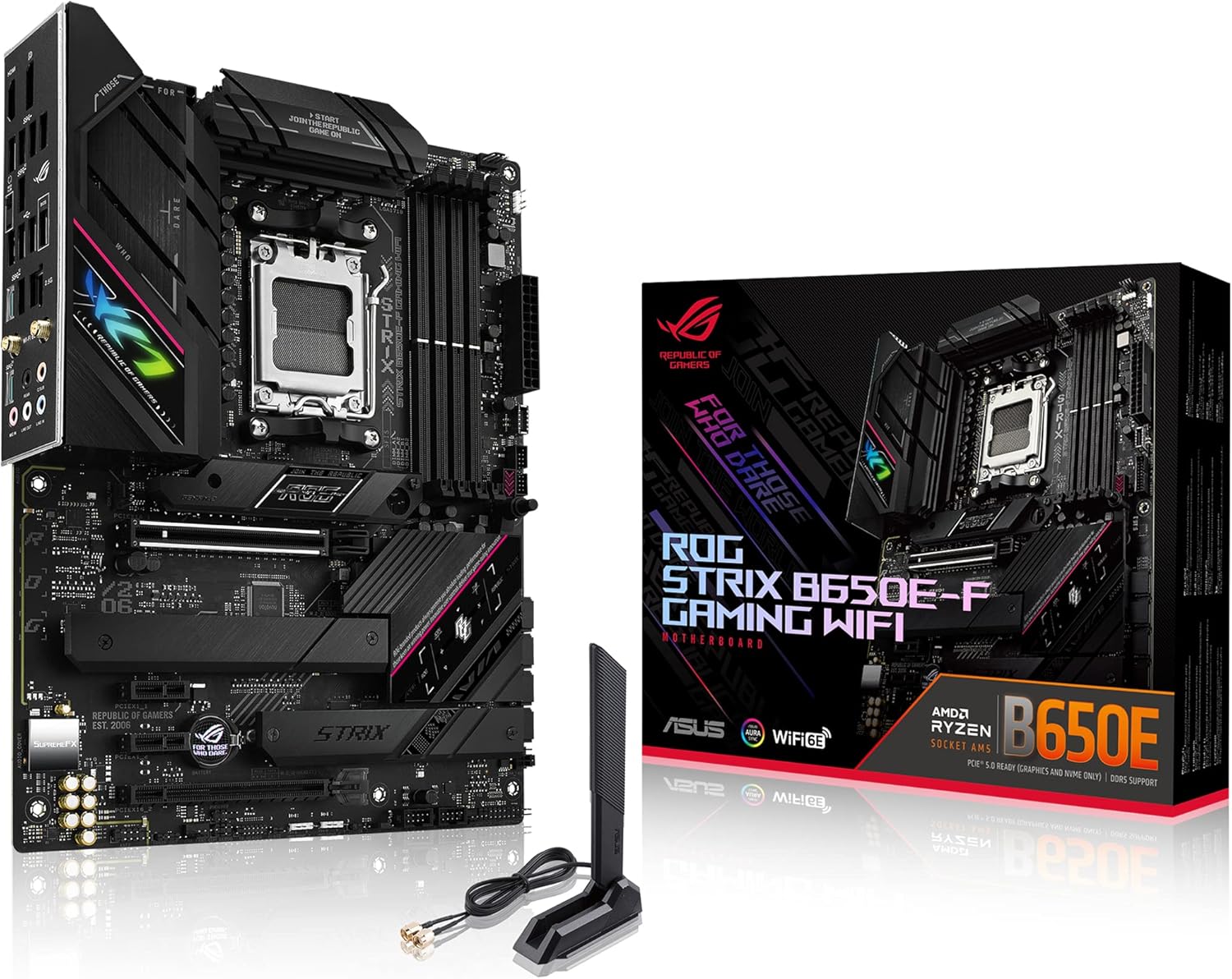
Figure 1: ASUS ROG Strix B650E-F Gaming WiFi Motherboard and Retail Packaging.
Key Features
- AMD Socket AM5 (LGA 1718): Ready for AMD Ryzen 7000 Series desktop processors.
- Robust Power Solution: 12 + 2 power stages with 8 + 4 pin ProCool power connectors, high-quality alloy chokes, and durable capacitors to support multi-core processors.
- Optimized Thermal Design: Massive VRM heatsinks with strategically cut airflow channels and high conductivity thermal pads.
- Next-Gen M.2 Support: One PCIe 5.0 M.2 slot and two PCIe 4.0 M.2 slots, all with heatsinks to maximize performance.
- Advanced Connectivity: One USB 3.2 Gen 2x2 Type-C and ten additional rear USB ports, USB 3.2 Gen 2 Type-C front-panel connector, HDMI 2.1, DisplayPort 1.4, and one PCIe 5.0 x16 SafeSlot.
- High-Performance Networking: On-board WiFi 6E (802.11ax), Bluetooth 5.2, and Intel 2.5G Ethernet with ASUS LANGuard.
- Intelligent Control: ASUS-exclusive Two-Way AI Noise Cancelation and AI Networking.
- Unmatched Personalization: ASUS-exclusive Aura Sync RGB lighting, including one RGB header and three addressable Gen 2 RGB headers.
- DIY-Friendly Design: PCIe Slot Q-release, M.2 Q-Latch, Pre-mounted I/O shield, and BIOS FlashBack button.
- Intuitive Software: Easy-to-use UEFI BIOS dashboard, Armoury Crate RGB and device manager, and bundled 60-day AIDA64 Extreme trial.
What's in the Box
Upon unboxing your ASUS ROG Strix B650E-F Gaming WiFi motherboard, please verify that all the following items are included:
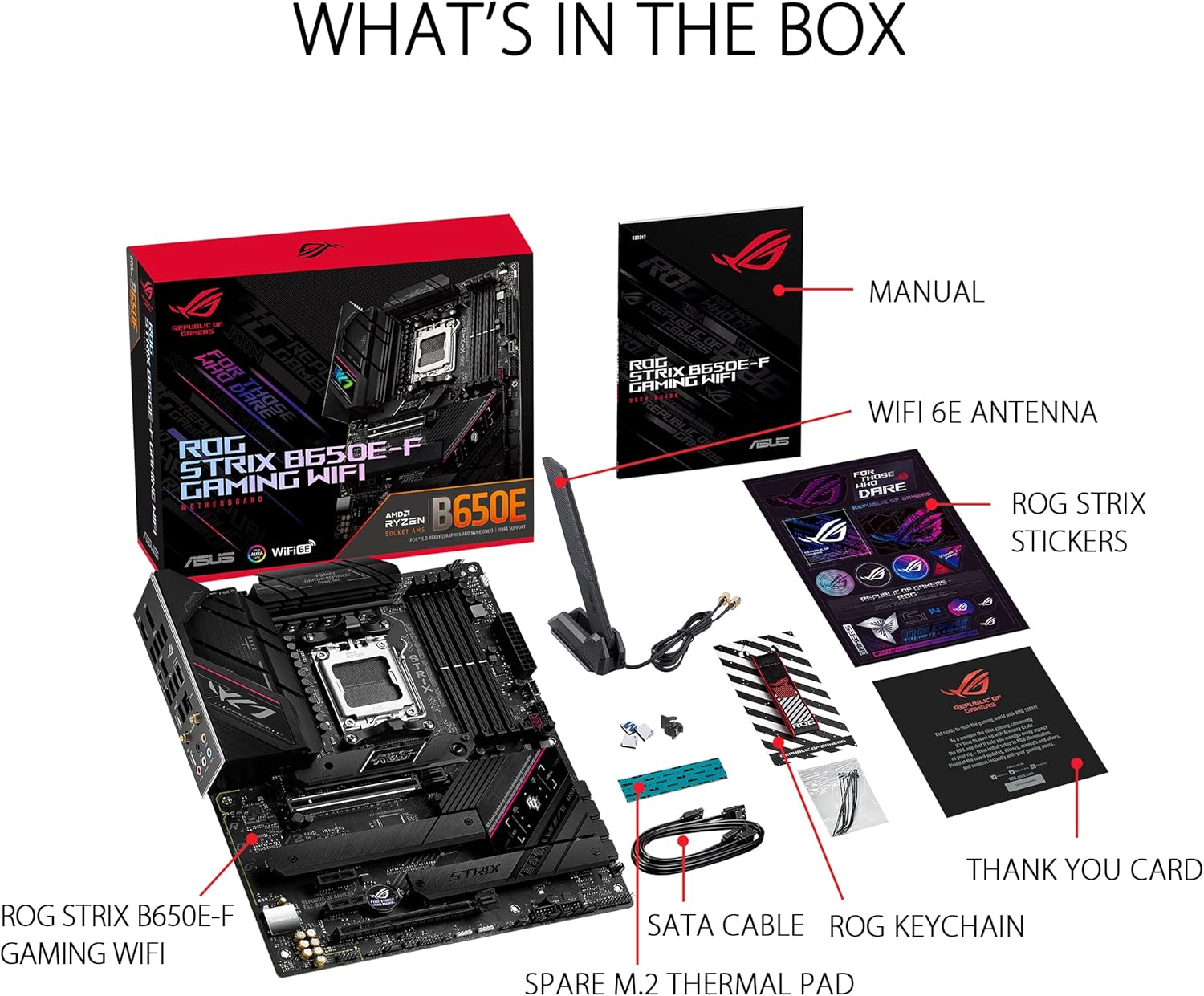
Figure 2: Contents of the Motherboard Packaging.
- ASUS ROG Strix B650E-F Gaming WiFi Motherboard
- User Manual
- WiFi 6E Antenna
- ROG Strix Stickers
- Thank You Card
- SATA Cable(s)
- ROG Keychain
- Spare M.2 Thermal Pad
Setup Guide
Pre-Installation Checklist
- Ensure you have a compatible AMD Ryzen 7000 series (or newer) processor.
- Acquire DDR5 RAM modules. Refer to the motherboard's QVL (Qualified Vendor List) on the ASUS support website for tested compatibility.
- Prepare a suitable PC case with adequate airflow.
- Gather necessary tools: Phillips head screwdriver, anti-static wrist strap (recommended).
Component Installation
Follow these steps carefully to install your components onto the motherboard.
1. CPU Installation
Carefully open the CPU socket retention arm. Align the triangular marker on your AMD Ryzen processor with the corresponding marker on the socket. Gently place the CPU into the socket without applying force. Close the retention arm to secure the CPU.
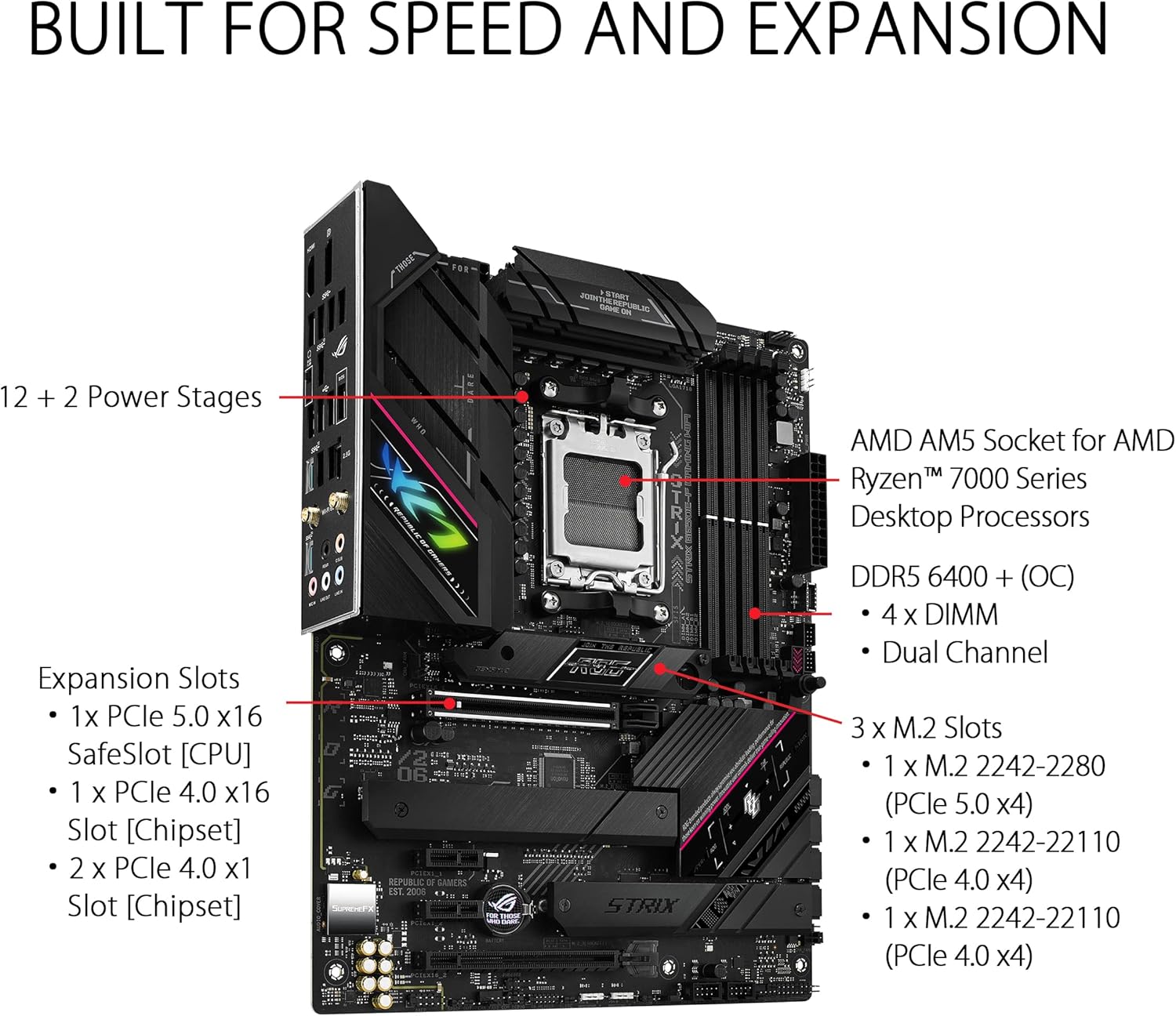
Figure 3: Close-up of the AMD AM5 CPU Socket on the Motherboard.
2. RAM (DDR5 Memory) Installation
Open the clips on both ends of the DIMM slots. Align the notch on your DDR5 memory module with the key in the DIMM slot. Press down firmly on both ends of the memory module until the clips snap into place. For dual-channel operation, install memory modules into the recommended slots (usually A2 and B2, refer to your manual for exact configuration).

Figure 4: DDR5 Memory Slots.
3. M.2 SSD Installation
The motherboard features multiple M.2 slots with heatsinks for optimal performance. Unscrew the M.2 heatsink cover. Insert your M.2 SSD into the slot at an angle, then gently push it down. Secure the SSD using the M.2 Q-Latch mechanism or a screw, then reattach the heatsink cover.

Figure 5: M.2 Slots with Heatsinks.
4. PCIe Card Installation
Insert your graphics card or other PCIe expansion card into the primary PCIe 5.0 x16 SafeSlot. Ensure it is fully seated and the PCIe Slot Q-release mechanism locks it into place. Secure the card to your PC case with a screw.

Figure 6: PCIe Slot Q-Release.
5. Power Connections
Connect the 24-pin ATX power connector and the 8+4 pin ProCool CPU power connectors from your power supply to the corresponding ports on the motherboard. Ensure all connections are firm.
6. I/O Shield
The ASUS ROG Strix B650E-F features a pre-mounted I/O shield, simplifying installation into your PC case. Ensure it aligns correctly with the case opening.

Figure 7: Rear I/O Panel with Pre-mounted Shield.
Operating Your Motherboard
First Boot and BIOS Access
After assembling your system, power it on. To access the UEFI BIOS, repeatedly press the DEL or F2 key during the boot process. The intuitive UEFI BIOS dashboard allows for easy configuration of system settings, fan curves, and overclocking parameters.
Video 1: Overview of the ASUS ROG Strix B650E-F Gaming WiFi Motherboard, including a brief look at the BIOS interface.
Software and Drivers
Install the necessary drivers and utilities from the ASUS support website or the included support DVD/USB drive. Key software includes:
- Armoury Crate: Centralized software for managing RGB lighting (Aura Sync), system monitoring, and driver updates.
- AI Noise Cancelation: Enhances audio clarity for communication.
- AI Networking: Optimizes network traffic for gaming.
- Ensure drivers for 2.5G LAN, WiFi 6E, and Bluetooth 5.2 are installed for full functionality.
Maintenance and Care
Proper maintenance ensures the longevity and optimal performance of your motherboard:
- Dust Removal: Regularly clean dust from the motherboard and case fans using compressed air. Ensure the system is powered off and unplugged before cleaning.
- Thermal Management: Verify that all heatsinks (VRM, Chipset, M.2) are free from obstructions and that case airflow is adequate to prevent overheating.
- BIOS/Driver Updates: Periodically check the ASUS support website for the latest BIOS versions and drivers. Updating these can improve stability, performance, and add new features.
- Cable Management: Organize internal cables to improve airflow and prevent interference with components.
Troubleshooting Common Issues
If you encounter problems with your system, refer to the following common troubleshooting steps:
1. No Boot/POST (Power-On Self-Test)
- Check Power Connections: Ensure the 24-pin ATX and 8+4 pin CPU power cables are securely connected to the motherboard and power supply.
- Reseat Components: Remove and re-install the CPU, RAM modules, and graphics card to ensure they are properly seated in their respective slots.
- Clear CMOS: Use the Clear CMOS jumper or button on the motherboard (refer to the physical manual for location) to reset BIOS settings to default.
- BIOS FlashBack: If the system does not POST after a CPU or RAM upgrade, use the BIOS FlashBack feature to update the BIOS without a CPU or RAM installed.
2. Overheating
- Verify Cooler Installation: Ensure your CPU cooler is properly installed and making good contact with the CPU IHS (Integrated Heat Spreader).
- Check Thermal Paste: Reapply thermal paste if necessary.
- Improve Airflow: Ensure case fans are correctly oriented for optimal intake and exhaust, and that there are no obstructions to airflow.
- Monitor Temperatures: Use monitoring software (e.g., Armoury Crate, AIDA64 Extreme) to check CPU, GPU, and motherboard temperatures.
3. Connectivity Problems
- Network Issues: Check LAN cable connections. For WiFi, ensure the antenna is securely attached and drivers are installed.
- USB Device Not Detected: Try different USB ports. Ensure USB drivers are installed.
- Audio Problems: Check audio cable connections. Ensure audio drivers are installed and updated.
Technical Specifications
| Feature | Specification |
|---|---|
| Brand | ASUS |
| Model Name | ROG STRIX B650E-F GAMING WIFI |
| CPU Socket | Socket AM5 |
| Compatible Processors | Ryzen 7000 series |
| RAM Memory Technology | DDR5 |
| Memory Speed | 6400 MHz |
| Maximum Memory Storage Capacity | 192 GB |
| Chipset Type | AMD B650 |
| Wireless Type | 802.11a/b/g/n/ac, 802.11ax (WiFi 6E) |
| LAN | Intel 2.5G Ethernet |
| USB Ports (Rear) | 1x USB 3.2 Gen 2x2 Type-C, 10x additional USB ports |
| PCIe Slots | 1x PCIe 5.0 x16 SafeSlot |
| M.2 Slots | 1x PCIe 5.0 M.2, 2x PCIe 4.0 M.2 |
| Product Dimensions (LxWxH) | 10.75 x 2.08 x 13.5 inches |
| Item Weight | 3.09 pounds |
| Color | BLACK |
Warranty and Support
ASUS provides a limited warranty for its motherboards. For detailed warranty terms and conditions, please refer to the warranty card included with your product or visit the official ASUS support website. Keep your proof of purchase for warranty claims.
For technical support, driver downloads, BIOS updates, and FAQs, please visit the ASUS Support Website. You may also consider purchasing an extended protection plan for additional coverage, such as the 3-Year or 4-Year Protection Plans available for this product.


