
ILIFE CRTE9ILFA9RB
ILIFE A9 Robot Vacuum Cleaner User Manual
Model: CRTE9ILFA9RB
1. Introduction
Thank you for choosing the ILIFE A9 Robot Vacuum Cleaner. This manual provides essential information for the safe operation, maintenance, and troubleshooting of your device. Please read it thoroughly before first use and keep it for future reference.

Figure 1: The ILIFE A9 Robot Vacuum Cleaner, a sleek, circular device with a dark grey and black finish, featuring a central silver button and two side brushes.
2. Product Overview
The ILIFE A9 is designed to provide efficient and automated floor cleaning. Key features include Wi-Fi connectivity for remote control, powerful suction, intelligent mapping, and self-charging capabilities.
Key Features:
- Wi-Fi Connectivity: Control and monitor your vacuum remotely via the ILIFE app.
- Powerful Suction: Effectively cleans various floor types, removing dirt, dust, and pet hair.
- Self-Charging Function: Automatically returns to its docking station when battery is low.
- Intelligent Mapping & Navigation: Efficiently navigates rooms, avoiding obstacles for thorough cleaning.
- Multiple Cleaning Modes: Includes edge cleaning and spot cleaning for specific needs.
- Advanced Sensors: Detects stairs and prevents falls.
- Large Dustbin & High-Efficiency Filter: Reduces emptying frequency and captures allergens.

Figure 2: The ILIFE A9 robot vacuum shown alongside a smartphone displaying the connected ILIFE app, highlighting its Wi-Fi control capabilities.
3. Setup
3.1 Unpacking and Initial Charge
- Carefully remove the robot vacuum and all accessories from the packaging.
- Remove all protective films and stickers from the robot and charging dock.
- Place the charging dock against a wall in an open, uncluttered area, ensuring at least 1 meter of clear space on both sides and 2 meters in front.
- Connect the power adapter to the charging dock and plug it into a power outlet.
- Place the robot onto the charging dock, ensuring the charging contacts align. The robot will begin charging. Allow for a full charge (approximately 5-6 hours) before first use.
3.2 Connecting to Wi-Fi and App
The ILIFE A9 supports Wi-Fi connectivity for enhanced control via the ILIFE app (2.4G network only).
- Download the 'ILIFEHOME' app from your smartphone's app store (App Store for iOS, Google Play for Android).
- Register an account and log in.
- Follow the in-app instructions to add your ILIFE A9 device. This typically involves pressing and holding a button on the robot to enter pairing mode and connecting to your home Wi-Fi network.
4. Operating the Robot Vacuum
4.1 Starting a Cleaning Cycle
- Manual Start: Press the 'Clean' button on the robot or the remote control.
- App Control: Use the ILIFEHOME app to start, pause, or stop cleaning from anywhere.
4.2 Cleaning Modes
The ILIFE A9 offers various cleaning modes to suit different needs:
- Auto Mode: The robot intelligently navigates and cleans the entire area.
- Spot Mode: Cleans a specific area more intensely. Place the robot in the center of the dirty area and activate spot mode.
- Edge Mode: The robot cleans along walls and furniture edges.
- Scheduled Cleaning: Set daily cleaning times via the app.

Figure 3: An illustration showing the ILIFE A9 robot vacuum using its mapping and navigation system to efficiently clean a living room, with a smartphone displaying the mapped area.

Figure 4: A hand holding a smartphone displaying the ILIFE app's scheduling interface, allowing users to set multi-task cleaning schedules for the robot vacuum.
4.3 Using the ElectroWall (Virtual Barrier)
The ElectroWall creates an invisible barrier to restrict the robot from entering certain areas.
- Place the ElectroWall device on the floor near the area you want to block.
- Ensure the infrared beam faces the area to be blocked.
- The robot will detect the barrier and avoid crossing it.

Figure 5: An illustration demonstrating the use of the ElectroWall virtual barrier to prevent the ILIFE A9 robot vacuum from entering a specific area, such as one with toys or cords.
5. Maintenance
Regular maintenance ensures optimal performance and extends the lifespan of your ILIFE A9.
5.1 Emptying the Dustbin
Empty the dustbin after each cleaning cycle or when the 'Dustbin Full' indicator illuminates.
- Press the dustbin release button to remove the dustbin from the robot.
- Open the dustbin cover and empty its contents into a trash bin.
- Close the dustbin cover and reinsert it into the robot until it clicks into place.

Figure 6: A diagram illustrating the multi-stage filtration system of the ILIFE A9's cellular dustbin, designed for easy dirt disposal and sustained filter performance.
5.2 Cleaning Filters
Clean the high-efficiency filter and sponge filter weekly, or more frequently if you have pets.
- Remove the filters from the dustbin.
- Tap the high-efficiency filter gently to remove dust. Do not wash this filter with water.
- Rinse the sponge filter and dustbin with water. Ensure they are completely dry before reinstallation.
5.3 Cleaning Brushes and Sensors
- Main Brush: Use the cleaning tool to remove hair and debris tangled around the main brush.
- Side Brushes: Check for tangled hair or debris. If damaged, replace them.
- Sensors: Wipe the cliff sensors (located on the bottom of the robot) and the charging contacts on both the robot and the dock with a clean, dry cloth.
6. Troubleshooting
If your ILIFE A9 encounters an issue, refer to the following common problems and solutions:
| Problem | Possible Cause | Solution |
|---|---|---|
| Robot does not charge | Charging contacts are dirty; Power adapter not connected; Robot not properly docked. | Clean charging contacts; Ensure power adapter is securely plugged in; Re-dock the robot. |
| Robot gets stuck frequently | Too many obstacles; Robot stuck on high pile carpet or wires. | Clear the cleaning area of clutter; Use ElectroWall for problem areas; Ensure robot can pass under furniture (e.g., 3 inches clearance). |
| Poor cleaning performance | Dustbin full; Filters clogged; Brushes tangled. | Empty dustbin; Clean or replace filters; Clean main and side brushes. |
| Robot makes unusual noise | Main brush or side brushes tangled; Something caught in the suction inlet. | Clean brushes; Check and clear suction inlet. |
| Wi-Fi connection issues | Incorrect Wi-Fi password; Router too far; Only 5G Wi-Fi available. | Verify password; Move robot closer to router; Ensure you are connecting to a 2.4G Wi-Fi network. |
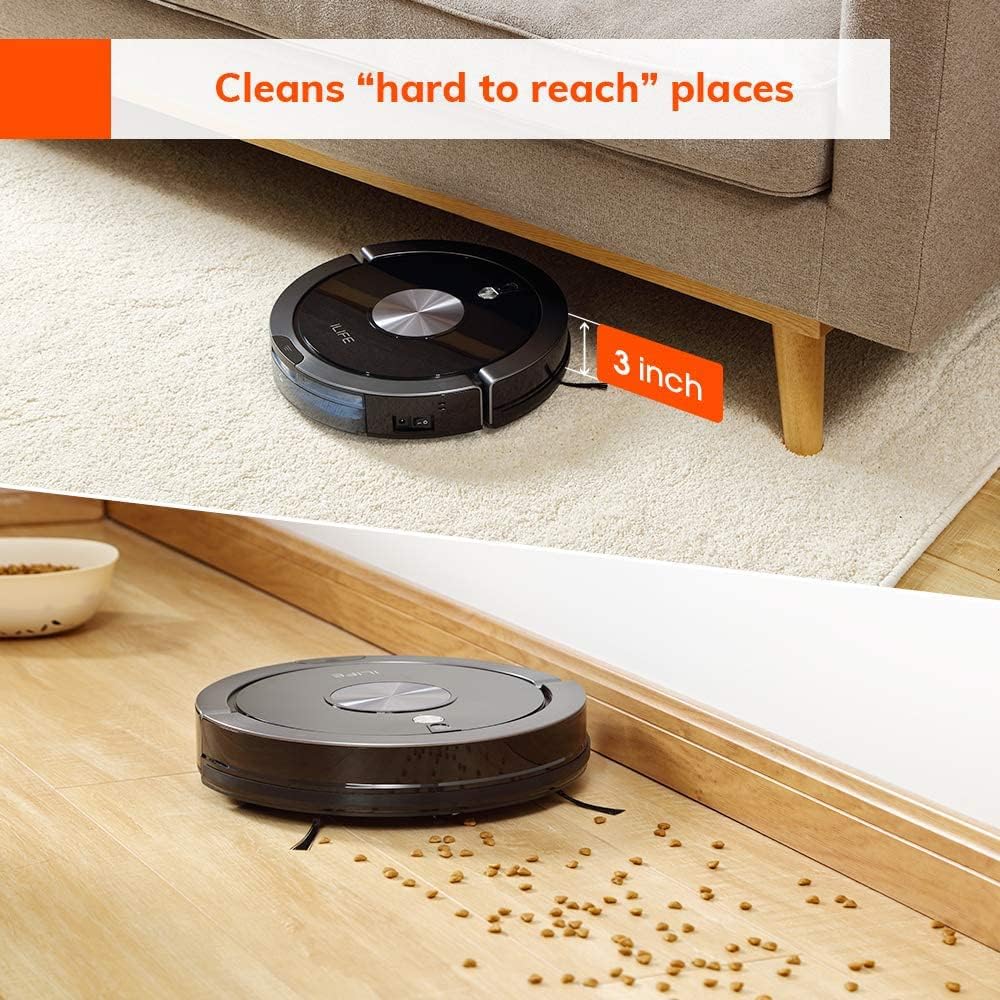
Figure 7: The ILIFE A9 robot vacuum demonstrating its ability to clean under low-clearance furniture, such as a sofa, with a visual indicator showing a 3-inch clearance.
7. Specifications
| Feature | Detail |
|---|---|
| Brand | ILIFE |
| Model Name | CRTE9ILFA9RB |
| Special Feature | Bagless |
| Product Dimensions | 12.99"L x 12.6"W x 2.99"H |
| Filter Type | Cartridge |
| Battery Life | 120 minutes |
| Power Source | Battery Powered |
| Compatible Devices | Amazon Echo |
| Form Factor | Robotic |
| Item Weight | 6.83 pounds |
| Manufacturer | ILIFE |
| ASIN | B0BG14PWKQ |
| UPC | 196641045064 |
8. Warranty and Support
This product is a Certified Refurbished item, which means it has been inspected and restored to full working condition by the manufacturer. It shows limited or no wear and includes all original accessories.
For warranty claims, technical support, or service inquiries, please refer to the specific warranty information provided with your purchase or contact ILIFE customer support directly through their official website or the contact information provided in your product packaging.
Related documentsCRTE9ILFA9RB


Ask a question about this manual
Ask about setup, troubleshooting, compatibility, parts, safety, or missing instructions. Manuals+ will review the question and use this page’s manual context to help answer it.