
1. Introduction
This manual provides detailed instructions for the installation, operation, and maintenance of your SV3C Dual-Lens 4MP Outdoor Security Camera. Please read this manual thoroughly before use to ensure proper functionality and safety. This camera features advanced technology including 4MP high-resolution video, dual-band 2.4G/5G WiFi connectivity, Pan-Tilt-Zoom (PTZ) capabilities, AI human detection with auto-tracking, multiple night vision modes, two-way audio, and IP66 weatherproofing.
2. Product Features
- 4MP High Resolution & Three Night Vision Modes: The camera offers 4-megapixel high-definition video, providing clear and detailed images. It features four infrared lights for night vision up to 25 meters and supports three night vision modes (Infrared, Color, Smart) for clear color recording even in dark environments.
- PTZ Rotation Function: Control the camera's horizontal rotation from 0° to 180° and vertical rotation from 0° to 90° via the app, allowing for comprehensive monitoring of your surroundings.
- AI Human Detection & Auto-Tracking: Equipped with human detection and auto-tracking functions. When a human shape is detected in the monitoring area, an alarm is triggered, and the camera automatically tracks the movement, continuing to record. Motion detection sensitivity, range, and time can be adjusted via the app. The dual-lens system (8mm and 2.8mm lenses) automatically switches to zoom in on detected human movement for clearer identification.
- Recording Functions & 128GB Micro SD Card Support: Supports 24-hour recording and scheduled recording. Recordings are saved to a Micro SD card (up to 128GB, not included). When the storage is full, older footage is automatically overwritten. New image compression technology saves 1/3 to 1/4 of storage space, allowing for longer recording times.
- Alarm Linkage: When an alarm is triggered, notifications are sent to your email and app. Photos and motion detection recordings are saved to FTP and the Micro SD card.
- Two-Way Audio & IP66 Waterproof: Built-in high-quality speaker and microphone enable two-way communication. You can check your home's status, warn intruders, or communicate directly with family members. With IP66 waterproof and dustproof rating, it operates reliably in temperatures from -10℃ to +55℃, withstanding harsh weather conditions like typhoons, heavy rain, and snow. Suitable for outdoor installation at entrances, gardens, parking lots, and shops.
- Family Sharing & Connectivity: This network camera supports both wired and wireless connections. It features an AP mode, allowing use even without WiFi. Live viewing, recording playback, and settings can be managed via the smartphone app. Multiple 4MP cameras can be connected simultaneously, and the family sharing function allows real-time viewing by multiple users. Remote monitoring is possible when away from home, enabling you to watch over elderly family members or children's safety.
- Dual-Band WiFi: Compatible with both 2.4Ghz and 5Ghz WiFi networks.
3. Package Contents
The package typically includes the following items:
- SV3C Dual-Lens 4MP Outdoor Security Camera
- Power Adapter (3m)
- LAN Cable
- Waterproof Connector
- Mounting Sticker/Template
- Antenna
- Mounting Bracket
- Screws and Wall Plugs
- Hex Wrench
- Quick Start Guide
- User Manual (Japanese)

Image: Package contents of the SV3C camera.
4. Setup Guide
4.1 Physical Installation
Follow these steps to physically install your camera:
- Choose a Location: Select an outdoor location that provides the desired viewing angle and is within range of your WiFi network or can be connected via LAN cable. Avoid direct sunlight, reflections from glass, and areas with extreme light/dark contrast.
- Attach Mounting Sticker: Place the mounting sticker on the wall at your desired installation point.
- Drill Holes: Use a drill to create appropriate pilot holes according to the marks on the sticker.
- Insert Wall Plugs: Gently tap the wall plugs into the drilled holes using a hammer.
- Secure Bracket: Align the mounting bracket with the holes and secure it to the wall using screws. Ensure the angled side of the bracket faces downwards.
- Attach Camera: Mount the camera onto the secured bracket and tighten the remaining screws to fix it in place.
- Install Antennas: Screw the 5DB antennas onto the camera's antenna ports.
Video: Demonstrates how to insert a Micro SD card and install the camera.
4.2 Micro SD Card Insertion
To insert the Micro SD card:
- Power off the camera.
- Locate the Micro SD card slot, usually under a protective cover on the camera body.
- Carefully insert the Micro SD card into the slot until it clicks into place.
- Replace the protective cover to ensure waterproofing.
4.3 Network Connection
The camera supports both WiFi and wired LAN connections.
- WiFi Connection: Ensure your camera is within range of your 2.4Ghz or 5Ghz WiFi router.
- LAN Cable Connection: Connect a LAN cable from your router to the camera's LAN port.

Image: WiFi and LAN cable connection options.
4.4 App Setup (CamHiPro)
Download the CamHiPro app from your smartphone's app store (iOS/Android).
- Launch App: Open the CamHiPro app.
- Add Camera: Tap the '+' icon to add a new device.
- Select IP Camera: Choose 'IP Camera' from the device type options.
- Search for Camera: The app will search for cameras within your LAN. Select your camera from the list.
- Configure Wireless: Enter your WiFi network details (SSID and password) if connecting wirelessly.
- Set Device Name: Assign a name to your camera (e.g., 'Front Door', 'Garden').
- Complete Setup: Follow any remaining on-screen prompts to complete the setup.
Video: Initial camera setup using Bluetooth.
Video: Demonstrates adding a camera via the CamHiPro app.
5. Operating Instructions
5.1 PTZ Control
Use the directional controls within the CamHiPro app to pan (horizontal) and tilt (vertical) the camera to adjust its viewing angle.
Video: Demonstrates PTZ (Pan-Tilt-Zoom) functionality.

Image: PTZ (Pan-Tilt-Zoom) functionality with auto-tracking.
5.2 Night Vision Modes
The camera offers three night vision modes:
- Infrared Mode: Black and white video using infrared lights.
- Color Mode: Full-color video using built-in spotlights.
- Smart Mode: Automatically switches from infrared to color night vision when human motion is detected.

Image: Different night vision modes (Black & White, Color, Smart).
Video: Demonstrates color and monochrome night vision.
5.3 Two-Way Audio
Use the microphone and speaker icons in the app to engage in two-way conversations with people near the camera.

Image: Two-way audio communication.
Video: Demonstrates two-way audio functionality.
5.4 Recording & Playback
Access recorded footage via the CamHiPro app. You can view 24-hour recordings, scheduled recordings, or event-triggered recordings saved on the Micro SD card.

Image: SD card recording and playback via the app.
Video: Overview of app features including recording and playback.
5.5 Motion Detection & Alerts
Configure motion detection zones and sensitivity in the app. When motion is detected, the camera will trigger alarms, send notifications, and begin auto-tracking.
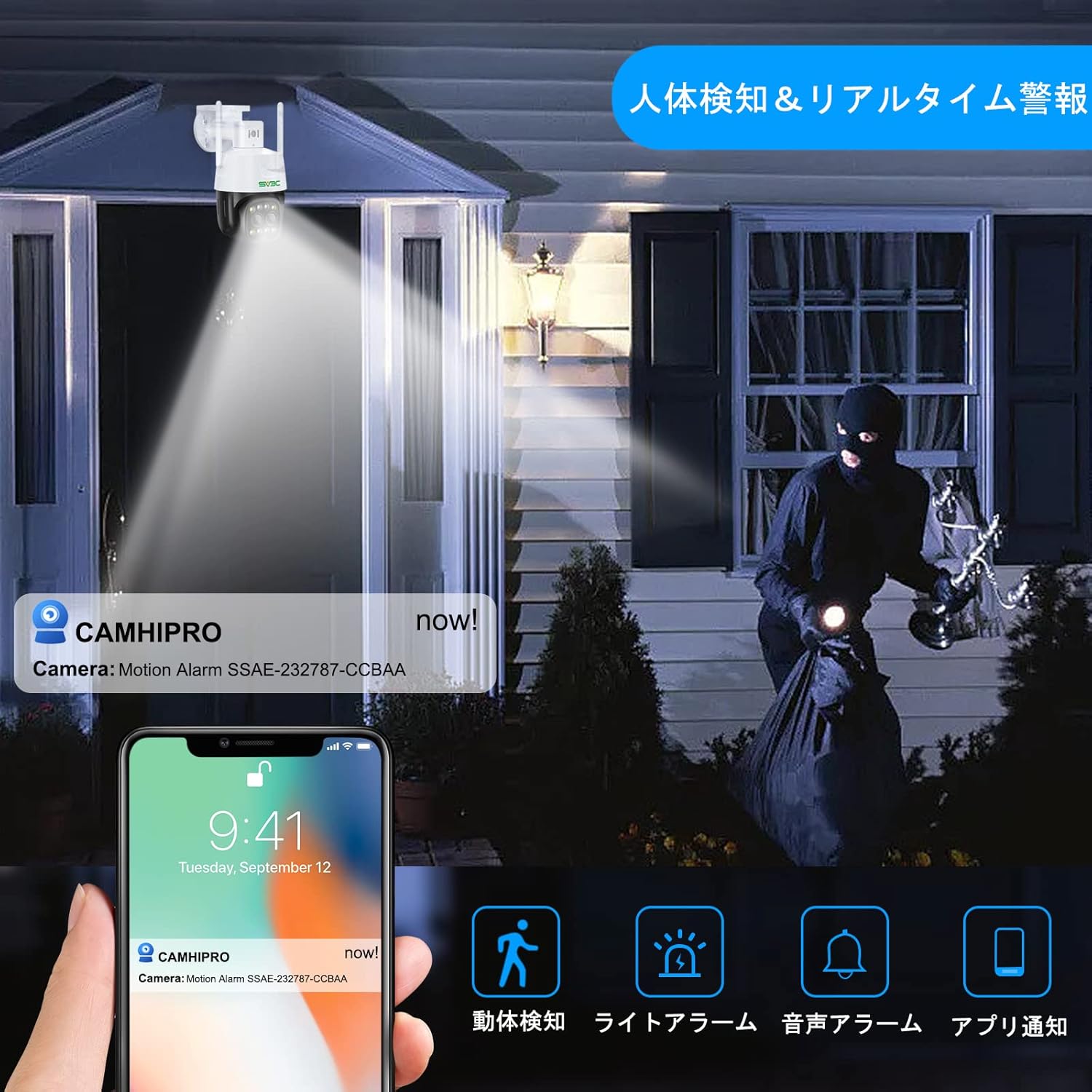
Image: AI human detection and real-time alerts.
Video: Demonstrates the auto-tracking feature.
Video: Demonstrates human detection and auto-tracking.
6. Maintenance
- Regular Cleaning: Periodically clean the camera lens with a soft, dry cloth to ensure clear image quality.
- Firmware Updates: Check the CamHiPro app regularly for firmware updates to ensure optimal performance and security.
- Cable Inspection: Inspect all cables and connections for any signs of wear or damage, especially for outdoor installations.
7. Troubleshooting
- No Power: Ensure the power adapter is correctly connected and the power outlet is functional.
- No Network Connection: Verify your WiFi password is correct. Ensure the camera is within WiFi range or the LAN cable is securely connected. Try restarting your router and camera.
- Poor Image Quality: Clean the camera lens. Check your network speed. Ensure the camera is not facing direct sunlight or extreme light sources.
- Motion Detection Not Working: Check motion detection settings in the app (sensitivity, detection zones). Ensure the auto-tracking feature is enabled if desired.
- No Audio: Check microphone and speaker settings in the app. Ensure volume is not muted.
- SD Card Not Recording: Ensure the Micro SD card is correctly inserted and formatted. Check if the card is full or damaged.
8. Specifications
| Feature | Specification |
|---|---|
| Video Capture Resolution | 1440p (4MP) |
| Connectivity Protocol | Wi-Fi (2.4Ghz/5Ghz) |
| Compatible Devices | Smartphones (iOS/Android) |
| Usage Environment | Outdoor |
| Special Features | PTZ Technology, Night Vision (Infrared, Color, Smart), AI Human Detection, Auto-Tracking, Two-Way Audio, IP66 Waterproof |
| Mounting Type | Screw mount (ceiling/wall) |
| Zoom Ratio | 4x Digital Zoom |
| Product Weight | 780 g |
| Package Dimensions | 22.7 x 21.1 x 14.1 cm |
9. Warranty and Support
SV3C surveillance cameras come with a 12-month quality guarantee from the date of purchase. If you have any issues or questions about the product, please feel free to contact the seller via email. Please note that a Micro SD card is not included with the product.


