1. Product Overview
The ASUS ROG Strix X670E-E Gaming WiFi motherboard is designed for AMD Ryzen 7000 Series Desktop Processors, utilizing the AM5 (LGA 1718) socket. It features robust power delivery, advanced thermal solutions, and comprehensive connectivity options to support high-performance computing.
Key Features:
- AMD Socket AM5 (LGA 1718): Supports AMD Ryzen 7000 Series Desktop Processors.
- Robust Power Solution: 18 + 2 teamed power stages with 8 + 8 pin ProCool II power connectors, high-quality alloy chokes, and durable capacitors.
- Optimized Thermal Design: Large VRM heatsinks, integrated aluminum I/O cover, high-conductivity thermal pad, L-shaped heatpipe, M.2 Combo-sink, M.2 backplate for PCIe 5.0 M.2_1 slot, three onboard M.2 heatsinks, and a bundled PCIe 5.0 M.2 heatsink.
- High-Performance Networking: Onboard WiFi 6E, Intel 2.5 Gb Ethernet, and ASUS LANGuard.
- Intelligent Control: ASUS-exclusive tools including AI Cooling II, Two-Way AI Noise-Cancelation, and AI Networking for easy configuration.

Image 1.1: The ASUS ROG Strix X670E-E Gaming WiFi Motherboard and its retail packaging, showcasing the product's design and branding.
2. Setup and Installation
2.1 Unpacking and Contents
Before beginning installation, carefully unpack all components and verify the contents against the packing list. Ensure no items are missing or damaged.

Image 2.1: An illustration detailing the contents typically found within the product box, including the motherboard, WiFi 6E antenna, manual, ROG Strix stickers, thank you card, massive M.2 heatsink, and ROG graphics card holder.
2.2 Motherboard Layout and Components
Familiarize yourself with the motherboard's layout to ensure correct component placement and cable routing.

Image 2.2: A detailed diagram highlighting the AMD AM5 Socket, 18+2 Power Stages, DDR5 DIMM slots, 4x M.2 Slots (PCIe 5.0 and 4.0), and PCIe 5.0/4.0 x16 Expansion Slots.
2.3 Processor Installation
- Ensure the CPU socket lever is open.
- Align the AMD Ryzen 7000 Series processor with the AM5 socket, matching the triangular markers.
- Gently place the CPU into the socket without force.
- Close the socket lever to secure the processor.
2.4 Memory (RAM) Installation
This motherboard supports DDR5 memory modules. Refer to the motherboard manual for recommended memory configurations and slot priority.
- Open the clips on both ends of the DIMM slot.
- Align the memory module with the slot, ensuring the notch on the module matches the key in the slot.
- Press down firmly on both ends of the memory module until the clips snap into place.

Image 2.3: An illustration demonstrating the DDR5 memory slots and their capability to support speeds up to 6400 MT/s.
2.5 Storage Device Installation (M.2 SSDs)
The motherboard features multiple M.2 slots, including PCIe 5.0 and PCIe 4.0 support. Utilize the M.2 Q-Latch mechanism for tool-less installation.
- Locate an available M.2 slot and remove any protective film or cover.
- Insert the M.2 SSD into the slot at a slight angle.
- Gently push down the M.2 SSD until it is flat against the motherboard.
- Secure the M.2 SSD using the M.2 Q-Latch by rotating it into position.
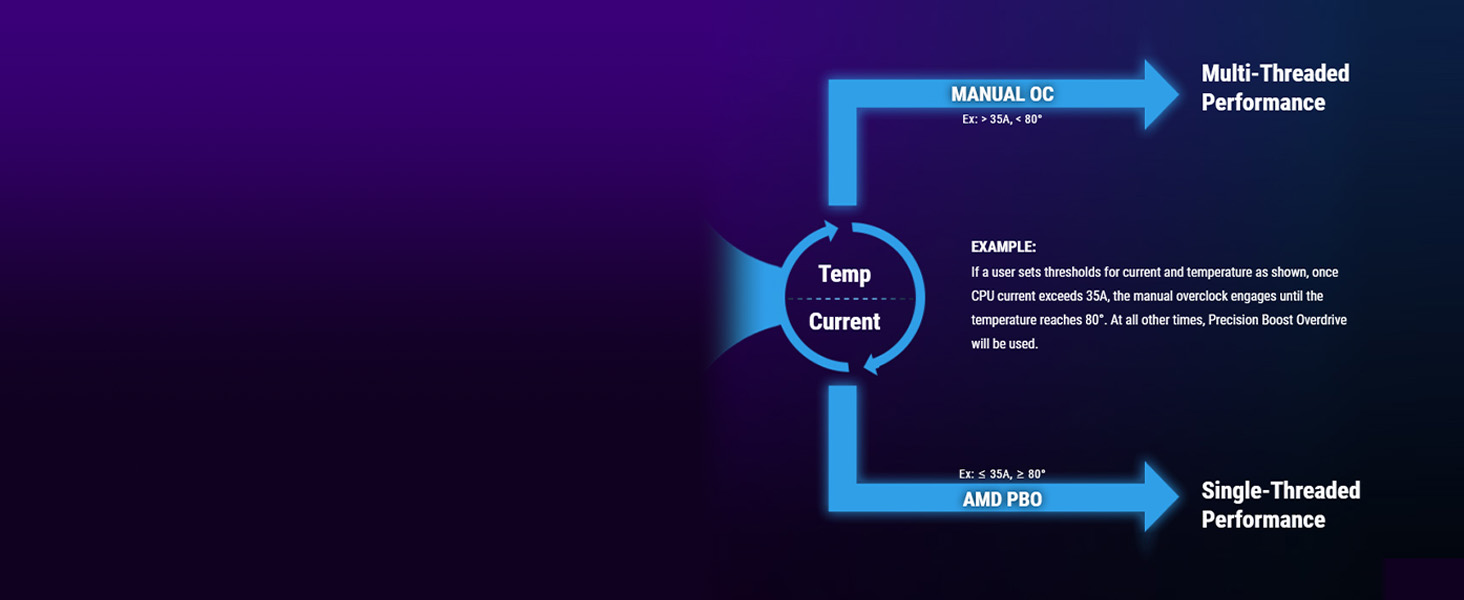
Image 2.4: A close-up view of the M.2 Q-Latch, illustrating the tool-less mechanism for securing M.2 drives.

Image 2.5: An overview of the M.2 slots, indicating support for various form factors (e.g., 2242, 2260, 2280, 22110).
2.6 Graphics Card Installation
Install your graphics card into the primary PCIe 5.0 x16 slot. The PCIe Slot Q-Release button simplifies removal.
- Open the retention clip on the PCIe x16 slot.
- Align the graphics card with the slot and press down firmly until it clicks into place.
- Secure the card to the chassis with screws.
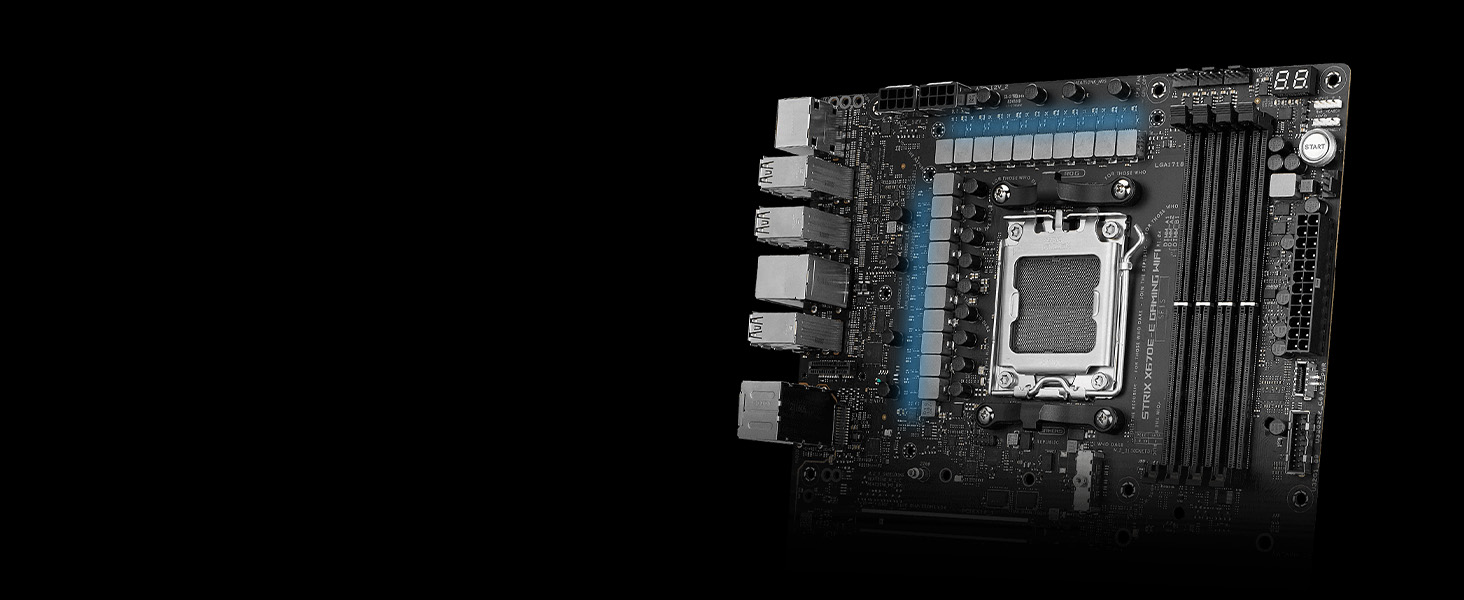
Image 2.6: A close-up of the PCIe Slot Q-Release button, designed for easy removal of graphics cards.
2.7 Connecting Peripherals and Power
Connect all necessary power cables from your power supply unit (PSU) to the motherboard (24-pin ATX, 8-pin CPU, 8-pin CPU). Connect front panel headers, USB devices, and other peripherals.

Image 2.7: A diagram illustrating the full connectivity options, including HDMI, DisplayPort, 12x USB 3.2 Gen 2 ports, Intel 2.5 Gb Ethernet, WiFi 6E, Optical S/PDIF Out, Gold-plated Audio Jacks, USB 3.2 Gen 2x2 connectors, USB 3.2 Gen 1 headers, SATA 6Gb/s ports, USB 2.0 headers, and a Thunderbolt header.
3. Operating Instructions
3.1 Initial Boot and BIOS Setup
Upon first boot, the system may perform memory training, which can take several minutes. Access the BIOS/UEFI setup by pressing the DEL or F2 key during startup.
- AI Optimized CPU Core Ratio: The BIOS offers AI-optimized settings for CPU core ratios to enhance performance.
- Memory Profiles: Select XMP/EXPO profiles for optimized memory performance.
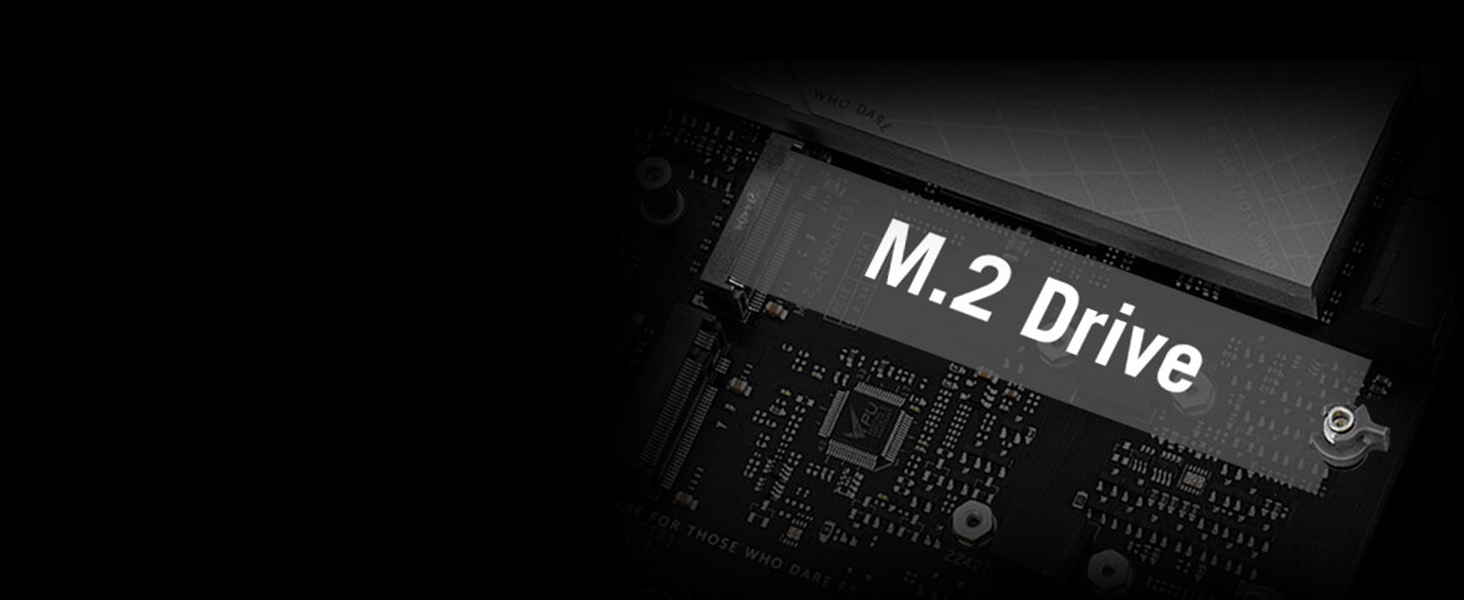
Image 3.1: A screenshot from the BIOS interface showing the option to select 'AI Optimized' for the CPU Core Ratio, allowing for intelligent performance tuning.
3.2 Intelligent Control Features
The motherboard integrates several ASUS-exclusive intelligent control features to optimize system performance and user experience.
- AI Cooling II: Automatically balances thermals and acoustics for optimal system cooling.
- Two-Way AI Noise-Cancelation: Enhances audio clarity by reducing background noise from both incoming and outgoing audio streams.
- AI Networking: Optimizes network traffic for gaming and streaming.
3.3 Audio and Visual Experience
The integrated SupremeFX ALC4080 CODEC with Savitech SV3H712 AMP provides high-fidelity audio output.
- 120 dB SNR stereo playback output.
- 113 dB SNR recording input.
- SupremeFX shielding.
- Sonic Studio III + Sonic Studio Virtual Mixer + Sonic Suite Companion.
- Sonic Radar III.
- DTS® Sound Unbound™.

Image 3.2: A visual representation of the audio components and Aura Lighting zones on the motherboard, including 3x 3-pin Addressable Gen 2 RGB Headers and 1x 4-pin Aura RGB Header.
4. Maintenance
4.1 BIOS Updates
Regularly check the ASUS support website for the latest BIOS updates. BIOS updates can improve system stability, performance, and compatibility with new hardware.
- Use the BIOS FlashBack™ feature for convenient BIOS updates without a CPU or memory installed.
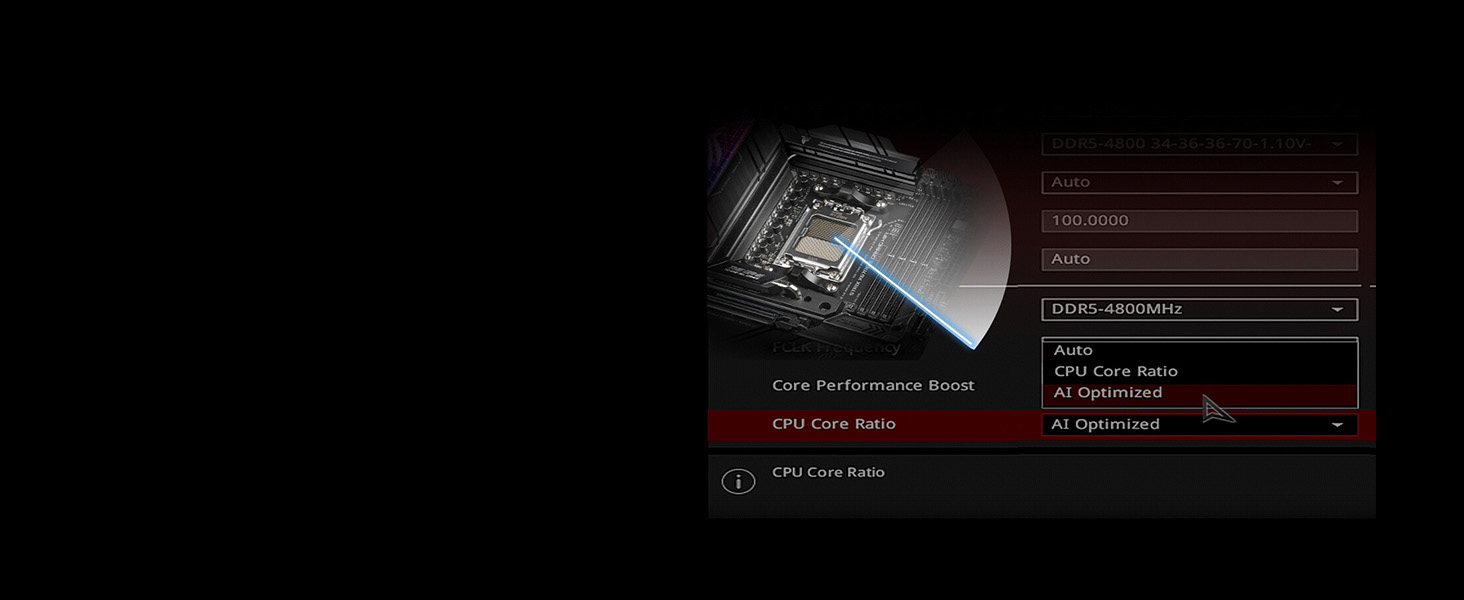
Image 4.1: A close-up of the BIOS FlashBack button located on the rear I/O panel, used for updating the BIOS.
4.2 Cleaning and Thermal Management
Keep your system clean to ensure optimal thermal performance. Dust accumulation can hinder airflow and increase component temperatures.
- Regularly clean dust from heatsinks, fans, and case filters using compressed air.
- Ensure proper airflow within your PC case.

Image 4.2: A diagram illustrating the thermal control elements, including the VRM Heatsink Array, M.2 Combo-Sink, 3x M.2 Heatsinks, Chipset Heatsink, Massive M.2 Heatsink (accessory), AIO Pump Header, and 5x 4-pin PWM Chassis Fan Headers.
5. Troubleshooting
5.1 Diagnostic Q-LED
The motherboard features a Q-LED (POST code display) that provides diagnostic codes during startup. These codes can help identify issues with the CPU, DRAM, VGA, or Boot device.
- Consult the motherboard manual's troubleshooting section for a list of Q-LED codes and their meanings.
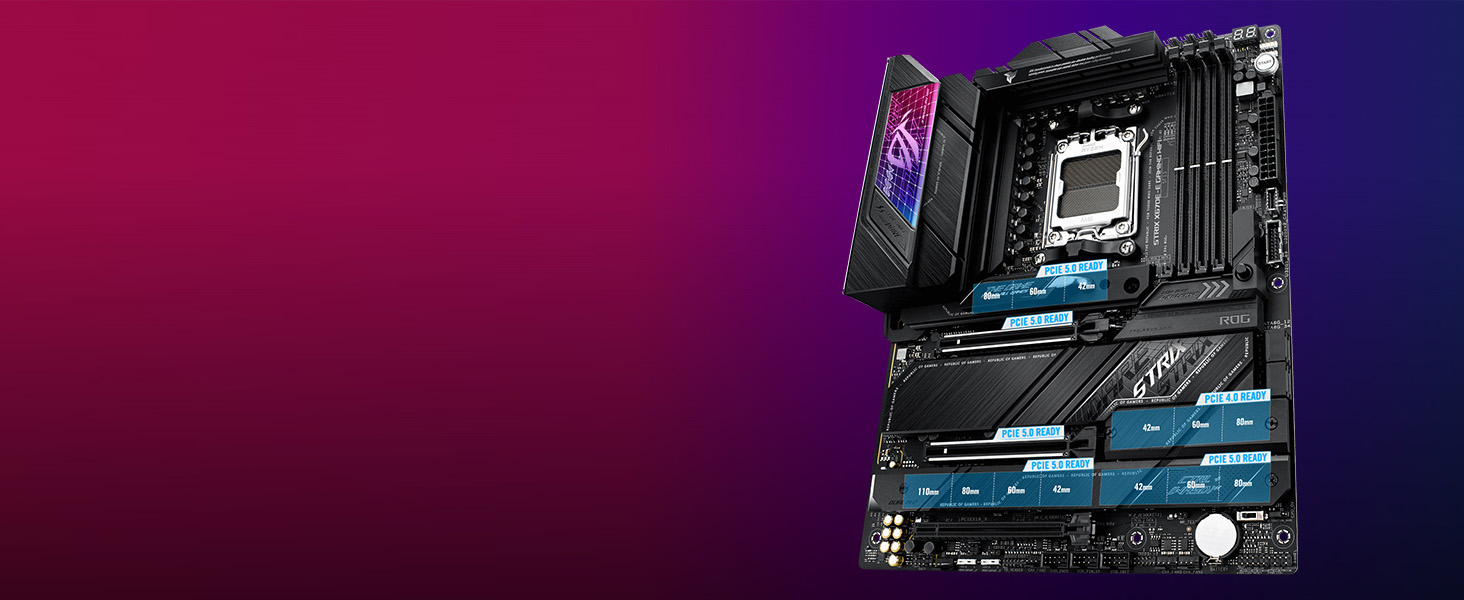
Image 5.1: A close-up of the Q-LED display, showing a two-digit POST code for system diagnostics.
5.2 Common Issues and Solutions
- No Display on Boot: Check power connections to the graphics card and monitor. Verify the graphics card is seated correctly. Observe Q-LED codes for VGA-related issues.
- System Fails to Boot: Ensure all power cables are connected. Reseat RAM modules. Check Q-LED for CPU or DRAM errors.
- Memory Instability: If experiencing crashes or instability with XMP/EXPO profiles, try running memory at default speeds or update the BIOS. Some memory kits may require specific BIOS versions for optimal stability.
- Operating System Compatibility: Ensure your chosen operating system has full driver support for the AMD X670E chipset and integrated components. Check the ASUS support website for driver downloads.
6. Specifications
Detailed technical specifications for the ASUS ROG Strix X670E-E Gaming WiFi Motherboard.
| Feature | Specification |
|---|---|
| Brand | ASUS |
| Model Name | ROG STRIX X670E-E GAMING WIFI |
| CPU Socket | LGA 1718 (AM5) |
| Compatible Processors | AMD Ryzen 7000 Series Desktop Processors |
| Chipset Type | AMD X670E |
| RAM Memory Technology | DDR5 |
| Memory Clock Speed | Up to 6400 MHz (OC) |
| Graphics Coprocessor | NVIDIA GeForce RTX 3050 (Note: This refers to a compatible GPU, not integrated graphics) |
| Wireless Type | 802.11a/b/g/n/ac, 802.11ax (WiFi 6E) |
| Ethernet | Intel 2.5 Gb Ethernet |
| Product Dimensions (LxWxH) | 10.8 x 3.1 x 13.5 inches |
| Item Weight | 4.3 pounds |
| Operating System Compatibility | Windows 11 Pro, Windows 10 |
7. Warranty and Support
7.1 Warranty Information
ASUS products typically come with a limited manufacturer's warranty. Please refer to the warranty card included with your product or visit the official ASUS website for detailed warranty terms and conditions specific to your region and product model.
7.2 Technical Support
For technical assistance, driver downloads, BIOS updates, and further product information, please visit the official ASUS support website. You can find FAQs, troubleshooting guides, and contact information for customer service.
ASUS Support Website: https://www.asus.com/support/


