
1. Introduction
This manual provides detailed instructions for the setup, operation, maintenance, and troubleshooting of your HP KE203 300 DPI Direct Thermal Shipping Label Printer. This printer is designed for efficient and high-quality label printing for various applications, including shipping, barcodes, and product labels. It utilizes direct thermal technology, eliminating the need for ink or toner cartridges.

The HP KE203 printer features a 5 inches per second (ips) printing speed and 300 dots per inch (dpi) resolution for clear, fast label output.
2. What's in the Box
Verify that all items are present in the packaging before proceeding with setup:
- HP KE203 Label Printer
- Power Cord
- AC Adapter
- USB Cable
- Quick Start Guide
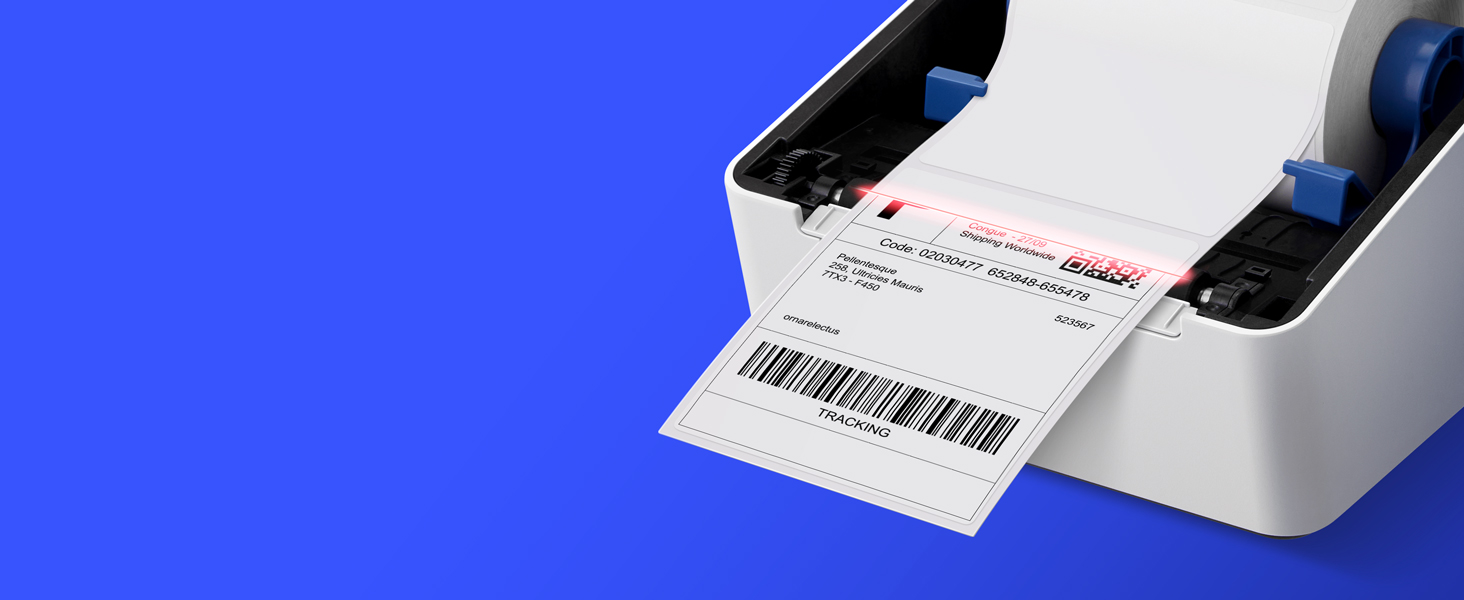
Image showing the HP KE203 printer and its included accessories: power cord, AC adapter, USB cable, and quick start guide.
3. Setup
Follow these steps to set up your HP KE203 label printer:
- Connect Power: Connect the AC adapter to the printer and then plug the power cord into a power outlet.
- Connect to Computer: Connect the USB cable from the printer to your computer.
- Load Labels: Open the printer cover and position the label roll properly within the adjustable media holder guides. Ensure the labels feed smoothly.
- Install Drivers: Download the appropriate drivers for your operating system (Windows or Mac) from the official HP Work Solutions website. Follow the on-screen instructions to complete the driver installation. The printer should be automatically detected if connected via USB.
- Test Print: After driver installation, go to your computer's printer settings, select the HP KE203, and perform a test print to ensure proper functionality.

Ensure all power components are securely connected.

Connect the printer to your computer using the provided USB cable.

Properly load the label roll and adjust the guides to prevent jams.

Download and install the printer drivers from the official HP website.
Setup Video Guide
This video provides a visual guide on how to set up your HP Label Printer, including connecting cables, loading labels, and installing drivers.
4. Operating Instructions
The HP KE203 printer is designed for ease of use. Once set up, you can print labels directly from your computer using various applications and platforms.
Printing Labels
- Ensure the printer is powered on and connected to your computer.
- Open the document or application from which you wish to print (e.g., shipping software, word processor).
- Select the print option and choose the HP KE203 printer from the list of available printers.
- Adjust print settings as needed, such as label size (e.g., 4x6 inches) and orientation.
- Initiate the print job.

The printer seamlessly integrates with your computer for direct label printing.
Compatible Platforms and Label Types
This printer is compatible with various shipping platforms and can print different types of labels up to 4 inches in width.
- Shipping Labels: Ideal for major carriers like Amazon, UPS, FedEx, USPS, DHL, and platforms such as Shopify, Etsy, eBay, and ShipStation.
- Barcode Labels: Print clear and scannable barcodes.
- Product Labels: Create custom labels for products.
- Address Labels: Generate address stickers for mail.

The HP KE203 is compatible with all major shipping platforms.
5. Maintenance
Regular maintenance ensures optimal performance and longevity of your printer.
Cleaning the Print Head
- Turn off and unplug the printer before cleaning.
- Open the printer cover.
- Gently wipe the print head with a lint-free cloth dampened with isopropyl alcohol.
- Allow the print head to dry completely before closing the cover and powering on the printer.
General Care
- Keep the printer in a clean, dust-free environment.
- Use only high-quality thermal labels to prevent damage to the print head.
- Avoid exposing the printer to extreme temperatures or direct sunlight.
6. Troubleshooting
Refer to the following common issues and their solutions:
| Issue | Possible Cause | Solution |
|---|---|---|
| Printer not responding | Loose cable connection, printer off, driver issue. | Check power and USB connections. Ensure printer is on. Reinstall drivers if necessary. |
| Poor print quality | Dirty print head, incorrect label type, print settings. | Clean the print head. Use recommended thermal labels. Adjust print density or turn off dithering in printer settings. |
| Labels not feeding correctly | Improper label loading, media guides not adjusted. | Ensure labels are loaded correctly and media guides are snug against the roll. |
| Printer not detected by computer | USB cable issue, driver not installed or corrupted. | Try a different USB port or cable. Reinstall printer drivers. |
7. Specifications
| Feature | Detail |
|---|---|
| Brand | HP |
| Model Number | HPKE203 |
| Connectivity Technology | USB |
| Printing Technology | Direct Thermal |
| Printer Output | Monochrome |
| Maximum Print Speed (Monochrome) | 5 ips (50 ppm) |
| Resolution | 300 x 300 DPI |
| Maximum Media Size | 4 x 6 inch |
| Item Dimensions (D x W x H) | 8.2"D x 7.29"W x 6.63"H |
| Item Weight | 1340 Grams |
| Power Consumption | 60 Watts |
| Compatible Devices | PC (Windows), Mac |
8. Warranty and Support
The HP KE203 Direct Thermal Shipping Label Printer comes with a 2-year limited warranty. For technical support, driver downloads, and further assistance, please visit the official HP Work Solutions website or contact HP customer service.
For the most up-to-date support information, please refer to the Quick Start Guide included with your product or visit the HP support portal online.


