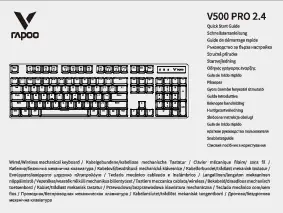
Introduction
Thank you for choosing the Rapoo GK500 RGB Gaming Mechanical Keyboard. This manual provides essential information for setting up, operating, maintaining, and troubleshooting your new keyboard. Please read it carefully to ensure optimal performance and longevity of your device.
Setup
Package Contents
- Rapoo GK500 RGB Gaming Mechanical Keyboard
- User Manual
System Requirements
- PC with available USB-A port
- Compatible operating system (e.g., Windows 7/8/10/11)
Connecting the Keyboard
- Unpack the Rapoo GK500 keyboard from its packaging.
- Locate an available USB-A port on your computer.
- Plug the USB-A connector of the keyboard into the USB-A port on your computer.
- The operating system will automatically detect and install the necessary drivers. The keyboard is ready for use once the installation is complete.
Operation
Key Functions
The Rapoo GK500 features a full-size layout with 104 keys, all designed with a non-conflict mechanism. This ensures that every keystroke is registered accurately, even when multiple keys are pressed simultaneously, which is beneficial for gaming and fast typing.

Image: The Rapoo GK500 keyboard displaying its full 104-key layout, highlighting its compact and conflict-free design.
Mechanical Switches
The GK500 is equipped with durable mechanical switches, offering a key travel distance of 4.0 (±0.4) mm. These switches are rated for an impressive lifespan of up to 60 million keystrokes, providing a responsive and tactile typing experience.
Adjustable RGB Backlight
The keyboard features adjustable RGB backlighting with 6 available modes. Use the dedicated function keys (often accessed via the 'Fn' key combined with other keys like 'Ins', 'Home', 'PgUp', 'Del', 'End', 'PgDn') to cycle through different lighting effects and adjust brightness. Refer to the keycap legends for specific combinations.

Image: The Rapoo GK500 keyboard illuminated with its adjustable RGB backlight, showcasing multiple color options.
Media Control
Dedicated media control functions are integrated into the keyboard, typically accessible via the 'Fn' key combined with the F-keys (F1-F12). These allow for quick access to volume control, play/pause, and track navigation without interrupting your workflow or game.
Maintenance
Cleaning
To clean your keyboard, first disconnect it from your computer. Use a soft, lint-free cloth slightly dampened with water or a mild cleaning solution. Avoid harsh chemicals or abrasive materials. For cleaning between keycaps, a can of compressed air can be used to remove dust and debris.
Spill-Resistant Design
The Rapoo GK500 features a spill-resistant design, which helps protect against accidental liquid splashes. In case of a spill, immediately disconnect the keyboard, wipe off any liquid, and allow it to dry completely before reconnecting. While spill-resistant, it is not waterproof, and excessive liquid exposure should be avoided.

Image: The Rapoo GK500 keyboard with water droplets on its surface, illustrating its spill-resistant feature.
General Care
- Avoid exposing the keyboard to extreme temperatures or direct sunlight.
- Do not drop or subject the keyboard to strong impacts.
- Keep the keyboard away from strong magnetic fields.
Troubleshooting
Keyboard Not Responding
- Ensure the USB cable is securely connected to both the keyboard and the computer.
- Try plugging the keyboard into a different USB port on your computer.
- Restart your computer.
- Test the keyboard on another computer to determine if the issue is with the keyboard or the computer system.
RGB Backlight Not Working or Incorrect
- Ensure the keyboard is properly connected and receiving power.
- Use the designated function keys (e.g., Fn + Ins/Home/PgUp/Del/End/PgDn) to cycle through lighting modes and adjust brightness.
- If the issue persists, consult the Rapoo support website for potential driver updates or further assistance.
Specifications
| Feature | Detail |
|---|---|
| Model Name | GK500-WH |
| Brand | Rapoo |
| Connectivity Technology | USB-A |
| Compatible Devices | PC |
| Keyboard Description | Gaming |
| Recommended Uses | Gaming, Office |
| Special Features | Backlit, Spill Proof |
| Color | White |
| Dimensions | 45.6 x 16.1 x 4.1 cm |
| Weight | 850 grams |
| Switch Type | Mechanical (Blue Switches) |
| Keystroke Lifespan | Up to 60 million |
| Keycap Material | Two-color injected moulded |
| Surface Cover | Aluminum Alloy |
Warranty & Support
Warranty Information
The Rapoo GK500 RGB Gaming Mechanical Keyboard comes with a 2-year warranty from the date of purchase. This warranty covers manufacturing defects and ensures the product meets its specified performance standards under normal use. Please retain your proof of purchase for warranty claims.

Image: A warranty badge confirming a 2-year warranty for the product, along with support contact details.
Customer Support
For technical assistance, warranty claims, or any product-related inquiries, please contact Rapoo customer support:
- Email: support.india@rapoo.com
- Toll-Free Number: 84678-77770
Please visit the official Rapoo website for the most up-to-date support information and resources.