
Yale Security YRD450-WF1-619
Yale Assure Lock 2 Deadbolt User Manual
Model: YRD450-WF1-619
Introduction
This manual provides comprehensive instructions for the installation, operation, maintenance, and troubleshooting of the Yale Assure Lock 2 Deadbolt. Please read this manual thoroughly before installation and use to ensure proper functionality and security.

Figure 1: Yale Assure Lock 2 Deadbolt with Keypad and Yale Access App.
This image displays the Yale Assure Lock 2 Deadbolt in satin nickel finish, alongside its external keypad and a smartphone screen showing the Yale Access App. The lock features a sleek design, and the keypad has illuminated numbers for easy code entry. The app interface indicates the lock's status, demonstrating its smart capabilities.
Setup and Installation
The Yale Assure Lock 2 Deadbolt is designed for straightforward installation, typically requiring only a screwdriver. It replaces most standard US entry door deadbolts. For detailed step-by-step instructions, refer to the official Installation Manual.
- Pre-installation Check: Ensure your door's thickness and backset are compatible with the lock.
- Tools Required: A Phillips head screwdriver is generally the only tool needed.
- Component Identification: Familiarize yourself with all included parts before beginning installation.

Figure 2: Included Components for Installation.
This image shows all the components included with the Yale Assure Lock 2 Deadbolt, neatly arranged on a surface. These include the interior and exterior lock assemblies, the deadbolt mechanism, strike plates, mounting hardware (screws), a Wi-Fi Smart Module, DoorSense sensor, and the installation manual. Four AA batteries are also visible, indicating they are included for initial power.
For a complete guide, please download the official Installation Manual (PDF).

Figure 3: Smart Lock Installation Process.
This image illustrates the Yale Assure Lock 2 Deadbolt being installed on a door. The interior and exterior components of the lock are visible, with the exterior keypad already mounted on the door. This demonstrates the ease of installation, highlighting that professional assistance is not typically required.
Operating Instructions
The Yale Assure Lock 2 offers multiple methods for locking and unlocking, providing flexible access control.
Keypad Entry
To unlock using the keypad, enter your valid access code followed by the checkmark (✓) button. To lock, press any key for 2 seconds or enable Auto-Lock.

Figure 4: Keypad Operation for Unlocking.
This image shows a finger interacting with the illuminated keypad of the Yale Assure Lock 2. The keypad features large, clearly visible numbers, indicating the ease of entering access codes for keyless entry. This method provides a convenient way to unlock the door without physical keys.
Yale Access App Control
Manage your lock remotely using the Yale Access App on your smartphone or Apple Watch. This allows you to:
- Lock/Unlock: Control your door's status from anywhere.
- Share Access: Grant temporary or permanent access codes to family, friends, or service providers.
- View Lock History: Track who enters and exits your home and when.
- Receive Notifications: Get real-time alerts on your phone for lock activity.
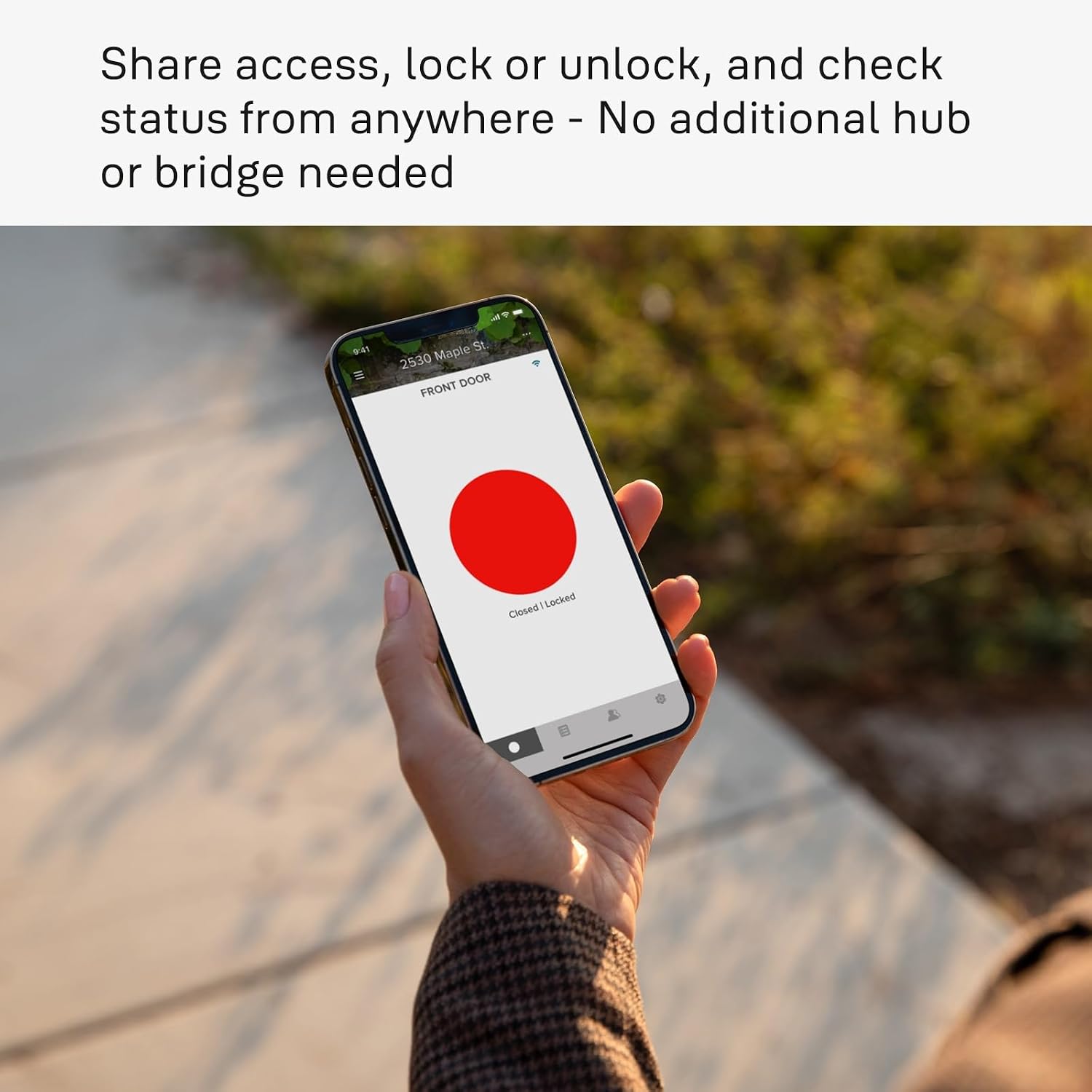
Figure 5: Remote Control via Yale Access App.
This image features a hand holding a smartphone, displaying the Yale Access App interface. The app shows the lock's status, indicating whether the door is closed and locked. This visual demonstrates the convenience of managing the smart lock remotely through the dedicated mobile application.
Auto-Lock and Auto-Unlock
The lock can be configured to automatically lock when the door is closed, thanks to the DoorSense™ sensor. Optional Auto-Unlock allows the door to unlock as you approach, ideal for hands-free entry.

Figure 6: Auto-Lock and Auto-Unlock Functionality.
This image depicts an individual entering a home, with the Yale Assure Lock 2 visible on the door. The scene illustrates the convenience of the auto-unlock feature, where the door unlocks automatically as the user approaches, allowing for hands-free entry, especially useful when carrying items.
Voice Assistant Integration
Control your Yale Assure Lock 2 using voice commands through Amazon Alexa, Google Assistant, or Siri. This feature allows for hands-free locking and unlocking.
Security Features
The lock incorporates advanced security measures including two-factor authentication, biometric verification, and matte keypads to resist fingerprint smudges, ensuring secure access.
Maintenance
Regular maintenance ensures the longevity and optimal performance of your Yale Assure Lock 2 Deadbolt.
- Battery Replacement: The lock uses 4 AA batteries. Replace them when the low battery indicator appears in the app or on the lock.
- Emergency Power: In case of complete battery depletion, a 9V battery can be temporarily applied to the terminals below the keypad for emergency power to enter your code.
- Cleaning: Use a soft, dry cloth to clean the lock's exterior. Avoid abrasive cleaners or solvents.
- Door Alignment: Ensure your door and frame remain properly aligned to prevent strain on the deadbolt mechanism.

Figure 7: Emergency 9V Battery Power.
This image shows a hand holding a 9V battery to the two circular terminals located at the bottom of the Yale Assure Lock 2 keypad. This feature provides an emergency power source, allowing users to temporarily power the lock and enter their code if the internal AA batteries are completely depleted, preventing lockout.
Troubleshooting
This section addresses common issues you might encounter with your Yale Assure Lock 2 Deadbolt.
| Problem | Possible Cause | Solution |
|---|---|---|
| Lock does not respond to keypad entry. | Low or dead batteries; incorrect code entered. | Replace batteries. Use a 9V battery for emergency power. Verify the access code. |
| Auto-Lock feature is not working. | DoorSense™ sensor misalignment or obstruction; feature disabled in app. | Check DoorSense™ sensor alignment. Ensure the feature is enabled in the Yale Access App. |
| Cannot connect to Wi-Fi or app. | Wi-Fi module issue; network interference; incorrect setup. | Ensure Wi-Fi module is properly installed. Restart your router. Re-pair the lock with the app. |
| Lock is stiff or difficult to operate manually. | Door misalignment; deadbolt binding. | Check door alignment and strike plate. Lubricate the deadbolt mechanism if necessary (use graphite lubricant, not oil). |
If issues persist, consult the full installation manual or contact Yale Security support.
Specifications
| Feature | Detail |
|---|---|
| Brand | Yale Security |
| Model Name | Yale Assure Lock 2 with Wi-Fi |
| Part Number | YRD450-WF1-619 |
| Lock Type | Deadbolt, Keypad |
| Color | Satin Nickel |
| Material | Zinc |
| Dimensions (L x W x H) | 0.88 x 2.5 x 3.75 inches |
| Item Weight | 16 ounces (1 pound) |
| Power Source | 4 AA batteries (included) |
| Connectivity | Bluetooth, Wi-Fi |
| Control Method | App, Voice |
| Compatible Controllers | Amazon Alexa, Android, Apple HomeKit, Google Assistant, iOS |
| Special Features | Auto-Lock, Auto-Unlock, Battery Indicator, Passcode Unlock, Wi-Fi |
| Included Components | Yale Assure Lock 2, Wi-fi Smart Module, Deadbolt, Latch Plates, Mounting Hardware, DoorSense, Install Manual |
| UPC | 081023091091 |
Warranty Information
The Yale Assure Lock 2 Deadbolt comes with the following warranty coverage:
- Lifetime Limited Warranty: Applies to the finish and mechanical components.
- One-Year Warranty: Applies to the electronic components.
For specific terms and conditions, please refer to the warranty documentation included with your product or visit the official Yale Security website.
Support
For further assistance, technical support, or to inquire about replacement parts, please contact Yale Security customer service. You can find contact information on the official Yale Security website or within the product packaging.
Online Resources:
Related documentsYRD450-WF1-619


Ask a question about this manual
Ask about setup, troubleshooting, compatibility, parts, safety, or missing instructions. Manuals+ will review the question and use this page’s manual context to help answer it.