
TIMBOOTECH Q3
TIMBOOTECH Wireless HDMI Transmitter and Receiver 4K (Model Q3) User Manual
Model: Q3
1. Introduction
This manual provides detailed instructions for the TIMBOOTECH Wireless HDMI Transmitter and Receiver 4K, Model Q3. This device allows for wireless transmission of video and audio signals from various HDMI-enabled sources to a display, projector, or HDTV. Please read this manual thoroughly before use to ensure proper setup and operation.

Image: The TIMBOOTECH Wireless HDMI Transmitter (TX) and Receiver (RX) units, along with Micro HDMI and Mini HDMI adapters.
2. What's in the Box
Please verify that all items listed below are included in your package:
- 1 x TIMBOOTECH Wireless HDMI Transmitter (TX)
- 1 x TIMBOOTECH Wireless HDMI Receiver (RX)
- 1 x USB C Cable (for power)
- 1 x External Antenna (for RX)
- 1 x Micro HDMI Adapter
- 1 x Mini HDMI Adapter
- 1 x User Manual

Image: A visual representation of the complete package contents, including the transmitter, receiver, cables, adapters, and manual.
3. Product Overview
The TIMBOOTECH Wireless HDMI system consists of two main components:
- Transmitter (TX): Connects to your source device (e.g., laptop, camera, cable box) via HDMI to send the signal wirelessly.
- Receiver (RX): Connects to your display device (e.g., TV, monitor, projector) via HDMI to receive the wireless signal.
The system supports 4K resolution at 30Hz and utilizes 2.4G/5G dual-band transmission for stable connectivity. It is designed for plug-and-play operation, requiring no software installation or Wi-Fi network for direct transmission.
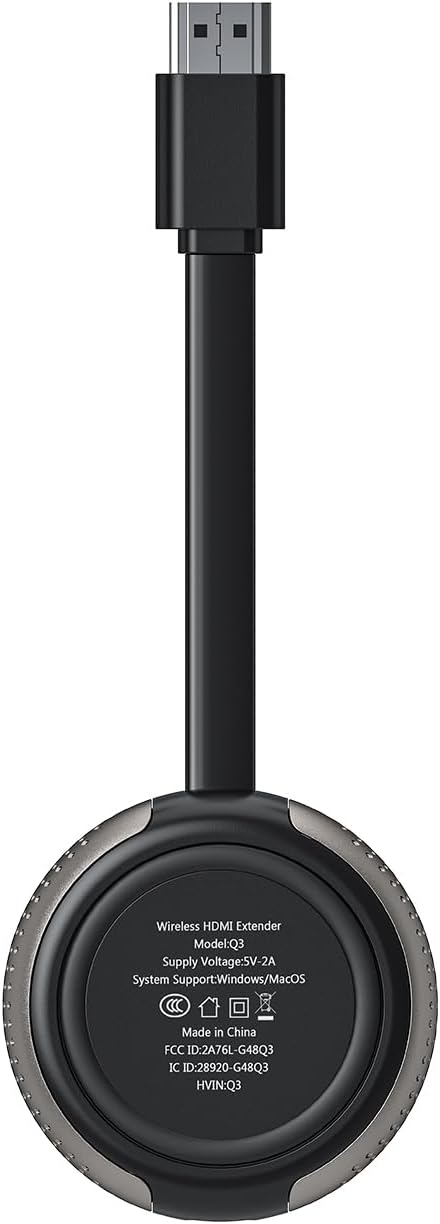
Image: The underside of the device, displaying the model number Q3 and power requirements.
4. Setup Instructions
Follow these steps to set up your TIMBOOTECH Wireless HDMI system:
- Connect the Receiver (RX):
Plug the Receiver (RX) into an HDMI input port on your display device (TV, monitor, or projector). Connect the external antenna cable to the RX unit. Power the RX unit by connecting the USB C cable to a 5V/1A USB power source (e.g., a TV USB port or a USB power adapter, not included). - Connect the Transmitter (TX):
Plug the Transmitter (TX) into the HDMI output port of your source device (e.g., laptop, camera, cable box). If your source device has a Micro HDMI or Mini HDMI port, use the appropriate adapter provided. Power the TX unit by connecting its USB C cable to a 5V/1A USB power source (e.g., your laptop's USB port or a USB power adapter). - Automatic Pairing:
The Transmitter and Receiver are pre-paired from the factory. Once both units are powered on and connected, they should automatically establish a connection within approximately 5 seconds. The indicator lights on both units will show a stable connection. - Select Input:
Switch your display device to the correct HDMI input channel where the Receiver (RX) is connected.

Image: Step-by-step visual guide for connecting the transmitter and receiver to source and display devices.

Image: The transmitter connected to a camera, demonstrating compatibility with various HDMI output devices.
5. Operating Instructions
5.1. Mirror and Extend Modes
The system supports both Mirror and Extend display modes when connected to a computer:
- Mirror Mode: Duplicates your source device's screen onto the connected display.
- Extend Mode: Extends your source device's desktop, allowing for a multi-screen setup where you can drag windows between displays.
To switch between modes, adjust your computer's display settings (e.g., Windows Display Settings or macOS System Preferences).

Image: Comparison of Mirror Mode and Extend Mode functionality.
5.2. Multiple Transmitters (Up to 8 TXs)
One Receiver (RX) can be paired with up to eight Transmitters (TXs) simultaneously. This feature is useful for presentations or environments where multiple sources need to share a single display.
- To switch between active Transmitters, press the button on the desired TX unit.
- To disconnect a Transmitter, press its button once. Press again to reconnect.

Image: A meeting room setup demonstrating one receiver connected to a display, receiving input from multiple transmitters connected to laptops.
5.3. Wireless Casting from Smartphones/Tablets
The Receiver (RX) alone can enable wireless screen mirroring from Android phones, tablets, iPhones, and iPads to a TV, monitor, or projector using protocols like Miracast, DLNA, and Airplay. This functionality does not require the Transmitter (TX).
- Connect your mobile device to the Receiver's Wi-Fi hotspot.
- Activate screen mirroring (Smartview for Android, Screen Mirroring for iOS) on your mobile device and select the Receiver.
5.4. Customizable Settings
The receiver allows for customization of the startup interface, switching between portrait and landscape modes, modifying account names and passwords, and adjusting channel settings. Refer to the on-screen menu accessible via the receiver for these options.
6. Maintenance
- Keep the devices clean and free from dust. Use a soft, dry cloth for cleaning.
- Avoid exposing the devices to extreme temperatures, humidity, or direct sunlight.
- Do not attempt to disassemble or repair the units yourself. This will void the warranty.
- Ensure proper ventilation around the units during operation to prevent overheating.
7. Troubleshooting
| Problem | Possible Cause | Solution |
|---|---|---|
| No signal on display |
|
|
| Poor video quality or flickering |
|
|
| Short transmission range |
|
|
| Mobile device screen mirroring fails |
|
|
8. Specifications
| Feature | Detail |
|---|---|
| Brand | TIMBOOTECH |
| Model Number | Q3 |
| Connectivity Technology | Wireless, HDMI, Micro/Mini HDMI, Wifi |
| Wireless Transmission | 2.4G/5G Dual-Band Protocol |
| Max Resolution | 4K@30Hz (Receiver), 1080p (TX to RX) |
| Transmission Range | Up to 165FT/50M (line of sight); 32FT/10M (through walls/floors) |
| Latency | <0.1S |
| Multi-Transmitter Support | 1 Receiver pairs with up to 8 Transmitters |
| Screen Mirroring Protocols | Miracast, DLNA, Airplay (Receiver only) |
| Compatible Devices | Laptop, PC, Blu-ray Player, Camera, DVD, DSLR, Set-top boxes, Cable/Satellite boxes, Tablet, iPhone, iPad, Television, Monitor, Projector |
| Power Input | 5V/1A (via USB C) |
| Item Weight | 8.8 ounces |
| Product Dimensions | 5.51 x 1.98 x 0.78 inches |

Image: A feature comparison table detailing the capabilities of the TIMBOOTECH Wireless HDMI system.
9. Warranty and Support
9.1. Warranty Information
TIMBOOTECH provides a 24-month warranty for this product, ensuring a pleasant experience. This includes a 30-day money-back return and refund guarantee, and a 1-year free replacement for manufacturing defects.
9.2. Customer Support
For any questions, technical assistance, or warranty claims, please contact TIMBOOTECH customer service. Expert customer service is available 7 days a week, 24 hours a day via WhatsApp or email.
Refer to the contact information provided in your product packaging or on the official TIMBOOTECH website for the most current support details.
Related documentsQ3


Ask a question about this manual
Ask about setup, troubleshooting, compatibility, parts, safety, or missing instructions. Manuals+ will review the question and use this page’s manual context to help answer it.