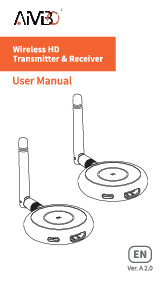
Introduction
This manual provides detailed instructions for the setup, operation, maintenance, and troubleshooting of your AIMIBO Wireless HDMI Transmitter and Receiver system, model AOCUK-Q3BTX. This device is designed to wirelessly transmit high-definition audio and video signals from a source device to a display, supporting flexible configurations for various environments.

Image: AIMIBO Wireless HDMI Transmitters in various colors. Note that the product model AOCUK-Q3BTX is specifically for the transmitter unit.
Setup Instructions
Follow these steps to set up your AIMIBO Wireless HDMI system for instant streaming.
- Connect the Receiver (RX) to your Display:
Plug the 5G external antenna into the Receiver unit. Connect the Receiver's HDMI cable to an available HDMI input on your TV or display. Then, plug the Receiver's USB power cable into a USB port on your TV or a compatible USB power adapter.
- Connect the Transmitter (TX) to your Source Device:
Plug the Transmitter unit (AOCUK-Q3BTX) into the HDMI output port of your source device, such as a laptop, gaming console, or set-top box. Connect the Transmitter's USB power cable into a USB port on your source device or a compatible USB power adapter.
- Initiate Streaming:
After connecting both the Receiver and Transmitter, wait approximately 3 seconds for the devices to automatically establish a connection and begin streaming. The system is designed for plug-and-play operation.

Image: Step-by-step setup guide for connecting the Receiver to a TV and the Transmitter to a laptop for wireless streaming.
Operating Instructions
The AIMIBO Wireless HDMI system offers flexible connection options for various use cases.
1-to-1 Connection
For a direct connection, simply pair one Transmitter (TX) with one Receiver (RX). Once both are powered and connected to their respective devices, they will automatically establish a wireless link for audio and video transmission.
1-to-8 Connection (Multiple Transmitters)
The system supports connecting up to eight Transmitter units (TXs) to a single Receiver (RX). This allows multiple source devices to share one display wirelessly. To switch between different transmitters, press the button on the active Transmitter unit. The Receiver will automatically detect and display the signal from the selected Transmitter.

Image: Visual representation of a single Receiver (RX) pairing with up to eight Transmitters (TXs) for multi-source display.

Image: Example of 1-to-1 and 1-to-8 connection scenarios in a meeting room setting, with multiple laptops wirelessly connected to a single display.
Maintenance
- Cleaning: Use a soft, dry cloth to clean the device. Avoid liquid cleaners or solvents.
- Storage: Store the device in a cool, dry place away from direct sunlight and extreme temperatures.
- Power Management: To prolong the lifespan of the Transmitter, it is recommended to unplug it from the power source when not in use, especially if it feels warm during operation.
- Handling: Handle the device with care. Avoid dropping or subjecting it to strong impacts.
Troubleshooting
If you encounter issues with your AIMIBO Wireless HDMI system, refer to the following common solutions:
- No Signal on Display:
- Ensure both the Transmitter and Receiver are properly powered via their USB cables.
- Verify that the HDMI cables are securely connected to both the source device and the display.
- Check if the display is set to the correct HDMI input source.
- Ensure the Transmitter and Receiver are within the recommended operating range and without significant obstructions.
- Try restarting both the source device and the display.
- Poor Video/Audio Quality or Intermittent Connection:
- Reduce the distance between the Transmitter and Receiver.
- Remove any potential obstructions (walls, large furniture, other electronic devices) that might interfere with the wireless signal.
- Ensure the 5G external antenna is correctly attached to the Receiver.
- Minimize interference from other wireless devices operating on the same frequency band.
- Transmitter Feels Hot:
- It is normal for the Transmitter to generate some heat during operation.
- Ensure adequate ventilation around the unit.
- If the heat is excessive, unplug the unit when not in use to prevent potential damage and prolong its lifespan.
Specifications
| Feature | Detail |
|---|---|
| Brand | AIMIBO |
| Model Number | AOCUK-Q3BTX |
| Product Dimensions | 10 x 6 x 4 cm |
| Item Weight | 100 g |
| Connector Type | HDMI |
| Cable Type | HDMI |
| Compatible Devices | For AIMIBO Receiver |
| Special Feature | Supports up to 8 Transmitters with one Receiver |
| Recommended Uses | Wireless HDMI transmission, presentations, home theaters, gaming setups, smartphone screen mirroring |
| Indoor/Outdoor Usage | Indoor |
| Connectivity Technology | HDMI Wireless |
| Colour | Blue (for this specific model variant) |
Warranty and Support
Warranty: This AIMIBO product comes with a 1-Year Warranty from the date of purchase. This warranty covers manufacturing defects and malfunctions under normal use. It does not cover damage caused by misuse, accidents, unauthorized modifications, or improper installation.
Customer Support: For technical assistance, warranty claims, or further inquiries, please refer to the official AIMIBO website or contact their customer service directly. Contact information can typically be found on the product packaging or the manufacturer's official support page.