
1. Introduction
Thank you for choosing the Awei TC-7 Wired Earphones. These in-ear earphones are designed for clear audio and convenient communication, featuring a Type-C connector for modern devices and an inline microphone with control buttons. Please read this manual carefully to ensure proper use and maintenance of your earphones.
2. Package Contents
- Awei TC-7 Wired Earphones
- Multiple sizes of Ear Cushions (Small, Medium, Large)

Figure 2.1: The Awei TC-7 earphones include ear caps in various sizes to ensure a comfortable and secure fit for different users.
3. Product Overview
The Awei TC-7 earphones feature a durable design with a Type-C plug for direct connection to compatible devices. The inline remote control allows for easy management of audio playback and calls.

Figure 3.1: A close view of the Awei TC-7 earphones, showcasing their in-ear design for optimal sound delivery.

Figure 3.2: The inline remote control features multi-function buttons for managing audio and calls.

Figure 3.3: The integrated HD microphone is designed to pick up clear audio, even in noisy environments.
4. Setup
- Select Ear Cushions: Choose the ear cushion size (Small, Medium, or Large) that provides the most comfortable and secure fit for your ears. A proper fit enhances sound quality and noise isolation.
- Connect to Device: Insert the USB-C plug of the earphones into the Type-C port of your smartphone, tablet, laptop, or other compatible device.
- Audio Output: Ensure your device's audio output is set to the connected earphones. This is usually automatic upon connection.
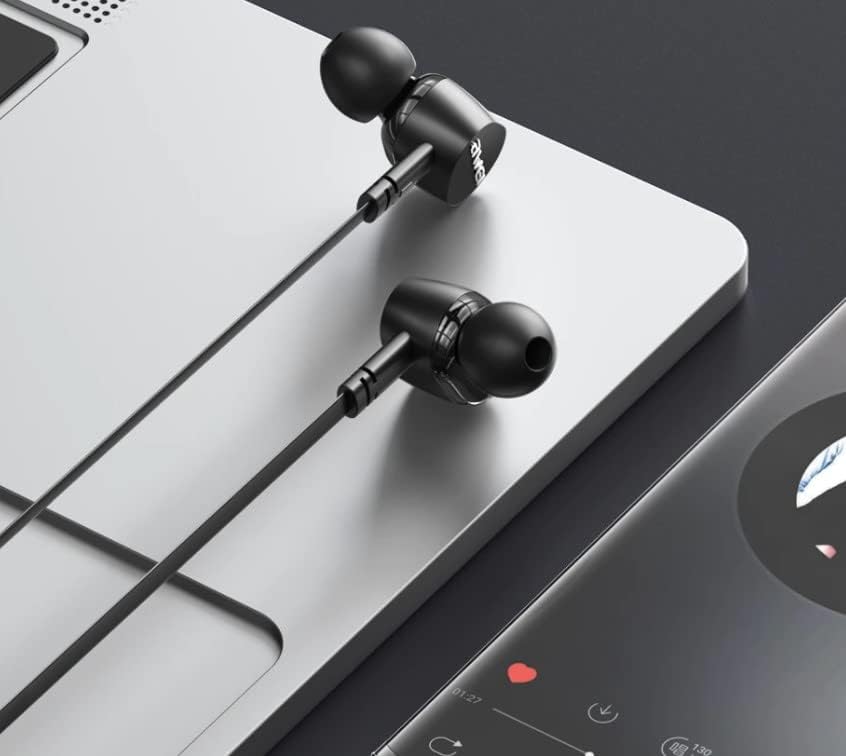
Figure 4.1: The earphones are compatible with various devices featuring a USB-C port, such as laptops and smartphones.
5. Operating Instructions
The Awei TC-7 earphones feature an inline remote with buttons for convenient control of your audio and calls.
5.1. Music Playback Control
- Play/Pause: Press the center button once.
- Next Track: Press the center button twice quickly.
- Previous Track: Press the center button three times quickly.
- Volume Up: Press the '+' button.
- Volume Down: Press the '-' button.
5.2. Call Management
- Answer/End Call: Press the center button once during an incoming call or an active call.
- Reject Call: Press and hold the center button for approximately 2 seconds during an incoming call.
6. Maintenance
Proper care will extend the lifespan of your Awei TC-7 earphones.
- Cleaning Ear Cushions: Regularly remove the ear cushions and clean them with a soft, damp cloth. Ensure they are completely dry before reattaching.
- Cable Care: The cable is designed to be tangle-free. Avoid excessive pulling or sharp bending to prevent internal damage.
- Storage: When not in use, store the earphones in a clean, dry place, away from extreme temperatures.
- Water Resistance: The earphones are rated as waterproof. However, avoid prolonged submersion and ensure the USB-C port is dry before connecting to a device after exposure to water.
7. Troubleshooting
If you encounter issues with your Awei TC-7 earphones, please refer to the following common solutions:
| Problem | Possible Cause | Solution |
|---|---|---|
| No sound from earphones | Earphones not properly connected; device volume too low; incorrect audio output setting on device. | Ensure the USB-C plug is fully inserted. Increase device volume. Check device audio settings to confirm output is set to earphones. |
| Microphone not working | Microphone port blocked; incorrect input setting on device; application permissions. | Ensure the microphone area is clear. Check device sound settings for microphone input. Verify application permissions for microphone access. |
| Buttons not responding | Loose connection; device incompatibility; software glitch. | Reconnect the earphones. Test with another compatible device if possible. Restart your device. |
8. Specifications
| Feature | Detail |
|---|---|
| Model Name | TC-7 |
| Connectivity Technology | Wired |
| Headphone Jack | USB-C |
| Ear Placement | In Ear |
| Frequency Range | 20Hz - 20kHz |
| Additional Features | Microphone Included, Inline Control |
| Material | Plastic |
| Water Resistance Level | Waterproof |
| Cable Features | Tangle Free |
| Compatible Devices | Smartphones, Laptops, Tablets, Desktops with USB-C |
9. Warranty and Support
For warranty information and customer support, please refer to the documentation provided at the point of purchase or contact your retailer. Keep your proof of purchase for any warranty claims.