
1. Introduction
Thank you for choosing the Thamtu G11 Robot Vacuum Cleaner and Mop. This device is designed to provide efficient and automated cleaning for various floor types, including hard floors and low-pile carpets. This manual contains important information regarding the safe use, operation, and maintenance of your robot vacuum. Please read it thoroughly before using the product and retain it for future reference.

Image 1.1: Thamtu G11 Robot Vacuum Cleaner and Mop, remote control, and smartphone displaying the control application.
2. Safety Instructions
To reduce the risk of injury or damage, read these safety instructions carefully and keep them accessible during product use.
- This appliance can be used by children aged 8 years and above and persons with reduced physical, sensory or mental capabilities or lack of experience and knowledge if they have been given supervision or instruction concerning use of the appliance in a safe way and understand the hazards involved.
- Children should be supervised to ensure they do not play with the appliance.
- Cleaning and user maintenance shall not be made by children without supervision.
- Only use the original power adapter provided by the manufacturer.
- Do not operate the robot in areas with open flames or fragile objects.
- Ensure all cables and small objects are removed from the floor before operation to prevent entanglement.
- The robot is equipped with anti-drop sensors. However, always exercise caution near stairs or elevated surfaces.

Image 2.1: The Thamtu G11 Robot Vacuum Cleaner demonstrating its anti-drop technology near a floor edge.
3. Package Contents
Verify that all components are present and in good condition. If any items are missing or damaged, contact customer support.
- Thamtu G11 Robot Vacuum Cleaner
- Charging Base
- Power Adapter
- Remote Control
- Side Brushes (2 pairs)
- High-Efficiency Filter (pre-installed)
- Cleaning Tool
- User Manual
4. Product Overview
4.1 Robot Vacuum
Familiarize yourself with the main components of your Thamtu G11 robot vacuum.
- Top Panel: Power button, Home button, Indicator light.
- Front Bumper: Obstacle detection.
- Side Brushes: Sweep debris into the suction path.
- Driving Wheels: Allow movement across various surfaces.
- Dustbin: Collects dirt and debris.
- Suction Inlet: Powerful suction for cleaning.
- Charging Contacts: Connects to the charging base.
- Drop Sensors: Detects edges and stairs.

Image 4.1: The Thamtu G11 Robot Vacuum Cleaner's slim profile allows it to clean under furniture.

Image 4.2: Underside of the Thamtu G11 Robot Vacuum, highlighting the suction port and side brushes.
5. Setup
5.1 Charging Base Placement
- Place the charging base against a wall in an open, uncluttered area.
- Ensure there is at least 0.5 meters (1.6 feet) of clear space on both sides of the charging base and 1.5 meters (4.9 feet) in front of it.
- Connect the power adapter to the charging base and plug it into a wall outlet. The indicator light on the charging base will illuminate.
5.2 Initial Charging
- Place the robot vacuum onto the charging base, ensuring the charging contacts align.
- The robot's indicator light will pulse during charging. A full charge typically takes 4-5 hours.
- For optimal battery life, fully charge the robot before its first use.
5.3 App Installation and Connection
- Download the "Smart Life" app from your smartphone's app store (iOS or Android).
- Register an account and log in.
- Follow the in-app instructions to add your Thamtu G11 robot vacuum. This typically involves putting the robot into pairing mode (refer to the app for specific steps).
- Once connected, you can control the robot, set schedules, and monitor its status via the app.
6. Operating Instructions
6.1 Starting and Stopping Cleaning
- To Start: Press the Power button on the robot or the "Clean" button on the remote/app.
- To Pause: Press the Power button on the robot or the "Pause" button on the remote/app during cleaning.
- To Stop/Return to Base: Press the Home button on the robot or the "Home" button on the remote/app. The robot will return to its charging base.
6.2 Cleaning Modes
The Thamtu G11 offers multiple cleaning modes to suit different needs:
- Auto Cleaning: The robot cleans in straight lines, maximizing coverage. It automatically adjusts suction power on carpets.
- Edge Cleaning: The robot cleans along walls and furniture edges.
- Spot Cleaning: The robot cleans a specific area in a spiral pattern for thorough cleaning of concentrated dirt.
6.3 Scheduling
Use the "Smart Life" app to set cleaning schedules. The robot will automatically start cleaning at the programmed times.
6.4 Auto-Recharge
When the battery level is low or a cleaning cycle is complete, the robot will automatically return to its charging base.
6.5 Voice Control
The Thamtu G11 supports voice commands via Amazon Alexa and Google Assistant. Refer to the app for instructions on connecting your robot to these smart home platforms.

Image 6.1: The Thamtu G11 Robot Vacuum operating on a wooden floor, demonstrating its ability to clean pet hair.

Image 6.2: A diagram illustrating the robot vacuum's capability to clean multiple areas, representing its extended running time.
7. Maintenance
Regular maintenance ensures optimal performance and extends the lifespan of your robot vacuum.
7.1 Emptying the Dustbin
- Press the dustbin release button and pull out the dustbin.
- Open the dustbin cover and empty its contents into a trash bin.
- Rinse the dustbin with water if necessary, ensuring it is completely dry before reinstallation.
7.2 Cleaning the Filter
- Remove the filter from the dustbin.
- Tap the filter gently to remove dust and debris. Do not wash the HEPA filter with water.
- Replace the filter every 3-6 months, depending on usage.
7.3 Cleaning Side Brushes
- Carefully pull the side brushes upwards to remove them.
- Remove any hair or debris tangled around the brushes. Use the provided cleaning tool if necessary.
- Reinstall the side brushes, ensuring they click into place.
7.4 Cleaning Sensors and Charging Contacts
- Wipe the drop sensors (located on the bottom of the robot) and charging contacts (on the robot and charging base) with a clean, dry cloth.
- Keep these areas free of dust and debris to ensure proper operation.
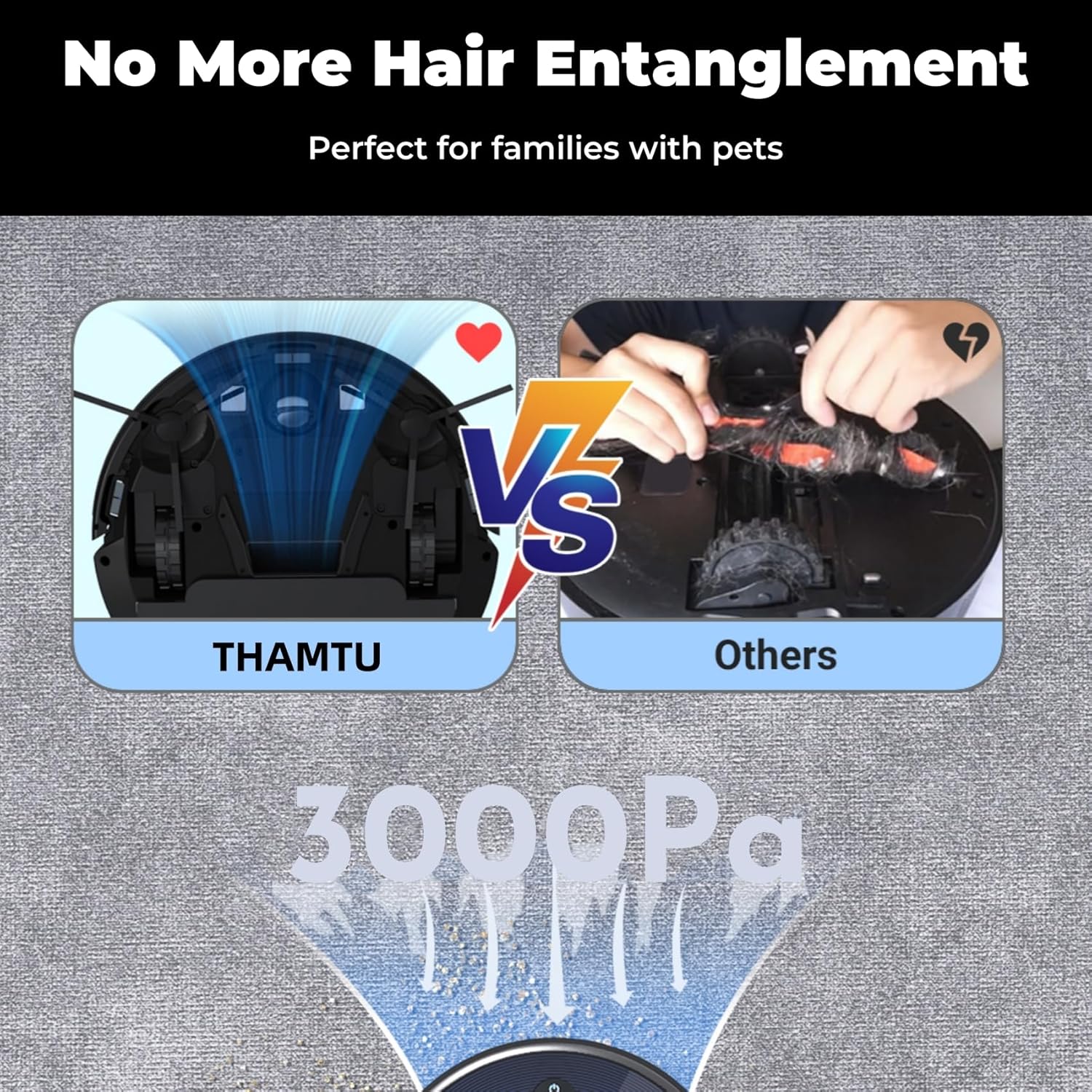
Image 7.1: A visual comparison highlighting the Thamtu G11's suction design to prevent hair entanglement versus a traditional brush roll.
8. Troubleshooting
If your robot vacuum encounters an issue, refer to the following table for common problems and solutions.
| Problem | Possible Cause | Solution |
|---|---|---|
| Robot does not turn on. | Low battery; Power switch off. | Charge the robot; Ensure power switch is on. |
| Robot cannot return to charging base. | Charging base obstructed; Robot too far from base. | Clear obstacles around the base; Manually place robot closer to the base. |
| Reduced suction power. | Full dustbin; Clogged filter; Blocked suction inlet. | Empty dustbin; Clean/replace filter; Clear suction inlet. |
| Robot gets stuck frequently. | Cables or small objects on floor; Uneven surfaces. | Clear floor of obstructions; Use virtual boundaries if available. |
| App connection issues. | Incorrect Wi-Fi password; Robot not in pairing mode; Router issues. | Verify Wi-Fi credentials; Re-enter pairing mode; Restart router. |
9. Specifications
| Feature | Detail |
|---|---|
| Brand | Thamtu |
| Model Name | Thamtu Robot Vacuum (G11) |
| Special Feature | Automatic Dust Collection, Programmable |
| Color | Black |
| Product Dimensions | 12.6"L x 12.6"W x 2.99"H |
| Included Components | Filter |
| Filter Type | Cartridge |
| Battery Life | 120 minutes |
| Batteries Included | Yes (4 Lithium Ion batteries) |
| Control Method | Remote, Voice |
| Compatible Devices | Amazon Echo, Google Home |
| Form Factor | Robotic |
| Item Weight | 9.02 pounds |
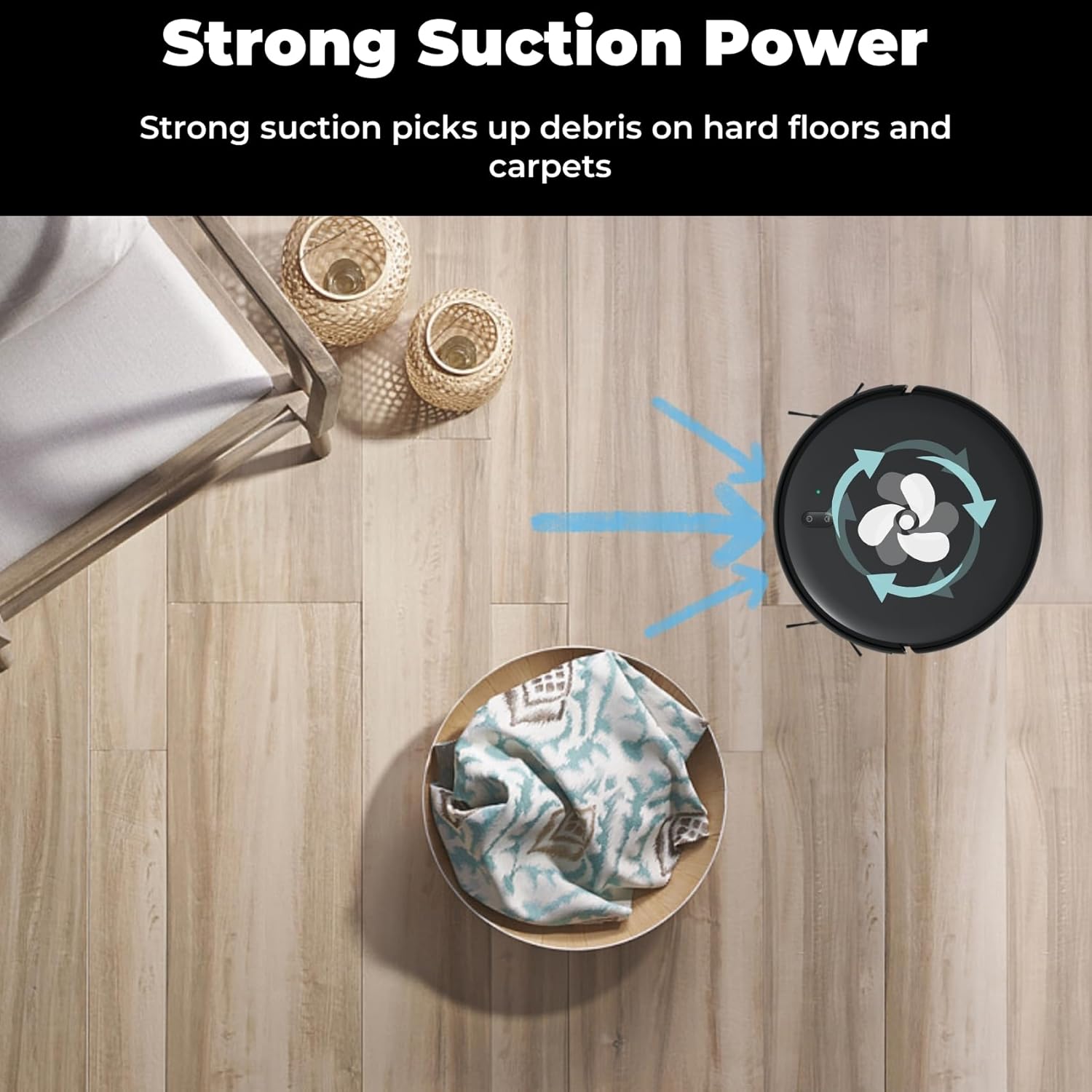
Image 9.1: A visual representation of the Thamtu G11's strong suction power, collecting debris.
10. Warranty and Support
Thamtu products are designed and manufactured to the highest quality standards. For warranty information or technical support, please refer to the official Thamtu website or contact their customer service.
You can visit the official Thamtu store for more information: Thamtu Store on Amazon.