1. Introduction
This manual provides essential information for the installation, configuration, and operation of your AVM FRITZ!Box 7510 Edition International. The FRITZ!Box 7510 is a high-performance DSL router with Wi-Fi 6, designed for fast and stable home networking.
2. Package Contents
Before you begin, please verify that all components are present in your package:
- FRITZ!Box 7510
- Power Supply Unit
- 4-meter DSL Connection Cable
- 1.5-meter LAN Cable
- Installation Manual (this document)
3. Setup
3.1 Connecting the FRITZ!Box
Follow these steps to connect your FRITZ!Box 7510:
- Connect to DSL: Plug one end of the DSL connection cable into the 'DSL' port on the back of the FRITZ!Box and the other end into your DSL wall socket.
- Connect Power: Connect the power supply unit to the 'Power' port on the FRITZ!Box and then plug it into an electrical outlet. The FRITZ!Box will begin to start up.
- Connect to a Computer (Optional): For initial setup or wired connection, use the included LAN cable to connect the 'LAN' port on the FRITZ!Box to your computer's network port.
- Connect an Analog Phone (Optional): If you have an analog telephone, connect it to the 'FON' port on the FRITZ!Box.

Image 3.1: Rear view of the FRITZ!Box 7510, illustrating the DSL, FON, LAN, and Power ports, along with DECT and USB functionalities.
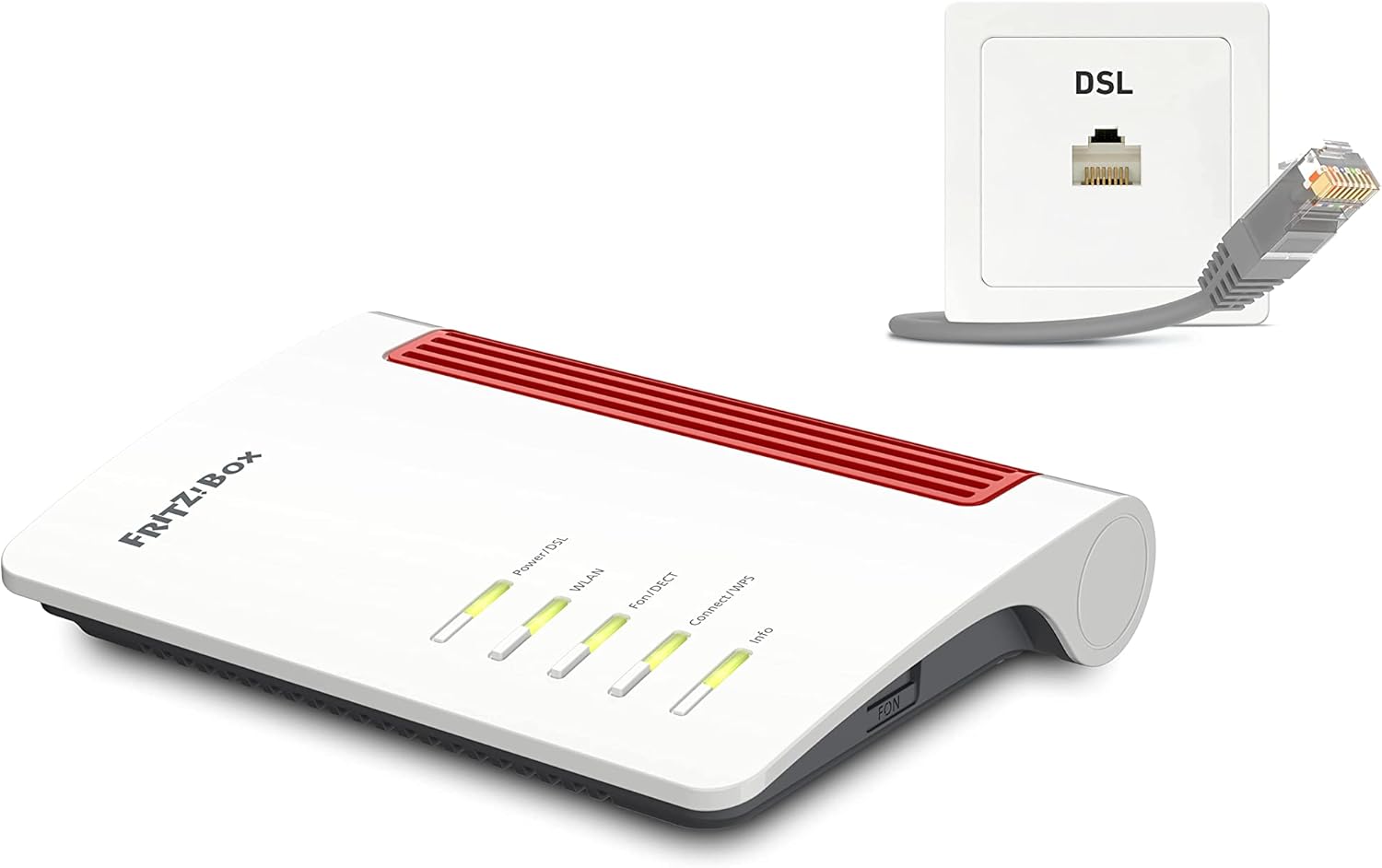
Image 3.2: The FRITZ!Box 7510 connected to a DSL wall socket, demonstrating the DSL cable connection.
3.2 Initial Configuration
Once the FRITZ!Box has started (the 'Power/DSL' LED should be solid green), you can access its web interface:
- Open a web browser on a connected computer or Wi-Fi device.
- Enter
http://fritz.boxor192.168.178.1into the address bar and press Enter. - Follow the on-screen wizard to configure your internet access, Wi-Fi settings, and telephone numbers. The necessary login details are usually found on the bottom of your FRITZ!Box or on a card included in the package.
4. Operating the FRITZ!Box 7510
4.1 LED Indicators
The LEDs on the front of your FRITZ!Box provide status information:
- Power/DSL: Indicates power supply and DSL connection status. Solid green means power is on and DSL connection is established.
- WLAN: Indicates Wi-Fi activity.
- Fon/DECT: Indicates telephone and DECT base station activity.
- Connect/WPS: Used for WPS (Wi-Fi Protected Setup) and connecting DECT devices.
- Info: Can be configured to display various status messages.

Image 4.1: Front view of the FRITZ!Box 7510, highlighting the LED indicators and their labels.
4.2 Wi-Fi 6 Functionality
The FRITZ!Box 7510 supports the Wi-Fi 6 (802.11ax) standard in the 2.4 GHz band, offering improved efficiency and speed for a growing number of wireless devices. This ensures stable performance for streaming, video calls, and cloud applications simultaneously.

Image 4.2: The FRITZ!Box 7510, emphasizing its Wi-Fi 6 capability for enhanced wireless performance.
4.3 VDSL 35b Supervectoring
Equipped with VDSL 35b Supervectoring, the FRITZ!Box 7510 supports internet speeds of up to 300 Mbit/s, enabling rapid downloads and smooth online experiences.
4.4 Telephony and Smart Home
The integrated DECT base station allows you to connect up to six cordless phones (e.g., FRITZ!Fon) and integrate Smart Home devices like FRITZ!DECT smart sockets or LED lamps. An analog phone can also be connected to the 'FON' port. Smartphones can be used as landline/VoIP phones via the Wi-Fi network.
4.5 Wi-Fi Mesh
The FRITZ!Box 7510 supports Wi-Fi Mesh, allowing you to seamlessly extend your local Wi-Fi network with compatible FRITZ!Repeaters and FRITZ!Powerline devices for broader coverage.
4.6 Multimedia Functions
The FRITZ!Box 7510 includes a media server with integrated NAS functionality. This allows you to access and distribute stored movies, music, and images from connected USB memory or online storage to various players (e.g., tablets, smartphones) within your local network.
5. Maintenance
5.1 Firmware Updates
Regularly update your FRITZ!Box firmware to ensure optimal performance, security, and access to new features. You can check for and install updates via the FRITZ!Box web interface under 'System' > 'Update'.
5.2 Backup and Restore Settings
It is recommended to back up your FRITZ!Box settings before major changes or firmware updates. This can be done in the web interface under 'System' > 'Backup'. You can restore these settings if needed.
5.3 Reset to Factory Defaults
If you encounter persistent issues or wish to reconfigure your FRITZ!Box completely, you can reset it to factory defaults via the web interface under 'System' > 'Backup' > 'Factory Settings'. Be aware that this will erase all your custom settings.
5.4 Physical Cleaning
Keep the FRITZ!Box free from dust by gently wiping it with a dry, soft cloth. Ensure ventilation openings are not obstructed to prevent overheating.
6. Troubleshooting
If you experience issues with your FRITZ!Box, consider the following steps:
- No Internet Connection: Check the 'Power/DSL' LED. If it's flashing or off, verify the DSL cable connection and contact your internet service provider if the issue persists.
- Wi-Fi Not Working: Check the 'WLAN' LED. Ensure Wi-Fi is enabled in the FRITZ!Box web interface and on your devices.
- Telephone Issues: Check the 'Fon/DECT' LED. Verify phone connections and settings in the FRITZ!Box web interface.
- Accessing Web Interface: If
http://fritz.boxdoes not work, try192.168.178.1. Ensure your device is connected to the FRITZ!Box via Wi-Fi or LAN. - Restart: Disconnect the power supply for 10 seconds and then reconnect it. This can resolve many temporary issues.
7. Specifications
Key technical specifications for the AVM FRITZ!Box 7510 Edition International:
| Feature | Detail |
|---|---|
| Model Name | Fritz!Box 7510 |
| Connectivity Technology | Wi-Fi, DSL |
| Wireless Standard | Wi-Fi 6 (802.11ax) 2.4 GHz, DECT |
| DSL Support | VDSL 35b Supervectoring (up to 300 Mbit/s) |
| LAN Ports | 1 x Gigabit LAN |
| USB Ports | 1 x USB |
| Telephone Ports | 1 x Analog Phone, DECT Base Station (up to 6 cordless phones) |
| Dimensions (L x W x H) | 8.19 x 5.91 x 1.46 inches |
| Item Weight | 11.3 ounces (320 Grams) |
| Antenna Type | Internal |
| Power Consumption | Approximately 6W (Eco mode) |
8. Warranty and Support
8.1 Manufacturer's Warranty
Your AVM FRITZ!Box 7510 is covered by a manufacturer's warranty. Please refer to the warranty card included with your product or visit the official AVM website for detailed terms and conditions specific to your region.
8.2 Technical Support
For further assistance, technical support, or to download the latest firmware and software, please visit the official AVM support website. You can typically find comprehensive FAQs, guides, and contact options there.


