
Introduction
The Donner DDP-100S Digital Piano offers an authentic piano playing experience with its 88-key progressive weighted keyboard and graded hammer-action. Designed for both beginners and professionals, this instrument provides a rich musical palette with 200 sounds, 200 rhythms, and 100 demo songs. Its compact design makes it suitable for various home environments, while advanced connectivity options ensure comprehensive practice and integration with other devices.

Image: The Donner DDP-100S Digital Piano, showcasing its sleek black finish and full 88-key keyboard in a home environment.
What's in the Box
Upon unboxing your Donner DDP-100S Digital Piano, please ensure all the following components are present:
- Digital piano (main unit)
- Power adapter
- Pedal plate bridge
- Left and Right supporting plate
- Left and Right supporting column
- Black fixed plate
- Spile
- Screw set
- Piano stand components
- Single stool
- Triple pedals
Setup and Assembly
Follow these steps to assemble your Donner DDP-100S Digital Piano. It is recommended to have assistance during assembly due to the weight of some components.
- Prepare Components: Lay out all components on a soft, clean surface to prevent scratches. Identify the host (keyboard unit), left and right brackets, support backplane, pedal bar, and all screws.
- Attach Brackets to Pedal Bar: Use the large screws provided to securely attach the left and right brackets to the pedal bar. Ensure they are aligned correctly.
- Attach Support Backplane: Use the two support backplane screws to attach the left/right bracket to the support backplane.
- Secure Pedal Bar to Backplane: Use the four support backplane self-tapping screws to attach the pedal bar to the support backplane, ensuring stability.
- Install Pedal Support Bolts: Locate the pedal support bolts and install them into the designated slots on the underside of the pedal unit.
- Connect Pedals to Host: Carefully connect the three-pedal cable to the corresponding port on the piano host.
- Fix Piano Host to Brackets: Place the piano host onto the assembled stand. Use the plum-shaped handle screws to fix the piano host securely to the left and right brackets. Tighten all screws to ensure stability.
Video: An official DonnerDirect video demonstrating the step-by-step assembly process for the Donner DDP-100S Digital Piano.

Image: Various components of the Donner DDP-100S Digital Piano laid out on the floor, ready for assembly.
Operating Instructions
Power On/Off and Volume Control
To power on the piano, press the 'POWER' button located on the left side of the keyboard. The indicator light will illuminate. Adjust the master volume using the 'VOLUME' knob to your desired level.
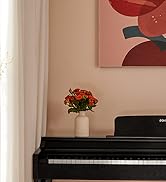
Image: A close-up view of the control panel on the Donner DDP-100S, showing the power button and volume knob.
Sound and Rhythm Selection
The DDP-100S features 200 different sounds (voices) and 200 rhythms. Use the dedicated 'Voice' and 'Rhythm' buttons on the control panel to browse and select your preferred options. The piano also includes 100 demo songs for listening or practice.

Image: The control panel of the Donner DDP-100S, highlighting buttons for voice, rhythm, demo songs, transpose, metronome, chords, and strength settings.
Metronome and Transpose Functions
Activate the metronome for timing assistance during practice. The 'Transpose' function allows you to shift the pitch of the entire keyboard up or down, enabling playing in different keys without changing finger positions.
Weighted Keys and Touch Sensitivity
The 88-key progressive weighted keyboard with graded hammer-action simulates the feel of an acoustic piano. Lower keys have a heavier touch, gradually becoming lighter towards the higher keys. This helps in developing proper finger strength and technique. The piano also offers adjustable touch sensitivity ('Strength' setting) to match your playing style.

Image: A person wearing headphones while playing the Donner DDP-100S Digital Piano, demonstrating the use of headphones for private practice.
Connectivity
The DDP-100S offers versatile connectivity options for various musical applications:
- MIDI In/Out: Connect to other MIDI-compatible devices, computers, or audio interfaces for recording, sequencing, or using the piano as a MIDI controller.
- USB Transmission Interface: For direct connection to a computer, allowing the piano to function as a MIDI device for software instruments or digital audio workstations (DAWs).
- Headphone Jacks (3.5mm): Two headphone jacks are provided for silent practice or duet playing with headphones.
- Audio Interface (RCA In/Out): Connect external audio sources (e.g., MP3 player) to play along, or output the piano's sound to external speakers or recording equipment.

Image: The rear panel of the Donner DDP-100S Digital Piano, clearly showing the Audio In/Out (RCA), MIDI In/Out, USB, DC 12V power input, and Headphone jacks.
Maintenance
To ensure the longevity and optimal performance of your Donner DDP-100S Digital Piano, follow these maintenance guidelines:
- Cleaning: Use a soft, dry cloth to wipe the surface of the piano. For stubborn dirt, slightly dampen the cloth with water. Avoid using abrasive cleaners, solvents, or waxes, as these can damage the finish.
- Key Care: Keep the keys clean by wiping them regularly with a soft cloth. Avoid excessive force when playing to prevent damage to the hammer-action mechanism.
- Environment: Place the piano in a stable location away from direct sunlight, heat sources, and excessive humidity. Extreme temperature or humidity changes can affect the instrument's components.
- Power: Always use the provided power adapter. Disconnect the power adapter from the wall outlet when the piano is not in use for extended periods.
Troubleshooting
If you encounter any issues with your Donner DDP-100S Digital Piano, please refer to the following common troubleshooting tips:
- No Sound: Check if the power adapter is securely connected and the piano is turned on. Ensure the volume knob is turned up. If headphones are plugged in, unplug them to check the main speakers. Verify that any external speakers or audio connections are properly set up.
- Keys Not Responding: Ensure the piano is powered on. If specific keys are not responding, gently clean around them. If the issue persists, contact customer support.
- Distorted Sound: Check the volume level; if it's too high, distortion may occur. Ensure all audio cables are securely connected and not damaged.
- MIDI Connectivity Issues: Verify that MIDI cables are correctly connected (MIDI OUT to MIDI IN, and vice-versa). Ensure your computer or external device recognizes the piano as a MIDI input/output device.
For further assistance, please contact Donner customer support.
Specifications
| Feature | Description |
|---|---|
| Model Name | DDP-100S |
| Number of Keys | 88 |
| Key Type | Progressive Weighted Graded Hammer-Action |
| Sounds/Voices | 200 |
| Rhythms | 200 |
| Demo Songs | 100 |
| Connectivity | MIDI In/Out, USB, 3.5mm Headphone Jack (x2), RCA Audio In/Out, Bluetooth |
| Power Source | Corded Electric |
| Item Weight | 104.8 pounds (47.63 Kilograms) |
| Product Dimensions | 54.41 x 16.34 x 32.28 inches |
| Body Material | Medium Density Fiberboard, Plastic & ABS |
| Color | Black |
Warranty and Support
For information regarding product warranty, returns, or technical support, please refer to the documentation included with your purchase or visit the official Donner website. You can also find additional support and product information on the Donner Store on Amazon.