
Crosscall 1001011101114
Crosscall CORE-M5 User Manual
Model: 1001011101114
Introduction
This manual provides comprehensive instructions for the setup, operation, maintenance, and troubleshooting of your Crosscall CORE-M5 rugged smartphone. Designed for durability and performance in challenging environments, the CORE-M5 is built to withstand various conditions while providing essential communication and smart device functionalities.
Please read this manual thoroughly before using your device to ensure proper operation and to maximize its lifespan.
Package Contents
Upon opening the package, verify that all items are present:
- Crosscall CORE-M5 Device
- USB Charging Cable
- Quick Start Guide
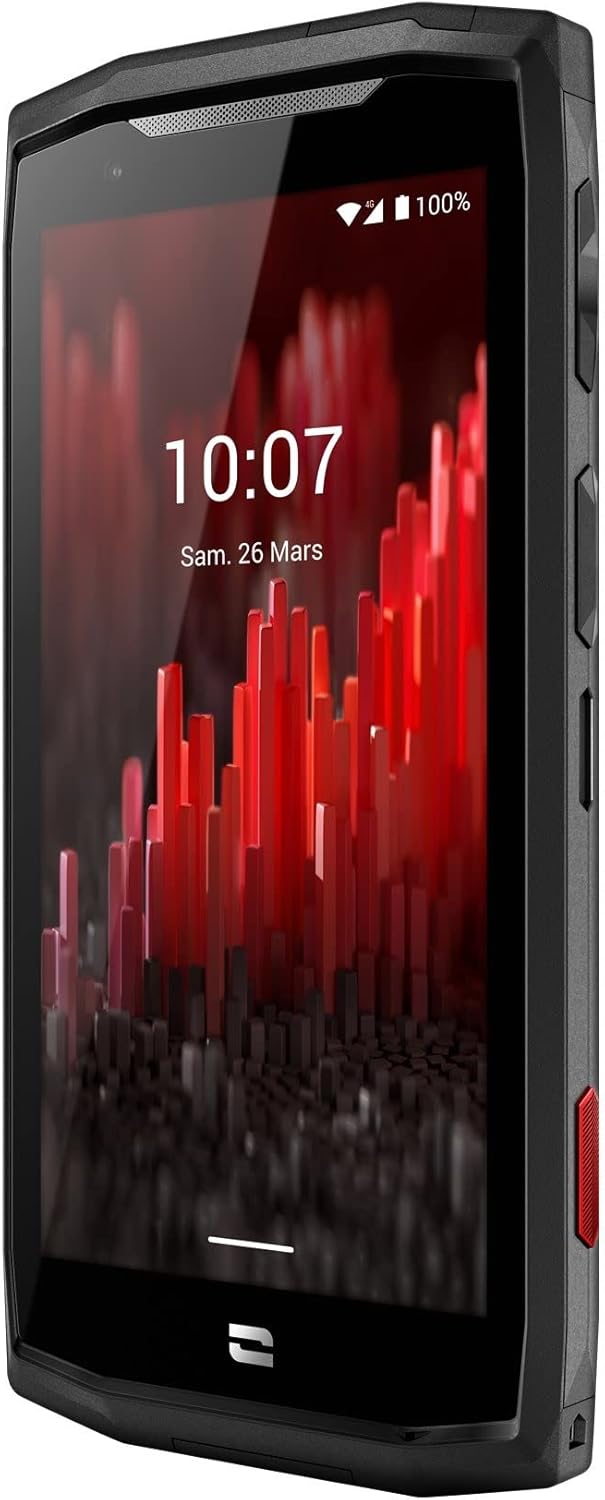
Image: Front angled view of the Crosscall CORE-M5 device, highlighting its robust design and display.
Setup
1. Inserting the SIM Card and Memory Card
The CORE-M5 supports SIM cards for cellular connectivity and an optional memory card for expanded storage. Locate the SIM/memory card tray on the side of the device.
- Power off the device completely.
- Use the provided SIM ejector tool (or a small paperclip) to open the SIM/memory card tray.
- Carefully place your SIM card(s) and/or memory card into the designated slots on the tray, ensuring correct orientation as indicated on the tray.
- Gently push the tray back into the device until it clicks into place.

Image: A user demonstrating the insertion of a SIM card into the device's slot.
2. Initial Charging
Before first use, it is recommended to fully charge your CORE-M5.
- Connect the USB charging cable to the device's charging port.
- Connect the other end of the cable to a compatible USB power adapter or a computer's USB port.
- The charging indicator on the screen will show the charging status. Allow the device to charge until the battery icon indicates a full charge.
3. Powering On and Initial Configuration
- Press and hold the Power button (usually located on the side) until the Crosscall logo appears.
- Follow the on-screen prompts to complete the initial setup, including language selection, Wi-Fi connection, Google account setup, and security settings.
Operating the CORE-M5
Basic Navigation
- Touchscreen: Navigate the device using taps, swipes, and pinch gestures on the 4.95-inch touchscreen display.
- Power Button: Press to turn the screen on/off, or press and hold to power off/restart the device.
- Volume Buttons: Adjust media volume, call volume, or ringtone volume.
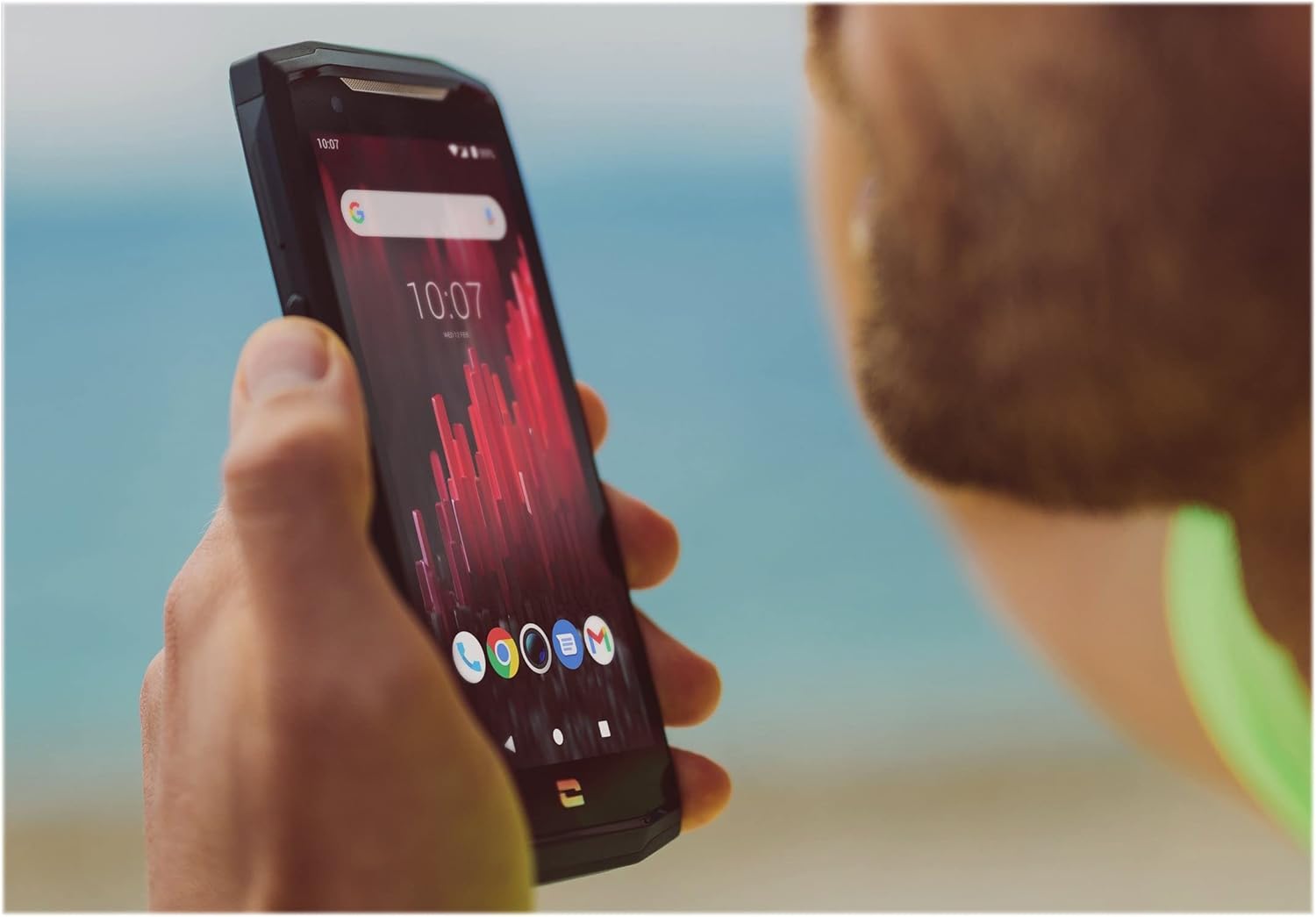
Image: The CORE-M5 in use, demonstrating its compact size and clear display for outdoor visibility.
Connectivity
- Wi-Fi: Access Wi-Fi settings from the Quick Settings panel or Settings app to connect to wireless networks.
- Bluetooth: Pair with Bluetooth devices such as headphones, speakers, or other smartphones via the Bluetooth settings.
- USB: Connect the device to a computer using the USB cable for data transfer or charging.
- Cellular Data: Enable or disable mobile data from the Quick Settings or Network & Internet settings. Supports 2G and 3G cellular technologies.
Camera Functionality
The CORE-M5 features both front and rear cameras for capturing photos and videos.
- Open the Camera application from the home screen or app drawer.
- Tap the shutter button to take a photo or switch to video mode to record.
- Use the on-screen controls to switch between front and rear cameras, adjust zoom, or apply filters.
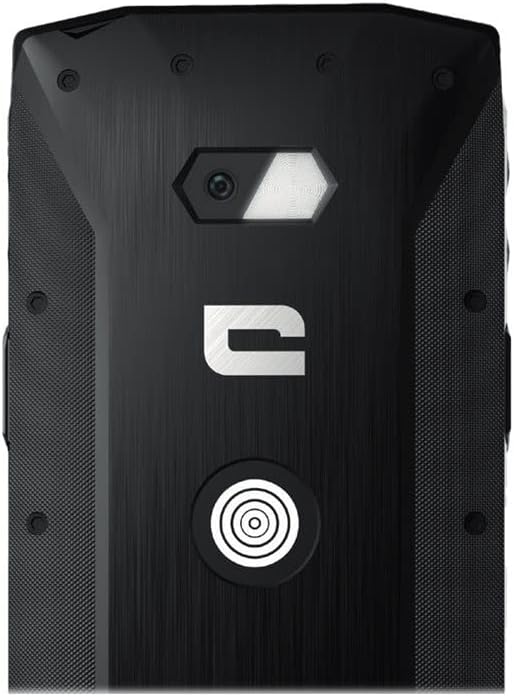
Image: Detailed view of the CORE-M5's rear, highlighting the camera module and the X-Link magnetic connection system.
X-Link System
The CORE-M5 is equipped with Crosscall's X-Link magnetic connection system on the back, allowing for easy attachment of compatible accessories such as chargers, mounts, and external batteries.
- Align the X-Link accessory with the magnetic connector on the back of your CORE-M5.
- The magnets will guide the accessory into place, ensuring a secure connection.

Image: The CORE-M5 securely mounted in a vehicle, demonstrating the utility of the X-Link system for hands-free use.
Maintenance
- Cleaning: Use a soft, damp cloth to clean the device. Avoid harsh chemicals or abrasive materials. Ensure all ports are closed before cleaning if exposed to water.
- Water and Dust Resistance: The CORE-M5 is designed to be rugged. However, ensure all port covers are securely closed to maintain water and dust resistance. Avoid prolonged submersion beyond specified limits.
- Battery Care: To prolong battery life, avoid extreme temperatures. Do not allow the battery to fully discharge frequently.
- Software Updates: Regularly check for and install system updates to ensure optimal performance and security.
Troubleshooting
| Problem | Possible Cause | Solution |
|---|---|---|
| Device will not power on | Low battery; software crash | Charge the device for at least 30 minutes. Perform a forced restart by holding the Power button for 10-15 seconds. |
| Screen is unresponsive | Temporary software glitch | Restart the device. If unresponsive, perform a forced restart. |
| Poor call quality / No network | Weak signal; incorrect SIM insertion; network issue | Move to an area with better signal. Reinsert the SIM card. Contact your network provider. |
| Apps crashing or freezing | Insufficient memory; app conflict; outdated software | Close background apps. Clear app cache/data. Update apps and system software. Free up storage space. |
Specifications
| Feature | Detail |
|---|---|
| Model Name | 1001011101114 |
| Brand | Crosscall |
| Operating System | Android |
| CPU Model | Cortex |
| Screen Size | 4.95 Inches |
| Resolution | 1026 x 513 |
| RAM | 3 GB |
| Memory Storage Capacity | 32 GB |
| Battery Capacity | 4000 mAh |
| Phone Talk Time | 24 Hours |
| Connectivity | Bluetooth, Wi-Fi, USB |
| Cellular Technology | 2G, 3G |
| Wireless Carrier | Unlocked |
| Cameras | Rear, Front |
| Color | Black |
| Product Dimensions | 4.25 x 0.79 x 4.25 inches |
| Item Weight | 8 ounces (226.6 Grams) |
| First Available | September 21, 2021 |
Warranty and Support
Crosscall products are known for their durability and come with a manufacturer's warranty. For specific warranty terms and conditions, please refer to the warranty card included with your product or visit the official Crosscall website.
For technical support, troubleshooting assistance, or service requests, please contact Crosscall Customer Service through their official channels. Have your product model number (1001011101114) and purchase information ready when contacting support.
Official Crosscall Website: www.crosscall.com
Related documents1001011101114


Ask a question about this manual
Ask about setup, troubleshooting, compatibility, parts, safety, or missing instructions. Manuals+ will review the question and use this page’s manual context to help answer it.