
Maxwest MWNFLPBK128BTGMB
MAXWEST Neo Flip Phone 4G LTE Volte User Manual
Model: MWNFLPBK128BTGMB
Introduction
Welcome to the user manual for your new MAXWEST Neo Flip Phone 4G LTE Volte. This guide provides essential information on setting up, operating, maintaining, and troubleshooting your device. Please read this manual thoroughly to ensure optimal performance and longevity of your phone.
The MAXWEST Neo Flip Phone is designed for reliable communication with 4G LTE and VoLTE capabilities, offering clear calls and essential features in a compact flip design. It supports dual Nano SIM cards and is compatible with T-Mobile, Mint, and other GSM providers worldwide.
Package Contents
Upon opening your MAXWEST Neo Flip Phone package, please verify that all the following items are included:
- MAXWEST Neo Flip Phone
- Charger
- Handsfree (Earphones)
- Battery (1 Lithium Ion battery)
If any items are missing or damaged, please contact your retailer or MAXWEST customer support immediately.
Device Overview
Familiarize yourself with the physical components and displays of your Neo Flip Phone.
Front and Open View
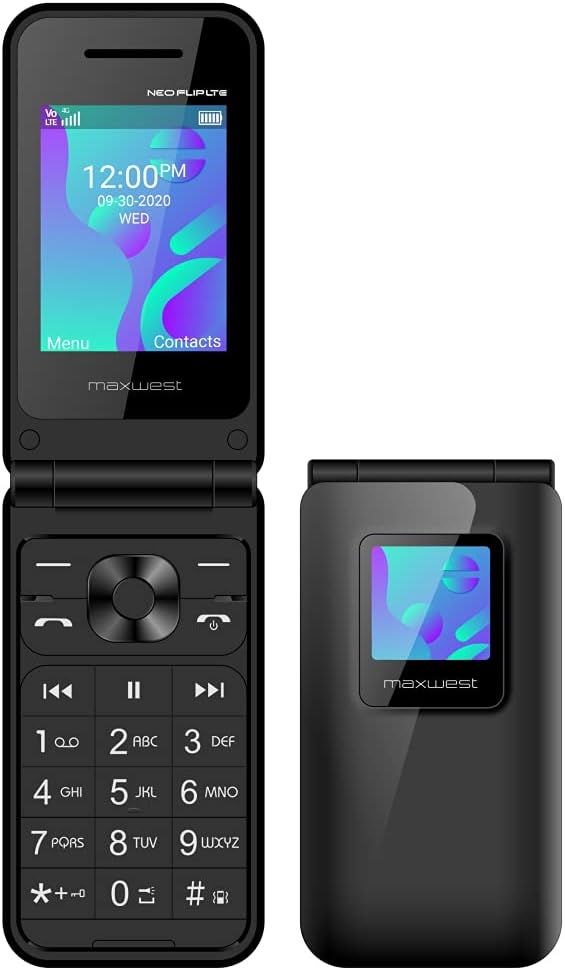
This image displays the MAXWEST Neo Flip Phone in its open configuration, highlighting the main 2.4-inch TFT display and the numeric keypad. The external display is also visible on the closed portion of the phone.
External Display and Closed View

The phone in its closed state, showcasing the 1.3-inch external TFT display. This display provides quick access to caller ID and notifications without needing to open the phone.
Display Features

A visual representation detailing the two displays: the 2.4-inch main TFT display for full functionality and the 1.3-inch external TFT display for caller ID and notifications.
Setup
Follow these steps to prepare your MAXWEST Neo Flip Phone for first use.
1. Battery and SIM Card Installation
- Remove the Back Cover: Gently pry open the back cover of the phone. If it is tight, use a thin, non-metallic tool to carefully lift it from the designated notch.
- Insert SIM Card(s): The phone supports Dual Nano SIM cards. Locate the SIM card slots. Insert your activated Nano SIM card(s) into the designated slots with the gold contacts facing down, ensuring they are properly seated.
- Insert Battery: Place the included Lithium Ion battery into the battery compartment, aligning the gold contacts on the battery with the contacts in the phone.
- Replace Back Cover: Carefully align and press the back cover until it clicks securely into place.
2. Initial Power On and Activation Tips
After installing the battery and SIM card(s), you can power on your device.
- Power On: Press and hold the Power/End Call button until the screen illuminates.
- SIM Card Activation: Ensure your SIM card is previously activated by your mobile service provider. This phone requires an activated SIM card for use.
- APN Settings: For optimal network performance, especially for data and messaging, ensure correct APN (Access Point Name) settings.
Importance of Correct APN Settings
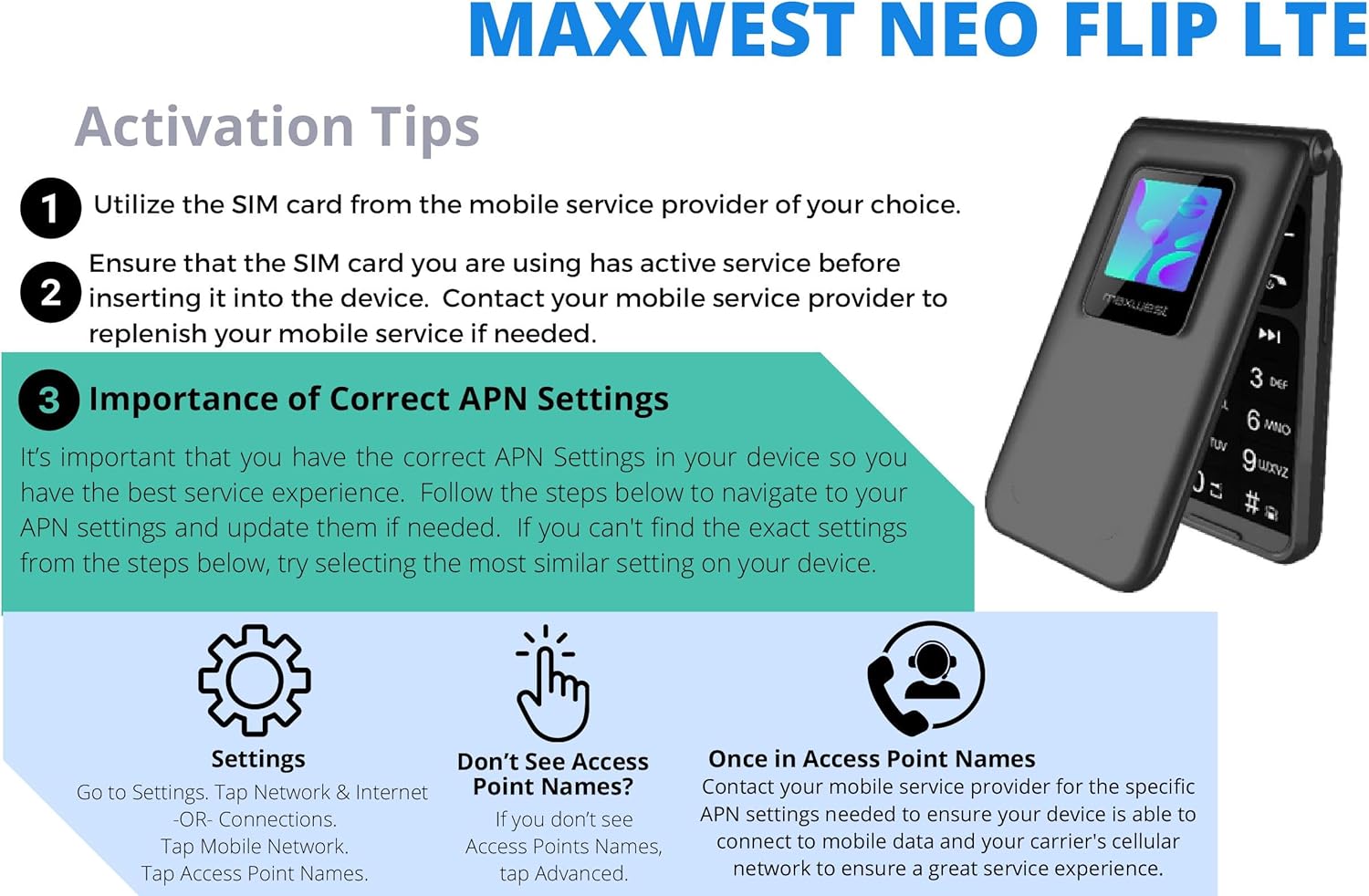
This image illustrates the process for configuring APN settings. It is crucial for ensuring proper mobile service. Navigate to Settings > Network & Internet > Mobile Network > Access Point Names. If settings are not automatically detected, contact your mobile service provider for specific APN details.
Operating Your Phone
Basic Functions
- Making Calls:
Enter the phone number using the keypad and press the Call button (green receiver icon). To end a call, press the End Call button (red receiver icon).
- Sending Text Messages (SMS):
Navigate to the Messaging menu. Select "New Message," enter the recipient's number or select from contacts, type your message, and send. Note: This phone does not support T9 predictive text.
- Contacts:
Access the Contacts menu to add, edit, or delete contacts. You can store names and multiple numbers for each contact.
- FM Radio:
The phone includes an FM radio. Connect the handsfree (earphones) as they act as the antenna. Access the FM Radio application from the main menu to scan for stations.
- Bluetooth:
Enable Bluetooth from the Settings menu to connect to compatible devices such as headsets or other phones for file transfer. The phone supports Bluetooth v4.2.
Advanced Features
- Dual SIM Functionality:
Your phone supports two Nano SIM cards, allowing you to manage two different phone numbers or network providers simultaneously. You can select which SIM to use for calls, messages, or data from the settings.
- SOS Function:
The SOS function provides a quick way to contact emergency numbers. Configure emergency contacts in the settings. By pressing a designated button (refer to your phone's specific key mapping), the phone can automatically dial or send an SMS to pre-set emergency contacts, providing your location if GPS is enabled.
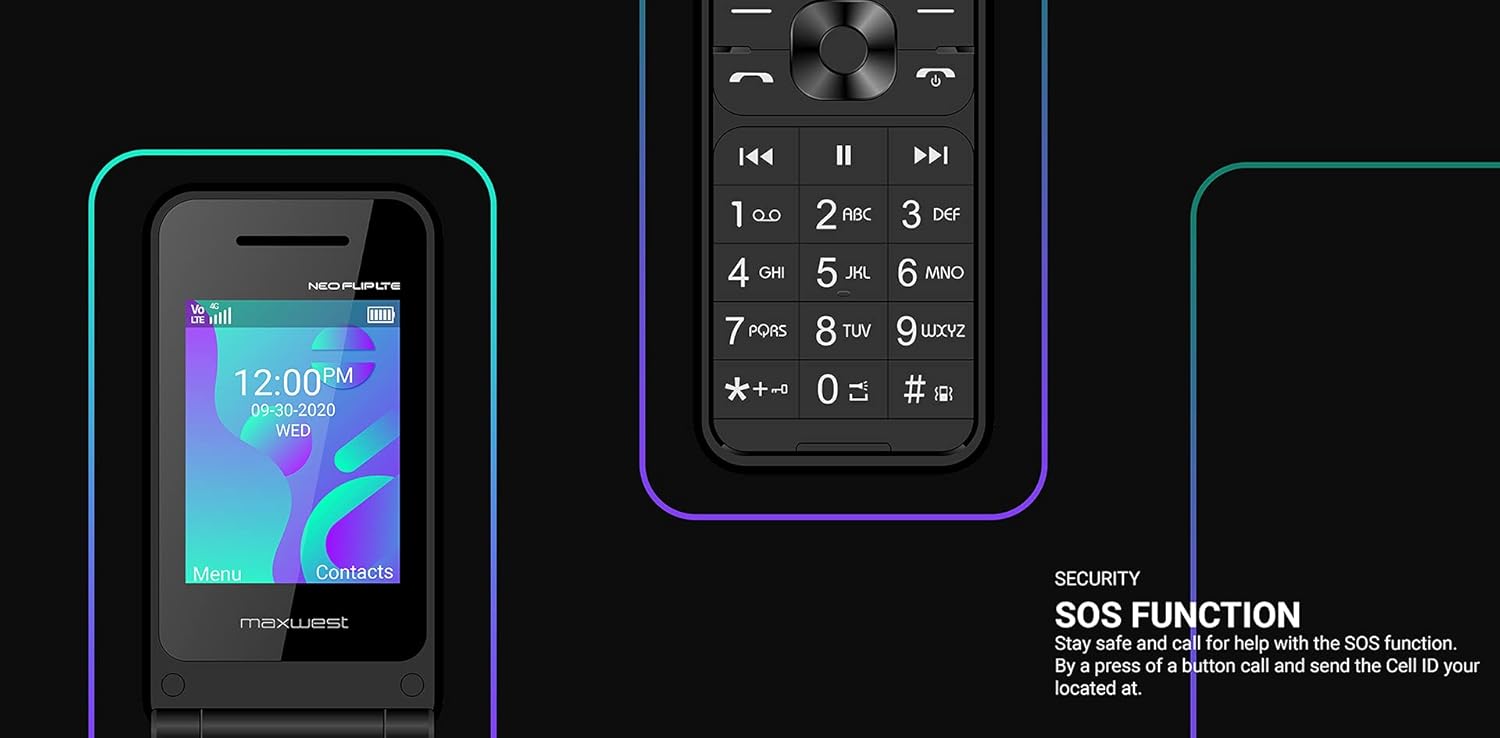
This image highlights the SOS function, emphasizing its role in safety by allowing quick contact with emergency services or pre-selected contacts.
Maintenance and Care
Proper care ensures the longevity and optimal performance of your MAXWEST Neo Flip Phone.
- Cleaning: Use a soft, dry cloth to clean the phone's exterior. Avoid using liquid cleaners, aerosols, or harsh chemicals.
- Temperature: Do not expose the phone to extreme temperatures (hot or cold). Store it in a cool, dry place.
- Water Resistance: This phone is not water-resistant. Avoid exposure to water or high humidity.
- Battery Care: Use only the original charger and battery. Do not puncture, disassemble, or short-circuit the battery. Dispose of batteries responsibly according to local regulations.
- Impact: While designed to be durable, avoid dropping the phone or subjecting it to strong impacts.
Troubleshooting
This section addresses common issues you might encounter with your phone.
| Problem | Possible Cause | Solution |
|---|---|---|
| Phone does not power on. | Low battery; battery not installed correctly; phone malfunction. | Charge the battery for at least 30 minutes. Ensure the battery is correctly inserted. If problem persists, contact support. |
| Cannot make or receive calls/messages. | No network signal; SIM card not activated or improperly inserted; incorrect APN settings. | Check network signal strength. Reinsert SIM card. Verify SIM card is activated with your carrier. Check and correct APN settings (refer to Setup section). |
| Poor call quality. | Weak signal; interference. | Move to an area with better network coverage. Avoid using the phone near other electronic devices that may cause interference. |
| Battery drains quickly. | Excessive usage; old battery; background processes. | Reduce screen brightness. Close unused applications. If battery is old, consider replacing it. |
| Cannot connect to Bluetooth device. | Bluetooth not enabled; device not in pairing mode; compatibility issues. | Ensure Bluetooth is enabled on both devices. Put the other device in pairing mode. Check device compatibility. |
Specifications
Detailed technical specifications for the MAXWEST Neo Flip Phone.

This image provides a summary of the phone's specifications, including technology, connectivity, memory, display, and battery details.
- Model: MWNFLPBK128BTGMB
- Dimensions: 4.93 x 2.13 x 0.57 inches
- Weight: 0.423 ounces (12 grams)
- Operating System: Proprietary
- Processor: UMS9117 (Threadx)
- RAM: 64 MB
- Internal Memory: 128 MB (expandable up to 32GB with Micro SD)
- Main Display: 2.4 inches TFT LCD (1080x1716 resolution)
- External Display: 1.3 inches TFT
- Camera: VGA Rear Camera
- Battery: 1000 mAh Lithium Ion (included)
- Talk Time: Up to 5 Hours
- Wireless Technologies: Bluetooth v4.2, Cellular (2G, 3G, 4G LTE, VoLTE)
- Network Bands:
- 4G LTE: 2/4/5/12/17/66
- 3G H+: 850/1700/1900
- 2G: Quad Band GSM
- SIM Type: Dual Nano SIM
- Audio Jack: No headphone jack
- Special Features: FM Radio, Browser, SOS Function
Warranty and Support
MAXWEST provides a limited warranty for this product. Please refer to the warranty card included in your package for specific terms and conditions, including warranty period and coverage details.
For technical support, troubleshooting assistance, or warranty claims, please contact MAXWEST customer service. Contact information can typically be found on the MAXWEST official website or on the product packaging.
Customer Service: Please visit the official MAXWEST website for the most up-to-date contact information.
Related documentsMWNFLPBK128BTGMB


Ask a question about this manual
Ask about setup, troubleshooting, compatibility, parts, safety, or missing instructions. Manuals+ will review the question and use this page’s manual context to help answer it.