
CHAMBERLAIN myQ-SGC2WCH
myQ Smart Garage Security Camera Instruction Manual
Brand: CHAMBERLAIN | Model: myQ-SGC2WCH
1. Introduction and Overview
The myQ Smart Garage Camera is designed to provide comprehensive security and monitoring for your garage. It offers 1080p HD video, night vision, motion detection, and two-way audio, allowing you to see and hear what's happening in your garage from anywhere using the myQ app. Its robust design ensures reliable performance across a wide range of temperatures, and its versatile mounting options make installation straightforward.

Figure 1: Front view of the myQ Smart Garage Camera.
2. Setup Guide
2.1. What's Included
- Smart Garage Camera
- AC power adapter
- USB cable
- Installation guide
- Anchors (for surface mount)
2.2. Physical Installation
The myQ Smart Garage Camera offers flexible installation options. Its magnetic base allows for effortless attachment to metal surfaces, such as your garage door opener or metal shelving. For non-magnetic surfaces, optional adhesive and hardware (screws and anchors) are included for secure mounting.
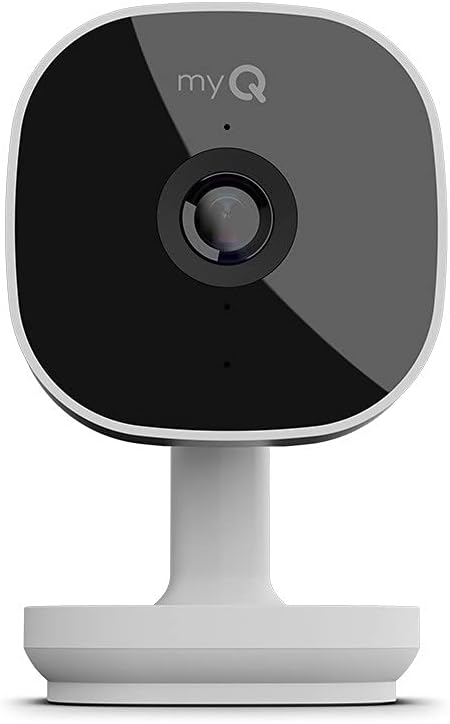
Figure 2: The magnetic base of the camera allows for easy attachment to metal surfaces.

Figure 3: Example of the camera mounted magnetically to a garage door opener.
2.3. Power Connection
Connect the camera to a power outlet using the provided USB cable and AC power adapter. Ensure the cable is routed safely and does not interfere with garage door operation.
2.4. App Setup and Connectivity
Download the myQ app on your smartphone. The camera features integrated Bluetooth technology for a quick and easy setup process. Follow the in-app instructions to connect the camera to your home Wi-Fi network. A strong Wi-Fi signal in your garage is essential for optimal performance.

Figure 4: The myQ app provides control and monitoring of your smart garage devices.
3. Operating Instructions
3.1. Live View and Video Quality
Access live streaming 1080p HD video of your garage through the myQ app. The camera features a 130° wide-angle lens and a 360° manually adjustable swivel lens, ensuring a full view of your garage space. High Dynamic Range (HDR) and Night Vision capabilities provide exceptional image quality in various lighting conditions.

Figure 5: Live view of your garage accessible through the myQ app.
3.2. Two-Way Audio
The camera supports adjustable two-way audio, allowing you to communicate with anyone in your garage directly through the myQ app. This feature is useful for speaking to family members, delivery personnel, or deterring unwanted visitors.

Figure 6: Utilize two-way audio to communicate with people in your garage.
3.3. Motion Detection and Alerts
The camera features advanced motion detection capabilities, sending instant notifications to your smartphone when activity is detected. With a myQ Video Monitoring subscription, you can receive intelligent alerts for specific detections such as people, animals, and vehicles.

Figure 7: Smart detection provides intelligent alerts for various activities.
3.4. Video History and Storage
With an optional myQ Video Monitoring subscription, you can access 7-day or 30-day video playback history, allowing you to review recorded events anytime, anywhere. A free 30-day trial is typically included to experience this feature.

Figure 8: Review past events with the video history feature in the myQ app.
4. Maintenance
The myQ Smart Garage Camera is built to withstand extreme weather conditions, operating reliably from -4°F to 122°F. Regular cleaning of the lens with a soft, dry cloth is recommended to maintain optimal video clarity. Ensure the power cable remains securely connected and free from damage.
5. Troubleshooting
5.1. Connectivity Issues
- Ensure your Wi-Fi signal is strong in the garage area.
- Verify Bluetooth is enabled on your smartphone during setup.
- Restart your Wi-Fi router and the camera.
- If issues persist, try resetting the camera to factory settings (refer to the full user manual for specific steps) and repeat the setup process.
5.2. Upside-Down Video Feed
If you have mounted the camera upside down, the video feed in the myQ app might appear inverted. To correct this, navigate to the camera's settings within the myQ app, find the 'Video Settings' or 'Camera Rotation' option, and select 'Flip' to adjust the orientation.
5.3. App Functionality
- Ensure your myQ app is updated to the latest version.
- Clear the app's cache or reinstall the app if it's not functioning correctly.
- Check your smartphone's location permissions for the myQ app.
6. Specifications
| Feature | Detail |
|---|---|
| Model Name | MyQ Smart Garage Camera |
| Indoor/Outdoor Usage | Indoor |
| Video Capture Resolution | 1080p HD |
| Viewing Angle | 130 Degrees (wide-angle) |
| Field Of View | 360 Degrees (manual swivel) |
| Connectivity Technology | Wi-Fi, Bluetooth |
| Power Source | AC power adapter |
| Operating Temperature | -4°F to 122°F |
| Mounting Type | Magnetic Base, Wall Mount (with anchors) |
| Item Dimensions (L x W x H) | 5.81 x 4.5 x 4.38 inches |
| Item Weight | 1.17 pounds |
7. Warranty and Support
The myQ Smart Garage Camera comes with a standard manufacturer's warranty. For detailed warranty information, please refer to the documentation included with your product or visit the Chamberlain website.
7.1. Additional Resources
Related documentsmyQ-SGC2WCH


Ask a question about this manual
Ask about setup, troubleshooting, compatibility, parts, safety, or missing instructions. Manuals+ will review the question and use this page’s manual context to help answer it.