
1. Introduction
This manual provides essential instructions for setting up, operating, and maintaining your ZTE MF286C LTE CAT6/4G Wi-Fi Dual Band Router. Please read this manual thoroughly before using the device to ensure proper functionality and safety.
The ZTE MF286C is a versatile router designed to provide high-speed internet access via LTE CAT6/4G networks and Wi-Fi. It features dual-band Wi-Fi connectivity and supports advanced VoLTE voice calls, making it suitable for both home and office environments.
2. Package Contents
Verify that all items are present in your package:
- ZTE MF286C LTE CAT6/4G Wi-Fi Dual Band Router
- Power Adapter
- Ethernet Cable
- Quick Start Guide (if included)
- Lithium-Ion Battery (pre-installed or separate)
3. Device Overview
Familiarize yourself with the router's indicators and ports.
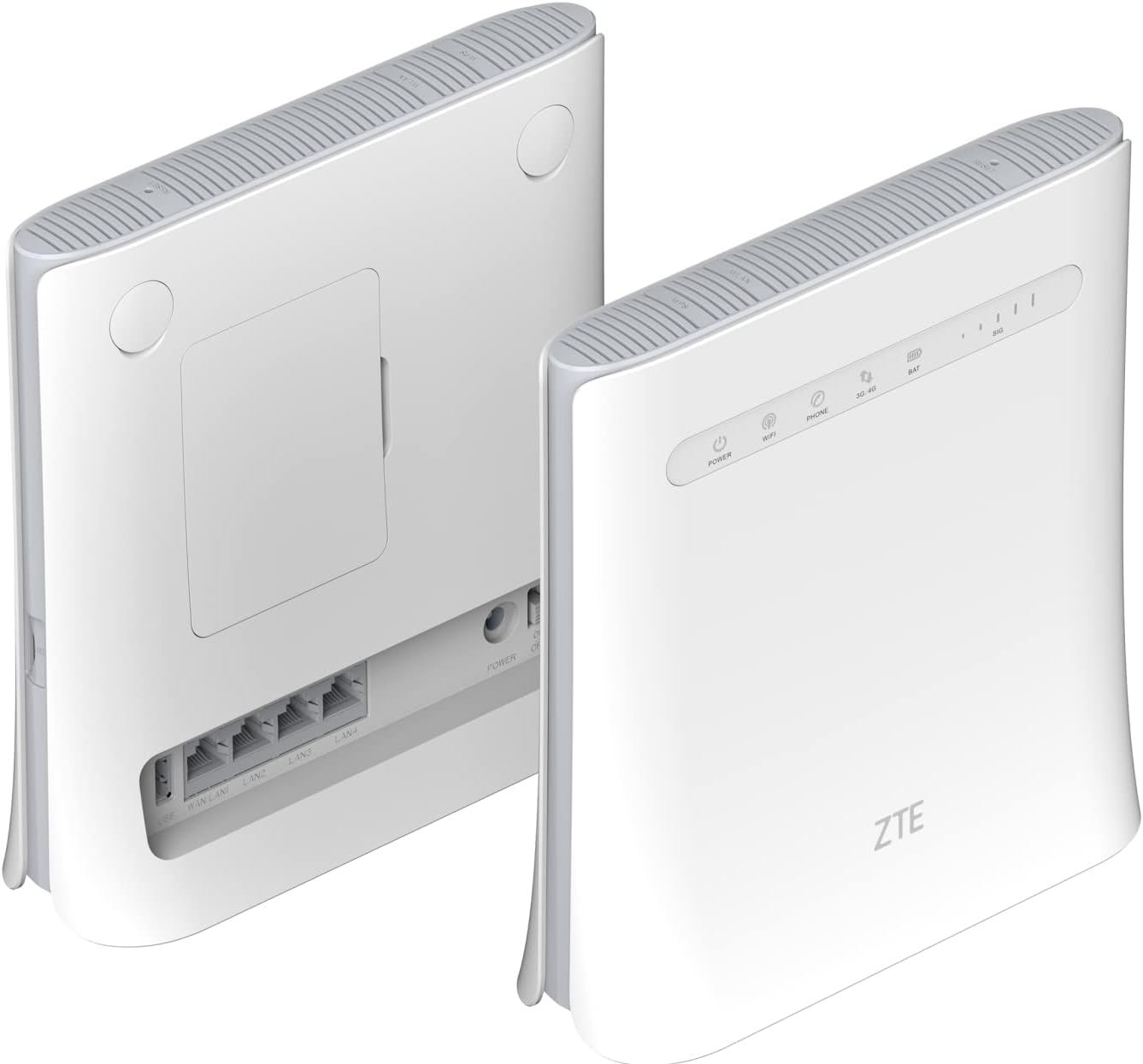
Figure 3.1: Front and Rear View of ZTE MF286C Router. This image displays the router from both the front and rear. The front panel shows LED indicators for Power, Wi-Fi, Phone, 3G/4G network status, Battery, and Signal strength. The rear panel reveals the SIM card slot cover, multiple LAN ports, and the power input.
3.1. LED Indicators
- Power: Indicates power status.
- Wi-Fi: Indicates Wi-Fi network activity.
- Phone: Indicates VoLTE call status.
- 3G/4G: Indicates mobile network connection status (3G or 4G LTE).
- BAT: Indicates battery charge level.
- SIG: Indicates mobile network signal strength.
3.2. Ports and Buttons

Figure 3.2: Rear Panel Ports of ZTE MF286C Router. This image provides a clear view of the router's rear panel, highlighting the WAN/LAN port, three additional LAN ports, the power input, and the power on/off switch. The SIM card slot is located under a cover on the back.
- WAN/LAN Port: Connects to a modem or acts as a LAN port.
- LAN Ports (x3): Connects to wired devices (computers, printers).
- Power Input: Connects to the power adapter.
- Power Button: Turns the device on or off.
- SIM Card Slot: Insert your Nano-SIM card here (under the cover).
- Reset Button: (Typically recessed) Used to restore factory settings.
4. Setup
4.1. SIM Card Installation
- Ensure the router is powered off.
- Locate the SIM card slot cover on the rear of the router.
- Gently remove the cover.
- Insert a standard Nano-SIM card into the slot with the gold contacts facing down and the notched corner oriented correctly. Push until it clicks into place.
- Replace the SIM card slot cover.
4.2. Powering On the Router
- Connect the power adapter to the router's power input port and then to a wall outlet.
- Press and hold the Power button until the Power LED illuminates.
- Wait for the router to boot up. The 3G/4G and Wi-Fi LEDs will indicate network and Wi-Fi readiness.
5. Operating Instructions
5.1. Connecting to Wi-Fi
- On your device (smartphone, tablet, laptop), enable Wi-Fi.
- Search for available Wi-Fi networks.
- Select the network name (SSID) displayed on the label at the bottom of your router.
- Enter the Wi-Fi password (WPA/WPA2 key) also found on the router's label.
- Once connected, the Wi-Fi LED on the router will indicate activity.
5.2. Connecting via Ethernet Cable
- Connect one end of an Ethernet cable to a LAN port on the router.
- Connect the other end of the Ethernet cable to the Ethernet port on your computer or other wired device.
- The device should automatically establish a wired network connection.
5.3. Accessing the Web Management Interface
For advanced settings, network configuration, and monitoring, access the router's web management interface:
- Ensure your device is connected to the router's Wi-Fi or LAN.
- Open a web browser (e.g., Chrome, Firefox, Edge).
- In the address bar, type the default IP address (usually
192.168.0.1or192.168.1.1) or the web address printed on the router's label, then press Enter. - Enter the default username and password (typically
adminfor both, or as specified on the router's label). - You can now configure settings such as Wi-Fi name, password, network modes, and parental controls.
5.4. Using VoLTE Voice Calls
The ZTE MF286C supports advanced VoLTE voice calls. To use this feature:
- Connect a standard analog telephone to the router's phone port (if available, not explicitly shown in images but mentioned in description).
- Ensure your SIM card supports VoLTE and that the service is activated by your mobile operator.
- You can now make and receive calls using the connected telephone, benefiting from improved call quality.
6. Maintenance
- Cleaning: Use a soft, dry cloth to clean the router. Do not use liquid or aerosol cleaners.
- Placement: Place the router in a well-ventilated area, away from direct sunlight, heat sources, and moisture. Avoid placing it near strong electromagnetic fields.
- Firmware Updates: Periodically check the manufacturer's website for firmware updates to ensure optimal performance and security.
- Battery Care: If the router has a removable battery, avoid extreme temperatures and prolonged periods of full discharge or full charge to extend battery life.
7. Troubleshooting
| Problem | Possible Solution |
|---|---|
| No Power LED | Ensure the power adapter is securely connected to the router and a working power outlet. Try a different outlet. |
| No Internet Connection (3G/4G LED off/red) | Check if the SIM card is correctly inserted. Verify your mobile data plan is active. Restart the router. Check network coverage in your area. |
| Cannot connect to Wi-Fi | Ensure Wi-Fi is enabled on the router (Wi-Fi LED on). Verify the Wi-Fi password. Restart both the router and your connecting device. |
| Slow Internet Speed | Check signal strength (SIG LED). Move the router to a location with better signal. Reduce the number of connected devices. Check for network congestion with your service provider. |
| Cannot access web management interface | Ensure your device is connected to the router. Verify the IP address or web address. Clear browser cache or try a different browser. |
| VoLTE calls not working | Ensure a phone is correctly connected. Verify your SIM card and service plan support VoLTE. Contact your mobile operator for assistance. |
8. Specifications
| Model | MF286C |
| Brand | ZTE |
| Connectivity Technology | LTE CAT6/4G, Wi-Fi |
| Wireless Standard | 802.11b (Dual-Band Wi-Fi) |
| Max Download Speed (LTE) | Up to 300 Mbps |
| Max Upload Speed (LTE) | Up to 50 Mbps |
| Max Wi-Fi Speed | Up to 1300 Mbps |
| Battery Capacity | 3000 mAh Lithium-Ion (included) |
| Battery Life (4G network sharing) | Up to 3 hours |
| Battery Life (VoLTE call) | Up to 4 hours |
| Ports | 1x WAN/LAN, 3x LAN, Power Input, SIM Card Slot, Phone Port (VoLTE) |
| Color | White |
| Dimensions (L x W x H) | 20 x 8 x 19 cm |
| Weight | 780 g |
| Compatible Devices | Personal Computer, Smartphone, Tablet |
| Special Features | Remote Access, VoLTE Voice Calls, Built-in Battery |
9. Safety Information
- Do not open or modify the device.
- Use only the original power adapter provided with the device.
- Keep the device away from water, fire, and extreme temperatures.
- Dispose of the device and its battery responsibly according to local regulations.
- Avoid placing the device near medical equipment to prevent interference.
10. Warranty and Support
For warranty information and technical support, please refer to the warranty card included in your package or visit the official ZTE website. Keep your proof of purchase for warranty claims.


