1. Introduction
Thank you for choosing the GEN GAME S3 Wireless Bluetooth Gamepad. This manual provides detailed instructions on how to set up, operate, and troubleshoot your new gamepad. Please read this manual carefully before use to ensure optimal performance and a smooth gaming experience.

Image 1.1: Front view of the GEN GAME S3 Wireless Bluetooth Gamepad.
2. Product Features
- Versatile Connectivity: Supports Bluetooth, Wireless (requires receiver), and Wired (cable) connection modes.
- Wide Compatibility: Compatible with PC, smartphones, tablets, TVs, and TV boxes running Android 3.2 or higher, and Windows (including Windows 10 / 8 / 7 / XP).
- Multi-functional Modes: Supports Gamepad, Mouse+Multimedia, Keyboard, and iCade modes.
- Smooth Gaming Experience: Bluetooth 3.0 for stable connection up to 10 meters wireless distance.
- Long-lasting Battery: Built-in 420mAh rechargeable battery for extended playtime.
- Power Efficiency: Features a smart power-saving sleep mode to optimize battery life.

Image 2.1: The gamepad displaying compatibility with Android, various games, wireless connectivity, Bluetooth, and Windows operating systems.
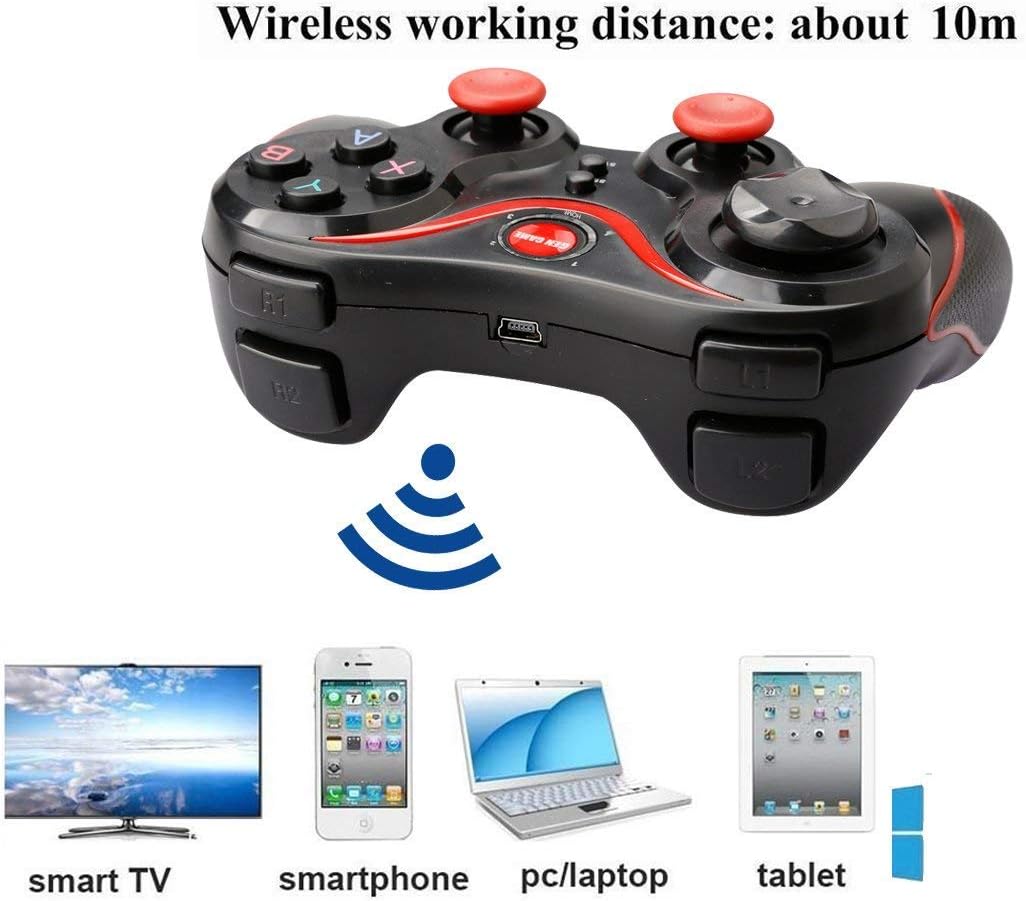
Image 2.2: Illustration of the gamepad's 10m wireless working distance and compatibility with Smart TVs, smartphones, PCs/laptops, and tablets.
3. Package Contents
Please check the package for the following items:
- 1 x GEN GAME S3 Wireless Bluetooth Gamepad
- 1 x USB Charging Cable
- 1 x User Manual (this document)

Image 3.1: The GEN GAME S3 Gamepad shown with its included USB charging cable.
4. Setup
4.1 Charging the Gamepad
Before first use, ensure the gamepad is fully charged. Connect the supplied USB charging cable to the gamepad's charging port and the other end to a USB power source (e.g., computer USB port, USB wall adapter).
- The indicator light will show charging status.
- A full charge typically takes 2-3 hours.
4.2 Connecting the Gamepad
The GEN GAME S3 supports three connection methods:
4.2.1 Bluetooth Connection (Wireless)
- Ensure the gamepad is sufficiently charged.
- Press and hold the GEN GAME button (center button) and the X button simultaneously until all indicator lights on the gamepad begin to flash rapidly. This indicates the gamepad is in pairing mode.
- On your device (smartphone, tablet, TV, PC), go to Bluetooth settings and search for available devices.
- Select "GEN GAME S3" or a similar name from the list to pair.
- Once successfully paired, one of the indicator lights (usually Light 1) will remain solid, indicating a stable connection.
4.2.2 Wired Connection (PC)
- Do not power on the gamepad before connecting.
- Connect the USB charging cable to the gamepad.
- Plug the other end of the USB cable into a USB port on your PC.
- The gamepad will automatically be recognized by your PC. Light 1 will remain solid upon successful connection.
4.2.3 Wireless Connection (Requires Receiver - Not Included)
If you have a wireless receiver (dongle), plug it into your device's USB port. The gamepad should automatically connect to the receiver. Follow the receiver's specific instructions if available.
5. Operating Instructions
5.1 Switching Modes
The GEN GAME S3 supports multiple operating modes. Short press the HOME button to cycle through the modes. The indicator lights will change to show the current mode:
- Gamepad Mode: Upper left LED light on. (For general gaming)
- Manipulation Mode (Mouse+Multimedia): Upper right LED light on. (For navigating menus, controlling media)
- Keyboard Mode: Lower right LED light on. (For text input)
- iCade Mode (for Apple devices): Lower left LED light on. (Specific mode for iCade compatible games on iOS)

Image 5.1: Diagram showing the four mode indicator lights and their corresponding modes on the gamepad.
5.2 General Usage
- Once connected and in the desired mode, you can use the gamepad for gaming or device navigation.
- The analog sticks provide precise 360-degree movement.
- The action buttons (A, B, X, Y) and directional pad (D-pad) are for in-game actions and menu navigation.
- The shoulder buttons (L1, R1) and triggers (L2, R2) offer additional control options.
- The SELECT and START buttons typically serve as pause/menu buttons in games.
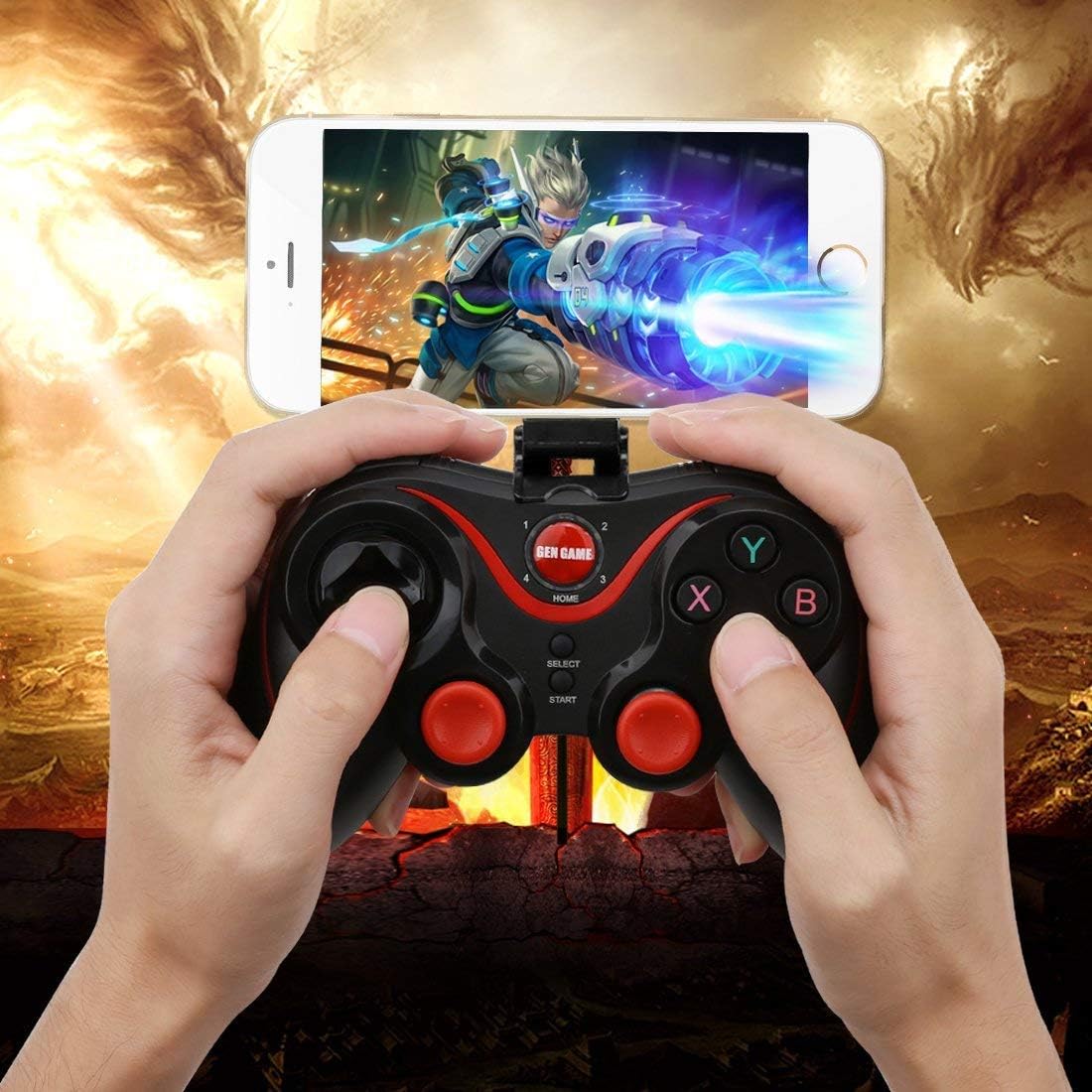
Image 5.2: A user holding the GEN GAME S3 Gamepad while playing a mobile game on a smartphone, demonstrating typical usage.

Image 5.3: The GEN GAME S3 Gamepad displayed alongside covers of popular games, highlighting its gaming application.
6. Maintenance
- Keep the gamepad clean by wiping it with a soft, dry cloth.
- Avoid exposing the gamepad to extreme temperatures, direct sunlight, or moisture.
- Do not disassemble the gamepad, as this will void the warranty.
- Store the gamepad in a cool, dry place when not in use.
7. Troubleshooting
7.1 Gamepad Not Connecting/Pairing
- Check Battery: Ensure the gamepad is fully charged. Low battery can prevent connection.
- Re-enter Pairing Mode: Turn off the gamepad, then re-enter pairing mode by holding GEN GAME + X buttons until lights flash rapidly.
- Device Bluetooth: Ensure Bluetooth is enabled on your device and it's discoverable.
- Forget Device: If previously paired, try
Related Documents - S3 Wireless Bluetooth Gamepad

Ipega PG-9217 Retractable Gamepad User Manual
User manual for the Ipega PG-9217 Retractable Gamepad, detailing its features, connection modes (Android Standard, Direct Play for Android and iOS, Wired), charging, and troubleshooting.
iPega Batman Bluetooth Gamepad User Manual PG-9076
Comprehensive user manual for the iPega PG-9076 Batman Bluetooth Gamepad, detailing setup, usage for Android, PC, PS3, and multimedia functions, including connection guides and troubleshooting.
MEDION PG-9167 Kabelloser Bluetooth Game-Controller für Smartphones und PC
Entdecken Sie den MEDION PG-9167 Wireless Game-Controller mit Bluetooth 4.0. Kompatibel mit Android, iOS, Windows PC, Smart TV und TV-Boxen. Ergonomisches Design, TURBO-Funktion und lange Akkulaufzeit für ein optimales Spielerlebnis.
MEDION PG-9167 Kabelloser Bluetooth Game-Controller für Smartphones und PC
Entdecken Sie den MEDION PG-9167 Wireless Game-Controller mit Bluetooth 4.0. Kompatibel mit Android, iOS, Windows PC, Smart TV und TV-Boxen. Ergonomisches Design, TURBO-Funktion und lange Akkulaufzeit für ein optimales Spielerlebnis.
iPega PG-9069 Bluetooth Gamepad with Touchpad User Manual
Comprehensive user manual for the iPega PG-9069 Bluetooth Gamepad, detailing its features, setup, operation modes for Android, iOS, and PC, and advanced functions like Macro and Turbo.
8BitDo M30 Bluetooth Gamepad: Instruction Manual and Connectivity Guide
Comprehensive guide to setting up and using the 8BitDo M30 Bluetooth Gamepad, covering connection to Switch, Android, Windows, and macOS, turbo function, battery, and safety information.