
Introduction
This manual provides essential instructions for the safe operation, maintenance, and troubleshooting of your Thamtu G11 Robot Vacuum Cleaner. Please read this manual thoroughly before using the product and retain it for future reference.
Important Safety Instructions
- Read all instructions before using this appliance.
- Do not operate the robot vacuum in areas with open flames or flammable materials.
- Keep hair, loose clothing, fingers, and all parts of the body away from openings and moving parts.
- Do not pick up anything that is burning or smoking, such as cigarettes, matches, or hot ashes.
- Do not use without dust bin and/or filters in place.
- Ensure the charging base is placed against a wall on a level surface, free from obstacles.
- Only use the manufacturer-specified charging base and power adapter.
- Supervise children when the robot vacuum is in operation.
- Remove any loose cables, small objects, or fragile items from the floor before cleaning to prevent entanglement or damage.
Product Overview
The Thamtu G11 Robot Vacuum Cleaner features dynamic navigation, 2500Pa suction, and a 150-minute runtime. It is designed for efficient cleaning on hard floors and medium-pile carpets, effectively handling pet hair. The device supports voice prompts and can be controlled via a mobile app or remote control.
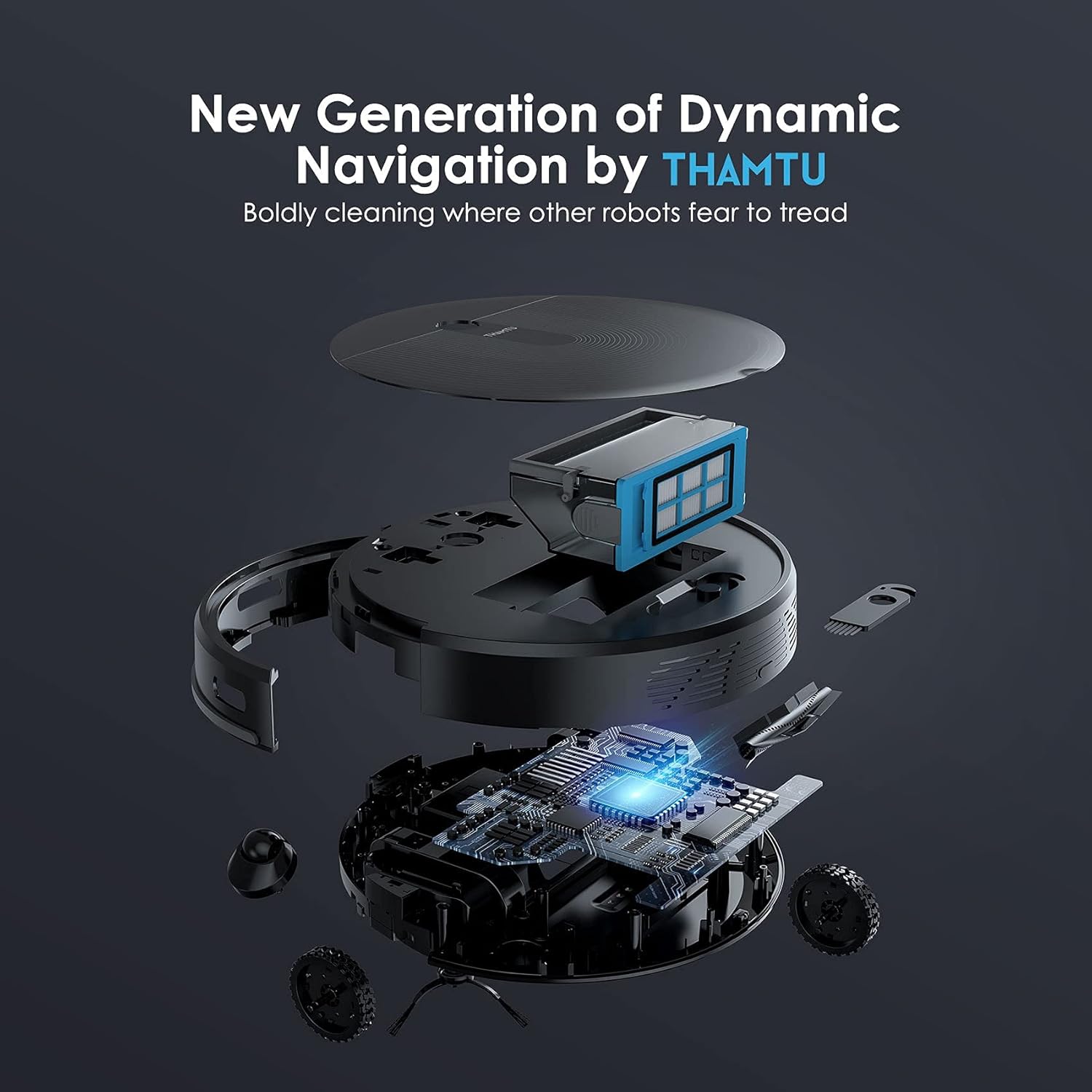
Figure 1: Exploded view of the Thamtu G11 Robot Vacuum Cleaner, showing its internal components such as the dustbin, main brush, side brushes, and wheels.
Setup
1. Unboxing and Initial Preparation
- Carefully remove all components from the packaging.
- Remove any protective films or packaging materials from the robot vacuum and its accessories.
- Install the side brushes by snapping them into the designated slots on the bottom of the robot. Ensure they are securely attached.
Figure 2: A user installing the side brushes onto the underside of the Thamtu G11 Robot Vacuum Cleaner.
2. Charging Base Placement and Initial Charge
- Place the charging base against a wall on a hard, level surface.
- Ensure there are no obstacles within 1.64 feet (0.5 meters) to the left and right of the charging base, and 4.92 feet (1.5 meters) in front of it.
- Connect the power adapter to the charging base and plug it into a wall outlet.
- Place the robot vacuum onto the charging base, aligning the charging pins. The robot will announce "Charging Started" and the blue light will flash.
- Allow 4-5 hours for the robot to fully charge before its first use.
Video 1: This video demonstrates the proper placement of the charging base and how to initiate the first charge for the Thamtu G11 robot vacuum. It shows the robot docking and the charging indicator activating.
3. App Connection
- Download the "Thamtu" app from the Google Play Store or Apple App Store.
- Register for an account and log in.
- Open the top cover of the robot vacuum. Press and hold the power and home buttons for 3 seconds until you hear "WiFi Reset, Ready for AP Mode Connection" and the blue WiFi indicator light flashes slowly.
- In the app, tap "Add Device" and select "G11".
- Select your 2.4GHz WiFi network (5GHz is not supported) and enter the password.
- Follow the in-app instructions to connect to the robot's hotspot (e.g., "Thamtu-SL-XXXXX") and then return to the Thamtu app to complete the connection.
Video 2: This video guides users through the process of connecting the Thamtu G11 robot vacuum to the mobile application, including WiFi setup and pairing modes.
4. Setting Up No-Go Zones
- Use the included magnetic boundary strip to define areas where the robot vacuum should not enter.
- Cut the magnetic strip to the desired length and width for the area you wish to restrict.
- Peel off the adhesive pads and stick them to one side of the strip, then attach the other side to the floor to secure the strip.

Figure 3: The Thamtu G11 robot vacuum respects magnetic boundary strips, preventing it from entering designated "no-go" zones, such as around pet food bowls.
Operating the Robot Vacuum
1. Cleaning Modes
The Thamtu G11 offers three cleaning modes to suit different needs:
- Auto Cleaning: The robot intelligently navigates and cleans the entire area.
- Spot Cleaning: For concentrated cleaning of a specific dirty area. The robot will clean in a spiral pattern.
- Edge Cleaning: The robot cleans along walls and furniture edges to ensure thorough coverage.

Figure 4: Visual representation of the three cleaning modes: Auto Cleaning for general coverage, Spot Cleaning for intensive localized cleaning, and Edge Cleaning for thorough perimeter cleaning.
2. Control Options
- App Control: Use the Thamtu app to start/stop cleaning, select cleaning modes, set schedules, and monitor the cleaning path.
- Voice Control: Integrate with smart home systems like Amazon Alexa or Google Assistant to start cleaning sessions using voice commands (e.g., "Alexa, turn on G11!").
- Remote Control: Use the included remote control for manual navigation and basic cleaning functions.

Figure 5: The Thamtu G11 offers multiple control methods, including voice commands through smart assistants, a dedicated remote control, and a mobile application for comprehensive management.
3. Dynamic Navigation and Obstacle Avoidance
The G11 utilizes a new generation of dynamic navigation to efficiently map and clean your home. It is designed to avoid obstacles and prevent snags, ensuring a hassle-free cleaning experience.

Figure 6: The Thamtu G11 employs a systematic, dynamic navigation pattern for efficient cleaning, contrasting with the less efficient random paths of some other robot vacuums.
4. Suction Power and Auto-Boost
With 2500Pa suction power, the G11 effectively picks up crumbs, pet hair, and other debris. The auto-boost technology automatically increases suction power when carpets are detected, providing deeper cleaning where needed.

Figure 7: The Thamtu G11 robot vacuum effectively cleans various types of debris, including pet hair, crumbs, and coffee beans, thanks to its powerful 2500Pa suction.
Maintenance
Regular maintenance ensures optimal performance and extends the lifespan of your Thamtu G11. Always turn off the robot vacuum and unplug the charging base before performing any maintenance.
Video 3: This video provides a comprehensive guide on how to perform maintenance and care for your Thamtu G11 robot vacuum, covering various components.
1. Dustbin and Filter Cleaning
- Open the top cover of the G11 and remove the dustbin.
- Press the release button on the dustbin to open it and empty its contents into a trash bin.
- Open the filter compartment, remove the filters, and clean them with the provided cleaning brush. Tap the filter gently to remove dust.
- Reassemble the filters and dustbin, then insert them back into the robot vacuum.
2. Side Brush Cleaning
- Gently pull the side brushes to remove them from the robot.
- Clean any tangled hair or debris from the brushes using a damp cloth.
- Snap the cleaned side brushes back into their respective positions.
3. Main Brush Cleaning
- Push the latch to unlock the main brush guard and remove it.
- Take out the main brush. Use the provided cleaning tool's blade to cut any trapped hair and the brush to remove dirt.
- Reinsert the cleaned main brush and secure the brush guard.
4. Sensor and Charging Pin Cleaning
- Wipe the anti-drop sensors and charging contacts on the robot and charging base with a clean, dry cloth.
- Ensure all sensors and contacts are free from dust and debris for proper operation and charging.
5. Omni-directional Wheel Cleaning
- Use the blade and brush of the cleaning tool to remove any trapped hair or dirt from the omni-directional wheel.
- Ensure the wheel spins freely to maintain optimal navigation.
Troubleshooting
1. Robot Not Turning On or Charging
- Battery Reinstallation: If the robot does not turn on or charge, reinstall the battery. Unscrew the battery cover on the bottom of the robot, disconnect the battery, wait 5 minutes, then reconnect and re-secure the battery.
- App Update: Ensure your Thamtu app is updated to the latest version. Check for updates in the app store.
- WiFi Connection: Verify the robot is connected to your 2.4GHz WiFi network via the app.
- Firmware Update: If the issue persists, check for and install any available firmware updates for the robot via the Thamtu app.
Video 4: This video provides solutions for common issues such as the robot not turning on or failing to charge, guiding users through battery reinstallation, app updates, and firmware checks.
2. Voice Prompts for Errors
The G11 provides intelligent voice alerts for various problems, such as "Wheels are stuck!" This feature helps users quickly identify and resolve issues without needing to consult the manual for simple beeps.

Figure 8: The Thamtu G11 robot vacuum provides clear voice prompts, such as "Wheels are stuck!", to alert users to operational issues.
Specifications
| Feature | Detail |
|---|---|
| Brand | Thamtu |
| Model Name | G11 |
| Surface Recommendation | Carpet, Floor |
| Special Feature | Logical Navigation, Pet Hair Pick Up, Smart Mapping |
| Color | Black |
| Controller Type | Amazon Alexa, Google Assistant, Remote Control |
| Filter Type | Disk |
| Battery Life | 150 minutes |
| Battery Type | Lithium Ion |
| Power Source | Battery Powered |
| Control Method | Remote, Voice |
| Compatible Devices | Amazon Echo |
| Form Factor | Robotic |
| Included Components | Instruction Guide |
| Model Number | G11 |
| UPC | 799865691989 |
Warranty and Support
Thamtu offers 24-hour on-call service for any product-related inquiries or issues. If your Thamtu product malfunctions and you cannot find a proper solution, please contact us for assistance. We accept orders even outside the standard Amazon Return Window for support.
For support, please refer to the contact information provided in your product packaging or visit the official Thamtu website.