
1. Introduction
This user manual provides detailed instructions for the installation, operation, and maintenance of your SV3C 1080P Outdoor Surveillance Camera (Model C1). Please read this manual thoroughly before using the product to ensure proper functionality and safety. This camera is designed for outdoor surveillance, offering features such as 2-way audio, humanoid detection, and local storage via SD card.
2. Safety Information
- Ensure the camera is installed in a stable location to prevent falling.
- Do not expose the camera to extreme temperatures outside its operating range.
- Keep the camera away from strong magnetic fields.
- Use only the provided charging cable. Do not use damaged cables or power adapters.
- Avoid disassembling or modifying the camera, as this will void the warranty and may cause damage.
- Clean the camera lens with a soft, dry cloth. Avoid abrasive cleaners.
- While the camera is IP65 waterproof, avoid submerging it in water.
3. Package Contents
Verify that all items are present in your package:
- SV3C 1080P Outdoor Surveillance Camera (Model C1)
- Mounting Bracket
- USB Type-C Charging Cable (Power adapter not included)
- Screws and Wall Plugs for Installation
- User Manual (This document)

Figure 3.1: SV3C C1 Camera and included accessories.
4. Product Overview
Familiarize yourself with the components of your SV3C C1 camera.

Figure 4.1: Front and rear view of the camera with labeled components including Lens, IR LEDs, PIR Lens, Microphone, Power Key, DC5V Type-C Port, TF Card Slot, Waterproof Sealer Cap, Working Status Indicator, and Wall Mount Bracket.
- Lens: Captures video footage.
- IR LEDs: Infrared lights for night vision.
- PIR Lens: Passive Infrared sensor for motion detection.
- Microphone: For two-way audio communication.
- Power Key: To power on/off the device.
- DC5V Type-C Port: Charging port for the camera's battery.
- TF Card Slot: Slot for inserting a Micro SD card for local storage.
- Waterproof Sealer Cap: Protects the charging port and SD card slot from water.
- Working Status Indicator: LED light indicating camera status (e.g., red for Wi-Fi setup).
- Wall Mount Bracket: For secure installation on a wall or other surface.
5. Setup
5.1 Initial Charging
Before first use, fully charge the camera using the provided USB Type-C cable and a compatible 5V/1A or 5V/2A USB power adapter (not included). The LED indicator will show charging status and turn off when fully charged.
5.2 Inserting a Micro SD Card
For local video recording, insert a Micro SD card (up to 128GB, Class 10 or higher recommended) into the TF Card Slot. Ensure the camera is powered off before inserting or removing the card. Gently push the card until it clicks into place. Close the waterproof sealer cap securely.
Figure 5.1: Location of the TF Card Slot and Power Button on the camera.
5.3 App Download and Installation
The SV3C C1 camera operates with the "Adorcam" app. Download it from your device's app store (Google Play Store for Android or Apple App Store for iOS).
- Open your smartphone's app store.
- Search for "Adorcam".
- Download and install the app.
- Open the Adorcam app and register a new account if you don't have one, or log in.
5.4 Pairing the Camera with the App
Follow these steps to connect your camera to your Wi-Fi network via the Adorcam app:
- Ensure your camera is powered on and the front LED is slowly flashing red, indicating it's ready for Wi-Fi setup. If not, press the power button twice to reset.
- In the Adorcam app, tap "Add Device".
- Select "Battery Camera".
- Grant location permissions to the app when prompted.
- Follow the on-screen instructions to generate a QR code.
- Aim the camera lens directly at the QR code displayed on your phone screen, maintaining a distance of 5-8 inches.
- A tone will be heard from the camera when the QR code is successfully scanned.
- The camera will then attempt to connect to your Wi-Fi network. This process may take a few minutes.
- Once connected, the camera will appear in your device list in the app.
5.5 Camera Mounting
The SV3C C1 camera can be placed anywhere within your Wi-Fi range. For optimal performance, choose a location with a strong Wi-Fi signal and clear view of the area you wish to monitor. The camera can also record outside Wi-Fi range, but remote viewing will not be available.
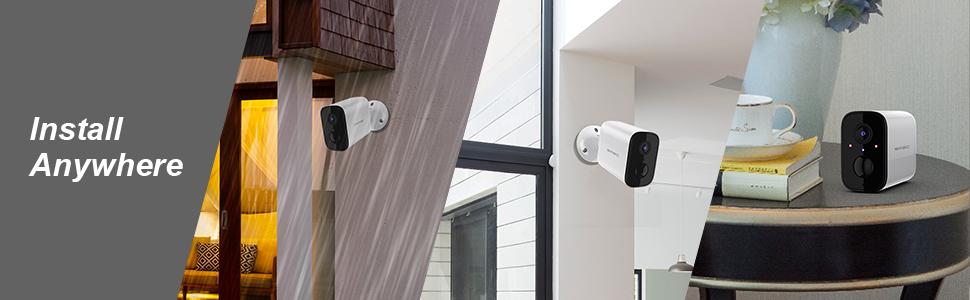
Figure 5.2: The camera can be installed indoors on a flat surface or outdoors using the provided wall mount bracket.
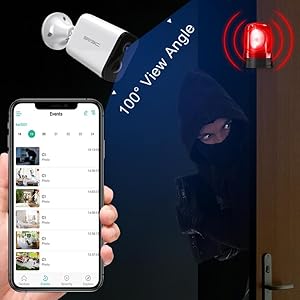
Figure 5.3: The camera attaches to the mounting bracket via a screw-in mechanism, allowing for adjustable angles.
To mount the camera:
- Choose a suitable mounting location.
- Mark the screw holes using the bracket as a template.
- Drill pilot holes and insert wall plugs if necessary.
- Secure the mounting bracket to the surface with screws.
- Attach the camera to the bracket and adjust the angle as needed.
6. Operating Instructions
6.1 Live View
From the main screen of the Adorcam app, tap on the camera's preview image to access the live view. You can monitor your property in real-time.

Figure 6.1: Adorcam app interface with live view and options for video playback and device sharing.
6.2 Two-Way Audio
The camera supports two-way audio, allowing you to listen and speak through the camera. In live view, tap the microphone icon to speak and the speaker icon to listen.

Figure 6.2: The two-way audio feature enables real-time communication through the camera.
6.3 Motion Detection
The camera features smart motion detection with adjustable sensitivity. When motion is detected, the camera will record and send push notifications to your phone.

Figure 6.3: Smart motion detection reduces false alarms and provides instant alerts.
To adjust motion detection sensitivity:
- From the main screen, tap the settings icon (gear) next to the camera name.
- Select "Motion Detection".
- Adjust the "Sensor sensitivity" slider to your preferred level (Low, Medium, High). Higher sensitivity means more frequent motion detection.
6.4 Night Vision
The camera automatically switches to night vision mode in low-light conditions, providing clear 1080P HD resolution footage even in the dark.

Figure 6.4: The camera provides clear 1080P HD resolution and night vision for continuous monitoring.
6.5 Video Playback and Recording
Recorded videos are stored on the inserted Micro SD card. You can access and playback these videos through the Adorcam app.
- From the main screen, tap the "Events" tab.
- Select the date and then the video clip you wish to view.
- You can also download recorded files to your phone.
6.6 Device Sharing
You can share access to your camera with family members or friends. Ensure the recipient has the Adorcam app installed and registered an account in the same region/country.
- From the main screen, tap the share icon next to the camera you want to share.
- Alternatively, go to the main menu (three horizontal lines icon) and select "Share".
- Choose the permission level for the shared account:
- Guest: Only able to live view, playback, and receive alarm push messages.
- Admin: Full access for all features.
- Select the camera(s) you wish to share.
- Enter the email address of the user you want to share with and tap "Send".
- Confirm the sharing request.
7. Maintenance
- Battery Charging: The camera is powered by a 5000mAh rechargeable battery. Battery life varies based on motion detection frequency and live view usage. Recharge the camera when the battery level is low.
- Cleaning: Regularly clean the camera lens and body with a soft, lint-free cloth to ensure clear image quality and proper operation. Do not use harsh chemicals.
- Firmware Updates: Periodically check the Adorcam app for available firmware updates. Keeping the firmware updated ensures optimal performance and access to new features.
- Weather Protection: Although IP65 waterproof, extreme weather conditions (e.g., prolonged heavy rain, snow, direct sunlight) can affect performance and longevity. Consider additional protective measures if installed in harsh environments.

Figure 7.1: The camera is rated IP65 waterproof, suitable for various outdoor conditions.
8. Troubleshooting
| Problem | Possible Cause | Solution |
|---|---|---|
| Camera won't power on. | Low battery; Power button not pressed correctly. | Charge the camera fully. Press and hold the power button for a few seconds. |
| Cannot connect to Wi-Fi. | Incorrect Wi-Fi password; Weak Wi-Fi signal; Camera too far from router. | Double-check Wi-Fi password. Move camera closer to the router. Reset camera (press power button twice) and try pairing again. |
| No video recording. | No SD card inserted; SD card full or corrupted; Motion detection off. | Insert a compatible SD card. Format or replace the SD card. Enable motion detection in app settings. |
| Frequent false alarms. | Motion detection sensitivity too high; Environmental factors (e.g., moving branches). | Reduce motion detection sensitivity in app settings. Adjust camera angle to avoid irrelevant areas. |
| Remote view not available. | Camera is out of Wi-Fi range; Internet connection issue. | Ensure camera is within Wi-Fi range. Check your home internet connection. |
9. Specifications
| Feature | Detail |
|---|---|
| Brand | SV3C |
| Model Number | C1 |
| Video Capture Resolution | 1080p (2 MP Maximum Webcam Image Resolution) |
| Connectivity Technology | Wireless (Wi-Fi) |
| Power Source | Battery Powered (5000 Milliampere Hour (mAh)) |
| Special Features | Motion Sensor, Night Vision, 2-Way Audio, Humanoid Detection |
| Indoor/Outdoor Usage | Indoor, Outdoor (IP65 International Protection Rating) |
| Form Factor | Bullet |
| Item Dimensions (L x W x H) | 3.62 x 2.6 x 1.57 inches |
| Item Weight | 0.634 ounces |
| Storage Support | Up to 128GB SD Card Recording (No Cloud Service) |
| Control Method | Remote (via Adorcam App on Android) |
| UPC | 746198539600 |
10. Warranty & Support
SV3C products are designed and manufactured to the highest quality standards. For specific warranty details and technical support, please refer to the warranty card included in your product packaging or visit the official SV3C website. If you encounter any issues not covered in this manual, please contact SV3C customer service for assistance.
Contact Information: Please refer to the product packaging or the official SV3C website for the most up-to-date contact details.


