
1. Introduction
The ELRO DV50 IP WiFi Intercom System allows you to see and communicate with visitors at your door, whether you are at home or away. This system includes two 7-inch color monitors for indoor viewing and communication, making it suitable for larger homes or multi-story residences. Additionally, the ELRO Intercom app extends functionality to your smartphone, enabling remote viewing, two-way communication, and recording capabilities.
The system features a compact, vandal-resistant metal doorbell unit and two 7-inch (18 cm) color screens. The monitor housing is crafted from high-quality brushed aluminum, providing a modern aesthetic. Users can adjust speech and ringtone volumes, as well as image brightness and color intensity. Sixteen different ringtones are available for selection.
The doorbell unit includes a rain shield to prevent water droplets from obstructing the camera lens. Infrared LEDs provide night vision up to 5 meters.
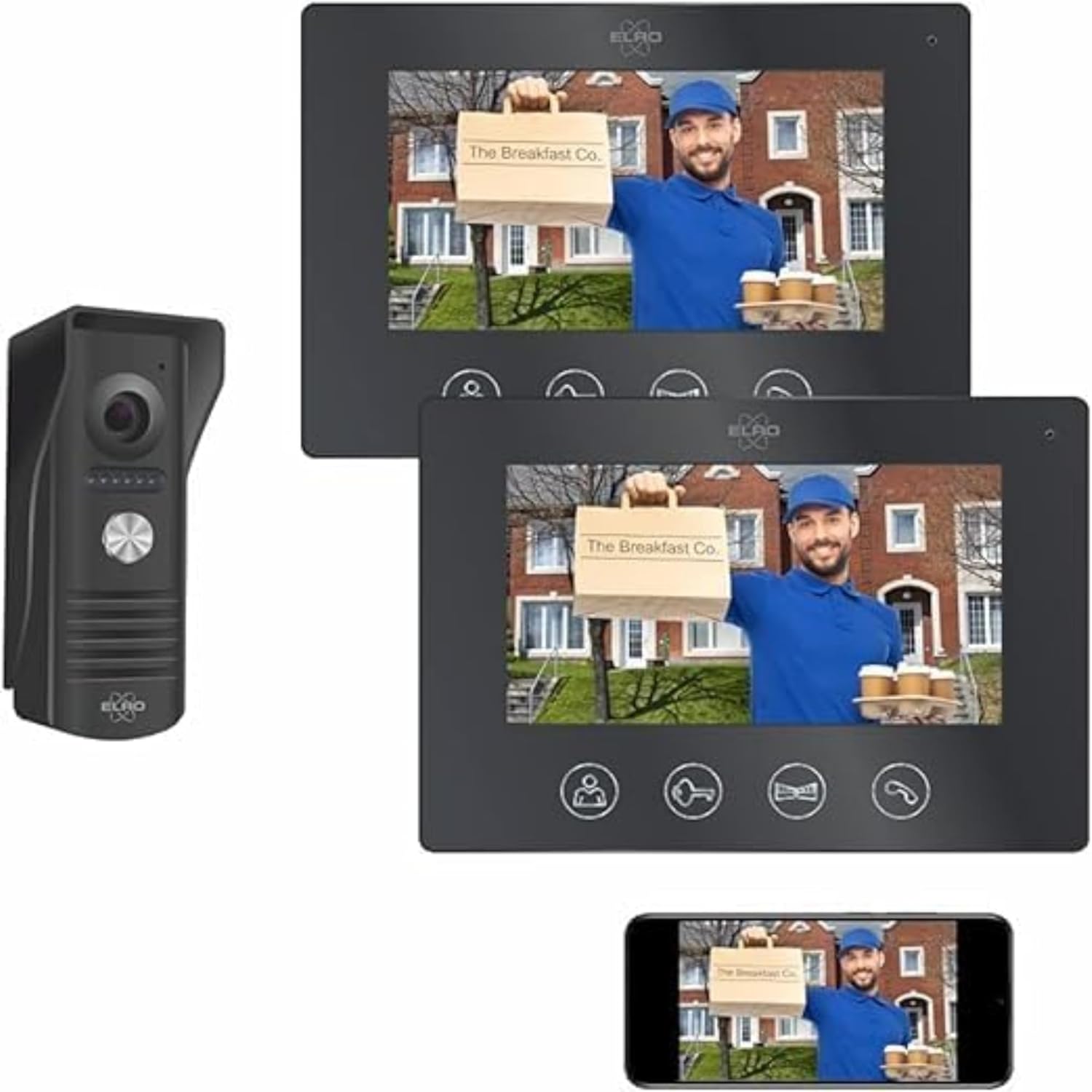
Figure 1: ELRO DV50 IP WiFi Intercom System components.
2. Package Contents
Verify that all items listed below are included in your package:
- 1x Waterproof Doorbell Unit with Rain Shield
- 2x 7-inch Color Monitors
- 2x Monitor Mounting Brackets
- 1x 15-meter 4-wire Cable
- 1x 10-meter 4-wire Cable
- Power Adapters
- Mounting Hardware (screws, wall plugs)
- User Manual (this document)

Figure 2: Overview of package contents and basic installation steps.
3. Product Overview
3.1 Doorbell Unit
The outdoor doorbell unit is designed for durability and clear communication. It includes the following components:
- Microphone: Captures audio from visitors.
- Camera: Provides video feed of the visitor.
- Night Vision LEDs: Illuminates the area for clear viewing in low light conditions, up to 5 meters.
- Bell Push Button: Activates the intercom system and alerts indoor monitors and the app.
- Speaker: Outputs audio from indoor monitors or the app.
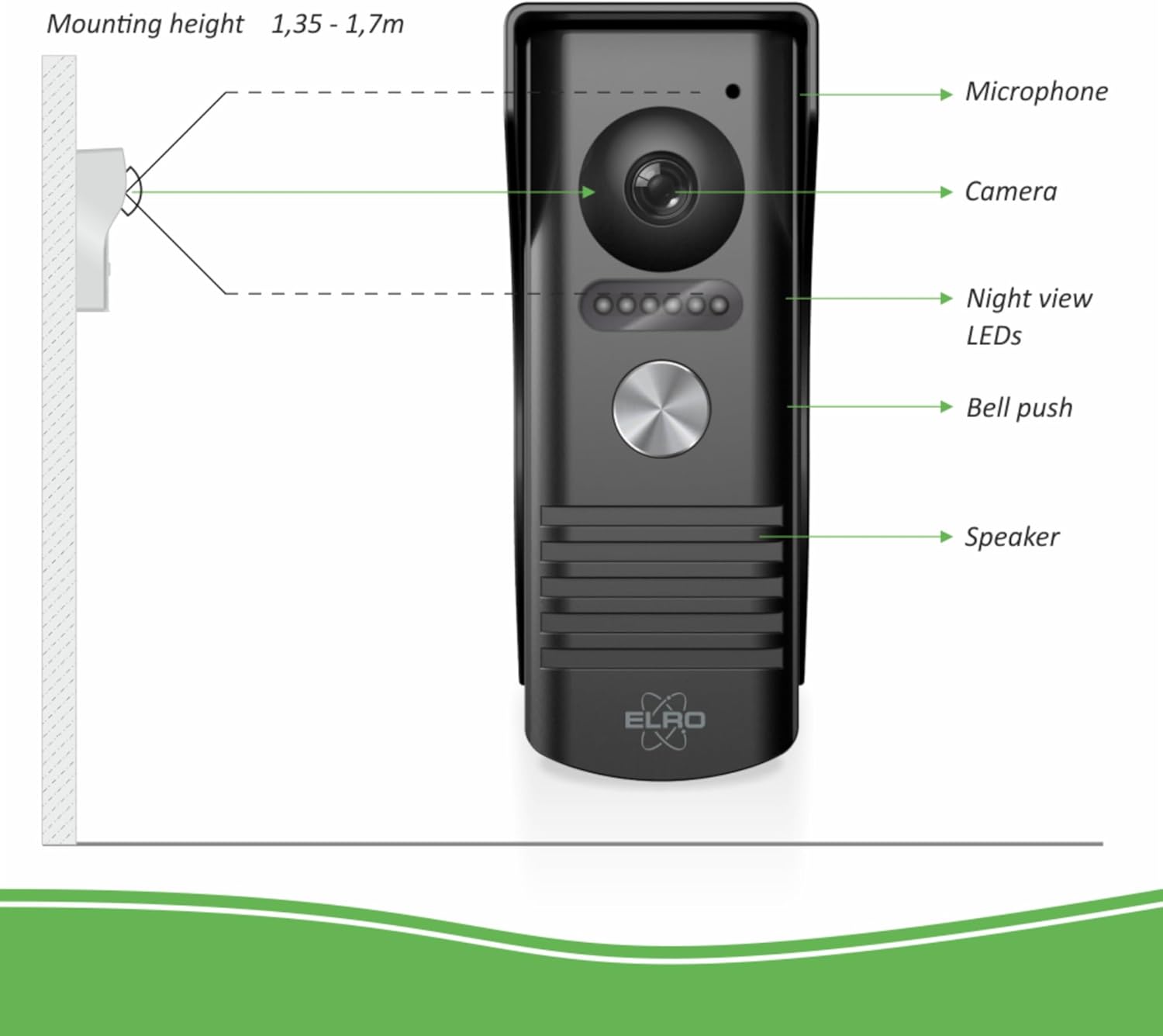
Figure 3: Doorbell unit components and recommended mounting height.
3.2 Indoor Monitors
The two 7-inch color monitors provide visual and audio interaction with visitors. Each monitor features:
- 7-inch Color Display: Shows live video feed from the doorbell camera.
- Microphone: For two-way communication with the visitor.
- Control Buttons:
- Live View: Activates the camera feed.
- Door Unlock: Remotely unlocks a connected door (12V door openers, not included).
- Gate Unlock: Remotely unlocks a connected gate.
- Talk: Initiates two-way communication.
- Side Controls:
- Melody Volume: Adjusts the ringtone volume.
- Select Melody: Cycles through 16 available ringtones.
- Brightness: Adjusts screen brightness.
- Color Intensity: Adjusts screen color saturation.
- Talk Volume: Adjusts the volume of the two-way conversation.

Figure 4: Indoor monitor front panel and button functions.

Figure 5: Indoor monitor side controls and power/cable connections.
4. Installation
The installation process for the ELRO DV50 is designed to be straightforward. Follow these steps carefully:
- Mount the Rain Shield: Secure the rain shield for the doorbell unit to an exterior wall. The recommended mounting height is between 1.35 and 1.70 meters from the ground.
- Mount Indoor Monitors: Install the mounting brackets for the indoor monitors at desired locations inside your home.
- Wire the System: Use the provided 4-wire cables to connect the doorbell unit to the indoor monitors. Ensure all connections are secure.
- Attach Doorbell Unit: Mount the doorbell unit into its bracket, ensuring it is firmly in place within the rain shield.
- Power On: Connect the power adapters to the monitors and plug them into electrical outlets.
- App Connection: Proceed to Section 5 for instructions on connecting the system to the ELRO Intercom app.
Note: For detailed wiring diagrams and specific instructions, refer to the included printed manual.
5. App Setup and Connectivity
The ELRO Intercom app allows you to manage your intercom system remotely via your smartphone. This section details how to set up the app and connect it to your DV50 system.
- Download the App: Download the free ELRO Intercom app from the App Store (for iOS devices) or Google Playstore (for Android devices).
- Create an Account: Open the app and follow the on-screen instructions to create a new user account or log in if you already have one.
- Add Device: Within the app, select the option to add a new device. You will typically be prompted to scan a QR code or manually enter device details. The QR code is usually found on the device itself or in the printed manual.
- Connect to Wi-Fi: Follow the app's instructions to connect your ELRO DV50 system to your home's Wi-Fi network. Ensure your smartphone is connected to the same Wi-Fi network during the initial setup.
- Multiple Users: If multiple individuals wish to use the intercom, they can download the ELRO Intercom app and easily connect it to the same intercom system.
Important: The app requires an active internet connection (Wi-Fi or 4G) on your smartphone to function remotely.
6. Operation
Operating your ELRO DV50 system involves using both the indoor monitors and the ELRO Intercom app.
6.1 Using the Indoor Monitors
- Receiving a Call: When a visitor presses the doorbell button, the indoor monitors will ring and display the live video feed.
- Two-Way Communication: Press the Talk button on the monitor to speak with the visitor. Press it again to end the conversation.
- Viewing Live Feed: Press the Live View button to see the camera feed at any time, even without a visitor.
- Unlocking Door/Gate: If connected, press the Door Unlock or Gate Unlock button to grant access.
- Adjusting Settings: Use the side controls (refer to Figure 5) to adjust ringtone volume, select melodies, and modify screen brightness and color intensity.
6.2 Using the ELRO Intercom App
The app provides extended control and monitoring capabilities:
- Receiving Notifications: When a visitor presses the doorbell, your smartphone will receive a notification.
- Remote Communication: Open the app to see the visitor, speak with them, and grant access remotely.
- App Interface Functions (refer to Figure 6):
- Microphone On/Off: Toggle to communicate with the visitor.
- Loudspeaker On/Off: Toggle to hear ambient sound from the doorbell unit.
- Take Picture: Capture a still image from the live feed.
- Start/Stop Video Recording: Record video footage.
- Full Screen: Toggle full-screen view.
- Hang Up: End the call.
- Unlock: Remotely unlock a connected door or gate.
- Photo and Video Storage: Photos and videos captured via the app can be stored directly on your smartphone.
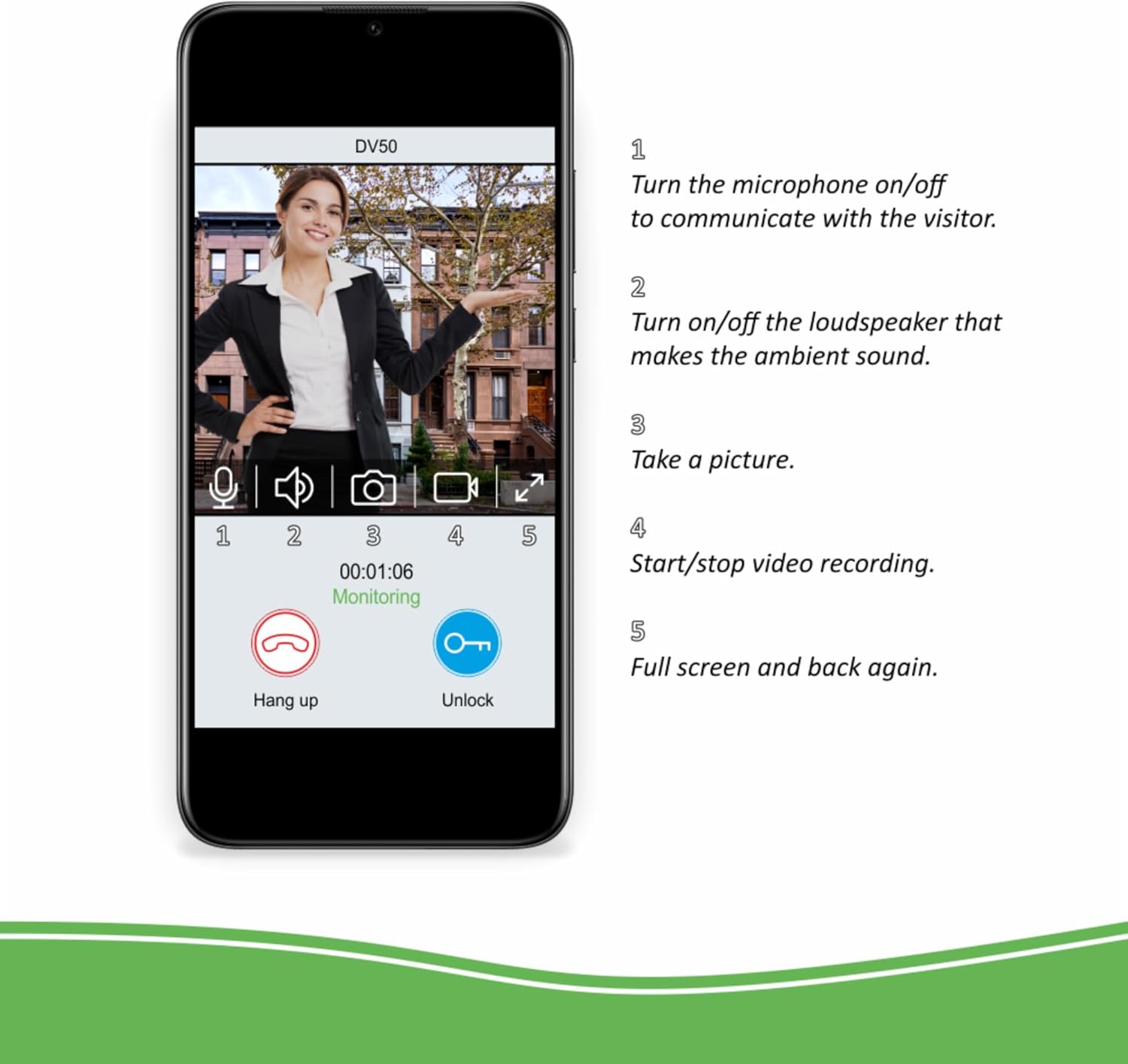
Figure 6: ELRO Intercom app interface and functions.
7. Specifications
| Feature | Detail |
|---|---|
| Model Number | DV50 |
| Brand | ELRO |
| Monitor Size | 2x 7-inch (18 cm) Color Display |
| Doorbell Material | Metal, Vandal-resistant |
| Monitor Housing Material | Brushed Aluminum |
| Night Vision Range | Up to 5 meters |
| Ringtones | 16 selectable melodies |
| Connectivity | Wired (4-wire cable), Wi-Fi (for app) |
| Power Supply | 12V DC |
| Doorbell Dimensions (approx.) | 51 mm (W) x 131 mm (H) x 46 mm (D) (with rain shield) |
| Monitor Dimensions (approx.) | 214 mm (W) x 152 mm (H) x 17 mm (D) |
| International Protection Rating | IP54 (Doorbell Unit) |
| Operating Voltage | 12 Volt (DC) |

Figure 7: Doorbell unit dimensions.
8. Troubleshooting
This section addresses common issues you might encounter with your ELRO DV50 system.
- No Video/Audio on Monitor:
- Ensure all 4-wire cables are securely connected between the doorbell unit and monitors.
- Verify that monitors are powered on and receiving electricity.
- Check for any physical damage to cables or connectors.
- App Not Connecting to Intercom / Frequent Disconnections:
- Confirm your home Wi-Fi network is active and stable.
- Ensure the intercom system is within range of your Wi-Fi router.
- Restart your Wi-Fi router, the intercom monitors, and your smartphone.
- Re-attempt the app setup process (Section 5).
- Check if the app is updated to the latest version.
- Poor Night Vision:
- Ensure the night vision LEDs on the doorbell unit are not obstructed.
- Clean the camera lens if it appears dirty.
- Door/Gate Unlock Function Not Working:
- Verify that the 12V door opener or gate mechanism is correctly wired to the doorbell unit and is functional independently.
- Check wiring connections for the unlock function.
- No Sound from Doorbell Speaker or Monitor Speaker:
- Adjust the "Talk Volume" on the side of the indoor monitor (Figure 5).
- Ensure the microphone and loudspeaker are enabled in the ELRO Intercom app (Figure 6).
If you continue to experience issues after following these steps, please contact ELRO customer support.
9. Maintenance
To ensure optimal performance and longevity of your ELRO DV50 IP WiFi Intercom System, follow these simple maintenance guidelines:
- Cleaning: Regularly wipe the doorbell unit and indoor monitors with a soft, damp cloth. Avoid using abrasive cleaners or solvents, which can damage surfaces.
- Camera Lens: Keep the camera lens on the doorbell unit clean and free from dust, dirt, or water spots to ensure clear video quality.
- Rain Shield: Periodically check the rain shield for any debris accumulation that might obstruct the camera or microphone.
- Cable Connections: Occasionally inspect all wired connections for any signs of wear or corrosion, especially outdoor connections.
- Software Updates: Keep the ELRO Intercom app updated to the latest version to benefit from new features and security enhancements.
10. Warranty and Support
ELRO products are designed for reliability and performance. For information regarding warranty coverage, please refer to the warranty card included with your product or visit the official ELRO website.
For technical support, troubleshooting assistance beyond this manual, or spare parts, please contact ELRO customer service. Contact details can typically be found on the ELRO website or in your product documentation.
ELRO Official Website: www.elro.eu


