
1. Introduction
The Orbic Speed Mobile Hotspot provides a secure and reliable Wi-Fi connection, ideal for remote work or travel. This device supports 4G LTE connectivity and allows up to 10 Wi-Fi enabled devices, such as laptops and tablets, to connect simultaneously. Its design emphasizes portability with a lightweight, compact form factor and a long-lasting rechargeable battery. The Orbic Speed is equipped with dual-band 802.11ac Wi-Fi for high-speed connectivity and extended range.
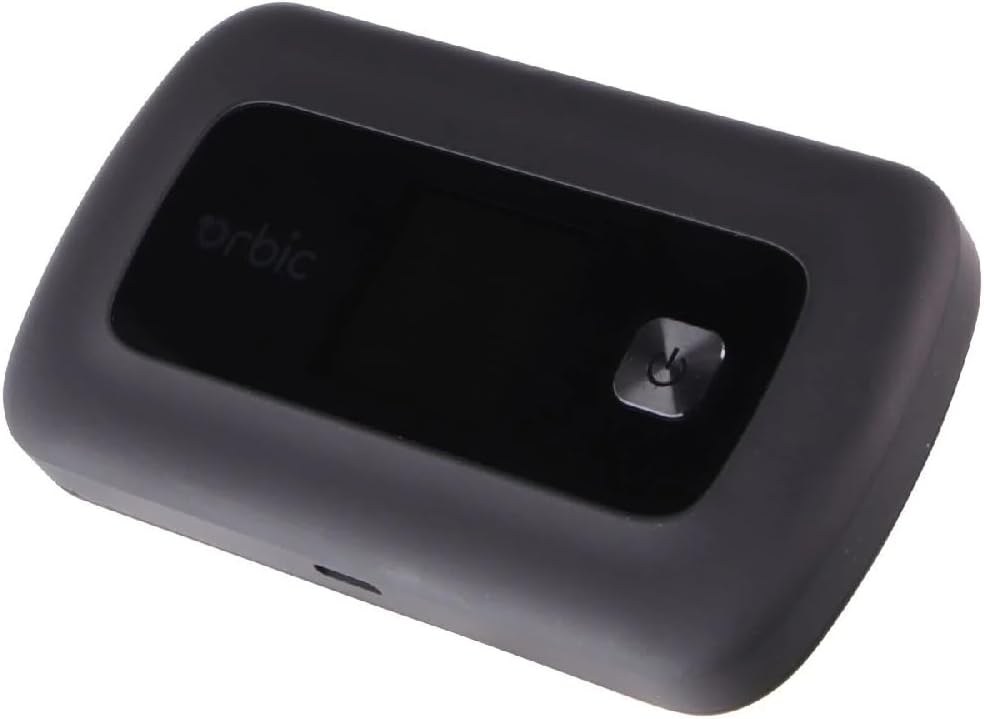
Figure 1: Orbic Speed Mobile Hotspot. This image shows the Orbic Speed Mobile Hotspot. It is a compact, black rectangular device featuring a small display screen and a prominent power button on its top surface. The Orbic logo is visible on the display area. A charging port is visible on the side.
2. Setup
2.1. Package Contents
- Orbic Speed Mobile Hotspot
- USB Charging Cable
- SIM Card (pre-installed or separate)
- Quick Start Guide
2.2. Charging the Device
Before initial use, fully charge the Orbic Speed Mobile Hotspot. Connect the provided USB charging cable to the device's charging port and plug the other end into a compatible USB power adapter or computer USB port. The device's indicator lights or screen will show charging status.
2.3. SIM Card Installation (if not pre-installed)
- Ensure the device is powered off.
- Locate the SIM card slot, typically under the battery cover or on the side.
- Insert the provided SIM card into the slot, ensuring correct orientation as indicated by a diagram near the slot.
- Secure the battery cover if removed.
2.4. Powering On/Off
- To Power On: Press and hold the Power button until the screen illuminates or indicator lights activate.
- To Power Off: Press and hold the Power button until the device prompts you to power off, then confirm, or until the screen goes blank.
3. Operating Instructions
3.1. Connecting Devices to the Hotspot
The Orbic Speed Mobile Hotspot allows up to 10 Wi-Fi enabled devices to connect simultaneously.
- Ensure the Orbic Speed Hotspot is powered on.
- On your Wi-Fi enabled device (laptop, tablet, smartphone), open the Wi-Fi settings.
- Scan for available Wi-Fi networks. The hotspot's network name (SSID) will typically be displayed on its screen or on a label inside the battery compartment.
- Select the hotspot's SSID from the list.
- Enter the Wi-Fi password (security key) when prompted. This is also usually displayed on the hotspot's screen or label.
- Your device should now be connected to the internet via the hotspot.
3.2. Managing Hotspot Settings
Advanced settings can typically be managed via a web interface. Connect a device to the hotspot's Wi-Fi network, then open a web browser and navigate to the hotspot's administration IP address (e.g., 192.168.1.1 or 192.168.0.1). Login credentials are usually found on the device or in the quick start guide.
- Change Wi-Fi Name (SSID) and Password: For security, it is recommended to change the default Wi-Fi name and password.
- View Connected Devices: Monitor which devices are currently connected to your hotspot.
- Data Usage Monitoring: Track your data consumption.
- Network Mode Selection: Choose between 4G LTE or other available network modes.
3.3. LED Indicators
The device may feature LED indicators to provide quick status updates:
- Power LED: Indicates power status (on/off, charging).
- Network/Signal LED: Shows network connectivity and signal strength (e.g., green for strong signal, red for no signal).
- Wi-Fi LED: Indicates Wi-Fi functionality (on/off, data activity).
4. Maintenance
4.1. Battery Care
- Avoid exposing the battery to extreme temperatures.
- Do not fully discharge the battery regularly; charge it before it runs out completely.
- Use only the original or certified compatible charging accessories.
4.2. Cleaning
Wipe the device with a soft, dry cloth. Do not use liquid cleaners or abrasive materials.
4.3. Software Updates
Periodically check for software updates through the device's web administration interface. Updates can improve performance, add features, and enhance security.
5. Troubleshooting
| Problem | Possible Cause | Solution |
|---|---|---|
| No Internet Connection | No SIM card, invalid SIM, no network signal, data plan expired. | Check SIM card installation. Verify network signal strength. Contact your service provider to check data plan status. Restart the hotspot. |
| Slow Connection Speed | Weak signal, too many connected devices, network congestion. | Move to an area with better signal. Disconnect unused devices. Try restarting the hotspot. |
| Device Not Powering On | Low battery, faulty charger/cable. | Charge the device for at least 30 minutes. Try a different charging cable and adapter. |
| Cannot Connect to Wi-Fi | Incorrect password, Wi-Fi disabled on hotspot, device too far. | Verify Wi-Fi password. Ensure Wi-Fi is enabled on the hotspot. Move closer to the hotspot. |
6. Specifications
| Model Name | Orbic Speed |
| Model Number | ORB400LBVZRT |
| Dimensions (L x W x H) | 4.41 x 0.69 x 2.56 inches |
| Weight | 7.4 ounces |
| Connectivity Technology | 4G LTE, Wi-Fi |
| Wireless Standards | 802.11ac, 802.11b, 802.11g, 802.11n |
| Frequency Band | Dual-Band |
| Max Connected Devices | Up to 10 |
| Usage Time | Up to 12 hours |
| Stand-by Time | Up to 5 days |
| Compatible Devices | Laptop, Tablet |
| Operating System | Linux |
| Security Protocol | WPS |
7. Warranty and Support
For detailed warranty information and technical support, please refer to the documentation included with your product or visit the official Orbic website. Warranty terms and conditions may vary by region and retailer.
Orbic Official Website: https://www.orbic.us/


