
Introduction
The iClever BK04 Bluetooth Keyboard is a versatile and portable wireless keyboard designed for seamless compatibility across various operating systems. Featuring a slim profile, multi-device connectivity, and a vibrant 7-color backlight, it enhances productivity and typing comfort for users on the go. This manual provides detailed instructions for setting up, operating, maintaining, and troubleshooting your iClever BK04 keyboard.
Package Contents
- iClever BK04 Bluetooth Keyboard
- USB-C Charging Cable
- User Manual
- Warranty Card
Product Overview

The iClever BK04 Bluetooth Keyboard, showcasing its ultra-slim design and customizable 7-color backlighting options.
The iClever BK04 is engineered for portability and efficiency. It features a full QWERTY layout with dedicated function keys and multimedia controls. The keyboard's compact dimensions and lightweight design make it an ideal companion for tablets, smartphones, and laptops.
Detailed dimensions of the iClever BK04 keyboard, highlighting its ultra-slim and portable form factor.
Key Features:
- 7-Color Backlight: Offers 7 elegant LED backlight colors with 2 brightness levels and an auto-sleep feature to conserve power.
- Broad Compatibility: Works with iOS, Android, Mac OS, and Windows operating systems, including iPads, iPhones, Android tablets, Windows PCs, and MacBooks.
- Multi-Device Connection: Supports connection to up to three Bluetooth-enabled devices simultaneously, allowing for quick switching between them.
- Long Battery Life: Equipped with a rechargeable lithium battery that provides up to 8 months of use (based on 2 hours/day with backlight off) on a single charge.
- Ultra-Thin and Light: Compact size (9.7 x 5.9 x 0.24 inches) and light weight (0.37 lbs / 10.6 ounces) for easy portability.
- Whisper Quiet Scissor Switch Keys: Designed for comfortable and quiet typing with a durable lifespan of 3,000,000 keystrokes.
Setup Guide
1. Charging the Keyboard

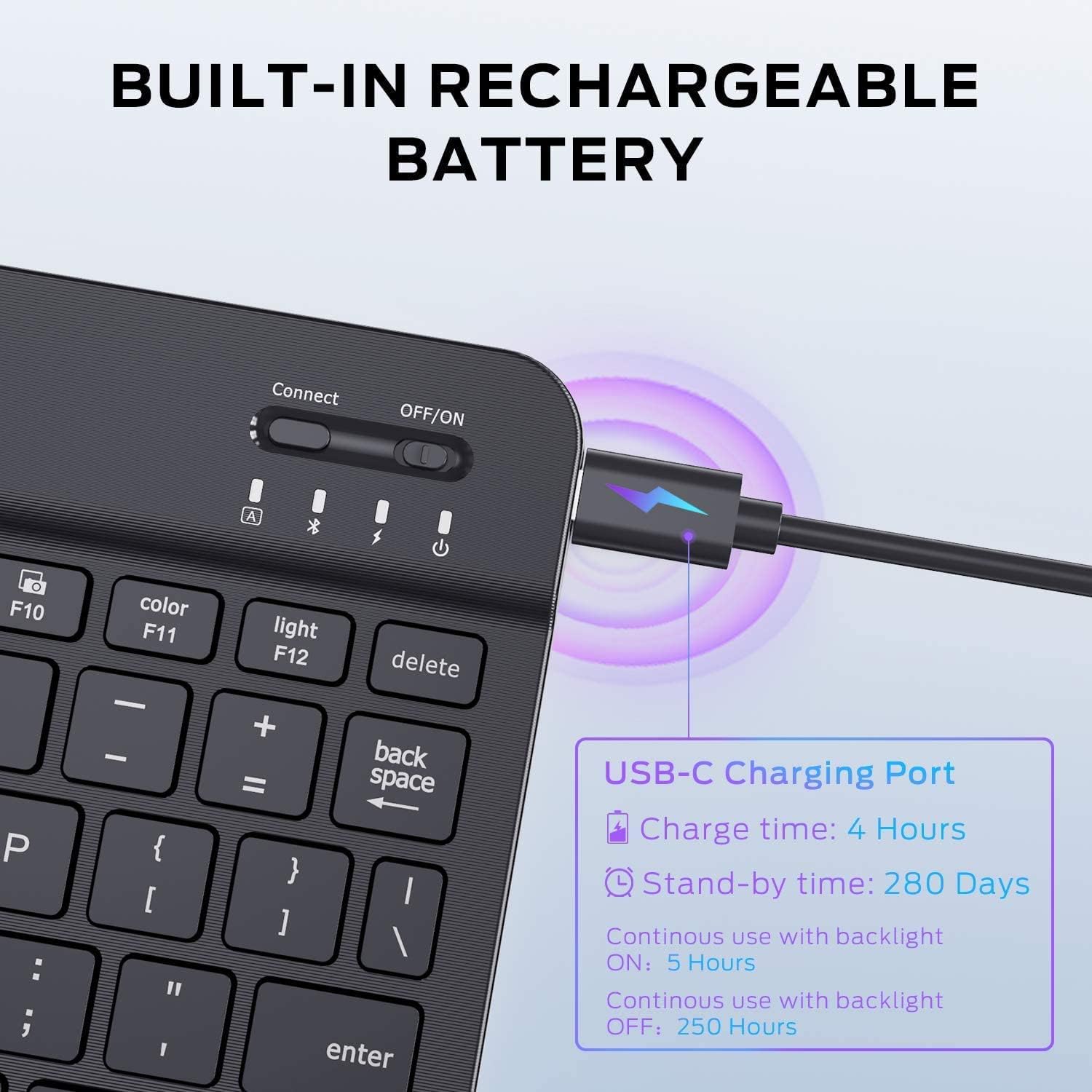
The USB-C charging port and battery life indicators on the iClever BK04 keyboard.
Before first use, fully charge the keyboard. Connect the provided USB-C charging cable to the keyboard's charging port and the other end to a USB power source (e.g., computer, wall adapter). The charging indicator light will show the charging status. A full charge typically takes about 4 hours.
2. Powering On/Off
Locate the ON/OFF switch on the top right side of the keyboard. Slide the switch to the 'ON' position to power on the keyboard. Slide it to 'OFF' when not in use to conserve battery.
3. Bluetooth Pairing

The iClever BK04 keyboard demonstrating compatibility with Windows, iOS/Mac, and Android devices.

Diagram illustrating the multi-device connection capability of the iClever BK04 keyboard, allowing connection to a phone, tablet, and laptop.
- Turn on the keyboard.
- Press the Connect button on the top right of the keyboard. The Bluetooth indicator light will start blinking, indicating it's in pairing mode.
- On your device (smartphone, tablet, computer), enable Bluetooth and search for available devices.
- Select "iClever BK04" from the list of found devices.
- Follow any on-screen prompts to complete the pairing process. The Bluetooth indicator will stop blinking once successfully paired.
4. Switching Between Devices
The iClever BK04 supports connecting to up to three devices. To switch between paired devices, press the Fn + Q (for Device 1), Fn + W (for Device 2), or Fn + E (for Device 3) keys. Ensure the desired device's Bluetooth is active and within range.
Operating Instructions
Backlight Control

Instructions for changing backlight colors and adjusting brightness on the iClever BK04 keyboard.
- To change backlight color: Press Fn + F11 (Color). Cycle through 7 different colors.
- To adjust backlight brightness: Press Fn + F12 (Light). Toggle between 2 brightness levels or turn the backlight off.
Function Keys
The top row of keys serves as both standard function keys (F1-F12) and multimedia/shortcut keys. To use the multimedia/shortcut functions, press the Fn key simultaneously with the desired function key. For example, Fn + F7 for play/pause.
Operating System Layouts
The keyboard automatically adapts to the connected operating system (iOS, Android, Mac OS, Windows). Some keys may have dual labels (e.g., Alt/Cmd). The keyboard will interpret these correctly based on the paired device.
Maintenance
- Cleaning: Use a soft, dry cloth to wipe the keyboard. For stubborn dirt, slightly dampen the cloth with water or a mild cleaning solution. Avoid excessive moisture.
- Battery Care: To prolong battery life, avoid fully discharging the keyboard frequently. Charge it regularly, even if not completely depleted. Store in a cool, dry place when not in use for extended periods.
- Storage: When transporting, ensure the keyboard is powered off to prevent accidental key presses and battery drain.
Troubleshooting
Keyboard Not Connecting/Pairing:
- Ensure the keyboard is powered on and fully charged.
- Make sure Bluetooth is enabled on your device.
- Press the Connect button on the keyboard to enter pairing mode.
- If previously paired, try unpairing/forgetting the keyboard on your device and then re-pairing.
- Ensure the keyboard is within the effective Bluetooth range (typically 10 meters/33 feet).
- Restart both the keyboard and your device.
Backlight Not Working:
- Check if the keyboard battery is low. Charge the keyboard.
- Press Fn + F12 (Light) to cycle through brightness levels and ensure it's not turned off.
Keys Not Responding:
- Ensure the keyboard is properly connected to your device.
- Check battery level.
- Restart the keyboard and device.
Specifications
| Model | BK04 |
| Connectivity Technology | Bluetooth 5.1 |
| Dimensions | 9.7 x 5.9 x 0.24 inches (24.6 x 15 x 0.6 cm) |
| Item Weight | 0.37 lbs (10.6 ounces / 168g) |
| Battery Life | Up to 8 months (2 hours/day, backlight off) |
| Charging Port | USB-C |
| Backlight Colors | 7 Unique Colors |
| Brightness Levels | 2 |
| Key Type | Scissor Switch |
| Keystroke Lifespan | 3,000,000 keystrokes |
| Compatible OS | iOS, Android, Mac OS, Windows |
Warranty and Support
The iClever BK04 Bluetooth Keyboard comes with a 12-month warranty from the date of purchase. For technical support, warranty claims, or any inquiries, please contact iClever customer service. Refer to the warranty card included in your package for specific contact details or visit the official iClever website.
iClever is dedicated to providing 24-hour customer service to ensure your satisfaction.


