
Maxcom FW37 Argon
Maxcom Smartwatch FW37 Argon User Manual
Model: FW37 Argon | Brand: Maxcom
Introduction
The Maxcom Smartwatch FW37 Argon is a robustly designed smartwatch featuring a large dial, engineered to monitor your sports activities and health metrics. It provides detailed information accessible directly from the device, including advanced sports equipment like GPS, AGPS, compass, and barometer. This package includes three interchangeable straps in black, green, and blue, with the watch itself in black.
Key features include sleep monitoring, calorie counter, pedometer, distance tracking, blood oxygen saturation, heart rate monitoring, sedentary reminders, and water resistance (IP67). It also offers 11 sports modes, call and message notifications, and a customizable display with various watch faces. The device is compatible with iPhone Health app.

Image: The Maxcom Smartwatch FW37 Argon, showcasing its main display and robust design.
Package Contents
- Maxcom Smartwatch FW37 Argon (Black)
- Black Strap
- Green Strap
- Blue Strap
- Charging Cable
- User Manual

Image: The Maxcom Smartwatch FW37 Argon shown with its three included straps: black, green, and blue.
Setup
1. Charging the Device
Before first use, fully charge your smartwatch. Connect the charging cable to the charging port on the back of the watch and plug the other end into a USB power adapter (not included) or a computer's USB port.
- A full charge typically takes approximately 2 hours.
- The battery life is up to 7 days with normal use and 10 hours with continuous GPS usage.
2. Powering On/Off
To power on, press and hold the side button until the screen lights up. To power off, navigate to the settings menu on the watch, select 'Power Off', and confirm.
3. Installing the App
Download the companion app from your smartphone's app store (e.g., Google Play Store for Android or Apple App Store for iOS). Search for "Maxcom Smartwatch" or refer to the QR code in the quick start guide (if provided).
4. Pairing with Your Smartphone
- Ensure Bluetooth is enabled on your smartphone.
- Open the Maxcom Smartwatch app.
- Follow the in-app instructions to search for and connect to your FW37 Argon smartwatch.
- Confirm the pairing request on both your watch and smartphone.

Image: The Maxcom Smartwatch FW37 Argon displaying its settings menu, which includes options for connectivity and power.
Operating Instructions
Navigation
- Touch Screen: Swipe left/right, up/down to navigate through menus and screens. Tap to select.
- Side Button: Press to return to the home screen or wake the device.
Key Features and Functions
The FW37 Argon offers a wide range of functions to support your health and fitness goals:
- GPS & AGPS: For rapid positioning and accurate tracking during outdoor activities.
- Heart Rate Monitor: Continuously tracks your heart rate.
- Blood Oxygen Saturation (SpO2): Measures the oxygen level in your blood.
- Pedometer & Calorie Counter: Tracks steps taken and calories burned.
- Sleep Monitor: Analyzes your sleep patterns.
- Barometer & Compass: Provides environmental data and navigation assistance.
- Sports Modes: 11 dedicated sports modes for various activities.
- Notifications: Receive alerts for calls, messages, and social media directly on your watch.
- Remote Camera Control: Control your smartphone's camera from your watch.
- Music Player Control: Manage music playback on your smartphone.
- Alarms, Stopwatch, Timer, Calculator: Utility functions for daily use.

Image: An illustration showing the various features of the Maxcom Smartwatch FW37 Argon, including GPS, water resistance, compass, barometer, heart rate monitor, SpO2, blood pressure, sedentary reminder, sport tracking, pedometer, calorie counter, sleep monitor, call/message notifications, and social media alerts.

Image: Four different display screens of the Maxcom Smartwatch FW37 Argon, showcasing various watch faces and data displays such as step count, heart rate, atmospheric pressure, distance, and activity tracking.
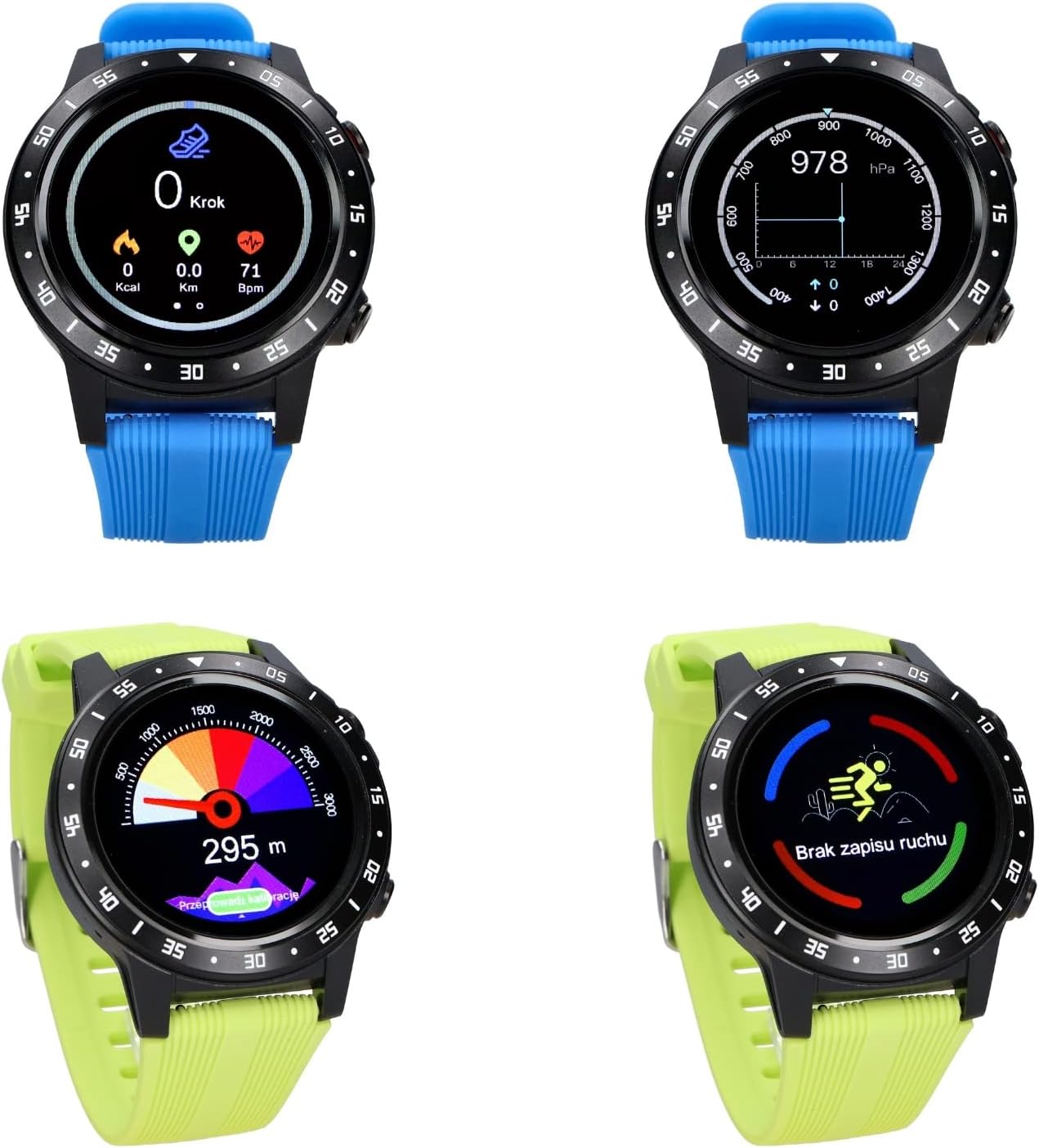
Image: The Maxcom Smartwatch FW37 Argon being used on a wrist, demonstrating its practical application during activities.
Maintenance
Cleaning Your Smartwatch
Regularly clean your smartwatch and straps to prevent skin irritation and maintain device functionality.
- Wipe the screen and body with a soft, lint-free cloth. If necessary, slightly dampen the cloth with water.
- For silicone straps, wash with mild soap and water, then rinse thoroughly and dry completely before reattaching to the watch.
- Avoid using harsh chemicals, abrasive cleaners, or solvents.
Water Resistance (IP67)
The FW37 Argon is IP67 water-resistant, meaning it is protected from dust and can withstand immersion in water up to 1 meter for up to 30 minutes. It is suitable for daily use, such as hand washing or rain exposure. It is not recommended for swimming, diving, or high-pressure water activities.
Storage
When not in use for extended periods, store the smartwatch in a cool, dry place away from direct sunlight and extreme temperatures. Ensure the battery is partially charged (around 50%) before storage to prolong battery life.
Troubleshooting
| Problem | Possible Cause | Solution |
|---|---|---|
| Watch does not turn on. | Low battery. | Charge the watch for at least 30 minutes. |
| Cannot pair with smartphone. | Bluetooth off; app issue; watch not discoverable. | Ensure Bluetooth is on. Restart both watch and phone. Reinstall the app. |
| Inaccurate heart rate/SpO2 readings. | Watch too loose/tight; sensor dirty; movement during measurement. | Ensure watch is snug but comfortable. Clean the sensor. Remain still during measurement. |
| GPS not connecting quickly. | Poor satellite signal; first-time use. | Move to an open outdoor area. AGPS data may need to update via the app. |
| Notifications not appearing. | App permissions; Bluetooth disconnected; notification settings. | Check app notification permissions on your phone. Ensure watch is connected. Verify notification settings within the Maxcom app. |
Specifications
| Feature | Detail |
|---|---|
| Model Name | FW37 Argon |
| Model Number | 3T40046 |
| Brand | Maxcom |
| Display | 1.3" IPS Color Touch Screen |
| Operating System | Sailfish OS |
| Connectivity | GPS, Bluetooth |
| Sensors | GPS, AGPS, Compass, Barometer, Heart Rate Monitor, SpO2 Sensor, Pedometer |
| Water Resistance | IP67 |
| Battery Type | Lithium-ion |
| Battery Life | Up to 7 days (normal use), 10 hours (continuous GPS) |
| Compatible Devices | Smartphones (iOS, Android) |
| Color | Black (watch body), Black/Green/Blue (straps) |
Warranty and Support
Maxcom products are designed for reliability and performance. For warranty information and technical support, please refer to the official Maxcom website or contact their customer service.
- Warranty: Please refer to your purchase receipt or the official Maxcom website for specific warranty terms and duration.
- Customer Support: For technical assistance, troubleshooting, or service inquiries, visit the Maxcom support page or contact their customer service hotline. Contact details can typically be found on the manufacturer's official website.
Keep your proof of purchase for warranty claims.
Related documentsFW37 Argon


Ask a question about this manual
Ask about setup, troubleshooting, compatibility, parts, safety, or missing instructions. Manuals+ will review the question and use this page’s manual context to help answer it.