
1. Introduction
The ANCEL AD410 is an advanced OBD II vehicle code reader designed to diagnose engine issues and provide comprehensive vehicle information. This device is an enhanced upgrade from more basic diagnostic scan tools, featuring a user-friendly interface and wide compatibility. This package also includes a durable EVA protective case for convenient storage and transport of your diagnostic tool.

Image: The ANCEL AD410 OBD2 scanner shown alongside its protective EVA storage case.
2. Product Features
- Enhanced Display and User Interface: The AD410 features a 2.4-inch TFT true color (262K) LCD display, providing clear and easy-to-read test results. Its intuitive UI design allows users, even beginners, to easily navigate through Setup, OBDII Diagnostics, I/M readiness, DTC Look-up, and Review functions.
- Wide Vehicle Compatibility: This code reader is compatible with most vehicles sold in the U.S. with a model year of 1996 or newer. It supports all standard OBDII protocols, including KWP2000, ISO9141, J1850 VPW, J1850 PWM, and CAN (Controller Area Network).
- Multi-Language Support: The device supports multiple display languages, including English, German, French, Spanish, Finnish, Dutch, Russian, and Portuguese, catering to a diverse user base.
- No External Power Required: The ANCEL AD410 operates without the need for batteries or an external charger, as it is powered directly from the vehicle's OBDII Data Link Connector (DLC).
- Protective Storage Case: The included ANCEL EVA bag is specifically designed to keep the scanner and its accessories safe, secure, and organized in one place, protecting them from bumps and scratches.

Image: The ANCEL AD410 scanner displaying its main menu with options for OBDII, I/M, Setup, Lookup, Review, and About.
3. Setup Guide
Follow these steps to set up and begin using your ANCEL AD410 scanner:
- Locate the Vehicle's OBDII Port: The 16-pin Data Link Connector (DLC) is typically located under the dashboard on the driver's side of the vehicle. Refer to your vehicle's owner's manual if you cannot locate it.
- Connect the Scanner: Plug the ANCEL AD410's OBDII connector cable firmly into the vehicle's DLC.
- Power On: Once connected, the scanner will automatically power on, drawing power directly from the vehicle's battery. The display will light up, and the main menu will appear.
- Select Language (if necessary): If this is your first time using the device or if you wish to change the language, navigate to the 'Setup' menu using the arrow keys and press 'ENTER'. Select 'Language' and choose your preferred language from the list.
4. Operating Instructions
4.1. Main Menu Navigation
- Arrow Keys (Up/Down/Left/Right): Use these to scroll through menu options and adjust settings.
- ENTER Button: Confirms a selection or enters a sub-menu.
- EXIT Button: Returns to the previous menu or exits the current function.
- I/M Button: Provides quick access to the I/M Readiness function.
4.2. Key Diagnostic Functions
From the main menu, select 'OBDII' to access the primary diagnostic functions:
- Read Codes: Displays Diagnostic Trouble Codes (DTCs) that are currently stored in the vehicle's computer. These codes indicate specific issues detected by the vehicle's onboard diagnostic system.
- Erase Codes: Clears all current and pending DTCs from the vehicle's computer. This also turns off the Check Engine Light (MIL). Note: Erasing codes does not fix the underlying problem. The issue must be resolved first, or the codes will reappear.
- Live Data: Displays real-time data streams from the vehicle's sensors, such as engine RPM, vehicle speed, oxygen sensor readings, and coolant temperature. This data can help identify performance issues.
- Freeze Frame: Captures a snapshot of the vehicle's operating conditions at the moment a DTC was set. This data can be crucial for diagnosing intermittent problems.
- I/M Readiness: Checks the status of the vehicle's emission-related monitoring systems to determine if they are ready for an emissions test. This function is accessible directly via the 'I/M' button.
- O2 Sensor Test: Retrieves oxygen sensor monitor test results for the most recently completed tests from the vehicle's onboard computer.
- On-Board Monitor Test: Retrieves test results for emission-related powertrain components and systems that are not continuously monitored.
- EVAP System Test: Initiates a leak test for the vehicle's Evaporative Emission Control System.
- Vehicle Information (VIN): Retrieves the Vehicle Identification Number (VIN), Calibration ID (CALID), and Calibration Verification Number (CVN) of the vehicle.

Image: A visual representation of the comprehensive OBD-II/EOBD engine diagnosis functions available on the ANCEL AD410 scanner.
4.3. DTC Lookup
The 'DTC Lookup' function allows you to search for definitions of Diagnostic Trouble Codes directly on the device, eliminating the need to search online.
- Access DTC Lookup: From the main menu, select 'Lookup' and press 'ENTER'.
- Enter Code: Use the arrow keys to input the specific DTC you wish to look up.
- View Definition: The scanner will display the definition of the entered code.

Image: The ANCEL AD410 screen showing the DTC Lookup interface, prompting the user to input a code.
5. Maintenance
- Cleaning: Use a soft, damp cloth to clean the exterior of the scanner. Avoid using abrasive cleaners or solvents.
- Storage: Always store the ANCEL AD410 in its provided EVA protective case when not in use. This protects the device from dust, moisture, and physical damage. Store in a dry, cool environment away from direct sunlight.
- Software Updates: Periodically check the ANCEL official website for available software updates. Keeping the scanner's software up-to-date ensures optimal performance and compatibility with newer vehicle models and diagnostic protocols.
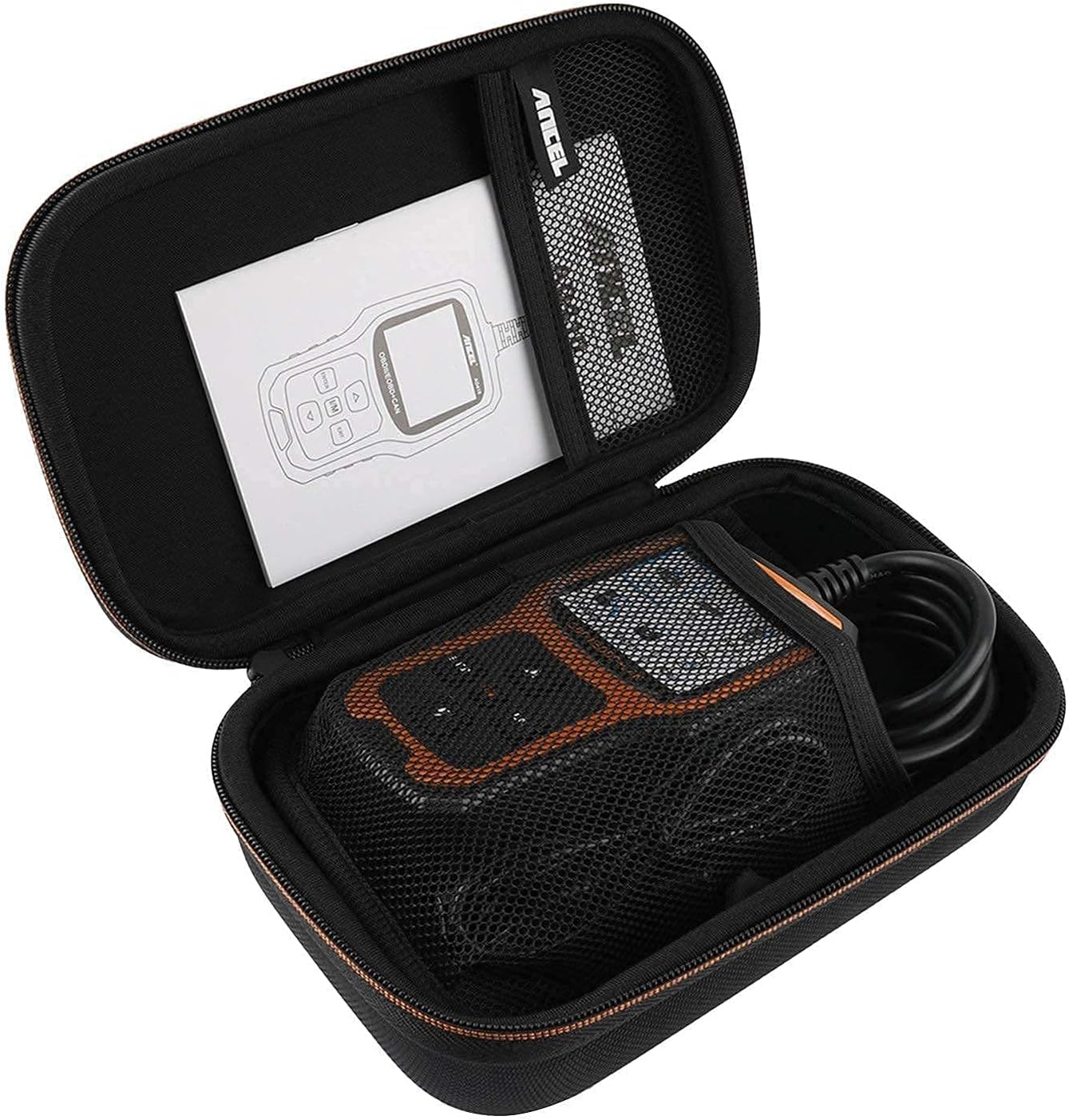
Image: The ANCEL AD410 scanner and its cable stored securely inside the protective EVA case.
6. Troubleshooting
If you encounter issues while using your ANCEL AD410, refer to the following common problems and solutions:
| Problem | Possible Cause | Solution |
|---|---|---|
| Scanner does not power on. | Loose connection to DLC; Vehicle battery low or dead; Faulty DLC. | Ensure the OBDII cable is securely connected. Check vehicle battery voltage. Test the DLC with another known good device if possible. |
| "No Communication" error. | Incorrect protocol selected (unlikely for auto-detect); Vehicle ignition not ON; Faulty DLC or vehicle ECU. | Ensure vehicle ignition is in the ON position (engine off or running). Verify the DLC connection. Try on another compatible vehicle if available. |
| Screen is blank or frozen. | Software glitch; Power interruption. | Disconnect the scanner from the vehicle, wait a few seconds, and reconnect. If the issue persists, check for software updates. |
| Codes cannot be cleared. | Underlying fault still present; Vehicle ignition not ON. | Ensure the vehicle's ignition is ON. The underlying issue causing the code must be repaired before the code can be permanently cleared. |
7. Specifications
| Feature | Detail |
|---|---|
| Display | 2.4-inch TFT true color (262K) LCD |
| Operating Voltage | 8.0 to 18.0 V (via vehicle battery) |
| Supported Protocols | KWP2000, ISO9141, J1850 VPW, J1850 PWM, CAN |
| Operating Temperature | 0 to 60°C (32 to 140°F) |
| Storage Temperature | -20 to 70°C (-4 to 158°F) |
| Dimensions | Not specified, compact handheld design |
| Weight | Not specified, lightweight |
8. Warranty and Support
For information regarding product warranty, technical support, or service, please refer to the official ANCEL website or contact ANCEL customer service directly. Details on warranty periods and support channels are typically provided with your purchase documentation or on the manufacturer's website.
No official product videos were found for this item from the seller.


