
1. Introduction
This manual provides instructions for the proper use and maintenance of your Dasqua 4410-1125 IP65 Digital Outside Micrometer. This precision instrument is designed for accurate external measurements within a range of 100-125mm (4-5 inches), featuring IP65 protection against dust and water, and a clear digital display. Adhering to these instructions will ensure optimal performance and longevity of your micrometer.
2. Safety Information
Please read and understand all safety precautions before operating the micrometer to prevent damage to the instrument or injury to the user.
- Handle with Care: This is a precision instrument. Avoid dropping or subjecting it to impact, which can affect its accuracy.
- Keep Clean: Ensure measuring surfaces are free from dust, dirt, and oil before and during use. Contaminants can lead to inaccurate readings.
- Avoid Harsh Environments: While IP65 rated for dust and water resistance, avoid prolonged exposure to extreme temperatures, high humidity, or corrosive substances.
- Proper Storage: Always store the micrometer in its protective case when not in use.
- No Unauthorized Modifications: Do not attempt to disassemble or modify the micrometer. Repairs should only be performed by qualified personnel.
3. Product Overview
The Dasqua 4410-1125 is a robust and accurate digital outside micrometer. Familiarize yourself with its key components:
- Frame: The main body of the micrometer, providing structural integrity.
- Anvil: The stationary measuring face, carbide-tipped for durability.
- Spindle: The movable measuring face, carbide-tipped, hardened, and ground for precision.
- Thimble: Rotated to move the spindle. Features a precision ratchet stop for consistent measuring force.
- Digital Display: Large, easy-to-read LCD for direct measurement readings.
- Control Buttons: ON/OFF, ABS, in/mm, and ZERO buttons for operation.
- Locking Clamp: Used to secure the spindle position, preventing movement during reading or transfer.
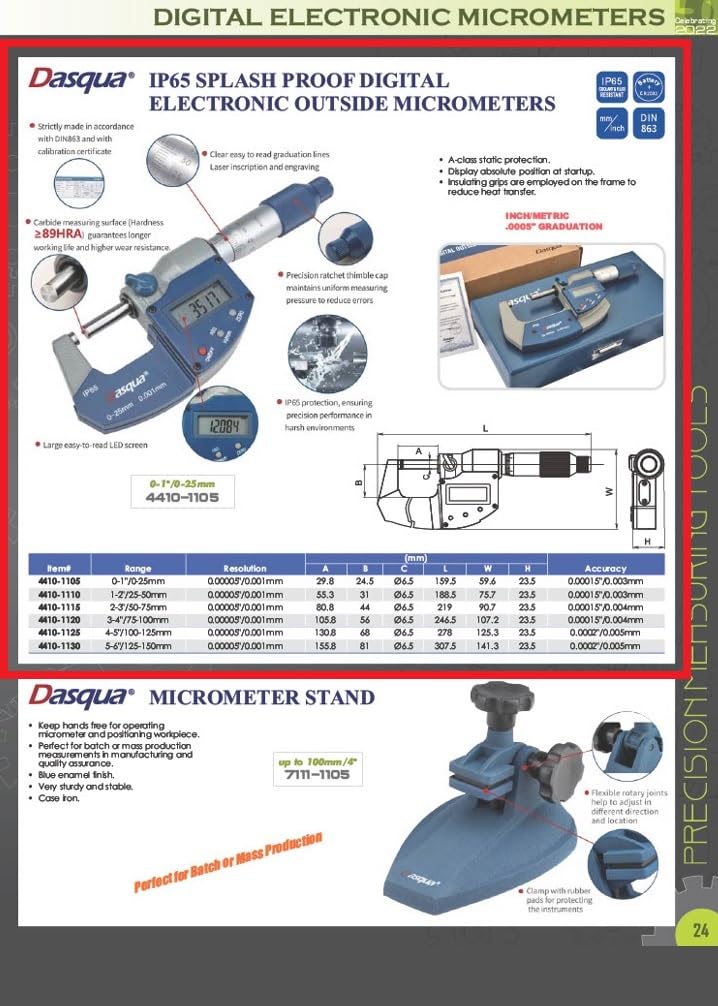
Figure 1: Dasqua 4410-1125 Digital Outside Micrometer with protective case.

Figure 2: Digital display and control buttons (ON/OFF, ABS, in/mm, ZERO).

Figure 3: Thimble with ratchet stop and spindle.

Figure 4: Carbide-tipped anvil.
4. Setup
4.1 Unpacking
Carefully remove the micrometer from its packaging. Inspect the instrument for any visible damage that may have occurred during shipping. Retain the original packaging for future storage or transport.
4.2 Battery Installation
This digital micrometer requires a battery for its display. Typically, these units use a SR44 or CR2032 type battery (battery not included). To install or replace the battery:
- Locate the battery compartment cover, usually on the side of the digital display unit.
- Use a small screwdriver or coin to gently open or slide off the cover.
- Insert the new battery with the positive (+) side facing up, ensuring correct polarity.
- Replace the cover securely.
4.3 Initial Cleaning
Before first use, gently wipe all measuring surfaces (anvil and spindle) with a clean, lint-free cloth. Avoid using harsh solvents or abrasive materials that could damage the surfaces or electronic components.
5. Operating Instructions
5.1 Power On/Off
Press the ON/OFF button to turn the micrometer on or off. The display will illuminate when powered on.
5.2 Zero Setting
Accurate measurements depend on proper zero setting. Perform this step before each series of measurements or if the micrometer has been subjected to temperature changes.
- Ensure the measuring faces of the anvil and spindle are perfectly clean.
- Gently close the measuring faces by rotating the thimble using the ratchet stop until it clicks 2-3 times. This applies consistent measuring force.
- Press the ZERO button. The display should now show "0.000" (or "0.0000" if in inch mode).
5.3 Unit Conversion (in/mm)
Press the in/mm button to switch between metric (millimeters) and imperial (inches) units. The selected unit will be indicated on the display.
5.4 ABS/INC Measurement
The ABS button allows switching between Absolute and Incremental measurement modes.
- Absolute (ABS) Mode: This is the default mode where measurements are taken from the true zero point established during zero setting.
- Incremental (INC) Mode: Pressing the ABS button will toggle to INC mode, allowing you to set a temporary zero point at any position. This is useful for comparative measurements. An "INC" indicator may appear on the display. Press ABS again to return to Absolute mode.
5.5 Taking a Measurement
- Open the micrometer jaws wider than the object to be measured.
- Carefully place the object between the anvil and spindle.
- Rotate the thimble using the ratchet stop until the spindle gently contacts the object and the ratchet clicks 2-3 times. This ensures consistent and repeatable measuring force, preventing overtightening.
- Read the measurement directly from the digital display.
- If needed, use the locking clamp to secure the spindle position before removing the object, especially for transferring readings.
6. Maintenance
Proper maintenance is crucial for preserving the accuracy and lifespan of your micrometer.
- Cleaning: After each use, wipe the micrometer, especially the measuring faces, with a clean, dry, lint-free cloth. For stubborn dirt or light oil, use a cloth lightly dampened with isopropyl alcohol. Ensure no liquid enters the electronic components.
- Storage: Always store the micrometer in its protective case when not in use. Keep it in a dry, temperature-stable environment, away from direct sunlight, dust, and corrosive vapors. Slightly open the measuring faces before storage to prevent pressure on the spindle.
- Calibration: For critical applications or after prolonged use, regular calibration by a qualified technician is recommended to maintain certified accuracy.
- Battery Replacement: Replace the battery promptly when the display becomes dim, erratic, or stops functioning. Dispose of used batteries according to local regulations.
7. Troubleshooting
Refer to the table below for common issues and their solutions.
| Problem | Possible Cause | Solution |
|---|---|---|
| Display does not turn on | Dead or improperly installed battery | Replace battery, ensuring correct polarity |
| Display shows erratic or unstable readings | Low battery; Dirt on measuring faces; Electronic interference | Replace battery; Clean measuring faces thoroughly; Move micrometer away from strong electromagnetic fields |
| Cannot zero the micrometer | Dirt or debris on measuring faces; Mechanical issue | Clean measuring faces thoroughly; Check for any physical obstruction or damage |
| Inaccurate measurements | Improper zeroing; Worn measuring faces; Lack of calibration; Incorrect measuring technique | Re-zero carefully; Inspect measuring faces for wear; Consider professional calibration; Review operating instructions for proper technique |
8. Specifications
Technical specifications for the Dasqua 4410-1125 Digital Outside Micrometer:
| Feature | Detail |
|---|---|
| Model | 4410-1125 |
| Measuring Range | 100-125mm / 4-5 inches |
| Resolution | 0.001mm / 0.00005 inches |
| Accuracy | 0.003mm / 0.00015 inches |
| Protection Rating | IP65 (Dust and water resistant) |
| Standard Compliance | DIN863 |
| Anvils | Carbide-tipped |
| Spindle | Hardened and ground |
| Display | Large Digital LCD |
| Electrostatic Discharge | Class A |
| Item Weight | Approx. 1.81 kg (4 lbs) |
| Product Dimensions | Approx. 33.02 x 20.32 x 5.08 cm (13 x 8 x 2 inches) |
| Included Components | Digital Outside Micrometer, Protective Case |

Figure 5: Technical drawing with key dimensions for model 4410-1125.
9. Warranty and Support
For warranty information or technical support regarding your Dasqua 4410-1125 Digital Outside Micrometer, please refer to the documentation provided with your purchase. You may also contact your authorized Dasqua product supplier or the manufacturer directly. Please retain your purchase receipt as proof of purchase for any warranty claims.


