
Introduction
This manual provides detailed instructions for setting up, operating, and maintaining your Brookstone WiFi Camera. This smart home security camera offers features such as live HD video streaming, night vision, motion detection, and two-way audio communication, accessible via a dedicated mobile application.

Image: Front view of the Brookstone WiFi Camera, illustrating its compact design.
Setup
Follow these steps to set up your Brookstone WiFi Camera:
- Unpack the Camera: Carefully remove all components from the packaging. Ensure you have the camera, power adapter, and mounting kit.
- Power On: Connect the camera to a power source using the provided 5V/1A DC power adapter. The camera will power on and indicate its status, usually with an LED light.
- Download the App: Download the "Brookstone Smart App" from the Apple App Store (for iOS 8.0 or higher) or Google Play Store (for Android 8.0 or higher) on your smartphone.
- Register/Log In: Open the Brookstone Smart App and follow the on-screen instructions to create an account or log in if you already have one.
- Add Device: In the app, select the option to add a new device. Choose the Brookstone WiFi Camera from the list of available devices.
- Connect to Wi-Fi: The app will guide you to connect the camera to your existing 2.4GHz Wi-Fi network. You may need to scan a QR code displayed on your phone screen using the camera's lens. Ensure your phone is close to the camera and your Wi-Fi signal is strong.

Image: Rear view of the camera, highlighting the QR code and device ID (e.g., ID: 0008K8LL25ABM1EV) necessary for app pairing.
- Mounting (Optional): Use the provided mounting kit to install the camera on a wall or ceiling if desired. Ensure the camera is securely fastened and positioned for optimal viewing.

Image: Overview of camera features including motion detection, Wi-Fi connectivity, night vision, two-way audio, and cloud/local storage.
Operating Instructions
Once your camera is set up, you can utilize its various functions through the Brookstone Smart App:
- Live Video Streaming: Open the app and select your camera to view a live HD video feed (1280x720 resolution, up to 20 fps) from anywhere.
- Two-Way Audio: Use the built-in microphone and speaker to communicate in real-time. Tap the microphone icon in the app to speak, and listen through the camera's speaker.

Image: The Brookstone Smart App interface demonstrating the two-way audio function, allowing users to speak and listen through the camera.
- Motion Detection Alerts: The camera features a dynamic range motion sensor. Enable motion detection in the app to receive real-time alerts on your smartphone when movement is detected.

Image: A smartphone screen showing a push notification from the Brookstone Smart app, indicating that movement has been detected.
- Night Vision: The camera automatically switches to night vision mode (8-10m range) in low-light conditions, providing clear surveillance 24/7.

Image: A visual comparison demonstrating the camera's night vision capability, showing a nursery room clearly visible in darkness.
- Video Recording and Storage:
- Micro SD Card: Insert a Micro SD card (up to 128GB, not included) into the camera's slot for local video storage. The camera uses H.264 compression for efficient storage.
- Cloud Storage: The camera supports cloud storage services for saving video footage. Refer to the app for subscription details and options.
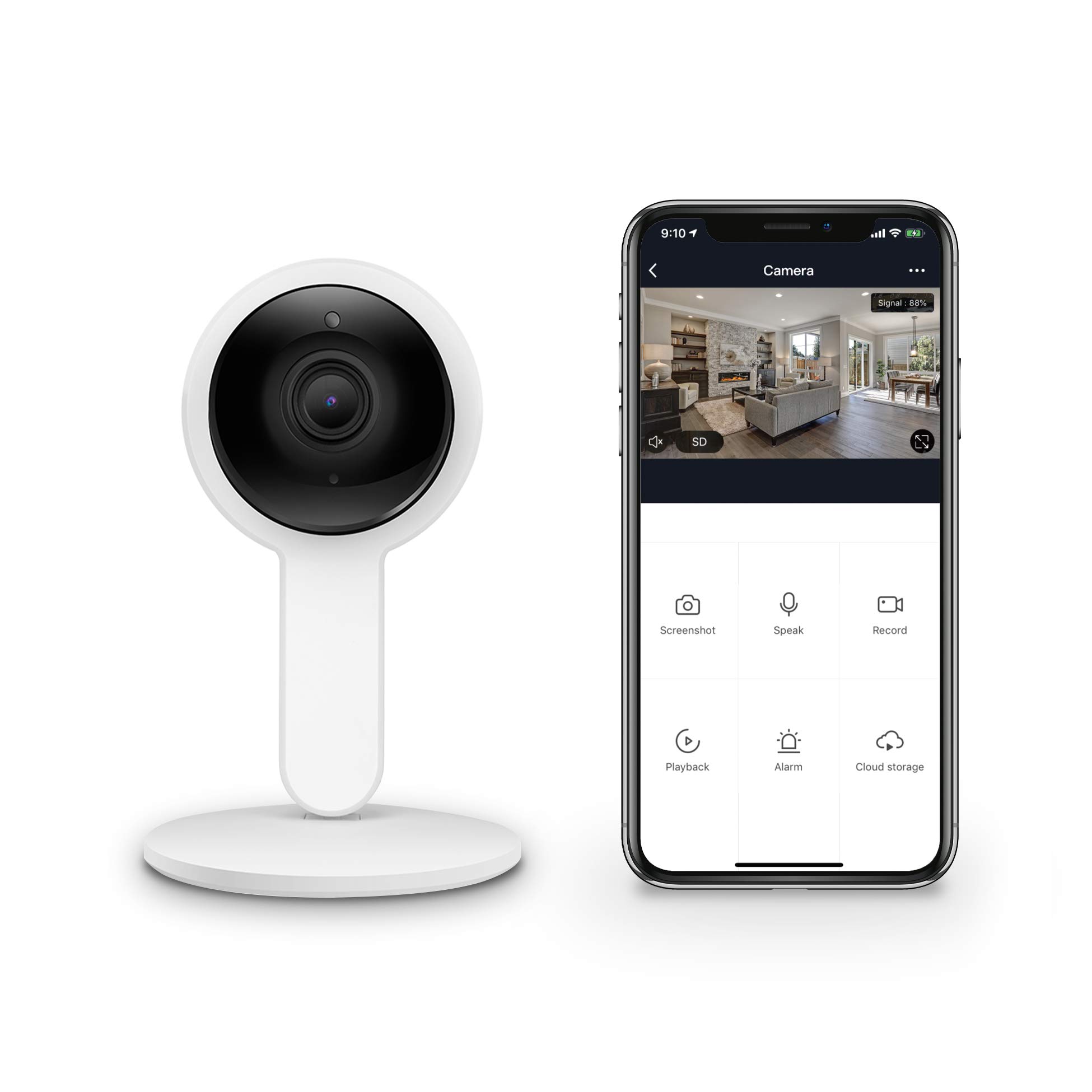
Image: A diagram illustrating the dual storage options for video footage: encrypted cloud storage and local storage via a Micro SD card.
Maintenance
- Cleaning: Use a soft, dry cloth to clean the camera lens and body. Avoid abrasive cleaners or solvents.
- Software Updates: Regularly check the Brookstone Smart App for firmware updates. Keeping your camera's software up-to-date ensures optimal performance and security.
- Micro SD Card Management: If using a Micro SD card, periodically review and manage stored footage. Format the card through the app if necessary to maintain performance.
Troubleshooting
- Camera will not connect to Wi-Fi:
- Ensure your Wi-Fi network is 2.4GHz. The camera does not support 5GHz networks.
- Verify your Wi-Fi password is correct.
- Place the camera closer to your Wi-Fi router during setup.
- Restart your router and the camera, then try the setup process again.
- Check if your phone's operating system meets the minimum requirements (Android 8.0+ or iOS 8.0+).
- QR code scanning fails:
- Ensure the phone screen brightness is high enough.
- Hold the phone at an appropriate distance (typically 15-30 cm or 6-12 inches) from the camera lens.
- Clean the camera lens to ensure no obstructions.
- Ensure there is sufficient lighting for the camera to read the QR code.
- Video quality is poor or delayed:
- Check your internet connection speed. A stable and fast connection is required for optimal streaming.
- Reduce the video quality setting in the app if your network bandwidth is limited.
- Ensure the camera is within good range of your Wi-Fi router.
- Motion detection is too sensitive or not detecting:
- Adjust the motion detection sensitivity settings within the Brookstone Smart App.
- Define specific detection zones to reduce false alarms from irrelevant areas.
Specifications
| Resolution | 1280x720 (720p) |
| Effective Pixels | 1 Megapixel |
| Frame Rate | Up to 20 fps |
| Night Vision Range | 8-10 meters |
| Audio | Built-in Microphone & Speaker (Two-Way Audio) |
| Storage | Micro SD Card (up to 128GB), Cloud Storage |
| Video Compression | H.264 |
| Power | 5V/1A (DC) |
| Connectivity | Wi-Fi (2.4GHz only) |
| Operating System Compatibility | Android 8.0 or higher, iOS 8.0 or higher |
| Indoor/Outdoor Usage | Indoor |
| Mount Type | Ceiling Mount (kit included) |
| Color | White |
Warranty and Support
For warranty information, technical support, or further assistance, please refer to the official Brookstone website or contact their customer service directly. Keep your purchase receipt for warranty claims.
Official Brookstone Website: www.brookstone.com


