
ieGeek ZS-GQ4
ieGeek ZS-GQ4 Security Camera User Manual
Outdoor with Spotlights 5MP Color Night Vision Wired Surveillance Camera
1. Introduction
Thank you for choosing the ieGeek ZS-GQ4 Security Camera. This manual provides detailed instructions for the installation, operation, and maintenance of your new security camera. Please read this manual thoroughly before use to ensure proper functionality and safety. This camera is designed for outdoor surveillance, offering advanced features like 5MP resolution, color night vision, PTZ control, and smart motion detection.
2. Product Features
- 5MP Full HD Resolution: Provides clear and detailed video footage for enhanced monitoring.
- PTZ Functionality: Control 355° Pan and 120° Tilt remotely via the "CloudEdge" APP, with 4x digital zoom.
- Color Night Vision: Equipped with 3 spotlights and 3 infrared lights, offering full-color night vision up to 50 feet.
- IP65 Waterproof: Designed to withstand various weather conditions for reliable outdoor performance.
- Smart Motion Detection: Advanced AI algorithm for humanized recognition, reducing false alarms.
- Sound & Light Alarm: Three alarm modes (siren, floodlights, or both) to deter intruders.
- Two-Way Audio: Built-in microphone and speaker for real-time communication.
- Instant Alerts: Receive real-time notifications on your smartphone via the "CloudEdge" APP.
- Flexible Storage: Supports local storage via Micro SD card (up to 128GB, not included) and cloud storage options.
- 2.4GHz WiFi Connectivity: Stable wireless connection with a 5dBi WiFi antenna.
- Alexa Compatibility: Works with Amazon Alexa for voice control integration.

Image: Overview of the ieGeek ZS-GQ4 camera's key features, including PTZ, 24/7 recording, two-way talk, humanoid auto-tracking, local & cloud storage, Alexa compatibility, multi-user sharing, customizable alert areas, and AI detection with audible & light alarms.

Image: Demonstrates the 5MP FHD quality of the ieGeek ZS-GQ4 camera, highlighting its 110-degree wide angle, 50ft color night vision, and 4x zoom capabilities for precise motion recognition.
3. Package Contents
Please check the package for the following items:
- ieGeek ZS-GQ4 Security Camera Unit
- Power Adapter
- USB Power Cable (3 meters)
- Mounting Screws and Wall Anchors (2 sets)
- User Manual

Image: The ieGeek ZS-GQ4 camera alongside its complete packing list, including the camera, power adapter, USB cable, mounting hardware, and user manual. Product dimensions are also shown: 210mm height, 110mm width, 90mm depth, and a 3-meter cable length.
4. Setup and Installation
4.1 Physical Installation
- Choose a Location: Select an outdoor location with a clear view of the area you wish to monitor and within range of your 2.4GHz Wi-Fi network. Ensure there is an accessible power outlet.
- Mount the Camera: Use the provided mounting screws and wall anchors to securely attach the camera to a wall or suitable surface.
- Connect Power: Plug the power adapter into the camera and then into a power outlet. The camera will power on and initiate its startup sequence.
4.2 App Installation and Camera Pairing
- Download the App: Search for "CloudEdge" in your smartphone's app store (iOS or Android) and download the application.
- Register/Log In: Open the CloudEdge app and create a new account or log in if you already have one.
- Add Device: Tap the "+" icon in the app to add a new device. Follow the on-screen instructions to select your camera model.
- Connect to Wi-Fi: The app will guide you through connecting the camera to your 2.4GHz Wi-Fi network. Ensure your phone is also connected to the same 2.4GHz network during setup.
- Scan QR Code: Position your phone's screen with the generated QR code in front of the camera lens at a distance of 15-20 cm (6-8 inches) until you hear a confirmation sound.
- Complete Setup: Once connected, name your camera and complete the setup process. You can now view the live feed and access camera settings.
5. Operating Instructions
5.1 Live View and PTZ Control
From the CloudEdge app, select your camera to access the live view. Use the on-screen joystick or swipe gestures to control the camera's pan (horizontal) and tilt (vertical) movements. You can also use the pinch-to-zoom gesture for digital zoom.
5.2 Two-Way Audio
Tap the microphone icon in the live view interface to enable two-way audio. Press and hold the talk button to speak through the camera's speaker, and release to listen.
5.3 Night Vision Modes
The camera automatically switches between day and night vision modes. In low light conditions, the infrared lights activate for black and white night vision. With the spotlights, the camera can provide full-color night vision. You can adjust these settings within the app.
5.4 Motion Detection and Alerts
The camera features smart motion detection with AI human recognition. When motion is detected, the camera can:
- Send instant alerts to your phone.
- Trigger the built-in siren.
- Activate the floodlights.
- Record video footage.
You can adjust the motion detection sensitivity and set specific alert areas within the app settings to minimize false alarms.

Image: A smartphone displaying the CloudEdge app interface, showing how to customize the alert area for motion detection. Users can draw a specific zone on the camera's view to receive reminders only from that designated area.

Image: Illustrates the ieGeek ZS-GQ4 camera's humanoid motion detection and auto-tracking capabilities, showing a person being tracked at night. Icons indicate features like 2-second alarm push, audible & light alarms, and SD/Cloud storage.
5.5 Alarm Modes
The camera offers three distinct alert modes that can be configured in the app:
- Only Siren: Activates an audible siren upon detection.
- Only Floodlights: Turns on the bright floodlights upon detection.
- Both Siren/Spotlights: Activates both the siren and floodlights simultaneously.
These modes work in conjunction with auto-tracking to provide effective deterrence.
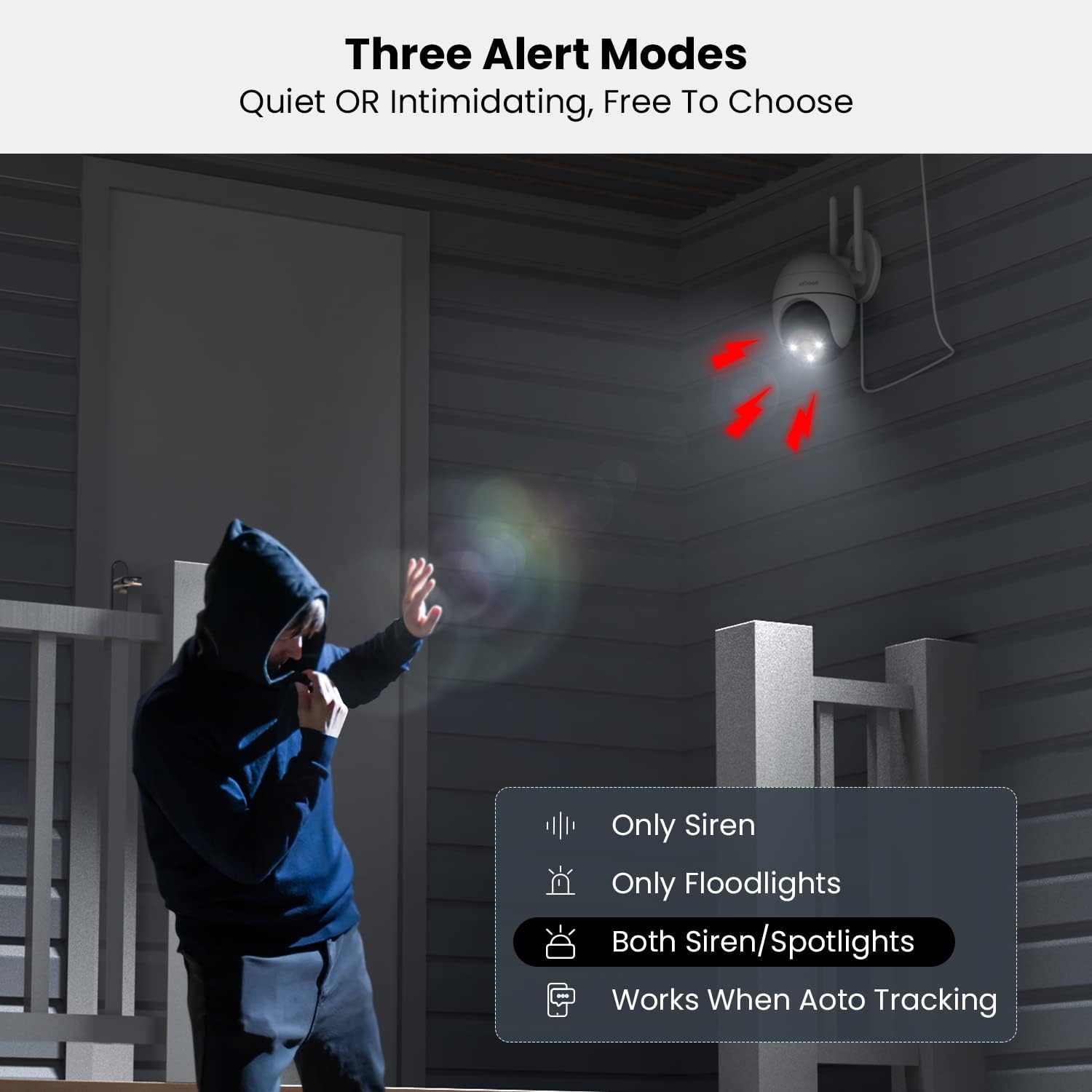
Image: Depicts the ieGeek ZS-GQ4 camera's three customizable alert modes: 'Only Siren', 'Only Floodlights', and 'Both Siren/Spotlights', demonstrating how the camera can deter intruders with light and sound.
5.6 Recording and Playback
The camera supports continuous recording or event-triggered recording to a Micro SD card (not included) or to the optional cloud storage service. You can access recorded footage and play it back directly from the CloudEdge app.
6. Maintenance
- Cleaning: Periodically clean the camera lens and housing with a soft, damp cloth to ensure clear image quality. Do not use harsh chemicals.
- Firmware Updates: Check the CloudEdge app regularly for firmware updates. Keeping your camera's firmware updated ensures optimal performance and access to new features.
- Power Connection: Ensure the power cable connection remains secure and free from damage.
7. Troubleshooting
7.1 Camera Offline
- Check if the camera is powered on and the power adapter is securely connected.
- Ensure your Wi-Fi router is working correctly and the camera is within Wi-Fi range.
- Restart the camera by unplugging and re-plugging the power adapter.
- Verify that your Wi-Fi network is 2.4GHz. This camera does not support 5GHz Wi-Fi.
7.2 Poor Image Quality
- Clean the camera lens to remove any dust or smudges.
- Ensure there are no obstructions in front of the camera lens.
- Check your internet connection speed. A slow connection can affect streaming quality.
- Adjust the video quality settings in the CloudEdge app to a higher resolution if available.
7.3 Motion Detection Not Working
- Ensure motion detection is enabled in the CloudEdge app settings.
- Adjust the motion detection sensitivity.
- Verify that the alert area is correctly configured and covers the desired monitoring zone.
- Check if the camera's view is obstructed.
7.4 SD Card Not Recording
- Ensure the Micro SD card is inserted correctly.
- Format the SD card through the CloudEdge app.
- Check if the SD card is full. The camera supports up to 128GB.
- Verify that recording settings (e.g., continuous, event-triggered) are enabled in the app.
8. Specifications
| Feature | Specification |
|---|---|
| Model Number | ZS-GQ4 |
| Resolution | 5MP (Effective 1080 Pixels) |
| Night Vision Range | 50 Feet |
| Connectivity | 2.4GHz Wi-Fi |
| Power Source | Corded Electric (5 watts) |
| Dimensions (L x W x H) | 21 x 11 x 9 cm |
| Item Weight | 630 g |
| Waterproof Rating | IP65 |
| Storage Support | Micro SD Card (Max 128GB), Cloud Storage |
| Compatible Devices | Smartphone, Tablet (via CloudEdge App) |
| Controller Type | Amazon Alexa |
9. Warranty and Support
For warranty information and technical support, please refer to the documentation provided with your purchase or contact ieGeek customer service directly. You can typically find contact details on the manufacturer's official website or through your purchase platform.
For common inquiries, you may also visit the ieGeek store on Amazon: ieGeek Official Store
Related documentsZS-GQ4


Ask a question about this manual
Ask about setup, troubleshooting, compatibility, parts, safety, or missing instructions. Manuals+ will review the question and use this page’s manual context to help answer it.