1. Introduction
Welcome to the user manual for your AmpliFi Alien WiFi 6 WiFi System. This document provides comprehensive instructions for setting up, operating, maintaining, and troubleshooting your new whole-home wireless internet system. The AmpliFi Alien is designed to deliver high-performance Wi-Fi 6 connectivity, offering increased network capacity and extended coverage for your home.
Please read this manual carefully to ensure proper installation and optimal performance of your device.

Figure 1.1: AmpliFi Alien WiFi System, showing the main router and mesh point alongside its retail packaging.
2. Product Overview
The AmpliFi Alien WiFi System consists of a main router unit and, depending on your package, one or more MeshPoints. Both units are designed for seamless integration and powerful Wi-Fi 6 performance.
2.1. Main Router Unit
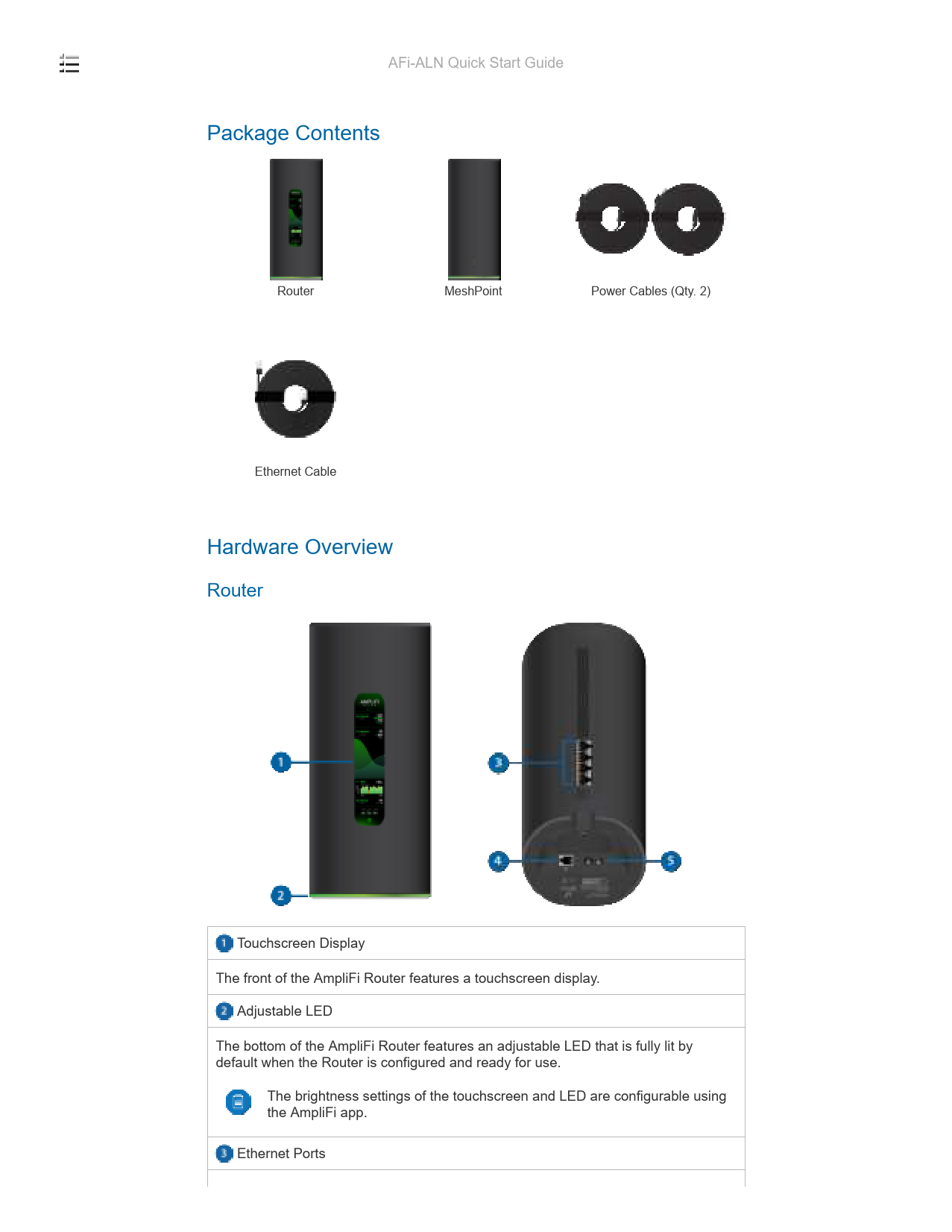
The main router features a vibrant touchscreen display for real-time network statistics and quick controls. It includes four Gigabit Ethernet ports for wired connections and supports Tri-Band Wi-Fi 6 for high-speed wireless communication.

Figure 2.1: Front and back view of the AmpliFi Alien Router, highlighting the touchscreen display on the front.
2.2. MeshPoint Unit
The MeshPoint extends your Wi-Fi coverage, creating a robust mesh network throughout your home. It connects wirelessly to the main router and typically includes one Gigabit Ethernet port for additional wired connectivity.

Figure 2.2: The AmpliFi Alien MeshPoint, a cylindrical device designed to extend Wi-Fi coverage.
3. Setup Guide
Follow these steps to set up your AmpliFi Alien WiFi System.
3.1. Initial Placement
- Place the main AmpliFi Alien Router in a central location in your home, away from obstructions and other electronic devices that may cause interference.
- If using a MeshPoint, place it strategically to extend coverage to areas with weak signals, ensuring it is within a good wireless range of the main router. The system's app can help determine optimal placement.
3.2. Connecting the Router
- Connect the included Ethernet cable from your modem to the WAN port on the AmpliFi Alien Router.
- Connect the power adapter to the router and plug it into a power outlet. The router will power on automatically.
- Wait for the router's touchscreen display to show the boot-up sequence and indicate readiness.

Figure 3.1: Rear view of the AmpliFi Alien Router, showing the four Gigabit Ethernet LAN ports and the WAN port.
3.3. Mobile App Setup
- Download the AmpliFi Wi-Fi app from your mobile device's app store (iOS or Android).
- Open the app and follow the on-screen instructions to detect and set up your AmpliFi Alien Router. You will be guided through creating your Wi-Fi network name (SSID) and password.
- If you have a MeshPoint, the app will prompt you to add it to your network. Power on the MeshPoint and place it in its desired location. The app will assist in optimizing its connection to the main router.
Note: During setup, your Internet Service Provider (ISP) may require you to register the new hardware. If you encounter issues with internet connectivity after connecting the router, contact your ISP for assistance.
4. Operating Instructions
The AmpliFi Alien system offers multiple ways to manage your network.
4.1. Using the Touchscreen Display
The router's integrated touchscreen display provides quick access to network status, internet speed tests, and connected device information. Swipe through the screens to view real-time data such as internet speed, network usage, and Wi-Fi signal strength.

Figure 4.1: Close-up of the AmpliFi Alien Router's touchscreen, showing network performance metrics.
4.2. AmpliFi Wi-Fi Mobile App
The AmpliFi Wi-Fi app is the primary interface for advanced network management.
- Device Management: View all connected devices, monitor their data usage, and pause internet access for individual devices or groups.
- Guest Access: Easily enable and manage a separate guest Wi-Fi network. You can temporarily disable the primary Wi-Fi password for guests for a set duration.
- Network Settings: Adjust Wi-Fi channels, security protocols (WPS, WPA3), and other advanced network configurations.
- MeshPoint Status: Monitor the connection strength between your router and MeshPoint(s) and receive recommendations for optimal placement.
4.3. Web Interface
For certain advanced settings, a web-based interface may be available. Access it by typing the router's IP address (usually 192.168.1.1) into a web browser while connected to your AmpliFi network. Refer to the app or router documentation for the exact IP address and login credentials.
5. Maintenance
Regular maintenance ensures the longevity and optimal performance of your AmpliFi Alien system.
5.1. Firmware Updates
AmpliFi periodically releases firmware updates to improve performance, add features, and enhance security. It is recommended to keep your system's firmware up to date. The AmpliFi Wi-Fi app will typically notify you when an update is available and guide you through the installation process.
5.2. Cleaning
To clean the exterior of your AmpliFi Alien devices, use a soft, dry cloth. Avoid using liquid cleaners or abrasive materials, as these can damage the finish or internal components. Ensure the devices are unplugged before cleaning.
5.3. Optimal Placement
Periodically review the placement of your router and MeshPoint(s) to ensure they are in locations that provide the best signal coverage and minimize interference. The AmpliFi app provides tools to assess signal strength and connectivity between units.
6. Troubleshooting
This section addresses common issues you might encounter with your AmpliFi Alien system.
6.1. No Internet Connection
- Check Cables: Ensure the Ethernet cable from your modem is securely connected to the WAN port of the AmpliFi Alien Router.
- Modem Status: Verify that your modem is powered on and functioning correctly. Try rebooting your modem.
- Router Reboot: Unplug the AmpliFi Alien Router's power adapter, wait 30 seconds, and plug it back in.
- ISP Contact: If the issue persists, contact your Internet Service Provider (ISP) to confirm there are no service outages or to register your new router's MAC address if required.
6.2. MeshPoint Not Connecting or Weak Signal
- Placement: Ensure the MeshPoint is not too far from the main router or obstructed by dense materials (e.g., thick walls, large appliances). Use the AmpliFi app to check signal strength and adjust placement.
- Power Cycle: Unplug the MeshPoint, wait a minute, and plug it back in.
- Re-sync: If necessary, remove the MeshPoint from the network via the app and re-add it.
6.3. Slow Wi-Fi Speeds
- Interference: Move the router and MeshPoint away from other electronics (cordless phones, microwaves, Bluetooth devices) that operate on similar frequencies.
- Channel Optimization: The AmpliFi app can help you analyze Wi-Fi channels and select less congested ones.
- Device Capacity: While AmpliFi Alien supports many devices, excessive simultaneous high-bandwidth activities can impact performance.
6.4. Contacting Support
If you are unable to resolve an issue using the troubleshooting steps, you can contact AmpliFi support directly through the mobile app. The app allows you to send support logs, which can help diagnose complex problems.
7. Specifications
Below are the technical specifications for the AmpliFi Alien WiFi System (Model: AFI-ALN).
| Feature | Detail |
|---|---|
| Model Name | AmpliFi Alien |
| Item Model Number | AFI-ALN |
| Brand | AmpliFi |
| Product Dimensions | 12.2 x 10.2 x 5.2 inches |
| Item Weight | 8.86 pounds |
| Wireless Communication Standard | 802.11ax (Wi-Fi 6) |
| Frequency Band Class | Tri-Band (2.4/5 GHz Wi-Fi 6 and 5 GHz Wi-Fi 5 radios) |
| Connectivity Technology | Wi-Fi, Ethernet |
| Ethernet Ports (Router) | 4 Gigabit Ethernet ports |
| Ethernet Ports (MeshPoint) | 1 Gigabit Ethernet port |
| Security Protocol | WPS, WPA3 |
| Operating System | AmpliFiOS |
| Manufacturer | Ubiquiti |
| Date First Available | July 20, 2020 |
8. Warranty and Support
8.1. Product Warranty
AmpliFi products typically come with a limited warranty. For detailed information regarding your product's warranty period and terms, please refer to the warranty card included in your product packaging or visit the official AmpliFi website. Keep your proof of purchase for warranty claims.
8.2. Technical Support
For technical assistance, troubleshooting, or any questions regarding your AmpliFi Alien WiFi System, please utilize the following resources:
- AmpliFi Wi-Fi Mobile App: The app provides an integrated support feature where you can communicate with the support team and submit diagnostic logs.
- AmpliFi Website: Visit the official AmpliFi support website for FAQs, knowledge base articles, and community forums.