
Introduction
This manual provides detailed instructions for the proper use and maintenance of your ORDRO HDV-F7 FHD 1080P Camcorder. Please read this manual thoroughly before operating the device to ensure optimal performance and longevity.
Package Contents
Verify that all items listed below are included in your package:
- ORDRO HDV-F7 Camcorder
- User Manual
- USB Cable
- HDMI HD/AV Cable
- Remote Control
- Charger
- Battery x 2 (NP-180, 3.7V 1800mAh Li-ion)
- Camera Bag / Lens Cover
- 16GB SD Card
- SD Card Reader

Figure 1: Included accessories for the ORDRO HDV-F7 camcorder.
Product Overview
Familiarize yourself with the main components and controls of your camcorder.
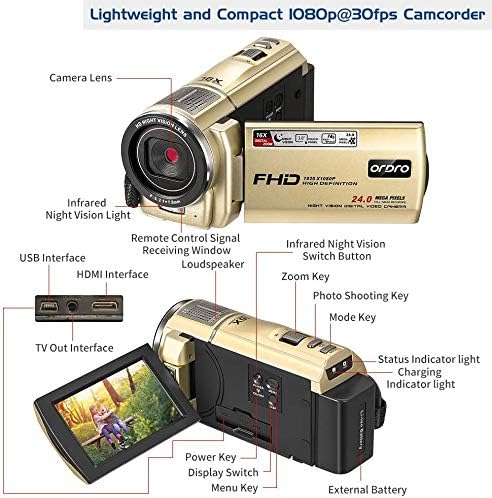
Figure 2: Labeled components of the ORDRO HDV-F7 camcorder.
- Camera Lens: Captures video and still images.
- Infrared Night Vision Light: Provides illumination for recording in dark environments.
- USB Interface: For connecting to a computer or power source.
- HDMI Interface: For connecting to a TV or monitor.
- Remote Control Signal Receiving Window: Receives signals from the remote control.
- Loudspeaker: For audio playback.
- Infrared Night Vision Switch Button: Activates/deactivates night vision mode.
- Zoom Key: Adjusts digital zoom (16X).
- Photo Shooting Key: Captures still images.
- Mode Key: Switches between video, photo, and playback modes.
- Status Indicator Light: Shows current operating status.
- Charging Indicator Light: Indicates charging status.
- Power Key: Turns the camcorder on/off.
- Display Switch: Controls the LCD screen.
- Menu Key: Accesses the camcorder's settings menu.
- External Battery: Removable battery pack.
Setup
1. Battery Charging and Installation
- Insert the provided battery into the charger.
- Connect the charger to a power outlet. The charging indicator light will illuminate.
- For first use, charge the battery for at least 3 hours. A fully charged battery provides up to 2 hours of video recording or 3 hours of photo taking.
- Once charged, slide the battery into the battery compartment on the camcorder until it clicks into place.

Figure 3: Battery capacity and installation area.
2. SD Card Insertion
- Locate the SD card slot on the camcorder.
- Insert the 16GB SD card (included) into the slot with the metal contacts facing the correct direction, as indicated on the camcorder.
- Push the card gently until it clicks into place. To remove, push the card in again until it springs out.
Operating Instructions
1. Powering On/Off
- To power on, press and hold the Power Key.
- To power off, press and hold the Power Key again.
2. Recording Video
- Ensure the camcorder is in video mode (check the display icon). If not, press the Mode Key to switch.
- Frame your shot using the 3.0'' TFT LCD screen. Note that this is a fixed zoom camera; ensure subjects are more than 1.5 meters away for clear focus.
- Press the Photo Shooting Key (often doubles as record button) to start recording. The recording indicator will light up.
- Press the Photo Shooting Key again to stop recording.
3. Taking Photos
- Ensure the camcorder is in photo mode (check the display icon). If not, press the Mode Key to switch.
- Frame your shot.
- Press the Photo Shooting Key to capture an image.
4. Zoom Function
- Use the Zoom Key to digitally zoom in or out up to 16X.
- Note that digital zoom may reduce image quality compared to optical zoom.
5. Infrared Night Vision
The camcorder features infrared night vision for recording in low-light or completely dark environments.
- To activate, press the Infrared Night Vision Switch Button. The IR lights will turn on.
- To deactivate, press the button again.

Figure 4: Demonstration of infrared night vision capability.
6. Webcam Functionality
The camcorder can be used as a webcam for video calls or online meetings.
- Connect the camcorder to your computer using the provided USB cable.
- Select 'Webcam Mode' on the camcorder's display if prompted.
- Your computer should recognize the camcorder as a webcam. Select it in your video conferencing software.

Figure 5: Connecting the camcorder as a webcam or to a TV.
7. Connecting to TV
You can view your recorded videos and photos directly on a television.
- Connect the camcorder to your TV using the provided HDMI cable.
- Switch your TV's input source to the corresponding HDMI port.
- Enter the camcorder's playback mode to view your media.
8. Using the Remote Control
The remote control allows for convenient operation from a distance, especially when the camcorder is mounted on a tripod.
- Point the remote control towards the camcorder's remote control signal receiving window.
- Use the buttons on the remote to control recording, playback, zoom, and other functions.

Figure 6: Remote control usage and tripod mounting point.
Maintenance
1. Cleaning
- Use a soft, dry cloth to clean the camcorder body.
- For the lens and LCD screen, use a specialized lens cleaning cloth and solution to avoid scratches.
- Do not use harsh chemicals or abrasive materials.
2. Battery Care
- Store batteries in a cool, dry place when not in use.
- Avoid fully discharging the battery frequently to prolong its lifespan.
- If storing for extended periods, charge the battery to about 50% capacity.
3. Storage
- Store the camcorder in its protective bag or case to prevent dust and damage.
- Avoid extreme temperatures and high humidity.
Troubleshooting
| Problem | Possible Cause | Solution |
|---|---|---|
| Camcorder does not power on. | Battery is depleted or not installed correctly. | Charge the battery fully and ensure it is correctly inserted. |
| Image/Video is blurry. | Subject is too close (less than 1.5m) or lens is dirty. | Ensure subject is beyond 1.5m. Clean the lens with a soft cloth. |
| SD card error. | SD card not inserted correctly or corrupted. | Reinsert the SD card. Try formatting the card (this will erase all data). If the issue persists, try a different SD card. |
| No image on TV when connected via HDMI. | Incorrect TV input selected or cable issue. | Ensure the TV input is set to the correct HDMI port. Check HDMI cable connection. |
Specifications
| Feature | Detail |
|---|---|
| Model Number | ORDRO HDV-F7 |
| Video Capture Resolution | 1080p@25fps (FHD) |
| Photo Sensor Technology | CMOS (5.0 MP, up to 24.0MP interpolation) |
| Screen Size | 3.0 Inches TFT LCD (270 degree rotation) |
| Digital Zoom | 16X |
| Special Features | IR Night Vision, LED Fill Light, Webcam Functionality |
| Connectivity Technology | HDMI, USB |
| Flash Memory Type | SD Card (16GB included) |
| Battery Type | NP-180, 3.7V 1800mAh Li-ion (x2 included) |
| Item Weight | 0.7 Pounds |
| Focus Type | Auto Focus (fixed zoom, focus range > 1.5m) |
| Image Stabilization | Digital |
Warranty Information
The ORDRO HDV-F7 Camcorder comes with a 1-year warranty from the date of purchase. This warranty covers manufacturing defects and malfunctions under normal use. Please retain your proof of purchase for warranty claims.
Customer Support
If you encounter any issues not covered in the troubleshooting section or require further assistance, please contact ORDRO customer service. Refer to the contact information provided with your product packaging or visit the official ORDRO website for support details.


