1. Introduction
This manual provides essential information for the proper setup, operation, and maintenance of your Samsung T7 Portable SSD. The T7 Portable SSD offers high-speed external storage with advanced features for data management across various devices.

Figure 1: Samsung T7 Portable SSD (Blue)
2. Product Overview
The Samsung T7 Portable SSD is designed for users requiring fast, reliable, and portable storage. Key features include:
- High-Speed Performance: Utilizes PCIe NVMe technology for read/write speeds up to 1,050/1,000 MB/s, significantly faster than traditional external hard drives.
- Durable Design: Features a sleek, shock-resistant aluminum unibody construction capable of withstanding drops from up to 6 feet.
- Extensive Compatibility: Compatible with PCs, Macs, Android devices, gaming consoles, and iPhone 15.
- High-Resolution Video Recording: Supports direct recording of Ultra High Resolution (4K 60fps) videos from compatible cameras and mobile devices.
- Secure Data: Offers AES 256-bit encrypted password protection for enhanced data security.
- Thermal Control: Engineered to maintain optimal operating temperatures during extended use.

Figure 2: High-speed data transfer capabilities of the Samsung T7 SSD.
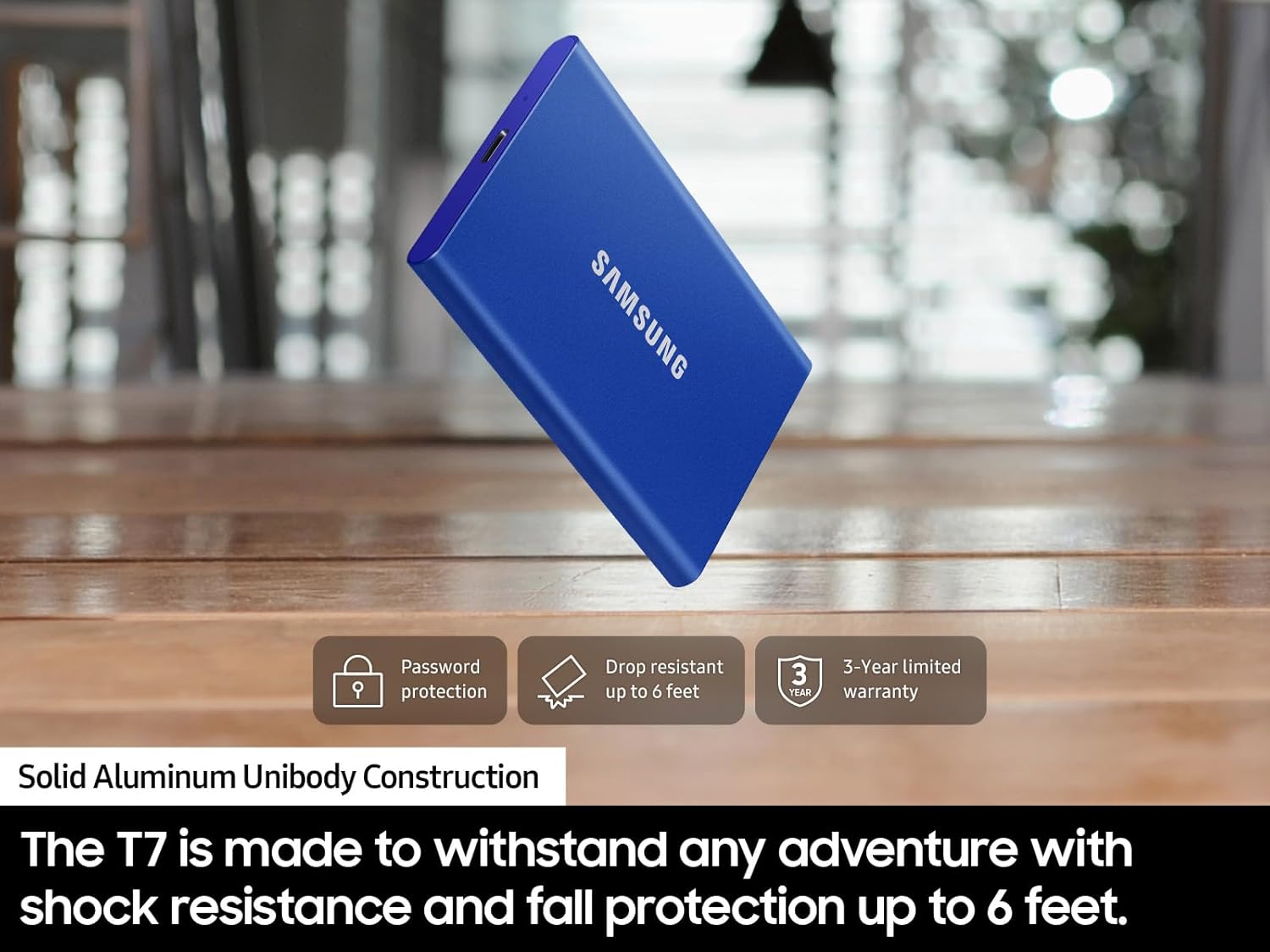
Figure 3: The T7 SSD's durable design, capable of withstanding drops.
3. What's in the Box
Your Samsung T7 Portable SSD package includes:
- Samsung T7 Portable SSD (1TB)
- USB Type C-to-C Cable
- USB Type C-to-A Cable
- Quick Start Guide and Warranty Statement

Figure 4: Package contents of the Samsung T7 Portable SSD.
4. Setup
Follow these steps to set up your Samsung T7 Portable SSD:
- Connect the SSD: Use the provided USB Type C-to-C or USB Type C-to-A cable to connect the T7 SSD to your computer, smartphone, or gaming console.
- Initial Recognition: The device should be automatically recognized by your operating system.
- Pre-formatted: The drive comes pre-formatted in exFAT, making it compatible with both Windows and Mac computers without immediate reformatting.
- Software Installation (Optional): For enhanced security features like password protection, install the Samsung Portable SSD software. This software is available for Windows 7 and higher, Mac OS X 10.10 and higher, or Android 5.1 (Lollipop) and higher. Firmware updates also require a PC or Mac and an internet connection.
Video 1: Guide on connecting Samsung SSDs to Blackmagic Cinema Cameras for high-capacity recording.
5. Operating Instructions
Using your Samsung T7 Portable SSD is straightforward:
- Data Transfer: Drag and drop files to and from the T7 SSD as you would with any other external drive. The high transfer speeds ensure quick movement of large files.
- Direct Recording: For compatible devices, you can record high-resolution video directly to the T7 SSD, expanding your recording capacity significantly.
- Password Protection: If enabled via the Samsung Portable SSD software, you will be prompted to enter your password to access the drive's contents.

Figure 5: The Samsung T7 SSD offers extensive compatibility with various devices.
Video 2: An honest review highlighting the features and benefits of the Samsung T7 SSD.
6. Maintenance
To ensure the longevity and optimal performance of your T7 Portable SSD:
- Physical Protection: While durable, avoid unnecessary drops or impacts. The solid aluminum unibody is designed to protect against accidental damage.
- Temperature Management: The T7 is designed to manage heat effectively, keeping its outer casing temperature below 118.4°F during normal operation. Avoid exposing it to extreme temperatures outside its operating range (14°F to 140°F).
- Data Security: Regularly back up critical data to multiple locations. Utilize the AES 256-bit encryption feature for sensitive information.
- Firmware Updates: Periodically check for and install firmware updates using the Samsung Portable SSD software to ensure optimal performance and compatibility.
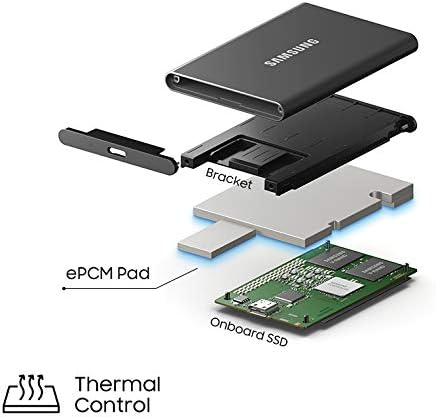
Figure 6: Internal thermal control mechanism of the Samsung T7 SSD.
7. Troubleshooting
If you encounter issues with your Samsung T7 Portable SSD, consider the following:
- Drive Not Recognized: Ensure the USB cable is securely connected to both the SSD and your device. Try a different USB port or cable. Verify that your device's operating system is compatible (Windows 7+, Mac OS X 10.10+, Android 5.1+).
- Slow Transfer Speeds: Ensure your host device and connection cables support USB 3.2 Gen 2 and that UASP mode is enabled for maximum speeds. Older USB ports (e.g., USB 2.0) will result in slower performance.
- Password Issues: If you forget your password, you may need to reformat the drive, which will erase all data. Contact Samsung support if you require assistance.
- Overheating: The T7 is designed for thermal efficiency. If you suspect overheating, ensure the drive is in a well-ventilated area and not covered.
For further assistance, refer to the Samsung support website or contact customer service.
8. Specifications
| Feature | Specification |
|---|---|
| Product Dimensions | 3.3 x 2.2 x 0.3 inches |
| Item Weight | 2.08 ounces |
| Item Model Number | MU-PC1T0H/AM |
| Digital Storage Capacity | 1 TB |
| Hard Disk Interface | USB 3.2 Gen 2 |
| Connectivity Technology | USB |
| Brand | Samsung |
| Special Feature | Portable |
| Hard Disk Form Factor | 2.5 Inches |
| Hard Disk Description | Solid State Hard Drive |
| Compatible Devices | Gaming Console, Laptop, Smartphone, Television, iPhone 15 |
| Installation Type | External Hard Drive |
| Color | Blue |
9. Warranty and Support
The Samsung T7 Portable SSD comes with a 3-year limited warranty. For detailed warranty information, product registration, and technical support, please visit the official Samsung support website:
www.samsung.com/us/support/warranty/
You can also find compatible devices and software downloads on the Samsung support page.


