1. Introduction
This manual provides detailed instructions for the Redragon K552P Mechanical Gaming Keyboard. Please read this manual thoroughly before using the product to ensure proper operation and to maximize its features. This keyboard is designed for gaming and productivity, offering a compact layout and customizable lighting.

Figure 1: Redragon K552P Mechanical Gaming Keyboard with RGB backlighting.
2. What's in the Box
- Redragon K552P Mechanical Gaming Keyboard
- Keycap Puller
- USB Cable
3. Setup
- Connect the Keyboard: Plug the USB cable from the keyboard into an available USB port on your computer. The keyboard is plug-and-play and should be recognized automatically by your operating system.
- Software Installation (Optional): For advanced customization, including macro programming and additional RGB lighting settings, download the official software from redragon.com.
- N-Key Rollover: The keyboard features N-key rollover, ensuring every keystroke is registered accurately, even during rapid, simultaneous presses.
- Hot-Swappable Switches: The K552P features hot-swappable switches, allowing for easy replacement of individual switches without soldering. This keyboard supports 3-pin switches. To replace a switch:
- Use the included keycap puller to gently remove the keycap from the desired switch.
- Use a switch puller (not included, but often comes with replacement switches) to carefully extract the switch from the keyboard plate.
- Align the pins of the new 3-pin switch with the sockets on the PCB and press firmly until it clicks into place.
- Reattach the keycap.
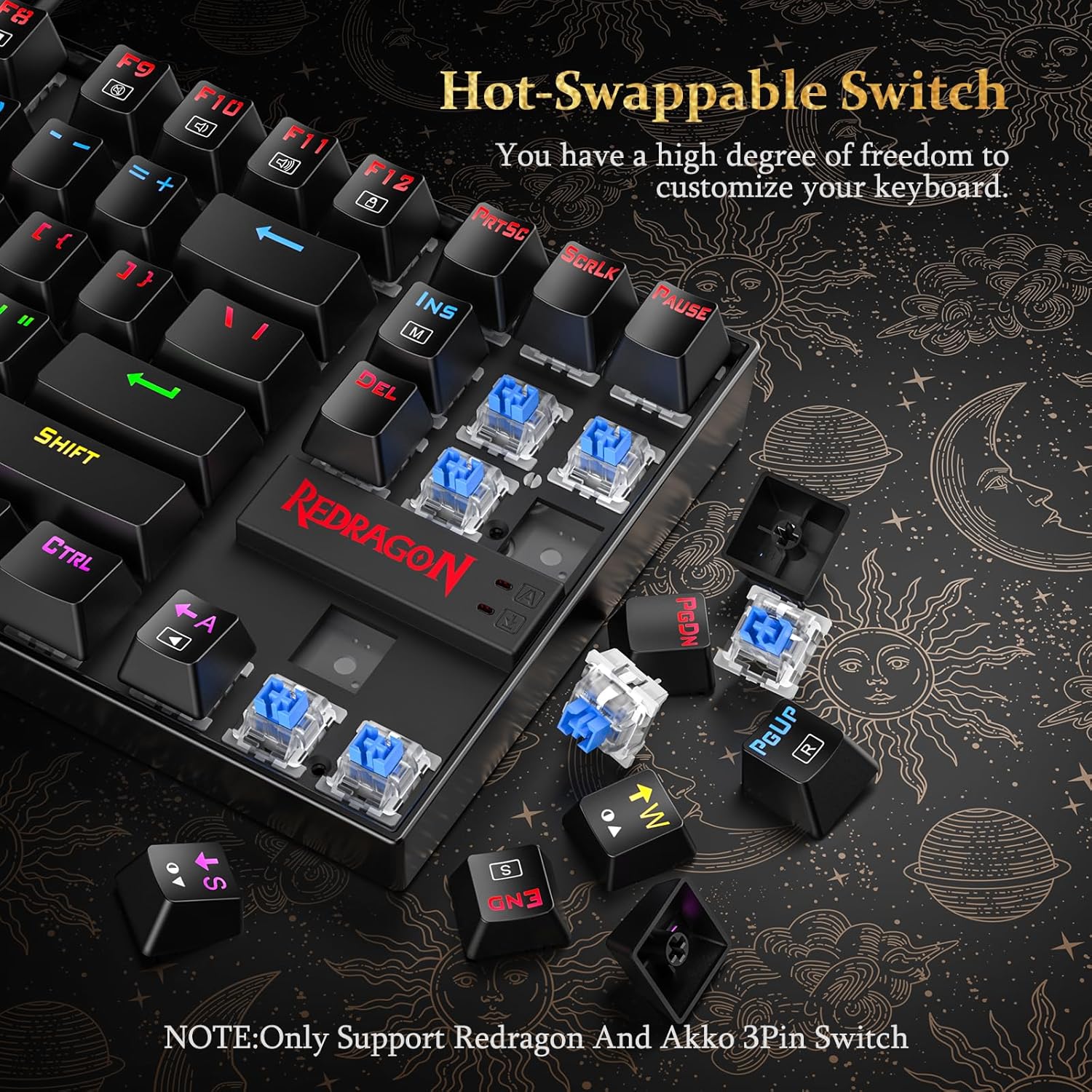
Figure 2: Hot-swappable switch mechanism.
4. Features
- Space-Saving TKL (87-Key) Design: The compact tenkeyless layout maximizes desk space, allowing for greater mouse movement and a cleaner setup. This design is ideal for users who prioritize portability and a minimalist aesthetic without sacrificing essential functionality.
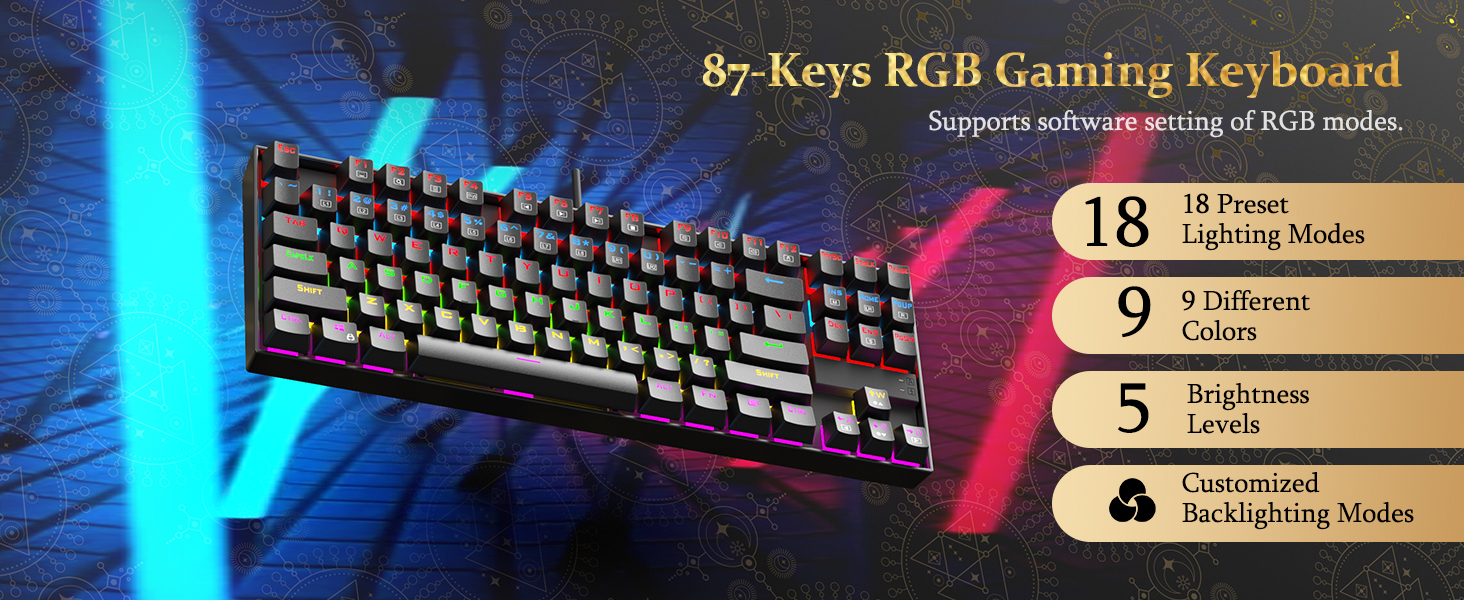
Figure 3: Compact TKL design for optimized desk space.
- Customizable RGB Backlighting: The keyboard features 18 unique RGB backlight modes, 9 different colors, and 5 brightness levels. Lighting effects can be adjusted via software or direct keyboard shortcuts. This allows for personalized visual setups.

Figure 4: RGB backlighting customization options.
- Durable Construction: Built with a robust metal frame and a spill-resistant design, the K552P is engineered for longevity. Its double-shot PBT keycaps resist fading, ensuring sustained performance. The keyboard is compatible with Windows, Vista, or Windows XP, with limited Mac OS keyboard support.

Figure 5: Spill-resistant design for enhanced durability.
- Hot-Swappable Red Switches: The keyboard is equipped with hot-swappable Red switches, providing a responsive and tactile typing experience. These switches offer a satisfying tactile bump and crisp audible click, and can be easily replaced to customize the keyboard's feel.
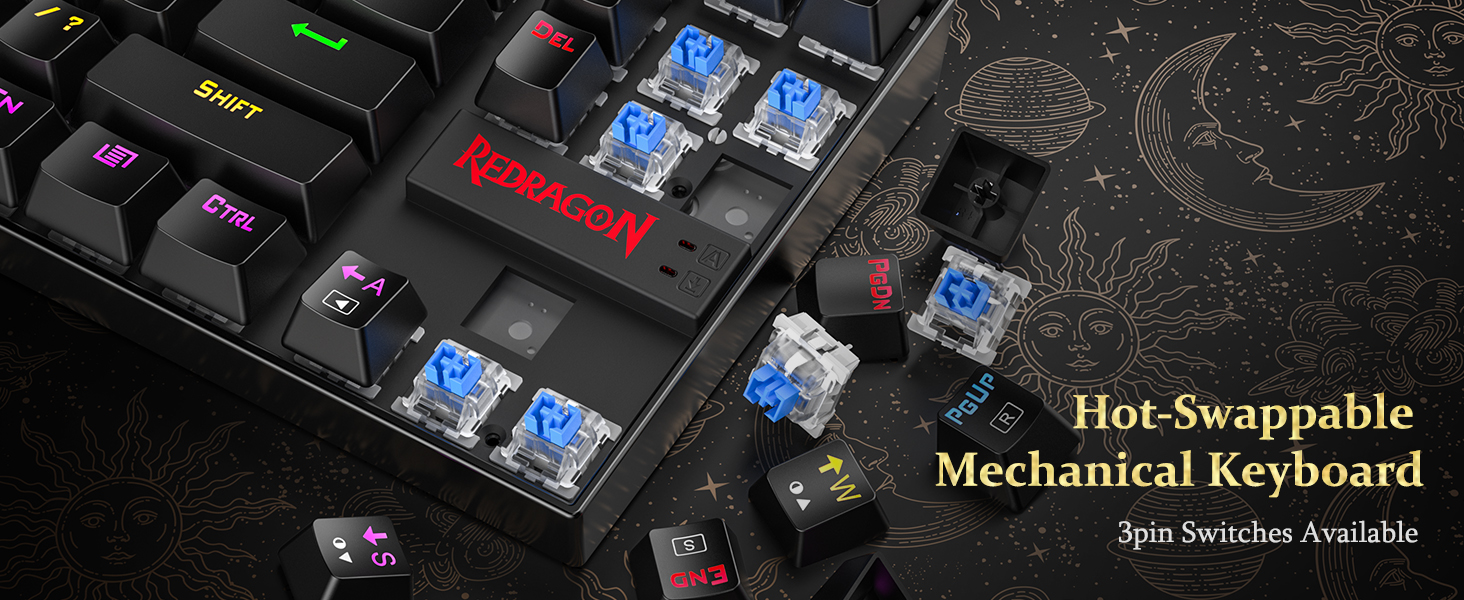
Figure 6: Red switch details and hot-swappable capability.
- Pro-Grade Controls & Plug-and-Play Convenience: Features include Windows key lock (FN+WIN), 4-speed polling rates, and software-programmable macros. N-key rollover ensures accurate registration of every key press. Dedicated multimedia keys (FN+F1-F12) provide quick access to volume, playback, email, and calculator functions for seamless multitasking.
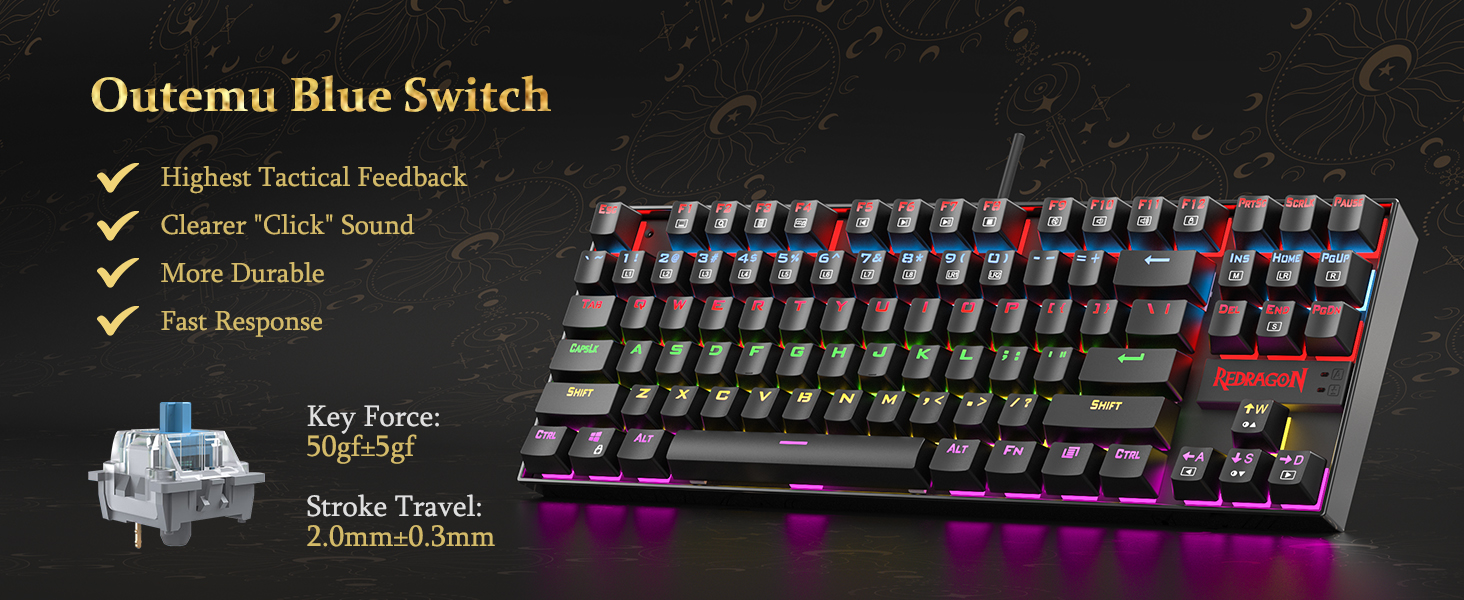
Figure 7: Full N-key anti-ghosting for precise input.
5. Operating Instructions
5.1. Backlight Control
- Change Backlight Mode: Press FN + INS / HOME / PGUP / DEL / END / PGDN to cycle through 18 different RGB backlight modes.
- Adjust Brightness: Press FN + ↑ / ↓ to increase or decrease backlight brightness (5 levels).
- Adjust Speed: Press FN + ← / → to change the speed of dynamic lighting effects.
- Change Color: In certain modes, press FN + PRTSC to cycle through different colors.
5.2. Multimedia Functions
Access multimedia functions by holding the FN key and pressing the corresponding F1-F12 keys:
- FN + F1: Media Player
- FN + F2: Volume Down
- FN + F3: Volume Up
- FN + F4: Mute
- FN + F5: Stop
- FN + F6: Previous Track
- FN + F7: Play/Pause
- FN + F8: Next Track
- FN + F9: Email
- FN + F10: Web Browser
- FN + F11: Calculator
- FN + F12: Search
5.3. Other Functions
- Lock Windows Key: Press FN + WIN to lock or unlock the Windows key, preventing accidental presses during gaming.
- Macro Programming: Use the dedicated software (downloadable from redragon.com) to program custom macros for specific keys.
6. Maintenance
- Cleaning: Use a soft, dry cloth to wipe down the keyboard surface. For deeper cleaning, remove keycaps using the provided keycap puller and use compressed air to clear debris.
- Spill-Resistant Design: While the keyboard features a spill-resistant design, it is not waterproof. In case of liquid spills, immediately disconnect the keyboard from your computer and allow it to dry completely before reconnecting.
- Keycap Care: The double-shot PBT keycaps are designed to resist fading. Avoid using harsh chemicals or abrasive materials for cleaning to preserve their finish.
7. Troubleshooting
- Keyboard Not Responding:
- Ensure the USB cable is securely connected to both the keyboard and the computer.
- Try connecting the keyboard to a different USB port.
- Restart your computer.
- Lighting Not Working/Incorrect:
- Check backlight brightness settings using FN + ↑ / ↓.
- Cycle through different lighting modes using FN + INS / HOME / PGUP / DEL / END / PGDN.
- If using custom settings, ensure the software is running and settings are applied correctly.
- Keys Not Registering:
- Due to N-key rollover, all keys should register. If a specific key is not working, try replacing its hot-swappable switch (refer to Section 3. Setup).
- Ensure no debris is lodged under the keycap or switch.
- Software Issues:
- Ensure you have the latest version of the Redragon software installed from the official website.
- Restart the software and/or your computer.
8. Specifications
| Feature | Detail |
|---|---|
| Model Number | K552P-RGB |
| Keyboard Type | Mechanical Gaming Keyboard |
| Layout | TKL (Tenkeyless), 87-Key |
| Switch Type | Hot-Swappable Red Switches |
| Backlighting | RGB (18 modes, 9 colors, 5 brightness levels) |
| Connectivity | USB Wired |
| Key Rollover | N-Key Rollover |
| Material | Robust Metal Frame, Double-Shot PBT Keycaps |
| Compatibility | Windows, Vista, Windows XP (Limited Mac OS support) |
| Product Dimensions | 13.94 x 4.86 x 1.46 inches |
| Item Weight | 1.98 pounds |
9. Warranty and Support
The Redragon K552P Mechanical Gaming Keyboard comes with a standard manufacturer's warranty. For detailed warranty terms and conditions, please refer to the warranty card included with your product or visit the official Redragon website.
For technical support, troubleshooting assistance, or any product-related inquiries, please contact Redragon customer service through their official website: www.redragon.com.


