
Verbatim 53249
Verbatim Store 'n' Go Portable SSD User Manual
Model: 53249
1. Introduction
The Verbatim Store 'n' Go Portable SSD offers a fast and reliable solution for expanding your storage and backing up important files. Designed for users on the move, this external solid-state drive features a USB 3.2 Gen 1 interface for high-speed data transfers and includes versatile connectivity options for various devices.
This manual provides essential information on setting up, operating, and maintaining your Verbatim Store 'n' Go Portable SSD, along with troubleshooting tips and product specifications.
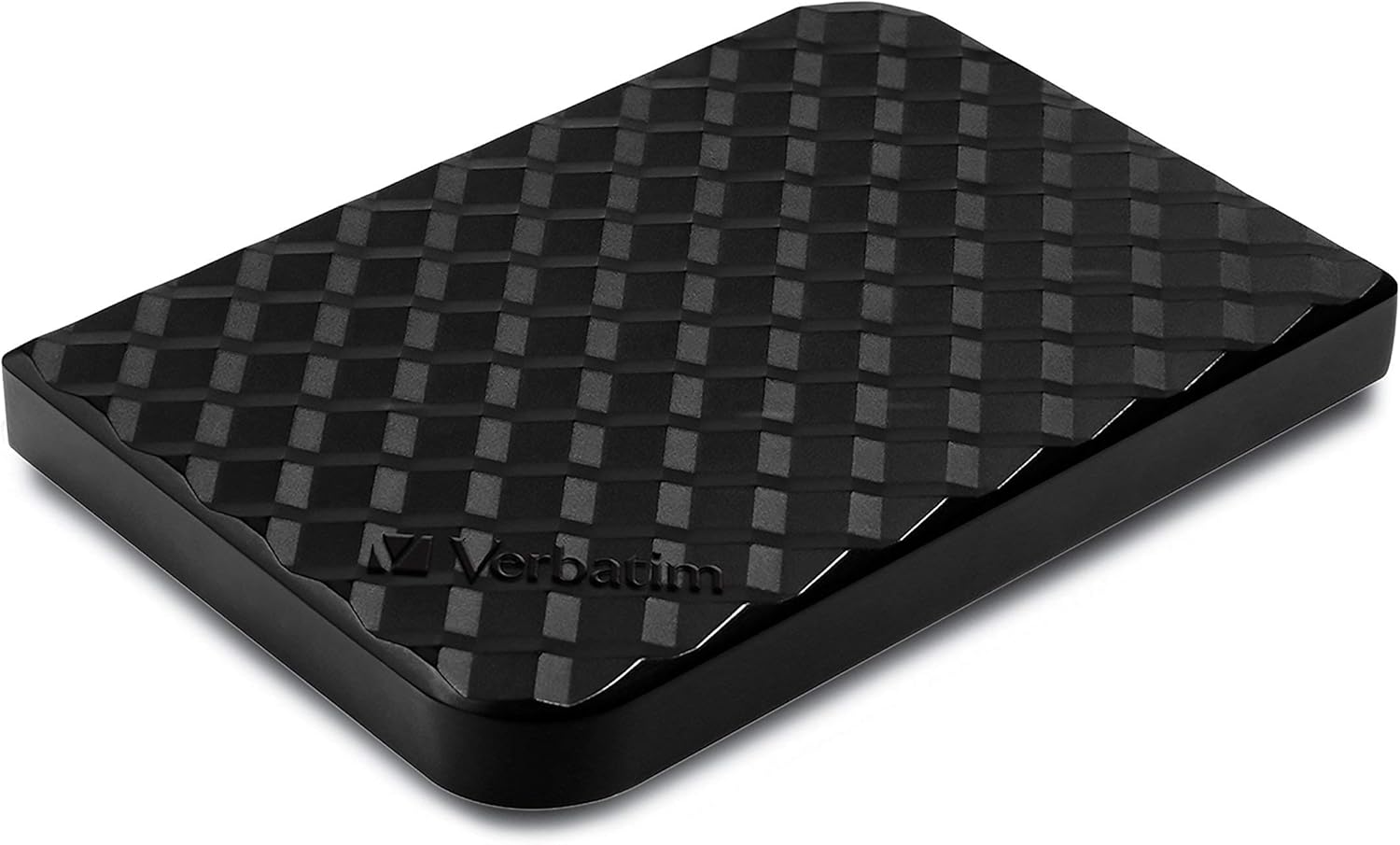
Image: The Verbatim Store 'n' Go Portable SSD, showcasing its compact, black design with a textured surface.
2. What's in the Box
Please verify that all items are present in the package:
- 256GB External Solid State Drive
- USB-C to USB-A Cable
- USB-A to USB-C Adapter
- Quick Start Guide and User Manual

Image: The Verbatim Store 'n' Go Portable SSD next to its retail packaging, illustrating the included cables and adapter.
3. Product Overview
The Store 'n' Go Portable SSD is engineered for durability and performance. Its solid-state design means no moving parts, contributing to high reliability and silent operation. The compact and slim form factor makes it easy to carry, fitting into pockets or bags for seamless storage on the go.

Image: Two Verbatim Portable SSDs resting on a wooden surface, emphasizing their silent operation and high reliability due to the absence of moving parts.
This SSD is compatible with a wide range of devices, including Windows and macOS laptops, USB-C smartphones and tablets, production gear, gaming consoles, and Smart TVs.

Image: A person holding the Verbatim SSD near a laptop outdoors, with icons indicating compatibility with Windows & macOS laptops, USB-C smartphones & tablets, production gear & gaming consoles, and Smart TVs.
4. Setup
- Connect the SSD: Use the included USB-C to USB-A cable to connect the SSD to a standard USB-A port on your computer. If your device only has USB-C ports, use the provided USB-A to USB-C adapter with the cable. For optimal performance, ensure the drive is connected to a USB 3.2 Gen 1 host controller.
- Initial Recognition: Your operating system (Windows or macOS) should automatically detect the new drive. It may appear as a new drive letter (e.g., 'E:') on Windows or as a mounted volume on macOS.
- Formatting (Optional): The drive comes pre-formatted. If you need to reformat the drive for specific purposes or operating systems, refer to your operating system's disk management tools. Warning: Formatting will erase all data on the drive.
5. Operating Instructions
5.1. Data Transfer
To transfer files, simply drag and drop them to and from the Store 'n' Go Portable SSD. The USB 3.2 Gen 1 interface supports data transfer speeds up to 5Gbps, making it efficient for large files, video editing, or maximizing gaming performance.

Image: The Verbatim Portable SSD against a background of red light trails, visually representing its capability for fast data transfers.
5.2. Nero Backup Software (Windows OS Only)
The SSD includes Nero Backup software, which provides a solution for backing up files on compatible Windows PCs. Follow the instructions provided with the software for installation and usage. This software is not compatible with macOS.

Image: A close-up of hands typing on a laptop keyboard, with a transparent file explorer window overlayed, symbolizing the process of organizing and backing up digital files.
5.3. Capacity and Usage Examples
The 256GB capacity provides ample space for various digital content. For example, a 512GB drive can store approximately 8,500 songs or 60 hours of HD video. The 256GB model offers half of these capacities.

Image: A woman smiling while holding two Verbatim SSDs, with graphics indicating that 512GB can store approximately 8,500 songs or 60 hours of HD video.
6. Maintenance
- Safe Removal: Always safely eject the SSD from your computer before disconnecting it. On Windows, use the 'Safely Remove Hardware' icon in the system tray. On macOS, drag the drive icon to the Trash or use the 'Eject' option in Finder. This prevents data corruption.
- Physical Care: Keep the SSD in a clean, dry environment. Avoid extreme temperatures, direct sunlight, and strong magnetic fields. Do not drop the device or expose it to excessive shock.
- Cleaning: Use a soft, dry cloth to clean the exterior of the SSD. Do not use liquid cleaners or solvents.
7. Troubleshooting
- Drive Not Detected:
- Ensure the USB cable is securely connected to both the SSD and the computer.
- Try connecting to a different USB port on your computer.
- Test with a different USB cable if available.
- Check your computer's Disk Management (Windows) or Disk Utility (macOS) to see if the drive is recognized but not assigned a drive letter or mounted.
- Slow Transfer Speeds:
- Ensure the SSD is connected to a USB 3.2 Gen 1 (or USB 3.0/3.1 Gen 1) port on your computer. Older USB 2.0 ports will result in significantly slower speeds.
- Actual transfer speeds depend on file size, computer performance, and operating system. Transferring many small files is typically slower than transferring a few large files.
- Close other applications that might be using system resources.
- Data Corruption:
- Always safely eject the drive before disconnecting it.
- If data corruption occurs frequently, consider checking the drive for errors using your operating system's built-in tools (e.g., 'Error Checking' on Windows, 'First Aid' on macOS).
8. Specifications
| Feature | Detail |
|---|---|
| Digital Storage Capacity | 256 GB |
| Hard Disk Interface | USB 3.2 Gen 1 |
| Connectivity Technology | USB |
| Brand | Verbatim |
| Special Feature | Portable, Shock Resistant |
| Hard Disk Form Factor | 2.5 Inches |
| Hard Disk Description | Solid State Drive |
| Compatible Devices | Desktop, Gaming Console, Laptop, Tablet |
| Installation Type | External Hard Drive |
| Color | Black |
| Item Model Number | 53249 |
| Item Weight | 0.353 ounces |
| Product Dimensions | 4.45 x 1.46 x 6.93 inches |
| Operating System | Windows, Mac |
9. Warranty and Support
9.1. Limited Warranty
Verbatim's Store 'n' Go Portable SSDs are backed by a 2-year limited warranty. This warranty covers defects in materials and workmanship under normal use. Please retain your proof of purchase for warranty claims.
9.2. Customer Support
For technical assistance, warranty information, or further inquiries, please visit the official Verbatim website or contact their customer support services. You can find more information and products at the Verbatim Store on Amazon.
Related documents53249


Ask a question about this manual
Ask about setup, troubleshooting, compatibility, parts, safety, or missing instructions. Manuals+ will review the question and use this page’s manual context to help answer it.